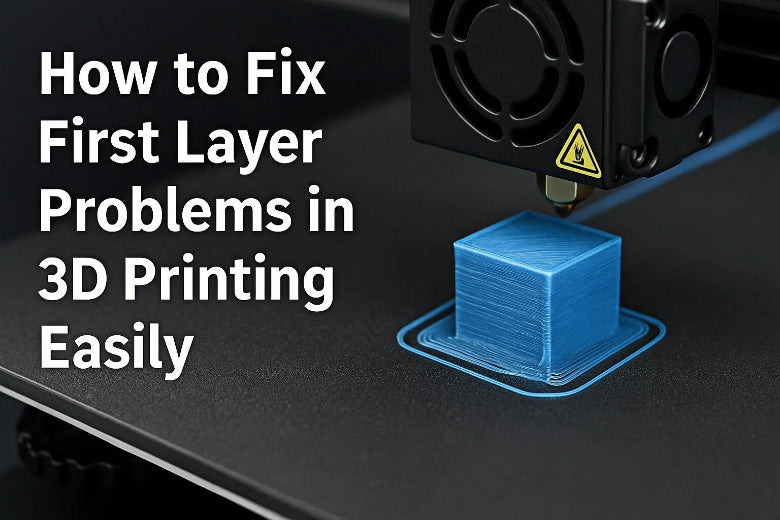
You can fix first layer problems 3d printing with a few simple checks and adjustments. Most print failures start with the first layer. These problems often look hard, but you can solve them easily. Even if you are new to 3D printing, you can get better results by following a clear checklist. Stay patient and use these tips to get a strong, smooth first layer every time.
Key Takeaways
- Check bed leveling and Z-offset before every print. A flat bed ensures the first layer sticks well.
- Clean the print bed with isopropyl alcohol before each use. A clean surface helps the filament bond properly.
- Adjust slicer settings for the first layer. Set the initial layer height to 0.2 mm and lower the speed to 20-30 mm/s for better adhesion.
- Use the right temperature settings for your filament. Preheat the bed and nozzle to the recommended temperatures for optimal results.
- Run a small test print after making adjustments. This helps you confirm that the first layer looks smooth and sticks well.
What Are First Layer Problems in 3D Printing
Why the First Layer Matters
Every 3D print starts with the first layer. This layer is the base for your project. If the first layer is good, your print will stick well. Prints stay stable and do not move. If the first layer does not stick, you may see warping. Uneven lines can also cause problems. A strong first layer helps you avoid these issues. You get better prints when the first layer is smooth.
Tip: Always look at your first layer before printing more. Fixing problems early saves you time and filament.
- The first layer holds up all other layers.
- Good sticking stops warping and curling.
- Smooth first layers make prints look better.
Common First Layer Problems
You might see different signs of first layer problems 3d printing. These problems show up in many ways:
- Print does not stick to the bed
- First layer is smashed and not even
- Edges of the first layer bulge out
- There are gaps or rough spots
- First layer height looks wrong
Here is a table that lists common first layer problems 3d printing. It shows what causes them and how to fix them:
|
Problem |
Causes |
Solutions |
|---|---|---|
|
First Layer Ripples |
Cooling fan too high, nozzle too close, too much extrusion |
Turn off cooling fan, set Z-offset, slow down, check extrusion |
|
Elephant's Foot |
Too much extrusion, bed too hot |
Lower bed heat, change extrusion, set extruder |
|
First Layer Warping |
Filament shrinks, bed heat not even, print speed too high |
Use heated plate, add draft shield, use glue, change settings |
How First Layer Problems Affect Prints
First layer problems 3d printing can mess up your project. Uneven or rough first layers do not stick well. This makes your print weak. If you see elephant's foot, your object may not fit right. Fixing first layer problems helps you get strong and nice-looking prints.
Causes of First Layer Problems
Bed Leveling and Z-Offset
You need to check bed leveling and z-offset calibration before every print. The bed must be flat and at the right height for the nozzle-to-bed distance. If the bed is not level, the first layer will not stick well. Uneven beds cause rough or bumpy first layers. The nozzle-to-bed distance affects how the filament lays down. If the nozzle is too close, the filament gets squished and the layer looks messy. If the nozzle is too far, the filament will not stick and the first layer peels off.
Steps for proper bed leveling and z-offset calibration:
- Tighten the springs so the bed sits about 0.2mm from the nozzle tip.
- Open your printer’s Bed Leveling Wizard and click Begin Leveling.
- Place a piece of paper between the nozzle and the bed. Adjust the leveling screws at each corner until you feel slight resistance when moving the paper.
- Move the extruder to the next corner and repeat the paper test.
- Go around all corners twice for accuracy.
- Pre-heat the bed and nozzle before starting your print.
- If the filament does not lay down smoothly, adjust the spring tension until it does.
Tip: Lower the z-offset a little if the filament does not grip the bed. Raise it if the nozzle squishes the filament too much.
Common problems from poor bed leveling and z-offset:
- Rough first layers from the nozzle dragging through filament.
- Uneven surfaces and poor adhesion.
- Bumpy texture on the first layer.
You can fix most 3d printing first layer problems by running calibration and checking the nozzle-to-bed distance. Always make sure the bed is level before printing.
Bed Surface and Cleanliness
A clean bed surface helps the first layer stick. Dust, oil, or leftover filament can stop the filament from bonding. You should clean the bed before every print. Use isopropyl alcohol or a gentle cleaner. Some filaments need special surfaces, like PEI sheets or glue sticks, to help the first layer grip.
Note: Regular cleaning and choosing the right surface for your filament type can improve first layer adhesion.
Checklist for bed surface preparation:
- Wipe the bed with isopropyl alcohol.
- Remove old filament or glue residue.
- Use a glue stick or hairspray for extra grip if needed.
- Match the bed surface to your filament (glass for PLA, textured for PETG).
If you skip cleaning, the first layer may lift or warp. A clean bed gives you a smooth start and helps optimize first layer settings.
Temperature and Adhesion
Temperature settings for the bed and nozzle affect how well the first layer sticks. If the bed is too cold, the filament will not bond. If the nozzle is too cool, the filament may not flow smoothly. Each filament type needs different temperatures for the first layer.
|
Filament |
Bed Temp Range |
Nozzle Temp Range |
|---|---|---|
|
PLA |
50-70°C |
190°C - 210°C |
|
ABS |
95-110°C |
230°C - 260°C |
|
PETG |
65-90°C |
230°C - 250°C |
|
TPU |
50-70°C |
220°C - 240°C |
You should pre-heat the bed and nozzle before printing. If the first layer does not stick, try raising the bed temperature by 5°C. For better flow, increase the nozzle temperature by 5-10°C. Always check the recommended range for your filament.
Tip: Higher bed temperatures help prevent warping and curling on the first layer.
Filament Quality
Filament quality affects the first layer. Moisture in filament can cause bubbles and poor adhesion. Inconsistent diameter leads to uneven extrusion and failed prints. You should store filament in airtight containers with silica gel. Use vacuum-sealed bags for PLA and dry boxes for TPU and nylon.
|
Aspect |
Impact on First Layer Performance |
|---|---|
|
Diameter Consistency |
Ensures proper fit in extruders and reliable performance during printing. |
|
Moisture Content |
Low moisture content leads to better adhesion and reduced warping, improving overall print quality. |
Best practices for filament storage:
- Store TPU in a dry box.
- Use vacuum bags for PLA.
- Keep nylon and TPU in airtight containers with silica gel.
- Avoid direct sunlight and keep filaments in a cool, dry place.
- Use humidity-controlled boxes for high-volume storage.
Tip: High-quality filament gives you smoother first layers and fewer print failures.
Slicer Settings for First Layer
Slicer settings play a big role in 3d printing first layer success. You can optimize first layer settings by adjusting thickness, speed, and temperature. Increase the initial layer thickness to 105-120%. Reduce the first layer speed to about 50% of normal. Raise the nozzle temperature by 5-10°C for better flow. Use a raft or brim to help the first layer stick.
Recommended slicer settings for the first layer:
- Set initial layer thickness to 0.2mm or 105-120% of normal.
- Lower first layer speed to 50% of regular print speed.
- Increase nozzle temperature by 5-10°C for the first layer.
- Add a brim or raft for extra adhesion.
- Check layer height matches filament type.
Tip: Slowing down the first layer speed helps the filament stick and reduces lifting or slipping.
You should run calibration prints to test slicer settings. Adjust these settings for each filament and bed surface. Good slicer settings help you get a strong, smooth first layer every time.
Troubleshooting First Layer Problems
Fixing Poor Adhesion
Poor adhesion is one of the most common reasons for a failed 3d print first layer. You might see the first layer not sticking to the bed, or the print peeling up at the corners. This can lead to warping, shifting, or a print that stops early.
Why does poor adhesion happen?
- The bed is not level or the nozzle is too far from the bed.
- The bed or nozzle temperature is too low.
- The print surface is dirty or oily.
- The first layer speed is too high.
- The filament does not match the bed surface.
- There is not enough contact area between the print and the bed.
How can you fix poor adhesion?
Try these steps to improve bed adhesion and get a strong first layer:
- Clean the build plate with dish soap or isopropyl alcohol. Use gloves to avoid leaving oils.
- Level the bed and adjust the Z-offset so the nozzle is close but not squishing the filament.
- Slow down the first layer speed to about 50% of your normal print speed.
- Raise the bed temperature by 5°C if the first layer is not sticking.
- Use a brim or raft for small prints to increase contact area.
- Reduce the cooling fan speed for the first few layers.
- Make sure the build platform matches your filament type.
- Apply a thin layer of glue stick or painter’s tape for extra grip.
- Enable a draft shield or use a print enclosure for sensitive filaments.
Tip: Always check your bed and nozzle temperatures before starting a print. Use the recommended settings for your filament.
Common mistakes to avoid:
|
Mistake Type |
Recommendation |
Impact |
|---|---|---|
|
Print Settings |
Improves layer adhesion but may affect overhang quality |
|
|
Cooling |
Reduce cooling |
Enhances layer bonding but may affect print quality |
|
Speed |
Print slowly |
Improves quality but increases time |
|
Filament |
Use carbon/glass fibre filaments |
Low shrinkage but higher cost |
|
Design |
Use fillets for corners |
Reduces stress concentration |
|
Orientation |
Print at different angles |
Prevents large flat surface issues |
Solving Uneven or Irregular Layers
Uneven or irregular layers can ruin the look and strength of your print. You might see first layer ripples, bumps, or gaps. Sometimes, the first layer looks wavy or has lines that do not match up.
Why do uneven layers happen?
- The bed is not level across all corners.
- The nozzle height changes during printing.
- The printer sits on an unstable surface.
- The Z-axis bolts or rails are loose.
- The print surface has debris or cured filament.
How can you fix uneven layers?
Follow these steps to get a smooth first layer:
- Check and tighten all bolts and rails on the Z-axis to prevent wobbling.
- Place your printer on a stable, flat surface to avoid vibrations.
- Clean the print bed and remove any leftover filament or debris.
- Run the bed leveling process again and check the nozzle height at each corner.
- Adjust the first layer height in your slicer to 0.2 mm or 105-120% of your normal layer height.
- Slow down the first layer speed to 20–30 mm/s for better control.
Tip: If you see first layer ripples, try lowering the print speed and checking for loose parts.
What do first layer ripples look like?
- Wavy lines or ridges across the first layer.
- Uneven thickness or gaps between lines.
- A rough or bumpy texture instead of a smooth surface.
Preventing Warping and Curling
Warping and curling can lift the edges of your print off the bed. This problem often starts with the first layer warping or corners peeling up. Warping can ruin the shape of your print and cause it to detach from the bed.
Why does warping happen?
- The print cools too quickly, causing the plastic to shrink.
- The bed temperature is too low.
- The print has large flat surfaces or sharp corners.
- The first layer adhesion is weak.
How can you prevent warping and curling?
Try these tips to keep your print flat and attached:
- Avoid large flat surfaces. Break them into smaller sections or add filleted corners to reduce stress.
- Use brims or rafts to increase bed adhesion and reduce warping.
- Add a radius larger than 4 mm at each corner to spread out shrinkage forces.
- Raise the bed temperature to 70°C for PLA or follow your filament’s recommendations.
- Chamfer the bottom edges with a 0.3 mm chamfer to prevent over-squishing.
- Avoid sharp corners. Use fillets or radii on the bottom edges.
- Apply blue painter’s tape, glue stick, or a special adhesive to the bed for better grip.
- Use a print enclosure or draft shield to keep the temperature stable.
Tip: Always check your slicer settings for first layer adhesion options like brims, rafts, and skirts.
Quick Fixes for 3D Print First Layer Issues
Sometimes you need fast fixes when you see problems with your 3d print first layer. These quick actions can save your print and help you get better results right away.
Try these quick fixes:
- Clean your bed with isopropyl alcohol. Avoid soap or cleaners that leave residue.
- Level the bed before every print. Use a sheet of paper to check the gap at each corner.
- Adjust the first layer height in your slicer. Start with 0.2 mm and tweak as needed.
- Raise the bed temperature by 5°C if the print is not sticking.
- Slow down the first layer speed to 20–30 mm/s.
- Add a brim or raft for extra adhesion.
Tip: Run a small test print after making changes to check if the first layer looks smooth and sticks well.
Summary of common first layer problems and solutions:
- Poor adhesion: Clean the bed, level it, slow down the first layer, and use adhesives.
- Uneven layers: Tighten bolts, check bed leveling, and slow down the print.
- Warping and curling: Use brims, raise bed temperature, and avoid sharp corners.
- First layer ripples: Lower speed, check for loose parts, and adjust Z-offset.
By following these steps and tips, you can solve most first layer problems in 3D printing. You will get better bed adhesion, smoother layers, and fewer failed prints.
Slicer Settings and Material Tips
Best Slicer Settings for First Layer
You can improve your first layer by adjusting slicer settings. Start by setting the initial layer height to 0.2 mm. This gives your print a strong base. Lower the first layer speed to 20–30 mm/s. This helps the filament stick to the surface. Increase the first layer extrusion width to 120%. This fills gaps and creates a smooth surface. Raise the nozzle temperature by 5–10°C for the first layer. This improves flow and helps the filament bond to the bed. Use a brim or raft if you see poor adhesion. These options add more surface area and help the first layer grip the bed.
PLA First Layer Tips
PLA works well on a clean glass or PEI surface. Set the bed temperature to 60°C. Use a nozzle temperature of 200°C for the first layer. Clean the surface with isopropyl alcohol before each print. Lower the cooling fan for the first layer. This helps the filament stick to the surface. If you see lifting, add a brim in your slicer. PLA needs a smooth surface for the best quality.
PETG First Layer Tips
PETG can stick too well to some surfaces. Use a textured bed or apply a glue stick to the surface. Set the bed temperature to 80°C. Use a nozzle temperature of 240°C for the first layer. Slow down the first layer speed. This prevents stringing and improves surface quality. Do not use too much squish or the filament may fuse to the surface.
ABS First Layer Tips
ABS needs a heated bed and a stable surface. Set the bed temperature to 110°C. Use a nozzle temperature of 250°C for the first layer. Apply a thin layer of ABS slurry or glue stick to the surface. Use an enclosure to keep the temperature even. Add a brim or raft to increase the surface area. This helps prevent warping and improves print quality.
Diagnostic Checklist Before Printing
- Clean the bed surface.
- Level the bed and set the correct Z-offset.
- Check the first layer height and speed in your slicer.
- Preheat the bed and nozzle.
- Choose the right surface for your filament.
- Run a small test print to check the first layer.
Tip: Always check the first layer as your print starts. A good surface means better print quality.
You can fix first layer problems by following a few simple steps. Start by making sure your print bed is flat. Adjust the Z-offset so the nozzle sits at the right height. Set the correct temperature for your filament. Clean the bed before every print. Use the checklist below for every project:
- Level the bed.
- Set the right Z-offset.
- Check bed and nozzle temperature.
- Clean the print surface.
Practice and patience will help you get perfect first layers every time.
FAQ
What should you do if your first layer does not stick?
You should clean the bed with isopropyl alcohol. Level the bed and adjust the Z-offset. Lower the first layer speed. Try adding a brim or glue stick for extra grip.
How can you tell if the nozzle is too close or too far from the bed?
If the nozzle is too close, the filament looks squished and uneven. If the nozzle is too far, the filament does not stick and looks thin or wavy. Adjust the Z-offset until the lines look smooth and flat.
Why does your first layer look rough or have gaps?
A rough first layer often means the bed is not level or the nozzle is too high. You should check the bed leveling, clean the surface, and slow down the first layer speed.
What slicer settings help improve first layer adhesion?
- Set initial layer height to 0.2 mm.
- Lower first layer speed to 20–30 mm/s.
- Increase first layer extrusion width to 120%.
- Raise nozzle temperature by 5–10°C for the first layer.
Tip: Test these settings with a small print.
Do you need to clean the bed before every print?
Yes, you should clean the bed before every print. Dust, oil, and old filament can stop the first layer from sticking. Use isopropyl alcohol and a lint-free cloth for best results.