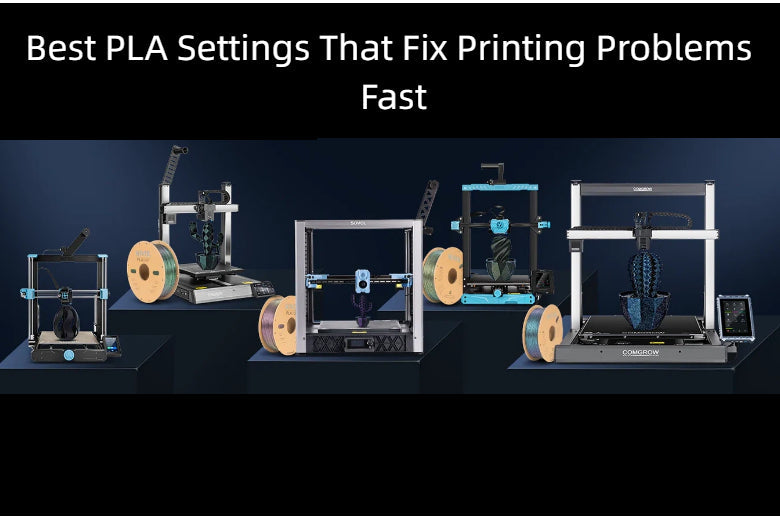
You want fast fixes for 3d printing issues, so let’s talk about the best pla settings. The right settings save you time and boost print quality. Poor adhesion, stringing, warping, wet filament, and jammed nozzles are common issues.
- Layer thickness, infill density, and print speed all affect results.
Key Takeaways
- Set your nozzle temperature between 190°C and 210°C for optimal flow and detail. Adjust based on your filament brand.
- Maintain a bed temperature of 50°C to 70°C to improve adhesion and prevent warping. Clean the bed before each print.
- Use a print speed of 40–60 mm/s for reliable results. Start slow for detailed models and increase speed for larger prints.
Best PLA Settings Quick Reference
If you want to fix PLA printing problems fast, you need the best pla settings dialed in. Here’s a quick guide you can use before every print. These settings work for most printers and filaments, but you should always check your brand’s recommendations.
|
Setting |
Recommended Value |
Why It Works |
|---|---|---|
|
190°C–210°C |
Balances flow and detail, reduces clogs |
|
|
Bed Temperature |
50°C–70°C |
Improves first-layer adhesion, prevents warping |
|
40–60 mm/s |
Keeps quality high, avoids missed steps |
|
|
1–2 mm @ 30–90 mm/s |
Cuts stringing, avoids jams |
|
|
Cooling Fan |
100% after layer 2 |
Sharp details, strong layers |
Nozzle Temperature
Set your nozzle between 190°C and 210°C for the best pla settings. Lower temperatures give you crisp details but may cause weak layers. Higher temperatures boost strength and layer bonding, but can lead to stringing. If you see blobs or gaps, try a temperature tower to find your sweet spot.
Bed Temperature
Keep your bed at 50°C to 70°C. A warm bed helps PLA stick and stops warping. If your first layer peels up, raise the bed temp a few degrees. Clean your bed before each print for the best pla settings.
Print Speed
Print at 40–60 mm/s for reliable results. Fast speeds save time, but slow speeds give smoother surfaces. If you want the best pla settings for big models, start slow and speed up once you see good adhesion.
Retraction
Set retraction distance to 1–2 mm and speed to 30–90 mm/s. This stops stringing without clogging your nozzle. Enable retraction in your slicer for the best pla settings.
Cooling Fan
Turn your cooling fan off for the first two layers, then set it to 100%. This locks in layer strength and sharp edges. If you see rough surfaces, check your fan speed.
Pro Tip: Always level your bed and run a quick test print after changing settings. This helps you spot problems early.
PLA Temperature Settings
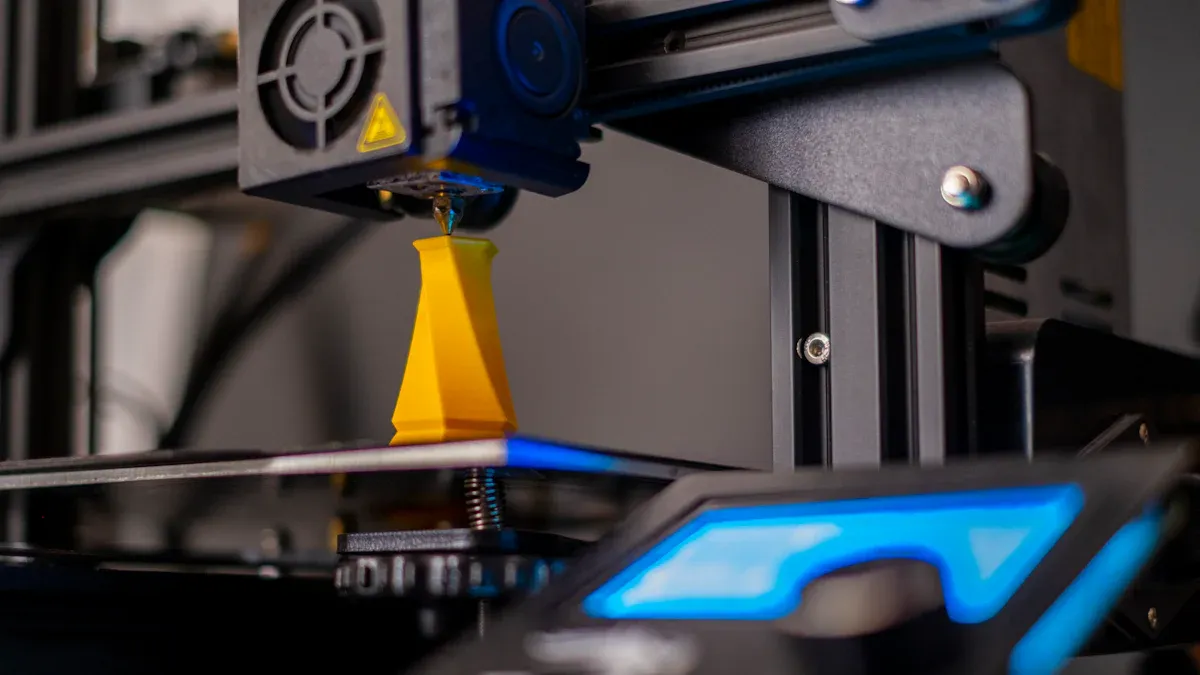
Nozzle Range (190-220°C)
You want the best PLA settings for your prints, so start with the right nozzle temperature. Most PLA works well between 190°C and 220°C. Lower temperatures (190-200°C) give you crisp details and smooth surfaces. Higher temperatures (210-220°C) help with layer bonding and strength, especially for larger models. If you use Inland PLA+, try 205°C for best results. Some brands, like Fillamentum, recommend a max of 210°C, but you might get better adhesion at 208°C. Always check your filament’s label or website before you print.
Pro Tip: Run a temperature tower test to find your sweet spot for each filament brand.
Bed Range (50-65°C)
Set your bed temperature between 50°C and 65°C for reliable adhesion and less warping. Raising the bed temp by 10°C can make a big difference if your first layer won’t stick. For large prints, use the higher end of the range. A hot bed also helps reduce nozzle pressure and underextrusion. Adding a brim or increasing first layer thickness can boost adhesion.
|
Bed Temp |
Use Case |
Benefit |
|---|---|---|
|
50°C |
Small models |
Less warping |
|
65°C |
Large prints |
Better adhesion |
Adjusting For Brands
Every PLA brand has its own best PLA settings. Inland PLA+ likes 205°C. Fillamentum PLA prints better at 208°C, not the 215°C some slicers suggest. Always check the manufacturer’s recommendations when you switch brands. Small tweaks can fix PLA printing problems fast.
- Verify nozzle and bed temps for each filament.
- Adjust settings if you see poor adhesion or stringing.
Signs Of Wrong Temperature
Watch for these signs during printing:
- Stringing or oozing between parts (nozzle too hot)
- Blobs, zits, or burn marks (nozzle too hot)
- Warping or curling edges (bed or nozzle too hot)
- Loss of detail or rough surfaces (nozzle too hot)
- Weak, brittle, or delaminated layers (nozzle too cold)
- Under-extrusion or nozzle clogs (nozzle too cold)
- Inconsistent extrusion or surface roughness
Pre-Print Checklist:
- Check filament brand’s recommended temps
- Level your bed
- Clean the bed surface
- Run a test print
If you spot any of these PLA troubleshooting signs, adjust your temperature settings and try again. You’ll get better results and save time.
PLA Cooling Settings
Fan Speed Tips
You want sharp details and strong layers, so cooling matters a lot in PLA printing. Set your cooling fan to 100% after the first two layers. This helps the filament solidify fast and prevents sagging on overhangs or bridges. If you see stringing or droopy edges, check your fan speed.
- Use 0% fan for the first layer to boost bed adhesion.
- Switch to 100% fan for the rest of the print for crisp results.
- For tricky overhangs, slow down print speed and keep the fan high.
Pro Tip: If you notice rough surfaces or poor bridging, try bumping up the fan speed a little at a time.
When To Lower Fan
Sometimes, you need to lower the fan speed to avoid PLA printing problems like layer separation or warping. Large prints or thick walls can cool too fast and split apart. Here’s a quick guide:
|
Scenario |
Fan Speed Recommendation |
|---|---|
|
Small, detailed models |
100% after layer 2 |
|
Large or tall prints |
50–70% after layer 2 |
|
First layer |
0% (fan off) |
Keep the fan speed steady. Changing it too much can cause banding or weak layers. If you see cracks or splits, lower the fan and watch for improvement.
Cooling Effects
Cooling settings change how your print looks and feels. Not enough cooling leads to stringing, blobs, and poor overhangs. Too much cooling can cause weak layers or delamination. For the best PLA settings, use full fan after the first layers, but adjust for big prints or special filaments.
- Fast cooling gives sharp corners and smooth bridges.
- Slow cooling helps layers stick together on large objects.
Pre-Print Checklist:
- Set fan to 0% for the first layer
- Use 100% fan after layer 2 for most prints
- Lower fan for large prints or if you see cracks
- Adjust for each filament brand
Try these PLA troubleshooting steps and tweak your cooling for every project. You’ll see better results and fewer printing problems.
Retraction Settings For PLA
Direct Drive vs Bowden
You need to know your extruder type before you dial in the best PLA settings. Direct drive setups move filament with the motor close to the nozzle. Bowden extruders push filament through a long tube. Each type needs different retraction settings to fix PLA printing problems like stringing.
|
Setting Type |
Direct Drive (mm) |
Bowden Setup (mm) |
|---|---|---|
|
0.5 – 1.0 |
2.0 – 6.0 |
|
|
40 – 60 |
30 – 50 |
Direct drive printers need less retraction distance because the filament path is short. Bowden setups need more distance to pull the filament back and stop oozing. If you use the wrong settings, you might see blobs or gaps.
Pro Tip: Always check your printer type before changing retraction settings. Start with the recommended values and tweak for your filament brand.
Retraction Speed & Distance
Retraction speed and distance matter for clean prints. If you set the speed too slow, filament oozes and causes stringing. If you go too fast, you risk grinding the filament. For PLA, try these best PLA settings:
|
Setting |
Recommended Value |
|---|---|
|
Retraction Distance |
5 mm (Bowden) / 1–2 mm (Direct Drive) |
|
Retraction Speed |
25–45 mm/s (increase by 5–10 mm/s) |
Start with 1 mm distance and 40 mm/s speed for direct drive. For Bowden, use 5 mm distance and 35 mm/s speed. Adjust in small steps if you see PLA troubleshooting signs like stringing or blobs.
Preventing Stringing
Stringing looks like thin hairs between parts. You can fix this with the best PLA settings for retraction. Here’s how:
- Enable retraction in your slicer.
- Use 0.5–1.0 mm distance for direct drive, 2–6 mm for Bowden.
- Set speed to 40–60 mm/s for direct drive, 30–50 mm/s for Bowden.
- Test with a small print and check for improvement.
Pro Tip: If you still see stringing, dry your filament and lower your nozzle temperature by 5°C.
Scenario Example:
You print a set of chess pieces and notice strings between them. Increase retraction distance by 0.5 mm and bump up speed by 5 mm/s. Run a test print and check the results.
Pre-Print Checklist:
- Check extruder type
- Set retraction distance and speed
- Enable retraction in slicer
- Run a test print
Try these steps and adjust for your filament brand. You’ll solve PLA printing problems fast and get cleaner prints.
Print Speed Settings
Speed Range
Choosing the right print speed can fix many PLA printing problems fast. You want to balance speed and quality for the best PLA settings. Here’s a quick table to help you pick the right speed for your project:
|
Purpose |
|
|---|---|
|
30–60 |
High-quality prints with intricate details |
|
60–100 |
Balance between quality and print time |
|
100–150 |
Faster completion with minor quality loss |
If you’re printing a detailed figurine, stick to 30–60 mm/s. For everyday parts, try 60–100 mm/s. Need a quick prototype? Go up to 150 mm/s, but expect some roughness.
Pro Tip: Start with 50 mm/s if you’re unsure. Adjust up or down based on your results.
Speed vs Quality
Speed changes everything in PLA printing. When you increase print speed, you finish faster, but you might see more stringing, gaps, or weak layers. Cooling can’t always keep up at high speeds, so details may blur.
- Faster speeds can cause poor layer adhesion and rough surfaces.
- High speeds may lead to stringing and gaps, especially with weak cooling.
- You can tweak layer height and infill to print faster without losing too much quality.
If you want the best PLA settings, slow down for small parts and speed up for big, simple shapes.
Scenario Example:
You print a phone stand at 100 mm/s. It finishes quickly, but the edges look rough. Lower the speed to 60 mm/s for a smoother finish.
Adjusting For Model Size
Model size matters for PLA troubleshooting. Small, detailed models need slower speeds for sharp corners and smooth layers. Large, simple models can handle higher speeds.
- For miniatures, use 30–50 mm/s.
- For big vases or boxes, try 80–120 mm/s.
Pro Tip: Always check your filament brand’s recommendations. Some brands handle high speeds better than others.
Pre-Print Checklist:
- Pick a speed based on model size and detail
- Test with a small print first
- Adjust speed for each filament brand
Try these best PLA settings and tweak your speed for every project. You’ll see better results and solve PLA printing problems fast!
Layer Height & Flow Rate
Common Layer Heights
Layer height plays a big role in how your PLA prints look and feel. If you want a smooth finish and sharp details, go with a lower layer height. For functional parts or when you need speed, a thicker layer works best. Here’s a quick table to help you pick the right setting:
|
Layer Height (mm) |
Effect on Print Quality |
Recommendation |
|---|---|---|
|
0.1 |
Higher detail, smoother finish |
Intricate designs, miniatures |
|
0.2 |
Balanced detail and speed |
General use |
|
0.5 |
Faster prints, lower detail |
Functional, cost-effective |
- Thinner layers (like 0.1 mm) give you better surface finish and detail.
- Thicker layers (like 0.5 mm) cut print time but may lose fine details.
- Always balance speed and quality based on your project.
Pro Tip: For most prints, start with 0.2 mm. Adjust up or down if you want more detail or faster results.
Flow Rate Tuning
Flow rate controls how much filament your printer pushes out. If you set it right, you get consistent extrusion and accurate prints. If you notice blobs, zits, or thick layers, your flow rate might be too high. Gaps, missing layers, or weak infill mean your flow rate could be too low.
- Tune flow rate to fix over-extrusion (too much plastic) or under-extrusion (not enough plastic).
- Proper calibration improves surface quality and makes your parts stronger.
- Signs of trouble include poor surface finish, weak structure, or visible gaps.
Scenario Example: You see gaps in your print walls. Lower the flow rate by 2% in your slicer and run a test print.
Pro Tip: Calibrate your flow rate every time you switch filament brands. Small tweaks can solve big PLA printing problems.
Pre-Print Checklist:
- Pick the right layer height for your project
- Calibrate flow rate for your filament
- Run a quick test print before starting the final job
Try these best PLA settings and you’ll see smoother, stronger prints in no time!
Troubleshooting Guide: Common PLA Problems
You want a troubleshooting guide that actually helps you fix common issues fast. Let’s break down the symptoms, causes, and quick fixes for each problem you might see with PLA. You’ll find step-by-step solutions, practical tips, and easy-to-follow advice for every error.
First Layer Issues
Getting the first layer right is the secret to a successful print. If your print not sticking, smashed first layer, bulging first layer, or inconsistent first layer height keeps happening, you’re not alone. Here’s what you need to look for:
Symptoms:
- Print not sticking to the bed
- Smashed first layer with uneven thickness
- Bulging first layer at the edges
- Gaps or rough spots in the first layer
- First layer height looks off
Causes:
- Dirty bed surface or residue from cleaning agents
- Poor bed leveling
- Incorrect first layer height
- Environmental factors like drafts or humidity
- Bed temperature set too low
Quick Setting Fixes:
- Clean your bed with isopropyl alcohol. Avoid soap or cleaning agents that leave residue.
- Level bed before every print. Use a sheet of paper to check the gap.
- Adjust first layer height in your slicer. Start with 0.2 mm and tweak as needed.
- Raise bed temperature by 5°C if print not sticking.
- Slow down first layer speed to 20–30 mm/s.
- Add a brim or raft for extra adhesion.
Pro Tip: Always check your first layer height and level bed before starting. This stops smashed first layer and bulging first layer problems.
Stringing
Stringing or oozing leaves thin hairs between parts. It’s one of the most common issues with PLA. You can fix it with a few setting tweaks.
Symptoms:
- Fine strings or webs between printed sections
- Oozing from the nozzle during travel moves
- Blobs or zits on the surface
Causes:
- Incorrect retraction settings
- High nozzle temperature
- Wet filament
- Under extrusion or over extrusion
How to Fix PLA Stringing:
- Adjust retraction distance and speed in your slicer.
- Lower nozzle temperature by 5°C if stringing or oozing continues.
- Dry your filament before printing.
- Enable combing mode to keep travel moves inside the print.
- Increase travel speed to reduce oozing.
Scenario Example: You see stringing between two towers. Lower the temperature and increase retraction speed. Run a test print to check improvement.
Warping
Warping can ruin your print by curling the edges or causing layer separation. You want flat, strong prints, so let’s fix this.
Symptoms:
- Corners lifting off the bed
- Curling at the edges
- Layer separation or cracks
- Print not sticking after a few layers
Causes:
- Uneven bed temperature
- Fast print speed
- Incorrect printer location (drafts or cold room)
- Contaminated bed surface
- Poor adhesion
Quick Setting Fixes:
- Use a heated bed set to 60–65°C for even temperature.
- Print in an enclosed chamber or cover your printer to avoid drafts.
- Level bed and clean it before printing.
- Add a brim or raft to increase contact area.
- Turn off cooling fan for the first few layers.
- Slow down print speed for the first layer.
|
Warping Fix |
Action |
|---|---|
|
Heated bed |
Set to 60–65°C |
|
Enclosure |
Print in a closed space |
|
Brim/Raft |
Add in slicer |
|
Fan |
Off for first layers |
|
Bed cleaning |
Use isopropyl alcohol |
Pro Tip: If you see curling or layer separation, check your bed leveling and temperature first.
Jammed Or Clogged Nozzle
A jammed nozzle or clogged extruder stops your print and causes under extrusion or not extruding at all. You need to clear it fast.
Symptoms:
- Printer stops extruding filament
- Clicking or grinding noises from extruder
- Filament feed issues
- Under extrusion or gaps in layers
- Print stops mid-job
Causes:
- Clogged nozzle from debris or burnt filament
- Jammed nozzle due to low-quality filament
- Wet filament causing blockages
- Incorrect temperature settings
- Clogged extruder from dust or old filament
Quick Setting Fixes:
- Heat the nozzle to 250°C and let it sit for a few minutes.
- Use a thin needle or guitar string to gently probe the nozzle.
- Try extruding filament after probing.
- Soak the nozzle in ethyl acetate for stubborn clogs.
- Regularly clean the nozzle and extruder.
- Use high-quality filament to prevent jammed nozzle and clogged extruder.
Scenario Example: Your printer stops extruding and you hear clicking. Heat the nozzle, probe with a needle, and try extruding again. If it’s still jammed, soak the nozzle and clean it thoroughly.
Wet Filament
Wet filament causes all sorts of errors, from stringing to under extrusion and poor surface finish. You want dry filament for the best results.
Symptoms:
- Bubbles or popping sounds during printing
- Inconsistent extrusion
- Stringing or oozing
- Rough or uneven surfaces
- Layer separation
Causes:
- Filament stored in humid conditions
- Filament absorbs moisture from air
- Not using desiccant or airtight storage
Quick Setting Fixes:
- Store filament in airtight containers with silica gel.
- Dry filament in an oven at 40–50°C for 3–4 hours.
- Use filament dryers if available.
- Always check filament before printing.
Pro Tip: The drier your filament, the better your print quality. Moisture leads to under extrusion, bubbles, and weak adhesion.
Poor Surface Finish
You want smooth, professional-looking prints. Poor surface finish can make your model look rough or uneven.
Symptoms:
- Rough or uneven surfaces
- Small bubbles or pores
- Cracks or weak layers
- Sizzling noise during printing
Causes:
- Temperature too low
- Low flow rate
- Excessive print speed
- Wet filament
- Incorrect first layer height
Quick Setting Fixes:
- Increase nozzle temperature to 200–210°C.
- Check and calibrate flow rate in your slicer.
- Slow down print speed.
- Dry filament before use.
- Adjust first layer height for better surface contact.
|
Surface Issue |
Setting Fix |
|---|---|
|
Rough finish |
Raise temp, slow speed |
|
Bubbles |
Dry filament |
|
Cracks |
Adjust temp by 5°C |
Scenario Example: You see uneven lines and hear popping. Dry your filament and raise the temperature. Run a test print to check the surface.
Weak Adhesion
Weak adhesion leads to print not sticking, layer separation, and curling. You want strong bonding between layers and the bed.
Symptoms:
- Print not sticking to the bed
- Layer separation after a few layers
- Curling at the edges
- Bulging first layer
Causes:
- High print speed
- Dirty or contaminated bed surface
- Incorrect Live-Z height
- Poor first layer height
- Under extrusion
Quick Setting Fixes:
- Clean the PEI or print surface with isopropyl alcohol.
- Calibrate Live-Z height for proper filament contact.
- Print first layer at 20–30 mm/s for better adhesion.
- Start with 50 mm/s for general prints.
- Adjust first layer height in your slicer.
- Level bed before every print.
Pro Tip: Always slow down the first layer and check bed leveling. This stops print not sticking and layer separation.
Pre-Print Checklist:
- Level bed and check first layer height
- Clean bed surface
- Dry filament and store with desiccant
- Calibrate flow rate and Live-Z height
- Run a test print before starting big jobs
You can solve most PLA printing problems with this troubleshooting guide. Adjust your settings, check your filament, and keep your printer clean. You’ll see fewer errors and get better prints every time.
Pro Tips For Reliable PLA Printing
Filament Storage
You want your filament to stay dry and ready for every print. Store your PLA in airtight containers with silica gel packs. This keeps out moisture and stops PLA printing problems before they start. If your filament feels brittle or you hear popping sounds, dry it in a low-temperature oven for a few hours.
Pro Tip: Always reseal your filament after each use. Moisture is the enemy of smooth prints!
Bed Cleaning
A clean bed gives you the best PLA settings for adhesion. Wipe the bed with isopropyl alcohol before every print. Avoid using soap or glass cleaners, as they can leave residue. If you see prints not sticking, check for dust or oil from your hands.
- Use a lint-free cloth for cleaning.
- Clean after every print for reliable results.
Extruder Maintenance
Keep your extruder in top shape to avoid jams and clogs. Remove any leftover filament after each print. Check for dust or debris around the gears. If you notice under-extrusion, inspect the nozzle and clean it with a thin needle.
Scenario Example: You finish a print and see blobs on the next job. Clean the nozzle and check the extruder gears before starting again.
Calibration & Test Prints
Calibration is the secret to great prints. Run a calibration cube or temperature tower when you change filament brands. Adjust your printer’s steps and flow rate for each new spool. Calibration helps you spot issues early and fine-tune your best PLA settings.
- Print a test object after every major change.
- Use calibration to fix layer lines, gaps, or rough surfaces.
- Keep a log of your calibration results for future reference.
Pre-Print Checklist:
- Store filament dry
- Clean the bed
- Check extruder for debris
- Run calibration and a test print
Fast Fixes Checklist
Quick Setting Changes
You want to fix PLA printing problems fast. Here’s a simple checklist you can follow before every print. These quick setting changes solve most issues and help you get the best PLA settings right away.
Quick Fix Table
|
Problem |
Setting to Check |
Fast Fix |
|---|---|---|
|
Bed temp, leveling |
Raise bed temp, re-level bed |
|
|
Stringing |
Retraction, nozzle temp |
Increase retraction, lower temp |
|
Bed temp, cooling fan |
Raise bed temp, lower fan speed |
|
|
Clogged nozzle |
Nozzle temp, filament |
Heat nozzle, clean or swap filament |
|
Rough surface |
Print speed, flow rate |
Slow down, lower flow rate |
Step-by-Step Fast Fixes
- Level your bed and clean it with isopropyl alcohol.
- Set nozzle temp to 200°C and bed temp to 60°C.
- Use 0.2 mm layer height for most prints.
- Set print speed to 50 mm/s.
- Enable retraction (1–2 mm at 40 mm/s).
- Turn cooling fan to 100% after layer 2.
Pro Tip: Always run a small test print after changing settings. This helps you spot problems early.
Scenario Example:
You see stringing on your print. Pause, increase retraction by 0.5 mm, and lower nozzle temp by 5°C. Start the print again and check for improvement.
Pre-Print Checklist
- Dry filament and store with silica gel
- Clean and level the bed
- Check nozzle for clogs
- Calibrate flow rate for your filament
- Review slicer settings for your filament brand
Adjust these best PLA settings for each filament brand. Small tweaks can fix big PLA troubleshooting headaches!
Final Recommendations
Universal PLA Settings
You want a quick way to set up your printer for PLA. Here’s a universal template you can use for most brands and machines. These settings fix common PLA printing problems and give you a solid starting point.
|
Setting |
Universal Value |
|---|---|
|
Nozzle Temp |
200°C |
|
Bed Temp |
60°C |
|
Print Speed |
50 mm/s |
|
Retraction |
1.5 mm @ 40 mm/s |
|
Cooling Fan |
100% after layer 2 |
|
Layer Height |
0.2 mm |
|
Flow Rate |
100% |
Pro Tip: Always check your filament’s label for brand-specific recommendations. Small changes can make a big difference.
Fine-Tuning Tips
You can get even better results by fine-tuning your PLA settings. Try these steps before every print:
- Run a temperature tower to find the best nozzle temp for your filament.
- Adjust retraction distance if you see stringing or blobs.
- Lower print speed for small, detailed models.
- Dry your filament if you hear popping or see bubbles.
- Clean and level your bed before each job.
Scenario Example:
You switch to a new PLA brand and notice poor adhesion. Raise the bed temp by 5°C and slow down the first layer speed. Your print sticks better and looks smoother.
Pro Tip: Keep a notebook of your best PLA settings for each filament brand. This saves time and helps with PLA troubleshooting.
Pre-Print Checklist:
- Dry filament and store with silica gel
- Clean and level the bed
- Check nozzle for clogs
- Calibrate flow rate
- Review slicer settings for your filament
You can solve most PLA printing problems with these best PLA settings and a little fine-tuning. Adjust for your printer and filament, and you’ll get reliable, high-quality prints every time! 🎯
You now have the best PLA settings for fast fixes. Use the quick-reference table and checklist before every print. Small tweaks solve big PLA printing problems. Don’t be afraid to experiment or adjust for each filament. Stay curious, keep your printer maintained, and you’ll enjoy high-quality PLA prints every time! 🚀
FAQ
What is the best nozzle temperature for PLA?
You get great results with 200°C. Start there. Adjust up or down by 5°C if you see stringing or weak layers.
How do I stop PLA stringing?
Increase retraction distance and lower nozzle temperature. Dry your filament. Run a test print to check for improvement.
Why does my PLA print not stick to the bed?
Clean your bed with isopropyl alcohol. Level the bed. Raise the bed temperature to 60°C. Slow down the first layer speed.