If you’re already comfortable with slicer tuning, the good news is you usually don’t need a brand-new printer to cut waste. You need a smarter plan for (1) how often you change colours and (2) what happens to the purge material.
Key Takeaway: The fastest way to reduce waste is to reduce colour changes. The next-best lever is to redirect purge into supports/infill/another object—but only when your model can hide it.
How to reduce filament waste multi color 3D printing: pick the right route first
Use this table to choose a strategy that matches your model (and your tolerance for cosmetic imperfections).
|
If your print looks like… |
Best route |
Why it cuts waste |
The main risk |
|---|---|---|---|
|
A logo, badge, sign, or anything with big flat colour regions |
Split by colour and assemble |
You print each part in one colour (near-zero purging) |
CAD time + assembly |
|
A figurine or complex model with lots of small colour islands |
Tune flushing volumes + reduce swaps |
You can’t avoid swaps, so you reduce purge per swap |
Bleeding if you go too low |
|
A model with thick walls and opaque filament |
Flush into infill / supports |
Purge material becomes hidden internal plastic |
Show-through on thin or translucent parts |
|
You don’t care about colour purity inside one piece (functional part, paintable part) |
Flush into a sacrificial object |
Turns purge into something usable |
That object will have random transition colours |
|
You need true multi-material (support materials, soft+hard, etc.) |
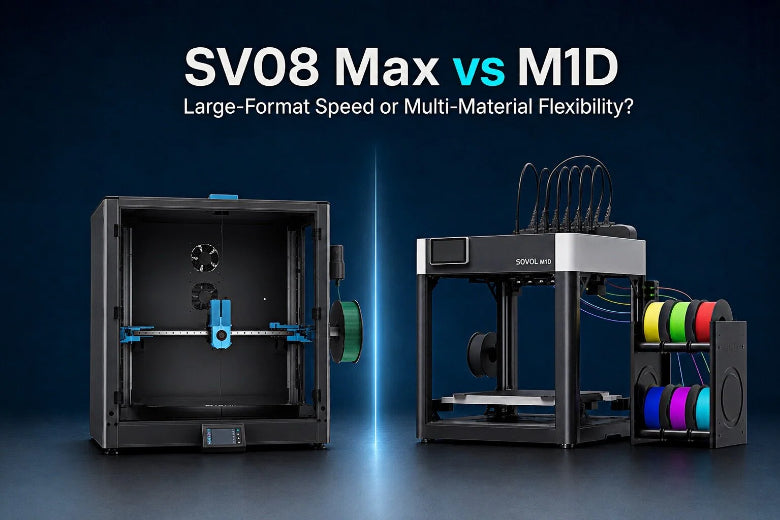
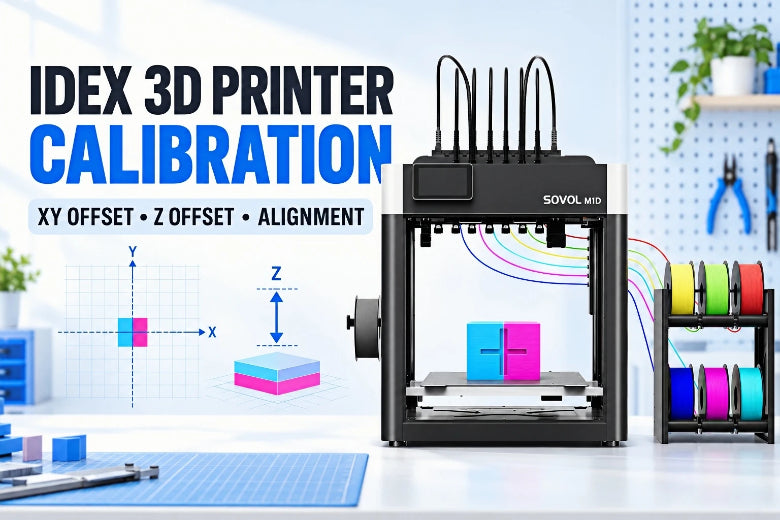
Multi-nozzle/IDEX/toolchanger (when feasible) |
Avoids repeated flushing through one nozzle |
Higher hardware cost/complexity |
1) Reduce colour changes before you touch purge settings
This is the unglamorous part—and it’s where most of the savings come from.
Re-think where colour actually needs to be
If the colour is only there for visibility (text, a logo, a stripe), you can often get the same look with:
- a separate inlay piece (different colour filament, press-fit or glue)
- a face plate (thin, quick print) attached to a single-colour body
- a height-based colour swap (horizontal bands)
The goal is simple: fewer swaps per layer.
Group colours and avoid “dark → light” flips
Most slicers purge more when switching from a dark filament to a lighter one. If you can control the sequence, try to avoid patterns like:
- black → white → black → white (worst case)
Instead, redesign or recolour so you get longer runs per colour, and ideally a more one-way sequence (light → mid → dark).
Fill the bed when it makes sense
When you print multiple copies at once, the number of colour changes often stays similar—but you get more parts out of the same purge events. Polymaker explicitly calls out batch printing as a practical way to reduce waste per part in multi-colour jobs (see Polymaker’s “Reduce Purge Waste” guide).
This is especially useful for:
- keychains
- small badges
- repeat parts for a project
2) Tune flushing volumes (purge volumes) the safe way
Most slicers ship with conservative defaults because a bad purge setting ruins the whole print.
The trick is to reduce purge volume gradually, and validate on a small calibration print—not your 18-hour model.
A practical calibration workflow
- Start with a small two-colour test that includes sharp boundaries and small features.
- Reduce the flushing volume / purge volume slightly (or use the global multiplier).
- Reprint and inspect:
- edges where colours meet
- top surfaces near a transition layer
- small details (eyes, text, thin outlines)
Stop as soon as you see contamination and go one step back.
Bambu Lab’s documentation explains how flushing volumes are managed (including a global multiplier and per colour-pair adjustment) in “Reduce Waste during Filament Change” (Bambu Lab Wiki).
⚠️ Warning: If you push flushing volumes too low, you’ll get colour bleed—often showing up as faint tinting on light filaments or “dirty” edges on small features.
3) Redirect purge material into something useful
Once you’ve reduced swaps and tuned purge, this is where you can cut a lot of purge tower waste.
Flush into supports
If your print uses supports, sending purge into supports is appealing because those supports get removed.
Bambu Studio includes a setting called Flush into objects’ support. The Bambu Lab Wiki notes it requires a prime tower / wipe tower to work correctly (see the same page linked above).
Failure mode: supports can become less predictable if you’re mixing very different materials (because the purge mix can change support behaviour). Test before a mission-critical print.
Flush into infill
Many slicers offer a “flush into infill” style feature. The idea is simple: instead of purging into a tower, you use that plastic to print infill that will be covered by your outer walls.
Bambu Studio calls this Flush into objects’ infill and warns about visibility on thin shells and light/translucent filaments (again: see the Bambu Lab Wiki page already cited).
When it’s a good fit:
- opaque filaments
- thicker walls / more perimeters
- objects where internal colour doesn’t matter
Failure mode: colour can ghost through on:
- translucent PETG
- light-colour PLA with thin walls
- models with low wall count
Flush into a sacrificial object
Some slicers let you pick an object to receive purge material. Bambu Studio calls this Flush into this object.
This is perfect for:
- a paint test piece
- a functional spacer
- a “random colour” desk toy
Failure mode: that object won’t have clean colour—by definition, it’s getting transition plastic.
4) Shrink the wipe tower / prime tower (only after the basics)
It’s tempting to delete the tower first. Don’t.
A wipe tower (also called a prime tower) stabilises flow after a change and helps avoid blobs or under-extrusion right at the start of a new colour.
Once you’ve:
- reduced swaps, and
- tuned flushing volumes, and
- redirected purge safely
…then you can experiment with lowering tower size.
Pro Tip: If you’re trying to reduce wipe tower size, do it on a model that has a large flat face you can inspect easily. You’ll spot colour contamination and under-priming faster.
5) Don’t let wet filament turn waste into failures
Multi-colour printing increases failure risk because you’re handling more spools and doing more retractions/swaps.
If your filament is popping, stringing, or inconsistent, you’ll often “waste waste”: failed jobs that dump even more purge.
If you need a quick troubleshooting runbook from SOVOL, this is a solid starting point: How to fix filament popping during 3D printing.
Key takeaways
- Reduce colour changes first (design + recolour + batch printing).
- Calibrate flushing volumes gradually on a small test before touching your “real” model.
- Flush into supports/infill/object only when your model can hide the side effects.
- Keep a wipe tower until your purge volumes are dialled in.
- Dry filament matters more in multi-colour workflows because failures multiply waste.
FAQ
Is flushing into infill “free” waste reduction?
Not always. It reduces the purge tower, but the transition plastic still exists—it’s just being used elsewhere. It’s a win when the infill is truly hidden and your walls are thick/opaque enough to prevent show-through.
Why does dark-to-light waste more?
Dark pigment tends to “hang around” visually. A tiny amount of black left in the nozzle is obvious in white, while a tiny bit of white in black is usually invisible.
Should I use an IDEX or toolchanger to avoid waste?
If you frequently do multi-material work, it can help—because each filament/nozzle stays dedicated. But it’s a bigger jump in cost and complexity. For most multi-colour cosmetic prints, careful slicer tuning + design strategies are usually the better first step.
Next steps
- If you’re still exploring which multi-colour method fits your workflow (manual swaps vs filament switching vs multi-extruder), the explainer linked near the top of this article covers the tradeoffs.
- If you’re building a repeatable multi-colour workflow, keeping multiple spools dry is one of the easiest reliability upgrades. If you want options, start with SOVOL’s filament dryer lineup.