To fix filament popping during 3D printing, you should handle moisture, check the nozzle, check the temperature, and store filament the right way. Most popping problems can be solved with easy steps. If you hear strange sounds or see rough prints, it is usually from moisture or high temperature. You do not need special skills or costly tools. Beginners and advanced users can use simple troubleshooting methods. Be patient and try each step to get the best results.
Key Takeaways
- Moisture makes filament pop. Keep filament in airtight boxes with silica gel. This keeps it dry.
- Change the printing temperature for each filament type. Use the right temperature range. This stops popping and makes prints look better.
- Clean the nozzle often to stop clogs. A clean nozzle helps filament move smoothly. It also lowers popping noises.
- Set retraction settings to control filament movement. Good settings stop uneven flow and popping while printing.
- Follow a troubleshooting plan before, during, and after printing. This helps you find and fix problems early. You get better prints.
What Is Filament Popping?
Filament popping is when you hear little pops or crackles during 3D printing. These noises usually mean something is wrong with your filament or printer settings. You might hear these sounds at the hot end, where the filament melts and goes through the nozzle.
How to Identify Popping Sounds
You can find filament popping by listening for quick, sharp noises while printing. These noises are not like the normal motor sounds.
Tip: Stop your print and listen near the extruder. If you hear popping, look at your filament for moisture.
Some signs are:
- Quick, repeated pops or crackles
- Noises coming from the nozzle or hot end
- Changes on the print, like tiny bubbles or holes
Print Quality Issues from Popping
Filament popping is not just noisy. It can mess up your print. When the filament has moisture, it turns to steam as it heats up. This steam makes bubbles and empty spots in the melted plastic. You might see:
- Tiny holes or pits on the print
- Layers that break easily
- Rough or bumpy texture
- Layers that do not stick well
These problems can happen even with new filament. Moisture can get in fast, especially if you leave filament out.
Filament Types Most Affected
Some filaments take in water faster than others. You should be extra careful with these types:
|
Filament Type |
Moisture Sensitivity |
Common Issues |
|---|---|---|
|
PLA |
Low |
Surface pits, mild popping |
|
ABS |
Medium |
Warping, weakened parts |
|
Nylon |
High |
Severe popping, bubbles |
|
PETG |
Medium |
Stringing, bubbles |
|
TPU |
High |
Poor layer adhesion |
Nylon and TPU soak up water quickly, so store them well. Even PLA can pop if left in humid air. Always check your filament before you print to stop filament popping.
Main Causes of Filament Popping
Moisture in Filament
Moisture is the main reason for filament popping. Filament can soak up water from the air. The water stays inside the plastic. When you heat the filament, the water turns into steam. The steam grows fast and tries to escape. This makes popping noises. You might see bubbles or holes in your print. Nylon and TPU take in water very fast, so keep them dry. PLA and ABS can also pop if the air is wet.
Tip: Put filament in sealed bags with silica gel to keep it dry.
High Printing Temperature
A high printer temperature can cause more popping. If the printer is too hot, water in the filament turns to steam faster. This makes more bubbles and rough spots on your print. Every material has a best temperature range. If you print outside this range, you can get problems.
|
Material |
Temperature Range |
Effects of Low Temperature |
Effects of High Temperature |
|---|---|---|---|
|
PLA |
190°C - 220°C |
Clogging, poor layer adhesion, skipping extruder |
Stringing, warping, popping |
|
ABS |
210°C - 250°C |
Not specified |
Not specified |
ABS works best between 210°C and 250°C. PLA works well between 190°C and 220°C. If you go hotter than these, you might hear popping and see bad prints.
Nozzle and Retraction Issues
Nozzle problems can also make filament pop. If the nozzle is blocked, filament cannot move out smoothly. This can make the plastic curl and pop as it tries to get out. Too much filament can stick to the nozzle and cause popping. Retraction settings control how much filament pulls back. If these settings are wrong, you can get popping sounds and uneven flow.
|
Cause |
Effect |
|---|---|
|
Filament builds up and curls, causing popping and uneven flow. |
|
|
Over-extrusion |
Too much material sticks to the nozzle, making popping and sticking problems. |
|
Improper retraction settings |
Wrong settings can make the flow uneven and cause popping. |
Changing nozzle sizes can also change popping. For example, one user had popping with a 0.8mm nozzle but not with a 0.4mm nozzle.
- Change retraction settings if you hear popping.
- Clean your nozzle often to stop blockages.
Poor Filament Storage
Bad storage lets water get into your filament. If you leave filament out, it will soak up water from the air. This causes popping when you print. Always keep filament in dry, closed containers. Use silica gel packs to keep the air dry. Good storage keeps your filament dry and your prints smooth.
How to Fix Filament Popping
You can stop filament popping by using a few easy steps. Each step helps with a different problem. Try each one until the popping goes away. Your prints will look better and your printer will be quieter.
Drying Filament (Dehydrator, Silica Gel)
Moisture is the main reason for filament popping. Drying your filament takes out water and stops 3d printer bubbles. You can dry filament at home or in a workshop.
- Dedicated filament dryers: These machines use heat and low moisture. Put your spool inside, set the heat, and wait a few hours. Many people like the SnapDryer. It heats all around and has settings for different materials.
- Food dehydrators or convection ovens: You can use a food dehydrator or oven. Set the heat for your filament type. For PLA, use 40°C to 60°C. For Nylon, use up to 80°C. Keep the heat steady. Dry for 4 to 6 hours.
- Vacuum ovens: These ovens dry filament at lower heat. They work well for plastics like Nylon and TPU.
- Silica gel packs: Keep your filament in closed bags with silica gel. This keeps it dry but does not take out water that is already inside.
Tip: Studies show that using a dryer or oven keeps filament dry and stops popping. Homemade dry boxes help store filament but do not fix 3d printer bubbles if the filament is already wet.
Quick Steps to Dry Filament:
- Check if your filament feels sticky or pops.
- Put the spool in a dryer, dehydrator, or oven.
- Set the right heat for your filament.
- Dry for at least 4 hours.
- Store dried filament in a closed box with silica gel.
Adjusting Printing Temperature
High heat can make filament popping worse. You need to set your printer to the right heat for your material.
|
Filament Type |
Best Temperature Range |
Signs of Too High Temperature |
|---|---|---|
|
PLA |
190°C – 220°C |
Popping, stringing, rough surface |
|
ABS |
210°C – 250°C |
Warping, popping, weak layers |
|
Nylon |
230°C – 260°C |
Severe popping, bubbles |
|
PETG |
220°C – 250°C |
Stringing, popping |
How to Adjust Temperature:
- Look at your filament’s best heat range.
- Start with the lowest heat.
- Print a small test piece.
- If you hear popping or see bubbles, lower the heat by 5°C.
- If the filament does not flow well, raise the heat by 5°C.
- Repeat until you find the best heat.
Note: Using the right heat helps stop 3d printer bubbles and makes layers stick better.
Inspecting and Cleaning the Nozzle
A blocked or dirty nozzle can cause filament popping. You should check and clean your nozzle often for smooth prints.
- Heat the nozzle to the right temperature or a bit higher.
- Push cleaning filament through the extruder.
- Let the filament cool inside the nozzle. It will grab dirt and burnt plastic.
- Pull the filament out slowly and firmly. This takes out stuck stuff.
- Do the cold pull again until the filament comes out clean.
Tip: Check your nozzle for buildup every day. Clean the print bed and check how the filament comes out every week. Clean the nozzle and do cold pulls every two weeks. Soak the nozzle in solvent once a month if needed.
Nozzle Cleaning Table
|
Task |
Frequency |
Purpose |
|---|---|---|
|
Inspect nozzle |
Daily |
Prevent clogs |
|
Clean print bed |
Weekly |
Improve adhesion |
|
Cold pull cleaning |
Bi-weekly |
Remove burnt plastic |
|
Solvent soak |
Monthly |
Deep clean nozzle |
Calibrating Retraction Settings
Retraction settings control how much filament pulls back when not printing. Bad settings can cause filament popping and uneven flow.
Calibrating retraction helps lower pressure in the hot zone. This stops extra filament from oozing and popping.
How to Calibrate Retraction:
- Start with your printer’s suggested retraction settings.
- Try retraction lengths from 1mm to 5mm.
- Change retraction speed to stop jams.
- Print a test piece and look for stringing or popping.
- Change settings until popping stops and prints look better.
Tip: Good retraction settings help a lot. You will see fewer bubbles and smoother prints.
Retraction Calibration Checklist
- Use the starting values from the manufacturer.
- Change length and speed in small steps.
- Test with different filaments.
- Watch for popping and stringing.
- Save your best settings for next time.
If you follow these steps, you can stop filament popping and get better prints. Dry your filament, set the right heat, clean your nozzle, and fix retraction. You will see fewer 3d printer bubbles and get stronger, smoother parts.
Filament Drying and Storage
Signs Filament Needs Drying
You can tell if filament is wet by listening for popping or hissing. These sounds mean there is water inside the filament. If you see rough spots or small holes, your filament needs drying. You can weigh the filament before and after drying to see if it lost water. Some people use simple humidity sensors to check for moisture. Different filaments soak up water at different speeds, so always check before printing.
- Popping or hissing while printing
- Rough or bubbly spots on prints
- Filament weighs less after drying
- High numbers on a humidity sensor
DIY and Commercial Drying Methods
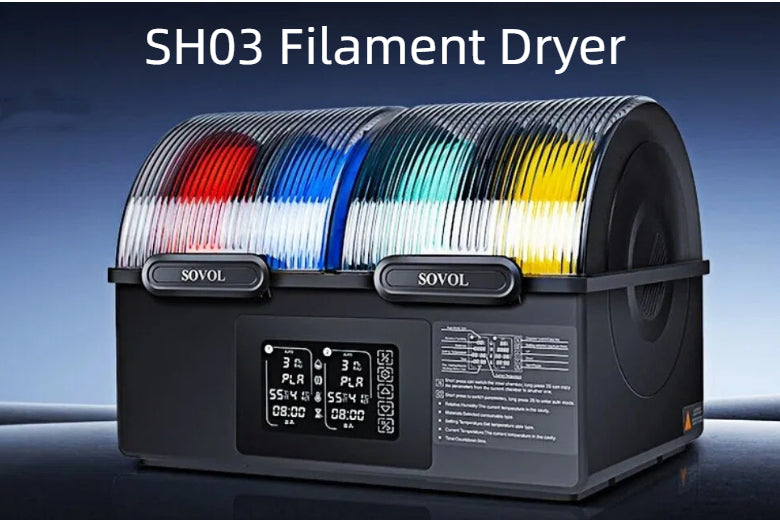
There are many ways to dry filament. DIY ways work for most people. You can use a food dehydrator or a convection oven. Set the heat for your filament type. For PLA, use 40°C to 60°C. For nylon, use up to 80°C. Dry for four to six hours. Commercial dryers like the Sovol SH03 let you set the heat exactly and get hotter. This helps get rid of tough moisture in nylon and TPU.
Taking out moisture stops steam from forming inside the filament, so you do not get bubbles or popping.
Using Filament Dryers (e.g., Sovol SH03)
Filament dryers are a good way to fix 3d printer bubbles. The Sovol SH03 is one kind of dryer. It heats filament evenly and lets you pick the right heat for each material. You can dry nylon, TPU, and PETG with this dryer. The SH03 helps you get smooth and strong prints by taking out water, so you do not get uneven flow or popping. You do not have to use only commercial dryers. DIY ways work for many filaments, but commercial dryers give more control for special materials.
Best Storage Practices
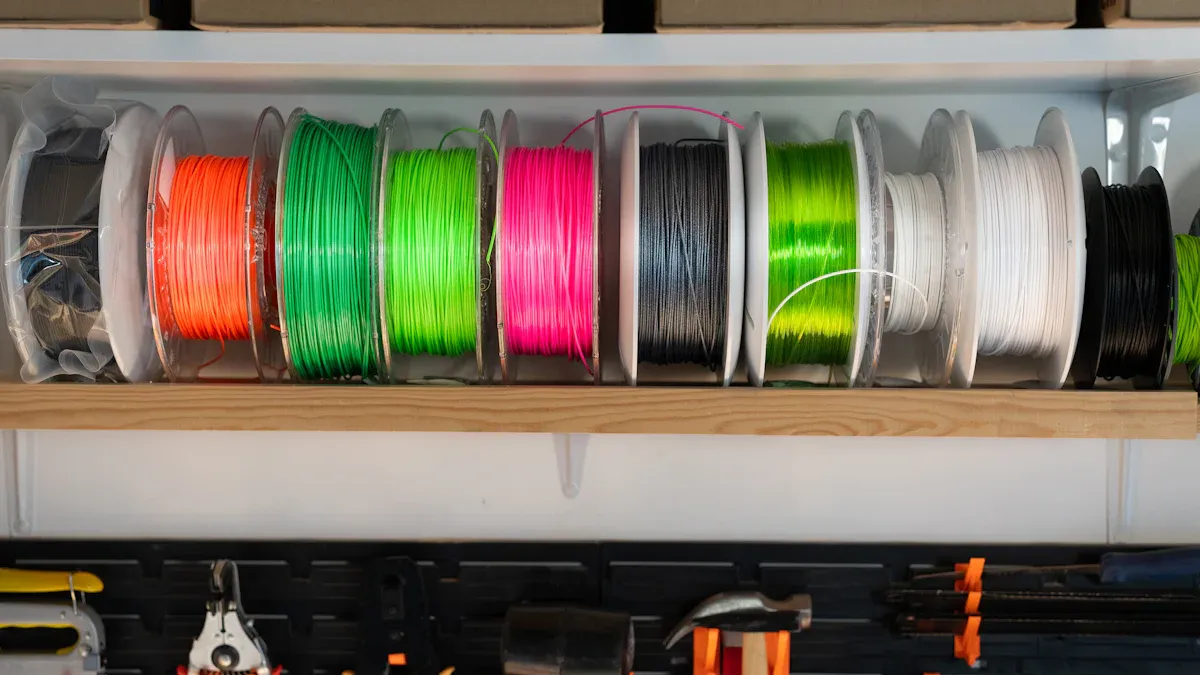
Good storage keeps filament dry and ready to use. Store PLA in a cool place (15°C to 25°C) so it does not warp. Use airtight boxes or vacuum bags with silica gel to keep out water and dust. Keep filament away from sunlight. For PETG, store in a dry spot with silica gel and keep it away from heat. Nylon needs dry cabinets or vacuum bags. TPU should be kept in airtight boxes with desiccant packs.
Best Storage Checklist:
- Use airtight boxes to keep out water and dust.
- Add silica gel packs to soak up water.
- Keep TPU at a steady temperature (59°F to 77°F).
- Use vacuum bags if you need to store filament for a long time.
Drying is the best way to stop filament popping. You can use DIY or commercial ways. Store filament well to keep out water and get smooth prints.
Troubleshooting Workflow
A good troubleshooting workflow helps you stop filament popping. It also helps you make better 3D prints. You should follow these steps before, during, and after printing. This way, you can find problems early and keep your printer working well.
Pre-Print Checks
Check a few things before you start printing. These steps help you stop most problems. Get your filament and printer ready first.
- Dry your filament before you print. Drying takes out water and stops popping.
- Feel the filament. If it feels rough or looks cloudy, it has water in it.
- Put filament in airtight boxes with silica gel packs.
- Look at the nozzle for clogs or old plastic.
- Set the right temperature for your filament.
Tip: Always dry filament if it was in the air. This keeps your prints strong and stops 3d printer bubbles.
Adjustments During Printing
Watch your printer while it is working. You can change things if you see a problem.
- Listen for popping or hissing. These sounds mean water is turning to steam.
- Look for bubbles or rough spots on your print.
- Lower the temperature if you hear popping or see bubbles.
- Pause the print and dry the filament if popping does not stop.
- Change retraction settings to help the filament flow better.
|
Problem Detected |
Quick Adjustment |
|---|---|
|
Popping sounds |
Lower temperature, dry filament |
|
Bubbles on print |
Pause and dry filament |
|
Stringing |
Change retraction settings |
Post-Print Maintenance
After you print, take care of your printer and filament.
- Clean the nozzle to get rid of old plastic.
- Put filament in a dry, closed box.
- Check the print bed for dust or leftover stuff.
- Look at your print for popping or bubbles.
- Dry filament again if you want to print soon.
Note: Cleaning and checking your printer often stops problems later. Your printer will be ready for your next project.
If you use this workflow, fixing problems is easy. You will find issues early, stop 3d printer bubbles, and get smoother prints.
Temporary vs Long-Term Solutions
When you hear popping sounds or see 3d printer bubbles, you might want a fast fix. Sometimes you need to finish a print right away. Other times, you want to stop the problem from coming back. You should know the difference between quick fixes and lasting prevention.
Quick Fixes for Emergency Prints
If you need to print now, try these steps:
- Lower the print temperature by 5–10°C.
- Dry the filament for one hour in a warm oven or dehydrator.
- Store the spool in a sealed bag with silica gel during the print.
- Clean the nozzle with a cold pull.
These quick fixes can help you finish a print, but they do not always solve the root problem.
Lasting Prevention Methods
For long-term success, you should build good habits. These steps help you avoid filament popping in the future:
- Always store filament in airtight containers with silica gel.
- Use a filament dryer before every print, especially for nylon or TPU.
- Check and clean your nozzle every two weeks.
- Calibrate your printer’s temperature and retraction settings for each filament type.
- Keep a regular maintenance schedule for your printer.
|
Method |
Quick Fix |
Long-Term Solution |
|---|---|---|
|
Lower temperature |
✅ |
❌ |
|
Dry filament briefly |
✅ |
❌ |
|
Use filament dryer |
❌ |
✅ |
|
Store filament dry |
❌ |
✅ |
|
Clean nozzle often |
❌ |
✅ |
Risks of Only Using Temporary Fixes
If you only use quick fixes, you may see the same problems again. Wet filament can cause weak prints and more popping. You might waste time and material. You may not fully fix 3d printer bubbles. Lasting solutions save you money and give you better prints.
Tip: Use quick fixes for emergencies, but always plan for long-term prevention.
Common Mistakes and Myths
Storage and Drying Misconceptions
Some people think filament stays dry on the printer or shelf. This is not right. Filament can soak up water from the air in just a few hours. Even new filament can get wet during shipping or while sitting in storage. If you use wet filament, you will hear popping and your prints will be weak.
Common mistakes are:
- Leaving filament out in the open air.
- Not using silica gel packs when storing filament.
- Printing with wet filament without drying it first.
Always keep filament in airtight containers with desiccant packs. Dry any damp filament in a filament dryer or a low-heat oven before you print. Using dry, good-quality filament helps stop weak prints and jams.
Temperature and Retraction Errors
You might set the nozzle too hot, thinking it helps the filament flow. This can cause popping and stringing. Wrong retraction settings also make problems. If you pull the filament back too far or too fast, you get uneven flow and more popping.
- PETG strings a lot if you use high heat.
- PLA and ABS can also string and pop if settings are wrong.
If you hear popping while printing, your filament is probably wet. Lower the heat and dry the filament to fix this. Always check the best temperature for your material. Change retraction settings in small steps and test each filament type.
Overlooking Cooling Issues
Cooling problems are easy to miss. If you cool the print too much, it can crack or break. Not enough cooling causes stringing and sagging. Fan direction is important too. If the fan blows the wrong way, one side of your print may look sharp but the other side will droop.
|
Symptoms |
Fix / Solution |
|
|---|---|---|
|
Cooling Too Strong |
Cracks, weak parts, brittle prints |
Lower fan speed, raise enclosure temp, or increase nozzle temp |
|
Cooling Too Weak |
Stringing, sagging, melted corners |
Raise fan speed, lower nozzle temp, or slow print speed |
|
Fan Direction Problems |
Uneven surfaces, one side droops |
Check fan direction and fix airflow |
Always check your cooling and fan direction. Small changes can help stop popping and make your prints look better.
Tips for All User Levels
Beginner Steps
If you are just starting with 3D printing, you can stop filament popping by doing a few easy things. Always keep filament in its original bag with a desiccant pack. This stops water from getting in. You can also use airtight bins or vacuum bags if you have lots of spools. Desiccant packs soak up water from the air. For filaments like nylon, you can make your own dry box to keep them dry. If your filament feels wet, dry it in a food dehydrator. Filament dryers made for this job work best for drying and storage.
Beginner Checklist for Filament Care:
- Keep filament in its bag with desiccant
- Use airtight bins or vacuum bags for many spools
- Put desiccant packs in all storage boxes
- Make a dry box for special filaments
- Dry wet filament in a dehydrator or filament dryer
Tip: Dry your filament before you print. This helps stop popping and bubbles.
Advanced Troubleshooting
You can fix harder filament popping problems by checking your printer and its settings. Change the printing temperature to fit your filament. Clean the nozzle often so it does not get blocked. Adjust retraction settings to control how the filament moves. Watch for bubbles or rough spots on your prints. Try different settings with small test prints. Use humidity sensors to see if your filament is wet.
|
Troubleshooting Step |
What to Do |
Why It Helps |
|---|---|---|
|
Adjust temperature |
Pick the right range for filament |
Stops popping and bubbles |
|
Clean nozzle |
Take out dirt and old plastic |
Makes extrusion better |
|
Calibrate retraction |
Change length and speed |
Stops uneven flow |
|
Monitor humidity |
Use sensors or weigh filament |
Finds moisture early |
Building a Maintenance Routine
You can stop filament popping for a long time by making a cleaning routine. Clean your printer often so dirt does not build up. Tighten belts and wheels to keep your printer working right. Check your printer and filament before every print. These habits help you find problems early and keep printing easy.
Maintenance Tips:
- Clean the nozzle and print bed often
- Check belts and wheels to make sure they are tight
- Look at filament for water or damage
- Plan regular checks for all printer parts
Cleaning your printer often keeps it working well. This helps you stop filament popping. 😊
You can stop filament popping by drying filament. Lower the print temperature if needed. Clean the nozzle often. Store filament in airtight containers. Use a troubleshooting workflow for better results. Make good habits like sealing filament and using silica gel packs.
Final tips for all users:
- Control print temperatures
- Get the print bed ready
- Stop jams with regular cleaning
- Change print speed and retraction
- Use software to check your model
Good habits and regular checks help you make strong, smooth parts every time. 😊
FAQ
What causes filament popping during 3D printing?
Filament popping happens when moisture gets inside the filament. High temperatures, dirty nozzles, or bad storage can also cause popping. You hear small pops or crackles as the filament prints.
How do you know if filament needs drying?
You hear popping or hissing sounds while printing. You see bubbles or rough spots on your print. Wet filament feels sticky or looks cloudy.
Tip: Always dry filament if you see these signs.
Can you fix filament popping without special equipment?
Yes! You can use a food dehydrator or a regular oven to dry filament. Store filament in airtight boxes with silica gel packs. Clean the nozzle often.
Which filaments are most sensitive to moisture?
|
Filament |
Sensitivity |
Notes |
|---|---|---|
|
Nylon |
High |
Dries quickly |
|
TPU |
High |
Needs dry box |
|
PETG |
Medium |
Store airtight |
|
PLA |
Low |
Still can pop |
Does filament popping ruin your print?
Filament popping can make prints weak or rough. You may see holes, bubbles, or layers that do not stick well. Dry filament and clean your nozzle to fix this.