




You want perfect prints, but 3D print curling corners can ruin your project fast. These lifted edges make your models look bad and even cause print failures. You can fix this problem with the right steps. Let’s dive in so you get smooth, flat prints every time.
Key Takeaways
- Ensure strong bed adhesion by cleaning the print bed and using adhesives like glue stick or hairspray. This helps the first layer stick and prevents corners from curling.
- Adjust print speed and cooling settings. Slower print speeds allow layers to cool evenly, reducing the risk of curling corners.
- Use brims or anchor columns for larger prints. These features help hold corners down and maintain flatness during the cooling process.
Why 3D Print Curling Corners Happen
What Are Curling Corners
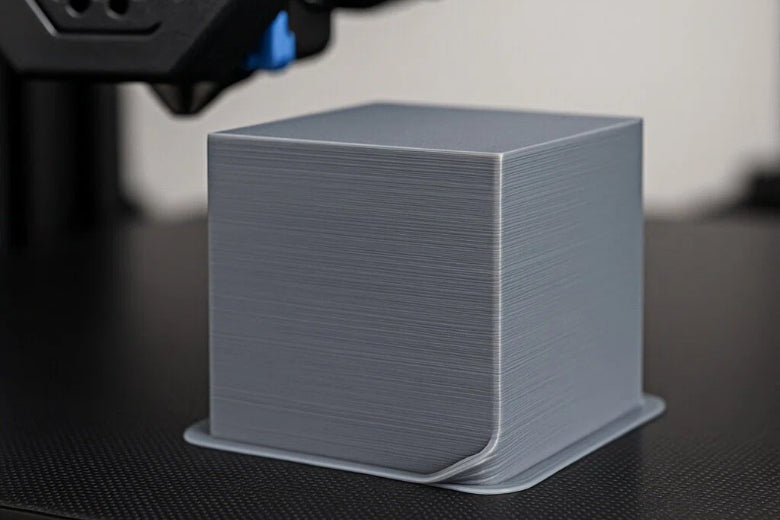
You might notice that the corners of your 3D prints sometimes lift up while the rest of the part stays flat. This problem is called curling corners. In technical terms, curling happens when the upper layers of your print deform, especially at the edges. This usually comes from a big temperature difference between the hot plastic and the cooler air around it. When this happens, your print can look warped or even fail completely.
Main Causes
Curling corners usually start because of how the plastic cools. When the filament cools too quickly, it shrinks and pulls on the layers below. This tension can lift the corners off the build plate. High-temperature materials like ABS or nylon tend to have more curling issues than PLA. If your cooling fan blows too hard, or if your print not sticking to the bed, you’ll see more problems. Sometimes, the bed isn’t hot enough, or the adhesion at the corners is weak. Here’s a quick look at the symptoms and causes:
|
Symptoms |
Causes |
|---|---|
|
Corners curl upward while rest of layer stays flat. |
Cooling fan too strong. |
|
Edges cause nozzle to collide during print. |
Bed adhesion weak at corners. |
|
|
Uneven thermal contraction. |
Early Signs
You can spot curling corners early if you watch your print closely. The first sign is when the edges start to pull away from the bed. This often happens during longer prints. If you see the corners lifting, try lowering your fan speed or raising the bed temperature. Adding a brim or using an enclosure can also help. Catching these signs early means you can fix the problem before your print fails.
Prevent Curling Corners: Practical Methods
Improve Bed Adhesion
You want your 3d print curling corners to stay flat. The first thing to do is make sure the first layer sticks well. If the bed adhesion is weak, your print might not work. Clean your print bed before you start. Use alcohol, soap and water, or acetone to get rid of dirt and oil. Make sure the Z-axis is set right so the nozzle is not too high or low. If you still have problems, try a thin layer of glue stick or hairspray. Let it dry or get sticky before printing.
Here’s a table that compares some adhesives:
|
Adhesive Type |
Effectiveness in Bed Adhesion |
Best Practices |
|---|---|---|
|
Glue Stick |
Provides extra stickiness |
Put on a thin, even layer |
|
Hairspray |
Helps the first layer stick |
Let it dry or get sticky before use |
|
PEI Sheets |
Custom stickiness |
Clean often to stop buildup |
Tip: Don’t use too much glue or spray. Clean your bed often so layers stay even and stick well.
If you use PEI sheets, clean them a lot. This keeps the surface sticky and helps stop 3d print curling corners. Always check the bed temperature. A warm bed helps the first layer stick, especially for ABS and PETG.
Adjust Print Speed and Cooling
Print speed and cooling are important for 3d print curling corners. If you print too fast, layers cool at different rates. This can make the corners curl up. Slow down your print speed. This gives each layer time to stick and cool right. You can change the minimum layer time in your slicer. This helps the fans cool the print better and stops warping.
- Slower print speed helps fans cool the print.
- Change minimum layer time for better cooling.
- Higher fan speeds can help, but only if your material can handle it.
Troubleshooting steps: If you see curling, lower the fan speed for ABS or raise it for PLA. Always check your slicer settings before you print.
Use Brims and Chamfers
You can add a brim to your model to help it stick. A brim is a thin, flat ring around the base of your print. It holds the corners down and stops them from lifting. Chamfers help by making the edges smoother and less likely to curl. If you print moving parts, chamfers help them fit and move better.
- Brims hold corners down and stop curling.
- Chamfers make edges smoother and printing faster.
- Fillets use more material but make prints stronger.
Expert tips: Use brims for prints with sharp corners or small bases. Chamfers work best where edges touch moving parts.
Optimize Fan and Bed Temperature
Fan and bed temperature settings change how layers cool. If the bed is too hot or the fan is too strong, you might see 3d print curling corners. Raise the fan speed for PLA to help it cool. Lower the print temperature a little if curling keeps happening. Change the bed temperature if it feels too hot.
- Raise fan speed for PLA and PETG.
- Lower print temperature by 5 to 10 degrees if needed.
- Change bed temperature for better sticking.
Note: Always match your cooling to the filament you use. Too much cooling can cause warping. Too little cooling can make layers not stick.
Try Anchor Columns
Anchor columns help keep big prints flat. These small towers touch the base plate and hold the part in place as it cools. This works well for ABS and other high-temperature materials that warp a lot.
- Anchor columns keep prints flat while cooling.
- They are good for big prints.
- Use them for high-temperature filaments to stop curling.
Troubleshooting steps: If you print a big part and see curling, add anchor columns in your slicer. Put them near the corners for best results.
Use an Enclosure
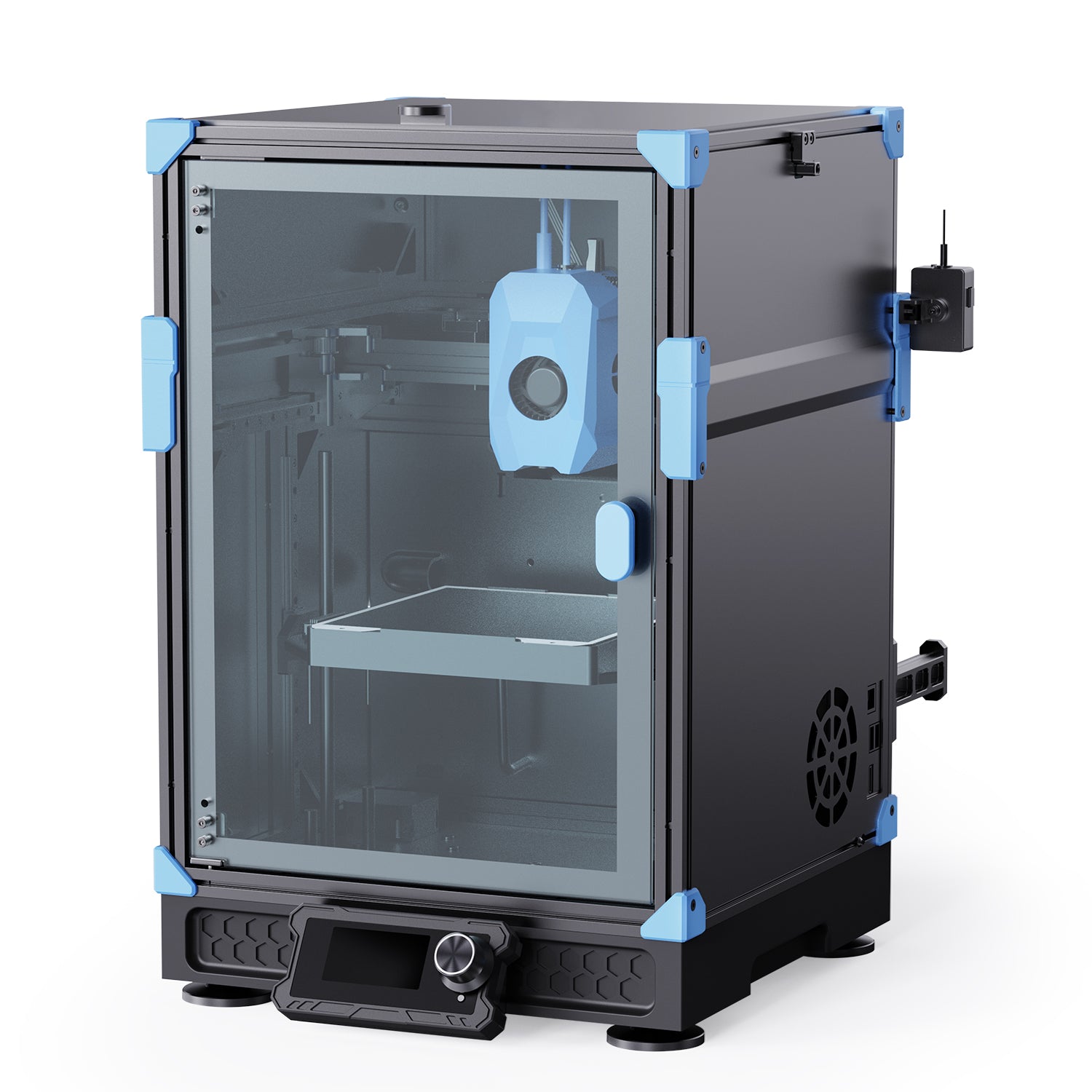
Print with an enclosure to block wind and keep heat in. An enclosure keeps the temperature steady and stops layers from cooling too fast. This is important for ABS and other special filaments. Steady heat stops layers from pulling apart and corners from curling.
|
Filament |
Bed Temperature |
Notes |
|
|---|---|---|---|
|
ABS |
About 38-46°C |
Over 90°C |
Higher enclosure temps stop warping; best in cold rooms. |
|
PETG |
20-40°C |
About 70°C |
Handles more temps; enclosure keeps heat steady. |
|
PLA |
20-30°C |
Varies (lower) |
Cooler temps stop jams; temps over 30°C can cause problems. |
Tip: Use an enclosure for big prints or when using high-temperature materials. This helps stop 3d print curling corners and makes prints look better.
Material-Specific Tips
Different filaments need different settings. For PLA, keep the bed cooler and use more fan. For ABS, use a heated bed and an enclosure. PETG likes a warm bed and steady cooling. Always keep your filament dry in airtight boxes with silica gel. Wet filament can cause curling corners and other problems.
- Use a heated bed for ABS and PETG.
- Use glue or hairspray for better sticking.
- Change slicer settings for thicker first layers and slower speeds.
- Add brims or rafts to help prints stick and stop warping.
- Keep your printer clean and set up right for best results.
Troubleshooting steps: If you see curling, check if your filament is dry and your printer is set up right. Change your settings for the filament you use.
You can stop 3d print curling corners by using these tips. Try each one and see what works for you. If you have problems, use these troubleshooting steps to fix them. Every print helps you learn and get better.
You can stop curling corners by cleaning your bed, adjusting speed, and using brims. Try different methods and see what works for you. Consistent steps give you better prints and less waste.
Keep learning, join online groups, and share your progress. Every print helps you grow as a maker!
FAQ
Why do corners curl even with a heated bed?
You might see curling if your bed isn’t clean or level. Try lowering your fan speed and adding a brim for better results.
Can I fix curling corners after printing?
You can’t fix curling corners once the print finishes. You need to adjust your settings and try again for a flat print next time.
What filament is least likely to curl?
PLA curls less than ABS or nylon. You get smoother prints with PLA, especially if you use good bed adhesion and cooling.