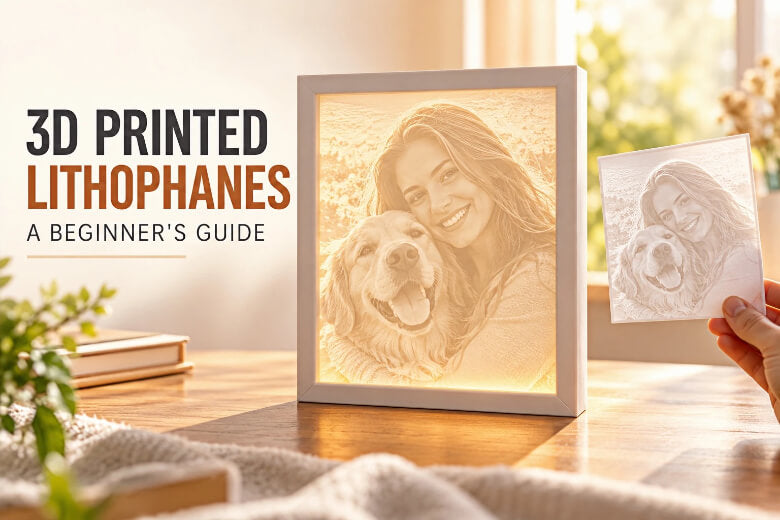
Key Takeaways:
- Photo choice decides most of the result: high contrast and a clear subject survive the conversion, flat lighting does not.
- Print a half-scale test panel first, then judge it only under backlight before committing to the full-size piece.
- Thin areas glow and thick areas go dark, so contrast comes from the thickness ratio, not from one magic number.
What you'll need before you start
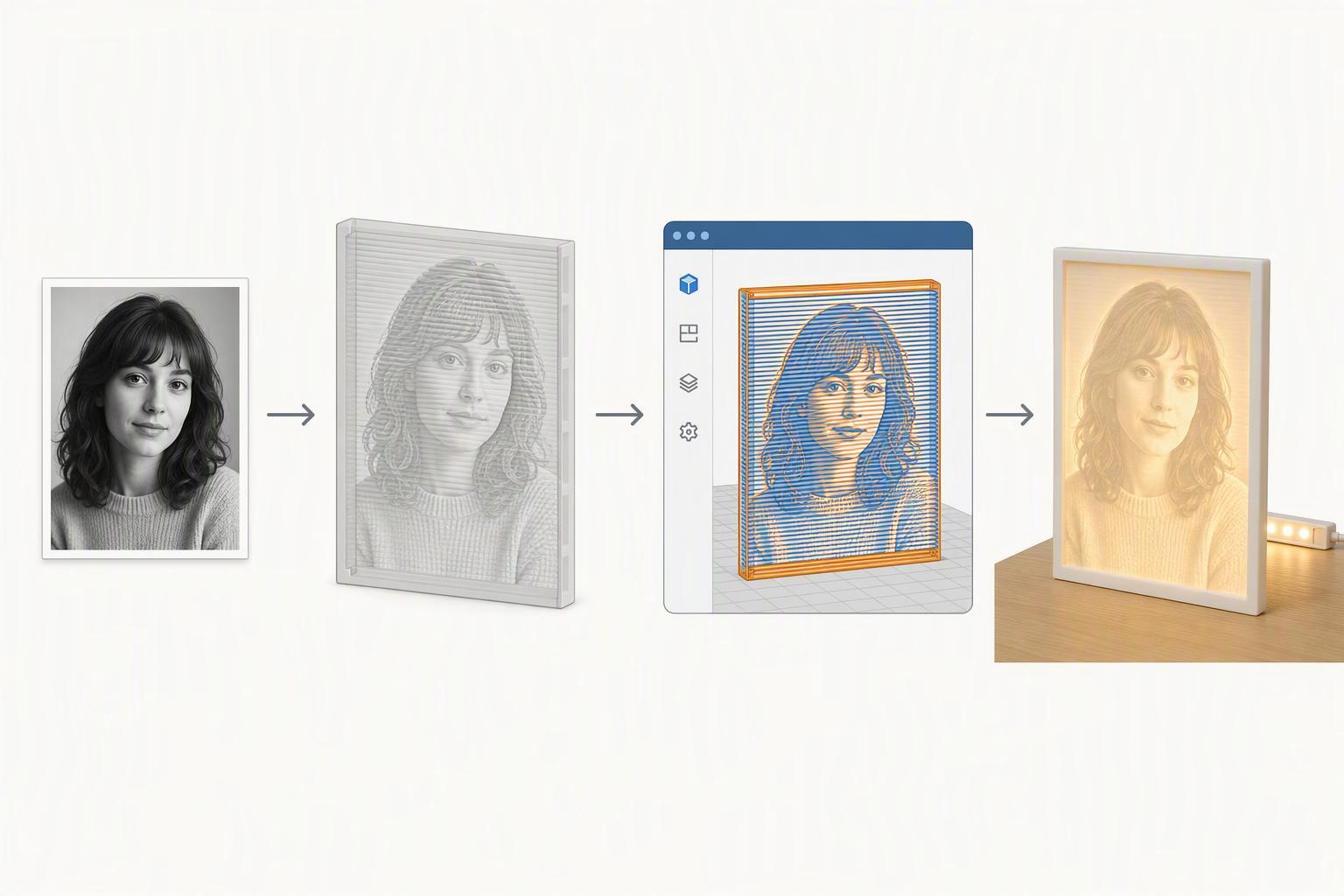
You need less hardware than most tutorials imply. A stock printer with a 0.4 mm nozzle works, white PLA is often an accessible starting material, and a USB LED strip is enough to test a panel before you build anything permanent. Gather the photo you want to print, a free generator such as 3DP Rocks or LithophaneMaker, a slicer you already know, white filament, a clean bed and a light source. Difficulty is beginner-friendly. Timing is not: a smaller test panel usually takes less time and material than the final piece, while a full-size, finely detailed panel can run for many hours on a stock nozzle.
Warning: Every value in this guide is a starting point. The best settings depend on the lithophane generator, nozzle, filament, model size, orientation and printer calibration. Always validate the result with a small test panel.
1. Pick a photo that survives the conversion
We recommend choosing a photo with strong contrast and one clear subject, because the conversion turns brightness into thickness and flat lighting turns into a flat grey rectangle. A pale face against a pale wall has almost no tonal separation to work with. Portraits, pets and architecture with hard light do well. Busy group shots, backlit silhouettes and low-resolution phone crops do not. Before you upload anything, open the image in any editor, convert it to greyscale and look at it small. If the subject still reads at thumbnail size, it will read as a 3D printed photo. If it turns to mush, pick another shot.
2. Convert the photo into a printable model
Upload the image to a free generator and set the thickness range deliberately, because the contrast of a lithophane 3D printing job comes from the ratio between its thinnest and thickest points. One popular free generator suggests a maximum thickness of about 3 mm, a minimum of about 0.8 mm, a 100 mm size, a positive image and an ASCII STL as its defaults (3D Printer Stuff, 2026). We treat those defaults as a reasonable first attempt, not a rule. The generator's own guidance is that minimum thickness should stay above a multiple of your nozzle diameter, and that maximum thickness depends on the filament you use (LithophaneMaker). The physics explains why the range matters more than either number: the transmitted fraction falls exponentially as material thickness rises, so small thickness changes near the thin end shift the highlights a lot (Chen et al., 2019). To turn a photo into an STL, keep the image positive, export the mesh, then preview the relief in your slicer. If the face is unreadable in preview, it will not improve in print.
3. Choose filament and slicer settings that keep the image readable
White or natural PLA is the common choice, and thinner layers generally resolve more vertical detail than thick ones. You don't need a smaller nozzle or expensive filament, but a 0.4 mm nozzle with well-tuned white PLA can produce a readable panel when the model and settings are suitable. Color matters more than brand. One printer maker's own lithophane guide lists a thinner first layer, a smaller nozzle for finer results, extra top and bottom shells, full rectilinear infill and a fixed panel size (Bambu Lab Wiki). Treat that as one vendor's profile, not a universal recipe.
|
Setting |
Starting point |
What it depends on |
|---|---|---|
|
Layer height |
Finer than your usual print |
Nozzle size, detail you need, print time you accept |
|
First layer |
Slightly thicker than the rest |
Bed adhesion and surface |
|
Infill |
Solid, rectilinear |
Light must pass through solid plastic |
|
Walls |
Enough for a stiff panel |
Panel strength, not image quality |
|
Orientation |
Often vertical or at an angle |
Image detail, panel size, stability, printer motion, adhesion |
|
Adhesion |
Brim or wide skirt |
Bed surface and panel height |
|
Speed |
Slow, especially on thin layers |
Cooling and layer bonding |
These values can be used as starting points, but the best settings depend on the lithophane generator, nozzle, filament, model size, orientation and printer calibration. Always validate the result with a small test panel.
4. Print a smaller test panel, then the full-size piece
We print the same model at a smaller size first, because a failed full-size panel costs hours and a test panel costs minutes. Because lithophanes are often tall and thin, a small test panel can help you check image contrast, bed adhesion, and print stability before starting the full-size model. Backlight the test panel and look for three things: muddy midtones, blown highlights and a hotspot at the LED center. Each maps to a fix in the next section.
5. Fix a lithophane that came out too dark, blurry or inverted
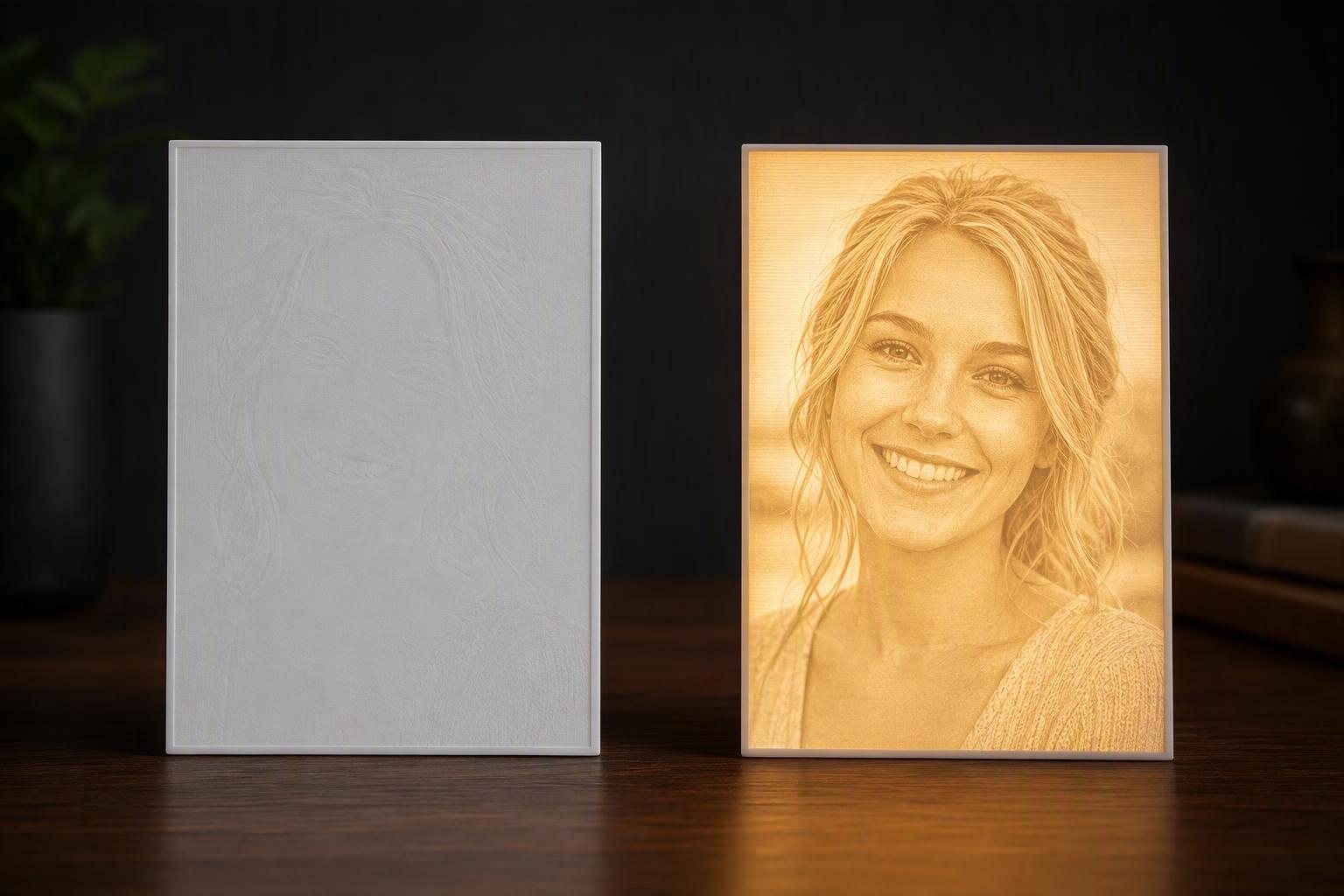
If your first 3D printed lithophane came out muddy, you are not alone, and most of these problems are settings or viewing errors rather than a broken printer. Work through the symptom first.
- Too dark overall: the panel is too thick or the filament too opaque. Reduce maximum thickness or switch to white PLA.
- Washed out and flat: the thickness range is too narrow. Widen the gap between thinnest and thickest points.
- Inverted, with dark where light should be: the generator exported a negative image. Re-export with the positive setting on.
- Blurry detail: layer height is too coarse or the photo lacked contrast. Try thinner layers and pick a sharper source image.
- Bright hotspot in the middle: the light source is too close and too concentrated. Add an air gap or a diffuser.
Warning: Check three things before changing any setting: is it lit from behind, is the image positive, and did you print a test panel first?
6. Light and display it safely
Light the panel from behind with a diffused, low-voltage source and keep heat away from the plastic. A USB LED strip is enough to test a panel before you buy a light box. Use a suitable low-voltage light source and follow the manufacturer's instructions. Use a low-voltage USB or battery-powered LED light, keep the light source away from the printed plastic, provide ventilation, and avoid open flames. A home-printed lithophane should be treated as decorative lighting rather than a certified lamp or toy.
7. Build a simple frame or LED light box
Build the frame around the panel you already tested, because a frame that fits a known print beats a frame designed before the print exists. Start with a simple approach: print a border with a recess for the panel, add a backing plate, and mount the LED strip inside the backing with an air gap to the panel. Test-fit the panel before you glue anything. Then check the light: if the centre is brighter than the edges, move the strip back or add a diffuser sheet.
Frequently asked questions
How long does a 3D printed lithophane take to print?
A smaller test panel usually takes less time and material than the final piece. A full-size, finely detailed panel takes several hours on a stock 0.4 mm nozzle, and slower speeds push it longer. Print the test panel first so the long print is the one that succeeds.
What is the best filament for lithophanes?
White or natural PLA is the practical choice: it is cheap, prints easily and transmits light well. Darker colours flatten the image because they let less light through.
Do I need a 0.2 mm nozzle to print a lithophane?
No. A 0.4 mm nozzle works, as long as the generator's minimum thickness stays above a sensible multiple of the nozzle diameter so the detail stays printable (LithophaneMaker). Layer height strongly affects vertical image detail, while nozzle diameter also affects minimum feature width and the printable thickness range. Both should be considered together.
Why did my lithophane come out inverted?
The generator exported a negative image, so thick areas landed where light areas should be. Re-export with the positive image setting on and reprint. Check the preview before printing, because an inverted relief is obvious in the slicer.
Can I print a lithophane in colour?
Yes, either by placing a colour-printed transparency behind a thin white panel or by printing translucent colour layers. Start with a single-colour white panel first, because colour adds variables before you have a working baseline.
Is a 3D printed lithophane safe as a nightlight?
Use a suitable low-voltage light source and follow the manufacturer's instructions. Keep the light away from the printed plastic, allow ventilation, and avoid open flames. Treat the piece as decorative lighting rather than a certified lamp or toy, and keep small parts out of reach in a child's room.
Conclusion
A 3D printed lithophane is one of the few projects where photo selection often has a major effect on the final result. Pick a high-contrast image, set a deliberate thickness range, print small before you print big, and judge the result only under backlight. Those four habits fix most of what goes wrong, and they cost you a short test print instead of a wasted full-size one. The physics is on your side: thin plastic glows, thick plastic darkens, and the ratio between them draws the picture. Start with a photo you love, print a test panel tonight, and let the light do the rest.