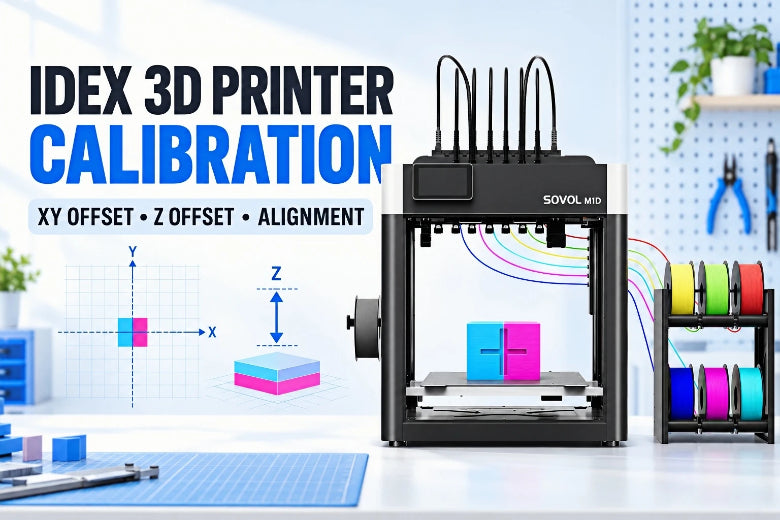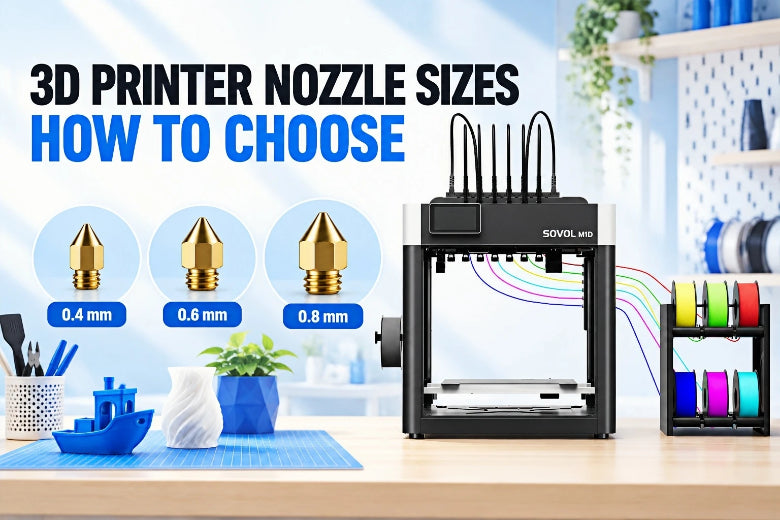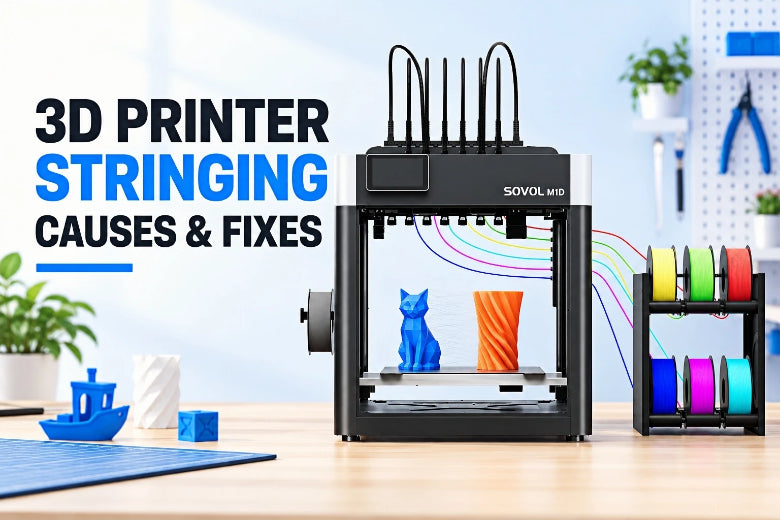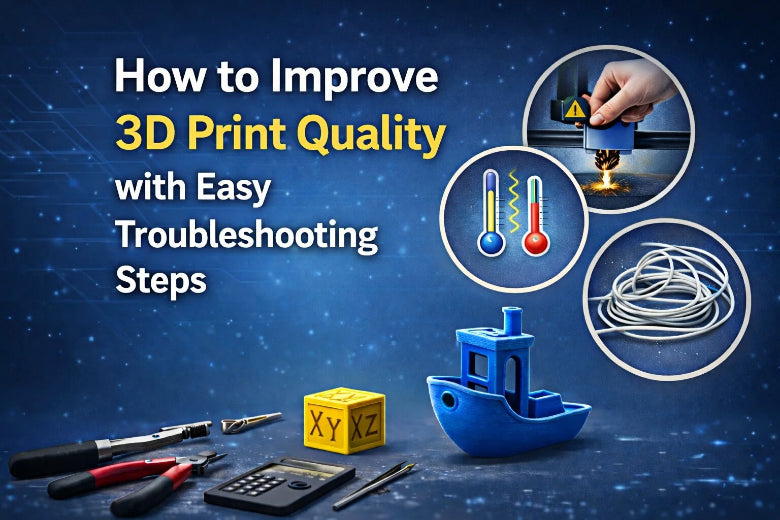
You want to know how to improve 3d print quality? Start with the basics. Most problems happen because of small issues with your printer or your setup. If you want to learn how to improve 3d print quality, check the print bed for dust or oil. Clean it before every job. Try to level the bed and adjust the nozzle height. If you ask how to improve 3d print quality, look at your filament. Dry filament works better and gives smoother results. Many people wonder how to improve 3d print quality when they see rough layers or gaps. You can fix these with easy steps. How to improve 3d print quality? Keep your printer clean, change one setting at a time, and do not rush. 3d printing works best when you pay attention to these details.
Key Takeaways
- Wipe the print bed with isopropyl alcohol before you print. This helps the print stick better and look nicer.
- Change the print temperature and speed for each filament type. This stops problems like stringing and weak layers.
- Make sure the print bed is level and set the right Z-offset. This gives you a strong first layer and stops warping.
- Use the right retraction settings to lower stringing and oozing when you print.
- Clean your printer often and check for clogs. This helps your printer work well.
Common 3D Print Quality Issues
When you start 3D printing, you will notice some common 3d print quality issues. These problems can show up in many ways, but you can fix most of them with simple steps. Let’s look at the most common 3d printing issues and what causes them.
Surface Imperfections & Layer Lines
You might see rough spots, pillowing, or visible lines on your prints. These surface imperfections often happen when you use thick layers or set the print temperature too high. If you use a high infill density, you get smoother surfaces. Grid infill can make the surface rougher. Humidity and temperature in your room also change how your print looks. Wet filament can cause discoloration and weak spots. Cleaning the print bed helps prevent curling artifacts and pillowing.
Tip: If you see discoloration or pillowing, check your filament for moisture and clean the bed with isopropyl alcohol.
Stringing & Oozing
Stringing looks like thin hairs or webs between parts of your print. This happens when the nozzle moves over open spaces and leaks melted plastic. You see more stringing if your filament is wet or if you print too hot. Overhangs and pillowing can make stringing worse. If you use PLA or PETG, you might notice this problem more often.
- Wet filament causes steam, which pushes out extra plastic.
- High temperatures make the filament runny and increase stringing.
Under-Extrusion & Over-Extrusion
Under-extrusion means not enough plastic comes out, so your print has gaps or weak spots. Over-extrusion means too much plastic comes out, causing blobs or pillowing. Here’s a quick table to show why these happen:
|
Cause |
What Happens |
|---|---|
|
Nozzle too close to bed |
Clogs and under-extrusion |
|
Wet or poor filament |
Clogs, discoloration, and rough surfaces |
|
Wrong retraction settings |
Gaps or blobs |
|
Bad temperature calibration |
Over or under-extrusion |
Warping & Bed Adhesion
Warping means the corners of your print lift off the bed. This happens when the plastic cools and shrinks too fast. ABS and Nylon shrink more than PLA, so they warp more. Overhangs can curl up, causing curling artifacts. A heated bed helps stop warping. Clean your print bed before every job to help the first layer stick better.
- Set the right bed temperature for your material.
- Watch for discoloration and pillowing near the edges.
Filament Feed Problems
Sometimes, your printer stops feeding filament. You might hear clicking or see nothing coming out. This can happen if the filament strips, snaps, or gets stuck. Check for knots or bumps in the filament. Make sure you have enough filament loaded. Clean the nozzle and check the idler tension if you see feed problems.
Note: Wet filament can jam the extruder and cause feed failures.
By understanding these issues, you can improve your print quality and get better results every time.
Key Printer Settings for Print Quality
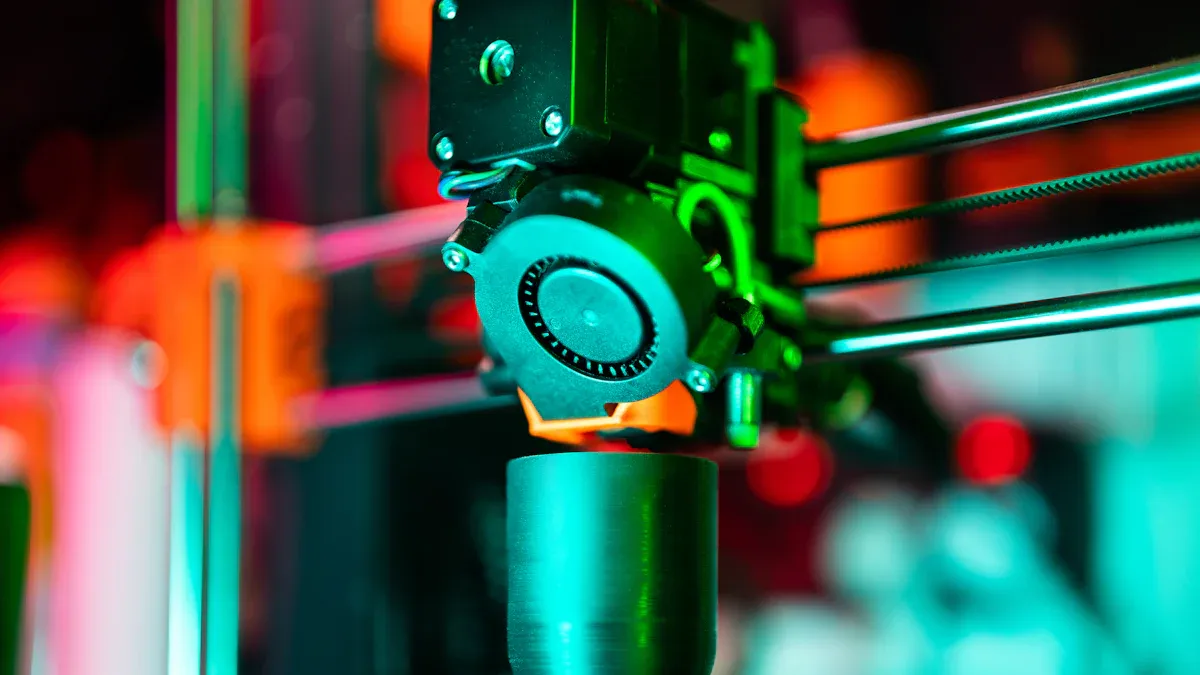
Getting great 3D prints starts with the right printer settings. You can fix most print quality issues by adjusting a few key options. Let’s break down the most important ones.
Temperature & Speed
You need to set the right print temperature for your filament. PLA works best between 200 and 220°C. ABS likes 220–250°C. PETG needs 220–260°C. If you print too hot, you might see stringing or blobs. If you print too cold, layers may not stick well.
Printing speed matters a lot. Slower speeds usually give you better results. If you print too fast, you might see poor layer adhesion or under-extrusion. Try starting with 50mm/s and adjust from there. Always check your build plate temperature. PLA sticks well at 60°C, while ABS needs 100°C or more. PETG likes a build plate temperature around 70–80°C.
Don’t forget about part cooling. Good part cooling helps layers set quickly and reduces stringing.
Layer Height & Resolution
Layer height controls how thick each layer is. For high-resolution prints, use a layer height between 0.1 mm and 0.2 mm. This gives you smooth surfaces without making the print take forever. Thicker layers print faster but show more lines.
- Use at least 20-30% infill for decorative prints.
- Set wall line count to 3 or more for strong, good-looking parts.
- Larger nozzle sizes (like 0.6mm) can improve print quality and speed.
Part cooling also helps when printing small details. Make sure your part cooling fan works well.
Bed Leveling & Z-Offset
A level bed is key for a strong first layer. If your bed isn’t level, the nozzle might be too close or too far from the surface. This can cause poor adhesion or gaps. Adjust your Z-offset so the nozzle starts at the right height. Too low squishes the filament. Too high gives weak adhesion.
- Check your build plate temperature before every print.
- Watch the first layer closely. If it peels up, adjust the bed or Z-offset.
Part cooling can help the first layer set, but don’t use too much or the print may not stick.
Retraction Settings
Retraction pulls filament back during travel moves. This helps stop stringing and oozing. Start with a retraction distance of 1mm and a speed of 25mm/s. If you still see strings, increase the distance by 1mm or the speed by 5mm/s. Most users find 2–3mm works well.
- Set retraction speed between 20–100mm/s.
- Increase retraction distance slowly to avoid jams.
Cooling also affects stringing. Make sure your part cooling fan is on when printing with PLA or PETG.
By adjusting these settings, you can solve most print quality problems. Take your time, make small changes, and watch how your printer responds.
How to Improve 3D Print Quality: Troubleshooting Guide
Fixing Surface Imperfections
You see rough spots, pillowing, or visible lines on your prints. These surface imperfections can make your models look unfinished. Here’s how you can fix them:
- Add more solid top layers. Start with 4–6 top layers for a flat finish.
- Increase infill density to at least 20–30%. A tighter fill supports the top surface and reduces pillowing.
- Adjust the extrusion multiplier in your slicer. Too much or too little plastic causes uneven surfaces.
- Lower your layer height. Try a height that’s about 20% smaller than your nozzle diameter.
- Clean the print bed with 91% isopropyl alcohol before every print. This removes grease and helps the first layer stick, which prevents drooping and pillowing.
- Check your part cooling fan. Good part cooling helps layers set quickly and reduces drooping overhangs.
Tip: If you see drooping or pillowing on overhangs, slow down the print speed and increase part cooling.
Solving Stringing Issues
Stringing looks like thin hairs between parts of your print. You can fix stringing with these steps:
- Lower the print temperature in 5°C steps. High heat makes the filament ooze.
- Increase travel speed. Fast moves between points give melted plastic less time to drip.
- Fine-tune retraction settings. Start with 2–3mm retraction distance and 25mm/s speed.
- Dry your filament. Wet filament causes extra oozing and stringing.
- Make sure your part cooling fan works well. Good part cooling stops melted plastic from stretching into strings.
If you print with PLA or PETG, you may need to adjust these settings more often. Watch for drooping overhangs and supports knocked over by the nozzle. These can make stringing worse.
Addressing Extrusion Problems
Under-extrusion and over-extrusion both hurt print quality. Here’s a troubleshooting guide for these problems:
- Measure how much filament your printer extrudes. Compare it to the expected length.
- Calibrate your e-steps. This tells your printer how much filament to push.
- Adjust the flow rate in your slicer. Lower it for over-extrusion, raise it for under-extrusion.
- Check for clogs in the nozzle. Clean out any blockages.
- Watch for grinding filament. If you hear clicking, check the extruder gear and motor.
- Set the right print temperature. Too hot or too cold can cause drooping and pillowing.
Note: If you see gaps or blobs, check if your first layer is too close or first layer is too far from the bed. Adjust the first layer z-offset for better results.
Preventing Warping & Lifting
Warping means the corners of your print lift off the bed. You can stop warping and lifting with these steps:
Set the correct bed and nozzle temperatures for your material.
|
Material |
Bed Temp (°C) |
Nozzle Temp (°C) |
|---|---|---|
|
PLA |
50–60 |
200–220 |
|
ABS |
80–110 |
210–250 |
- Increase the build plate temperature if warping continues.
- Use an enclosure to keep the temperature steady and block drafts.
- Apply adhesives like glue stick or painter’s tape for better grip.
- Clean the print bed with isopropyl alcohol before every print. This helps the first layer stick and prevents lifting.
- Watch for first layer too close or first layer too far. Adjust the first layer z-offset if needed.
If you see supports knocked over or drooping overhangs, check your part cooling and slow down the first layer speed.
Improving Layer Adhesion
Good layer bonding keeps your prints strong. Poor adhesion leads to weak prints and layer separation. Try these steps:
- Slow down the first layer speed. Give the filament more time to stick.
- Set the first layer height close to the nozzle diameter. This improves flow and heat retention.
- Increase the first layer extrusion width. This helps cover small leveling errors.
- Turn off part cooling for the first few layers. Let the filament stay warm and bond better.
- Make sure the nozzle is close enough to the bed. If the first layer is too far, you get poor adhesion. If it’s too close, you get squished lines.
- Use adhesion aids like glue stick, blue painter’s tape, or BuildTak for tricky materials.
|
Adhesion Aid |
Usage & Effectiveness |
Notes |
|---|---|---|
|
Glue Stick |
Great for PLA, TPU, some ABS and PETG |
Water-soluble, easy |
|
Blue Painter's Tape |
Adds texture for PETG and PLA |
Can peel on big prints |
|
BuildTak |
Works for all filaments, very durable |
Costs more upfront |
Resolving Filament Feed Failures
Filament feed failures stop your print and waste time. Here’s how you can fix them:
- Measure your filament diameter. Make sure your slicer uses the correct size.
- Adjust the extrusion multiplier if you see under-extrusion.
- Raise the extruder temperature if the filament isn’t melting well.
- Clear any jams in the nozzle or extruder.
- Check for grinding or clicking sounds. Clean the extruder gear and motor if needed.
- Store filament in airtight containers to keep it dry.
|
Issue Title |
Cause |
Suggested Solutions |
|---|---|---|
|
Under extrusion |
Wrong filament size |
Measure and set correct size, adjust multiplier |
|
Under extrusion |
Low temperature |
Increase extruder temperature |
|
Under extrusion |
Clogged nozzle/extruder |
Clear path, clean nozzle, calibrate extruder |
|
Grinding filament |
Heat creep, residue |
Ensure extrusion, clear jams, check motor and gear |
This troubleshooting guide works for most FDM/FFF 3D printers. If you follow these steps, you’ll see better print quality and fewer failed prints. Keep your printer clean, adjust one setting at a time, and watch your results improve.
3D Print Quality Troubleshooting Tips
Material-Specific Adjustments
You should change your settings for each filament type. PLA, ABS, and PETG all work in different ways. Look at this table for a quick guide:
|
Material |
Print Temperature (°C) |
Print Speed (mm/s) |
Layer Height (mm) |
Cooling Settings |
|---|---|---|---|---|
|
PLA |
200-220 |
60-150 |
0.1-0.3 |
High part cooling |
|
ABS |
220-250 |
40-60 |
0.1-0.2 |
Low or off cooling |
|
PETG |
220-260 |
40-60 |
0.1-0.3 |
Moderate part cooling |
ABS needs less cooling and a steady place to print. PLA works best with lots of part cooling. PETG is between the two. Change your settings to fit the material you use. Overhangs print better if you use the right cooling and layer height.
Regular Maintenance
You can keep your printer working well with easy jobs:
- Clean the print bed and nozzle so dirt does not build up.
- Tighten belts and wheels to stop layers from moving out of place.
- Lubricate moving parts to help the motors last longer.
- Check your printer often to find problems early.
If you skip these jobs, you might get clogged extruders or weak layers. Checking your printer often helps you avoid problems and keeps your prints looking good.
Environmental Factors
Where you print matters a lot. Humidity and temperature can change how your filament prints.
- Wet filament can cause stringing, popping, and not enough plastic.
- Keep spools in closed boxes with silica gel packs.
- Dry your filament before printing, even if it is new.
- Use an enclosed printer to keep the temperature steady.
- Do not let the temperature change quickly or your print may warp or split, especially with ABS.
- Stop drafts and keep the room steady for better layer bonding.
Overhangs and layer bonding get better when you control the environment. A steady place helps your prints stick and stay strong.
Slicer Software Tips
Your slicer software lets you control print quality. Try these settings for better prints:
|
Setting |
Description |
|---|---|
|
Layer height |
Lower numbers give smoother surfaces and more detail. |
|
Wall/perimeter settings |
More walls make prints stronger and look better. |
|
Infill density |
Change infill for strength or speed. Patterns like grid or gyroid work well. |
|
Print speed and temp |
Adjust these to stop stringing and get better prints. |
|
Retraction settings |
Change retraction to stop blobs and stringing. |
If you see bad bridges or holes in top layers, change wall count and infill. Overhangs look better with the right layer height and part cooling. Slicer changes help you fix common 3d print quality problems.
You can boost your 3D print quality by following a simple troubleshooting guide. Regular cleaning and small adjustments help your printer run smoothly. Check belts, nozzles, and rails often. Keep your slicer software updated and use the right nozzle size for detail. Try different cooling settings to see what works best for your prints. Join online groups to share tips and learn from others. Stay patient and keep experimenting. Every print teaches you something new, especially when you adjust cooling or fix small mistakes.
FAQ
What causes rough or uneven surfaces on my 3D prints?
You might see rough surfaces if your nozzle is too far from the bed or your filament absorbs moisture. Try lowering your layer height. Clean the print bed before each job. Adjust your cooling settings to help layers set smoothly.
How do I stop stringing between parts of my print?
You can reduce stringing by lowering the print temperature and increasing retraction. Dry your filament before use. Adjust your cooling fan to help melted plastic solidify quickly. Test with different speeds to find what works best for your printer.
Why do my prints warp or lift off the bed?
Warping happens when plastic cools and shrinks too fast. Use a heated bed and keep the room warm. Clean the bed with isopropyl alcohol. Adjust your cooling so the first layers stay warm and stick better.
How can I improve layer adhesion for stronger prints?
Slow down the first layer speed. Set the nozzle close to the bed. Turn off cooling for the first few layers. Use glue stick or painter’s tape for extra grip. Watch the first layer and adjust the Z-offset if needed.
What does the cooling fan do in 3D printing?
The cooling fan helps each layer set quickly. Good cooling stops drooping and stringing. For PLA, use high cooling. For ABS, use low or no cooling. Adjust the fan speed in your slicer for the best results.