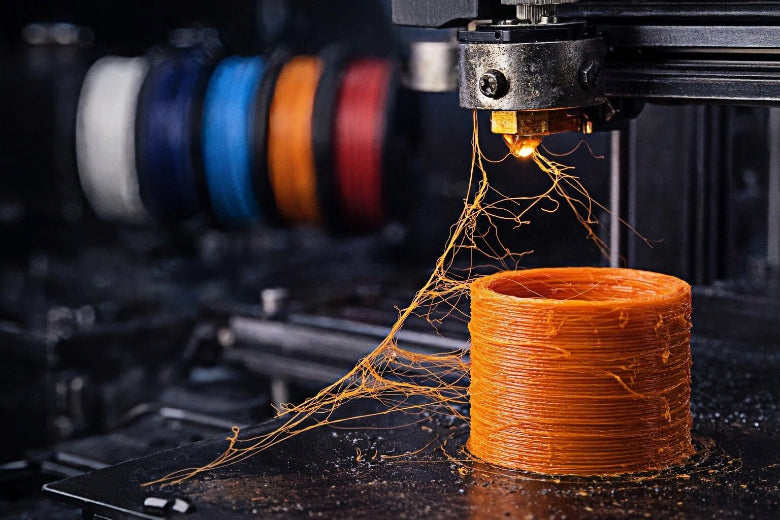
You can fix stringing in your 3D prints by changing printer settings and taking care of your filament. 3D printing stringing happens when thin lines of melted plastic show up between parts of your model. This problem often happens because the nozzle moves over open spaces while filament leaks out. You get better results when you change retraction settings, use a lower print temperature, and make the travel speed faster. Taking good care of your filament also helps stop stringing in 3D printing.
- Change retraction settings to help stop oozing.
- Use a lower print temperature to slow filament flow.
- Make travel speed faster to cut down nozzle time over open spots.
Key Takeaways
- Change retraction settings to stop filament from leaking out. This makes prints look better.
- Make the nozzle less hot to slow down filament movement. This makes stringing happen less often.
- Move the nozzle faster so it spends less time over gaps. This stops filament from leaking.
- Store filament in closed boxes to keep it dry. Dry filament makes prints better and stops stringing.
- Clean the nozzle often so it does not get blocked. A clean nozzle lets filament move smoothly.
Stringing in 3D Printing: Causes and Factors
What Is 3D Print Stringing?
Sometimes, you see thin plastic hairs between parts of your print. This is called 3d print stringing. It happens when melted filament leaks out as the nozzle moves over gaps. Stringing in 3d printing is common with FDM printers. You notice it most when printing models with towers or spaces.
Tip: If you see strings on your print, check your printer settings and filament first.
Main Causes: Temperature, Retraction, Filament Moisture
There are a few main reasons for 3d print stringing. The table below shows the most common ones:
|
Cause |
Explanation |
|---|---|
|
The printer does not pull the filament back enough before moving, leading to stringing. |
|
|
Too high nozzle temperature |
Excessive heat causes the filament to melt too much, resulting in dripping. |
|
Print speed |
Slow travel speed allows more time for filament to ooze out. |
|
Filament moisture |
Wet filament can boil and pop, creating additional strings. |
|
Nozzle cleanliness |
Dirt or old plastic can block the nozzle, causing leaks and stringing. |
- Retraction settings decide how much filament gets pulled back before moving. If retraction is too low, you get more strings.
- High nozzle temperature makes the filament too runny. This can cause more leaks and strings.
- Slow print speed gives the filament more time to drip out.
- Filament moisture is a sneaky problem. Wet filament can boil inside the hot end. This makes bubbles, popping sounds, and extra strings. TPU filament soaks up water fast. This causes rough prints and weak parts.
- A dirty nozzle can block the flow and cause leaks. Clean your nozzle often to stop this.
Other Factors: Nozzle Height, Extrusion, Print Speed
You should also look for other things that cause stringing in 3d printing:
- Nozzle height: If the nozzle is too high, more filament can leak during travel.
- Over-extrusion: Too much filament can make stringing worse.
- Print speed: Fast travel moves help stop stringing. Slow speeds make it worse.
- Environmental humidity: High humidity makes filaments soak up water. If humidity goes over 50%, print quality drops and stringing gets worse. Keep your workspace dry for better prints.
Note: PETG needs higher temperatures and strings more than PLA. ABS can also string at high temperatures. Dry your filament and keep it in sealed boxes to stop moisture problems.
When you know these causes, you can change your printer settings and take care of your filament. This helps you reduce 3d printing stringing and get cleaner prints.
How to Fix Stringing in 3D Printing
You can fix stringing in 3d printing by changing a few key settings and following simple steps. Each solution below targets a main cause of stringing. Try these methods one by one to see which works best for your printer and filament.
Retraction Settings: Enable and Tune
Retraction settings control how much filament the printer pulls back before the nozzle moves over open spaces. If you set these values correctly, you can fix stringing and get cleaner prints.
- Start by enabling retraction in your slicer software.
- Adjust retraction distance and speed based on your extruder type. Use the table below for guidance:
|
Extruder Type |
Retraction Distance |
Retraction Speed |
|---|---|---|
|
Bowden |
4 to 6 mm |
30 to 45 mm/s |
|
Direct Drive |
1 to 2 mm |
35 to 60 mm/s |
- For Bowden extruders, set retraction distance between 4–6 mm and speed between 30–45 mm/s.
- For direct drive extruders, use 1–2 mm distance and 35–60 mm/s speed.
- Run a retraction test print. Look for thin strings between towers. If you still see stringing in 3d printing, increase the retraction distance or speed slightly.
- Avoid setting retraction too high, as this can cause jams or wear out your extruder.
Tip: Adjust retraction settings slowly. Small changes can make a big difference.
Lower Nozzle Temperature
High print temperature makes filament more fluid, which can lead to stringing in 3d printing. Lowering the temperature helps control the flow and fix stringing.
- Check the recommended print temperature for your filament. For PETG, try printing between 230°C and 250°C.
- Lower printing temperature by 5–10°C if you see strings. For PLA, start at 200°C and decrease in small steps.
- Watch your print for signs of under-extrusion, like gaps or weak layers. If you see these, raise the temperature slightly.
- Higher temperatures can worsen stringing, especially with PETG. Experiment within the ideal range to find the best setting.
Note: Lowering the temperature too much can cause poor layer adhesion. Always test with small prints first.
Dry Filament Before Printing
Moisture in filament causes popping, bubbles, and stringing in 3d printing. Drying your filament helps fix stringing and improves print quality.
- Store filament in sealed containers with desiccant packs.
- Use a filament dryer or oven set to a safe temperature (usually 45–60°C for PLA and PETG) for a few hours before printing.
- Most filaments absorb moisture from the air. Wet filament can lose strength and print poorly.
- Studies show that PLA blends lose tensile strength after absorbing water. ABS can lose up to 35% of its strength in high humidity.
Tip: If you hear popping sounds or see steam during printing, your filament needs drying.
Adjust Nozzle Height and Extrusion
Nozzle height and extrusion settings also affect stringing in 3d printing. If the nozzle sits too high above the bed, filament can leak during travel moves.
- Set the nozzle height so it is close to the bed but not scraping it. Use a piece of paper to check the gap.
- Avoid over-extrusion. Too much filament increases the chance of stringing. Lower the extrusion multiplier or flow rate in your slicer if you see blobs or excess material.
- Clean your nozzle often. Old plastic or dirt can block the flow and cause leaks.
Note: Small changes to nozzle height can have a big impact. Test with calibration prints to find the best setting.
Optimize Print Speed
Print speed affects how long the nozzle spends moving over open areas. Faster travel moves help fix stringing by reducing the time for filament to ooze out.
- Increase travel speed to 150–200 mm/s in your slicer settings.
- Faster travel means less time for melted filament to leak.
- Slower travel speeds may increase stringing, as the filament has more time to ooze.
- Combine higher travel speed with tuned retraction settings for best results.
Tip: If your printer starts skipping steps or making loud noises, lower the travel speed slightly.
Use Slicer Features to Reduce Stringing
Modern slicer software offers features to help fix stringing in 3d printing. These tools make it easier to control filament flow and nozzle movement.
- Enable "Avoid crossing perimeters" to keep travel moves inside the model. This reduces the chance of stringing.
- Set a minimum travel distance before retract. This prevents unnecessary retractions and keeps prints smooth.
- Use Z-hop to lift the nozzle during travel moves. This helps avoid dragging strings across the print.
- Adjust retraction settings, travel speed, and temperature together for best results.
Note: Always update your slicer software to access the latest features for reducing 3d printing stringing.
By following these steps, you can fix stringing and get cleaner, stronger prints. Try each solution and watch how your printer responds. With practice, you will learn which settings work best for your setup.
Material-Specific Tips to Reduce Stringing
PLA: Settings and Advice
You can stop stringing with PLA by changing printer settings. Pick PLA filaments that say "low stringing" or "fast printing" on the label. Some PLA filaments have special additives to help stop stringing. Change your retraction settings for better results. Use this table to help you:
|
Filament Type |
Retraction Distance |
Retraction Speed |
Additional Tips |
|---|---|---|---|
|
PLA |
1–2 mm |
25–50 mm/s |
Set your print temperature between 190°C and 210°C. If you see strings, lower the temperature by 5°C and try again. Print a test model to check if it gets better. Clean your nozzle before each print so it does not clog.
Tip: Print a small test model with towers first. This helps you see if stringing happens before you start a big project.
PETG: Settings and Advice
PETG can string more than PLA. You can fix this by changing speed and temperature. Print PETG at 230°C to 250°C. Lower the temperature to keep the filament solid and stop leaks. Use a print speed of 30 to 50 mm/s. For small details, slow down to 25 mm/s.
- Lower nozzle temperature to about 220°C for less stringing.
- Use slower print speeds for better prints.
- Make travel speed faster so the nozzle moves quickly over gaps.
- Try different settings to see what works best for your printer.
Note: PETG changes a lot with small temperature and speed tweaks. Always test these settings to find what works.
ABS: Settings and Advice
ABS needs careful settings to stop stringing. Change your extruder temperature so the filament does not get too hot. Adjust retraction in your slicer software. Turn on retraction and lower nozzle temperature by 5–10°C if you see oozing. Make travel speed faster to keep melted plastic from leaking.
- Set retraction distance and speed for your extruder type.
- Clean your nozzle often so it does not get blocked.
- Keep ABS in a dry box to stop moisture problems.
Tip: Print ABS in a place with good airflow. This keeps fumes away and helps your print look better.
TPU: Flexible Filament Solutions
TPU soaks up water fast, which can cause stringing. Dry your filament before you print. Use this table for drying tips:
|
Filament Type |
Recommended Drying Temperature (°C) |
Recommended Drying Time |
|---|---|---|
|
TPU |
40–45 |
4–6 hours |
Change retraction settings and lower print temperature by 5–10°C. Make travel speed faster to help stop stringing. Always keep TPU in a sealed box with desiccant.
- Dry filament before you use it.
- Change retraction and temperature settings.
- Print test models to check for stringing.
Tip: Flexible filaments like TPU need extra care. Drying and tuning settings help your prints look much better.
If you follow these tips for each material, you can stop stringing and get cleaner prints with PLA, PETG, ABS, and TPU.
Troubleshooting and Prevention for 3D Printing Stringing
Common Mistakes to Avoid
You can stop stringing by not making these mistakes:
- If retraction distance or speed is too low, melted plastic leaks out.
- High nozzle temperature makes filament flow too much and causes strings.
- Wet filament makes bubbles and extra strings on your print.
- Slow travel speed lets more filament leak out during moves.
- Too much filament comes out if you over-extrude, making more strings.
- If retraction length is too high, prints slow down and clogs can happen.
- Retraction speed that is too fast can break or grind the filament.
- Not changing minimum travel retraction can hurt filament in small spots.
Tip: Always check travel speed and retraction settings before you print.
Troubleshooting Checklist
If you still see stringing, try these steps one by one:
|
Step |
Description |
|---|---|
|
Adjust retraction settings |
Change retraction distance and speed. Print a test model to find the best settings. |
|
Optimize temperature settings |
Lower print temperature a little to stop oozing. Make small changes and watch your print. |
|
Modify print and travel speeds |
Lower print speed and make travel speed faster. This helps stop filament from leaking out. |
|
Clean the nozzle |
Take out old plastic and dirt. A clean nozzle helps control the flow of filament. |
|
Ensure filament is dry |
Keep filament in sealed boxes. Dry it if you hear popping or see steam while printing. |
Test travel speed changes with a simple model first. If stringing does not stop, repeat the checklist and change one thing at a time.
Long-Term Prevention Tips
You can keep prints clean by following these easy tips:
- Pick good filament for better prints.
- Store filament in airtight boxes with desiccant or use dry boxes.
- Use vacuum bags if you want to store filament for a long time.
- Keep your workspace between 20°C and 25°C for best results.
- Change print and travel speed in your slicer to help stop stringing.
- Set wipe distance to 0.4 mm or more to help with oozing.
- Use combing mode so the nozzle does not retract too much during moves.
- Clean your nozzle often so it does not get blocked.
- Always check how old your filament is and how you store it. Dry it if it feels wet.
Note: Good travel speed and taking care of filament help your prints look much better.
- Change print temperature and cooling to help control how the material moves. This can make stringing less likely.
- Adjust retraction settings so filament does not ooze out. This helps your prints look better.
- Keep filament in a dry place so it does not get wet. Dry filament works better and stops problems with printing.
You can fix stringing by using a step-by-step troubleshooting guide. Many people, like Teddy, tried each step and made their prints better by testing what worked.
Share what happened or ask questions below. Your ideas help others learn and get better at printing!
FAQ
Why does stringing happen even after adjusting retraction?
Stringing can happen if filament gets wet. High nozzle temperature also causes stringing. Dry your filament before printing. Lower the nozzle temperature a little at a time. Check the nozzle for clogs often.
How do I test for the best retraction settings?
Print a model with towers that are far apart. Look for thin strings between the towers. Change retraction distance and speed, then print again. Keep testing until you see fewer strings.
Can old filament cause stringing?
Yes, old filament can soak up water from the air. Wet filament makes bubbles and causes stringing. Store filament in airtight boxes with desiccant. Dry filament before printing if you hear popping sounds.
What slicer features help reduce stringing?
Turn on "Avoid crossing perimeters" and "Z-hop" in your slicer. These features change how the nozzle moves and help stop strings. Update your slicer software to get new options.
Does print speed affect stringing?
Faster travel speed gives less time for filament to leak out. Raise travel speed in your slicer settings. If your printer skips steps, lower the speed a bit for smoother prints.