


Key Takeaways
- Copy mode prints two identical parts in one job; mirror mode prints a left-and-right pair.
- Each mode shrinks the usable build area per part, and mirror mode is the tighter of the two.
- Choose by part geometry first: symmetrical pairs go to mirror, duplicates go to copy.
Where your printer and slicer call for it, both toolheads should use matching material and nozzle size, and the first layer deserves the most careful check - Check the current official dimensions for your machine before you commit a large part to either mode.
Copy vs Mirror 3D Printing: The Quick Answer
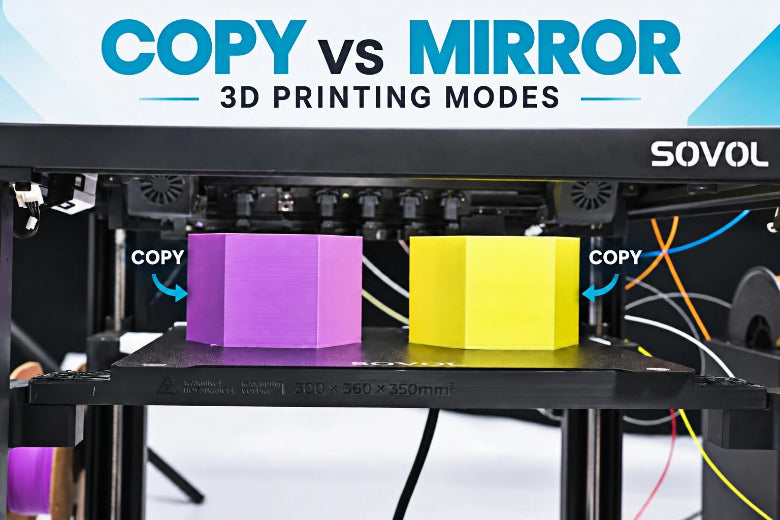
Both modes print two parts in a single job from one sliced model. The difference is what each toolhead produces. Sovol describes Copy Mode as printing two identical parts at the same time with independent dual extruders. Mirror Mode prints mirrored left-and-right parts simultaneously from the same dual independent extruders.
|
|
Copy Mode |
Mirror Mode |
|---|---|---|
|
What it prints |
Two identical parts |
A mirrored left-and-right pair |
|
Suitable model types |
Spare parts, small-batch runs, brackets and covers you need twice |
Handles, wings, symmetrical prototypes, any part that exists in handed pairs |
|
Key setup checks |
Same material and nozzle size on both toolheads; place the part so the copy stays inside the printable area |
Same material and nozzle size on both toolheads; confirm the mirrored half fits the narrower X envelope |
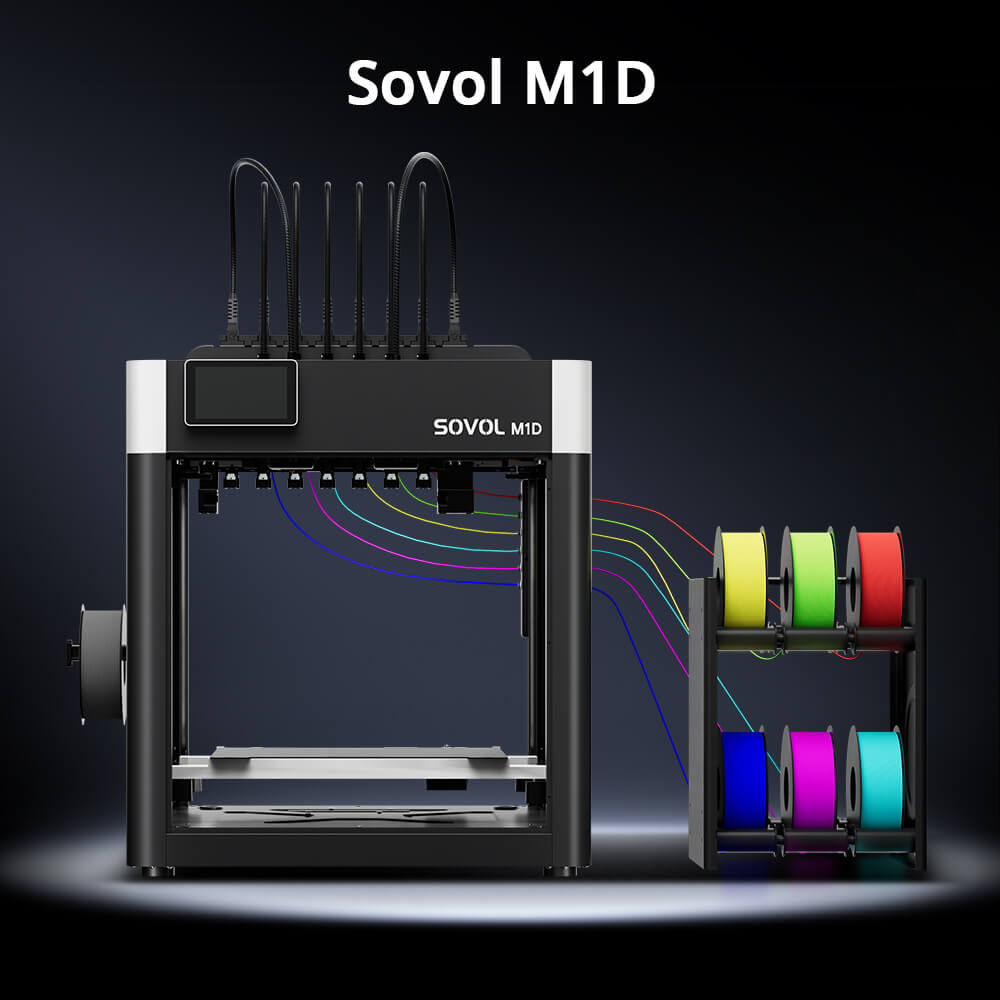
Usable build dimensions differ by mode. On the Sovol M1D, Copy Mode gives each part 178 × 300 × 350 mm, while Mirror Mode gives each part 138 × 300 × 350 mm — Mirror Mode trades away X width to leave room for the reflected toolpath. A wide part that fits in Copy Mode may not fit mirrored. Because these numbers are per-part dimensions specific to one machine, check the current official product page or your printer documentation rather than assuming they carry over to another model.
How Dual-Extruder and IDEX Printers Print Two Parts at Once
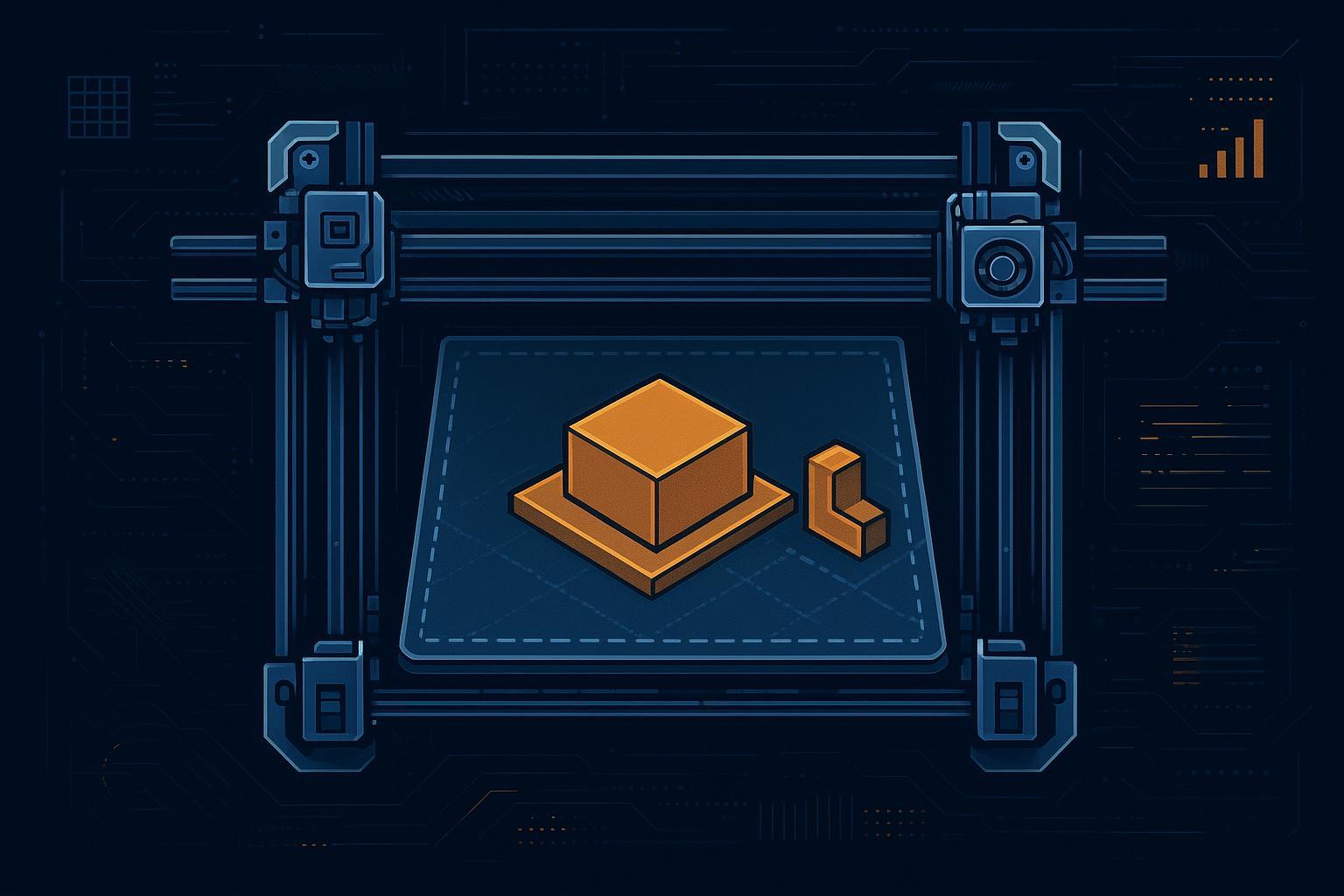
That same two-hands picture explains the mechanism. Think of two hands working the same bench: one holds the tool, the other repeats every motion a fixed distance away. That is the core of IDEX 3D printing. In copy mode, both toolheads follow the same toolpath, separated by a fixed X offset, and the slicer slices one model rather than two. A dual extruder 3D printer therefore duplicates a part by transform, not by running two unrelated jobs.
The mechanical catch is the shared X axis. Two independent carriages ride it, so the two carriages must keep a safe separation, which is why usable width shrinks. That keep-out zone, not the frame, sets the limit.
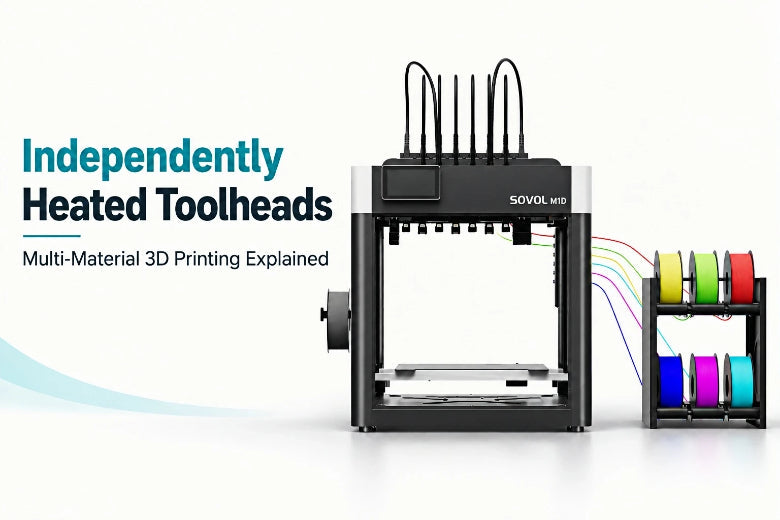
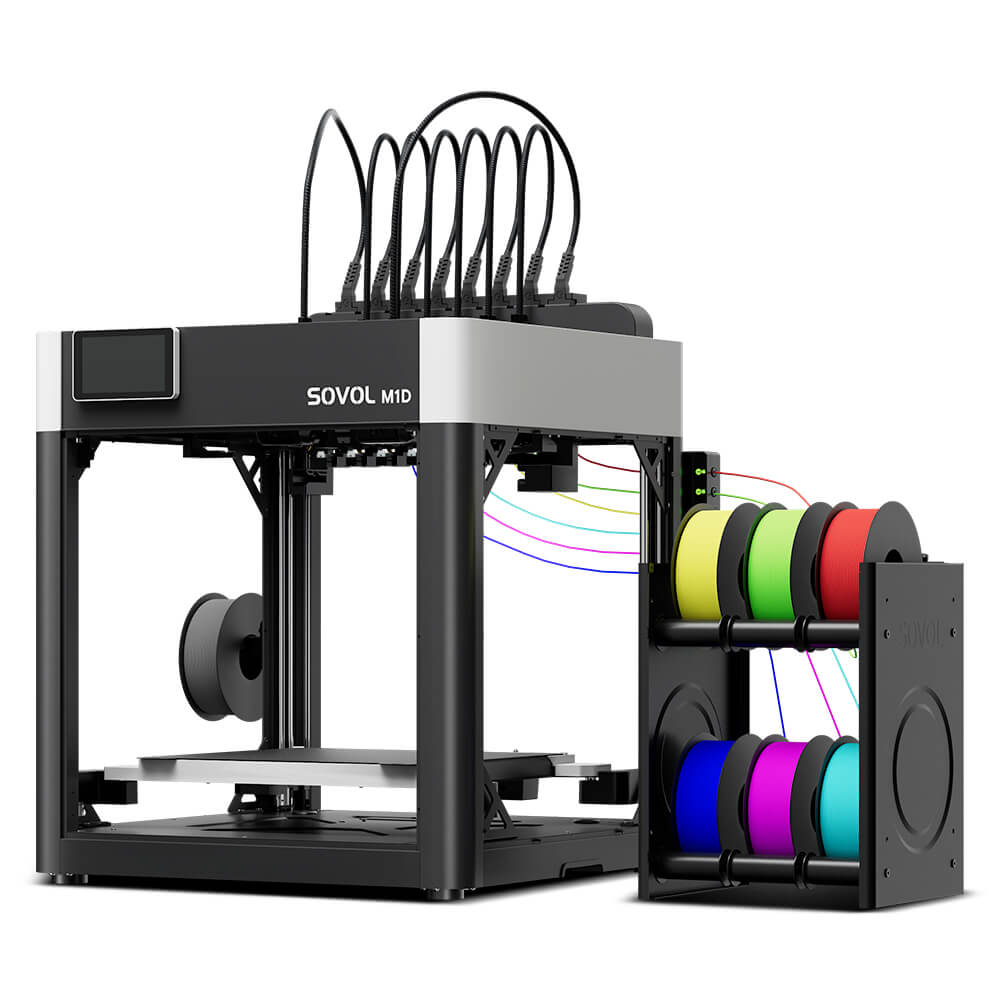
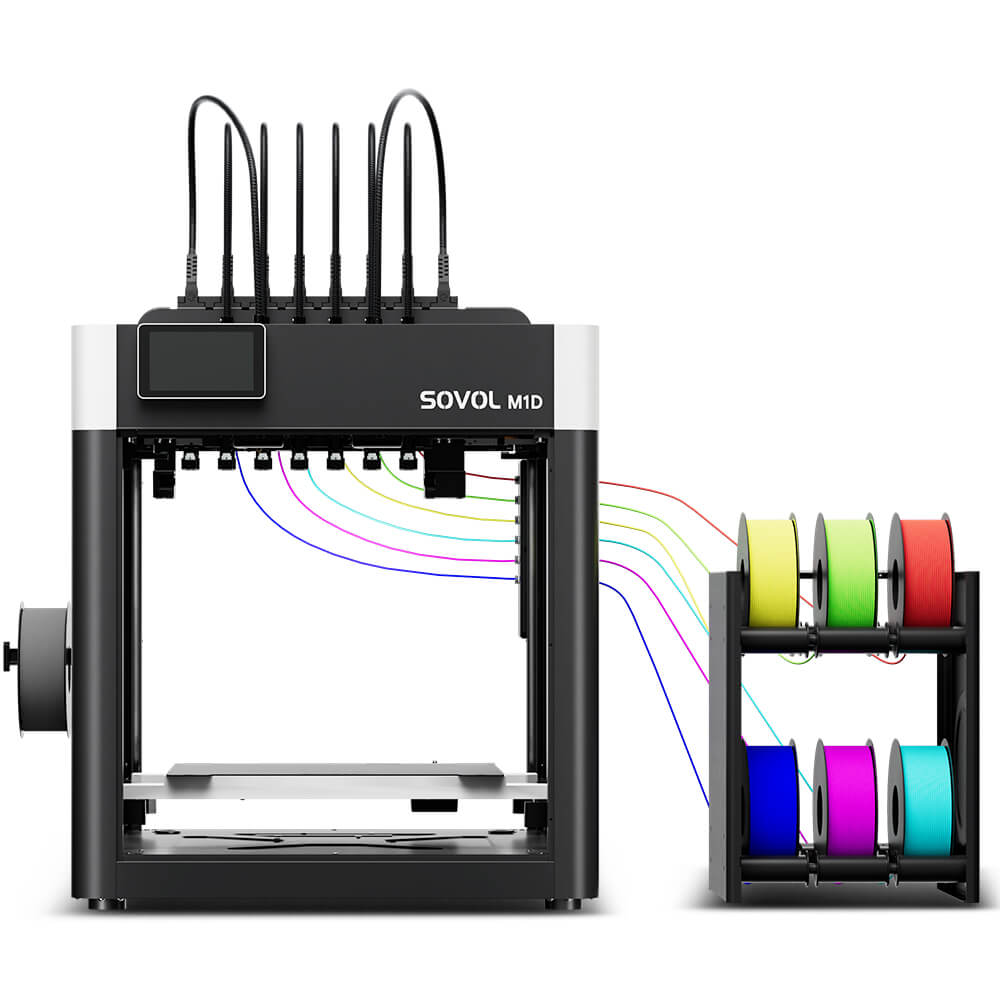
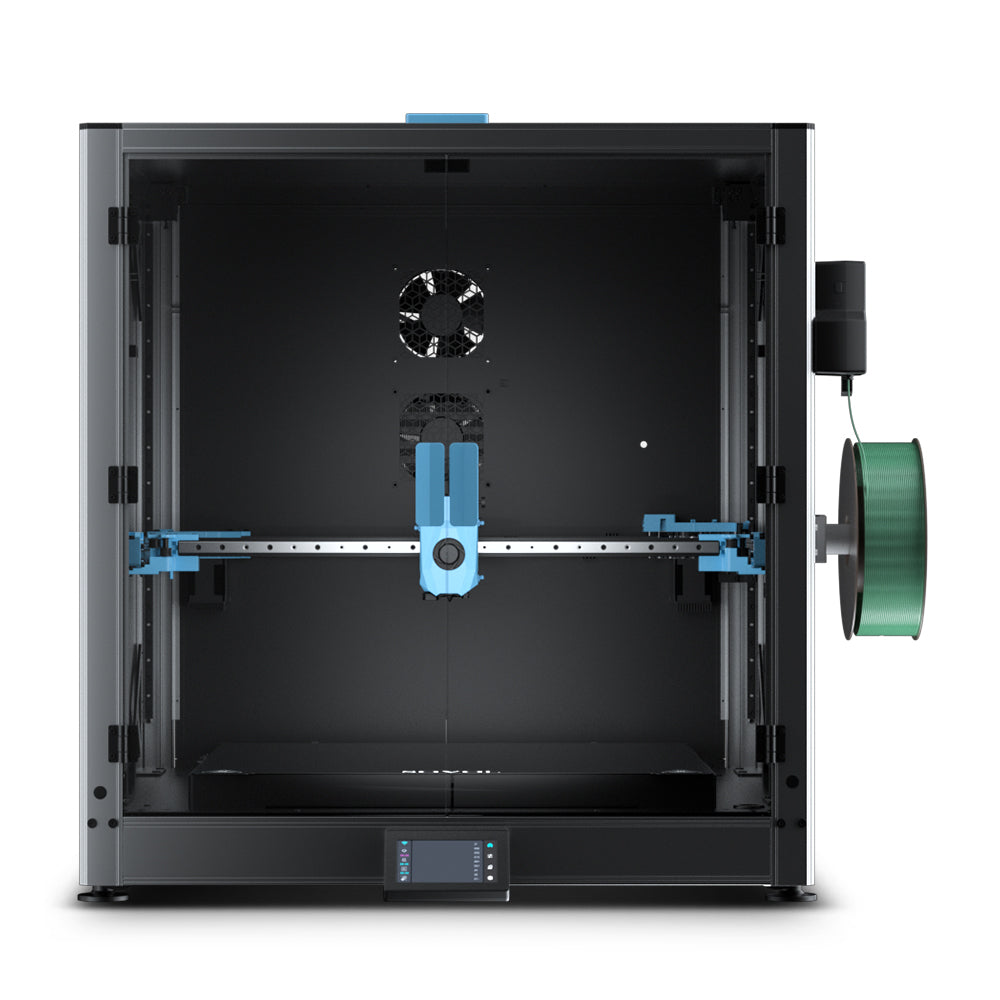
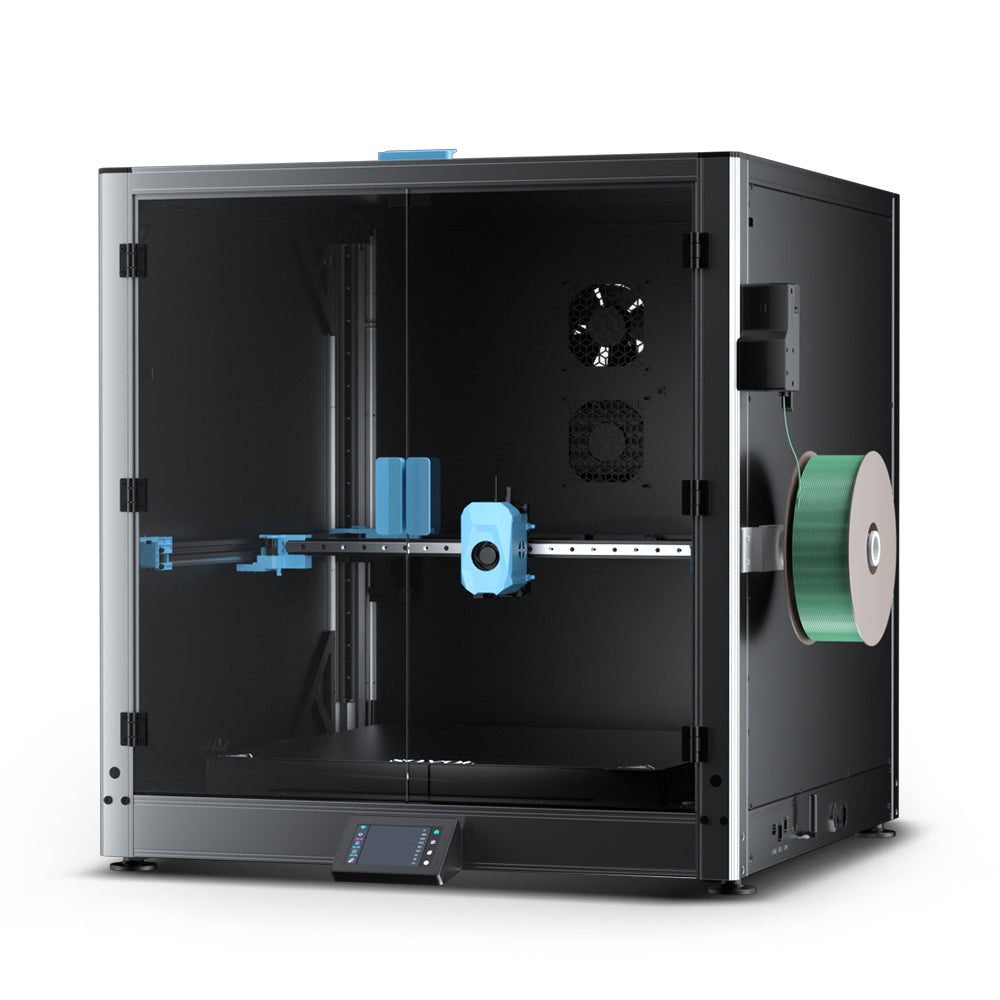
Sovol's DualX system pairs one fixed toolhead with six tool-changing toolheads, all independently heated. Keeping the pair aligned is the hard part: a rear camera calibrates XY offsets across the toolhead system, and auto Z-lift keeps both nozzles at the same height. Other IDEX machines solve the same problem with their own calibration routines.
Because both parts come from one sliced model, they must be identical or mirrored — which is why two different parts can't be printed this way.
Copy Mode: Two Identical Parts in One Job
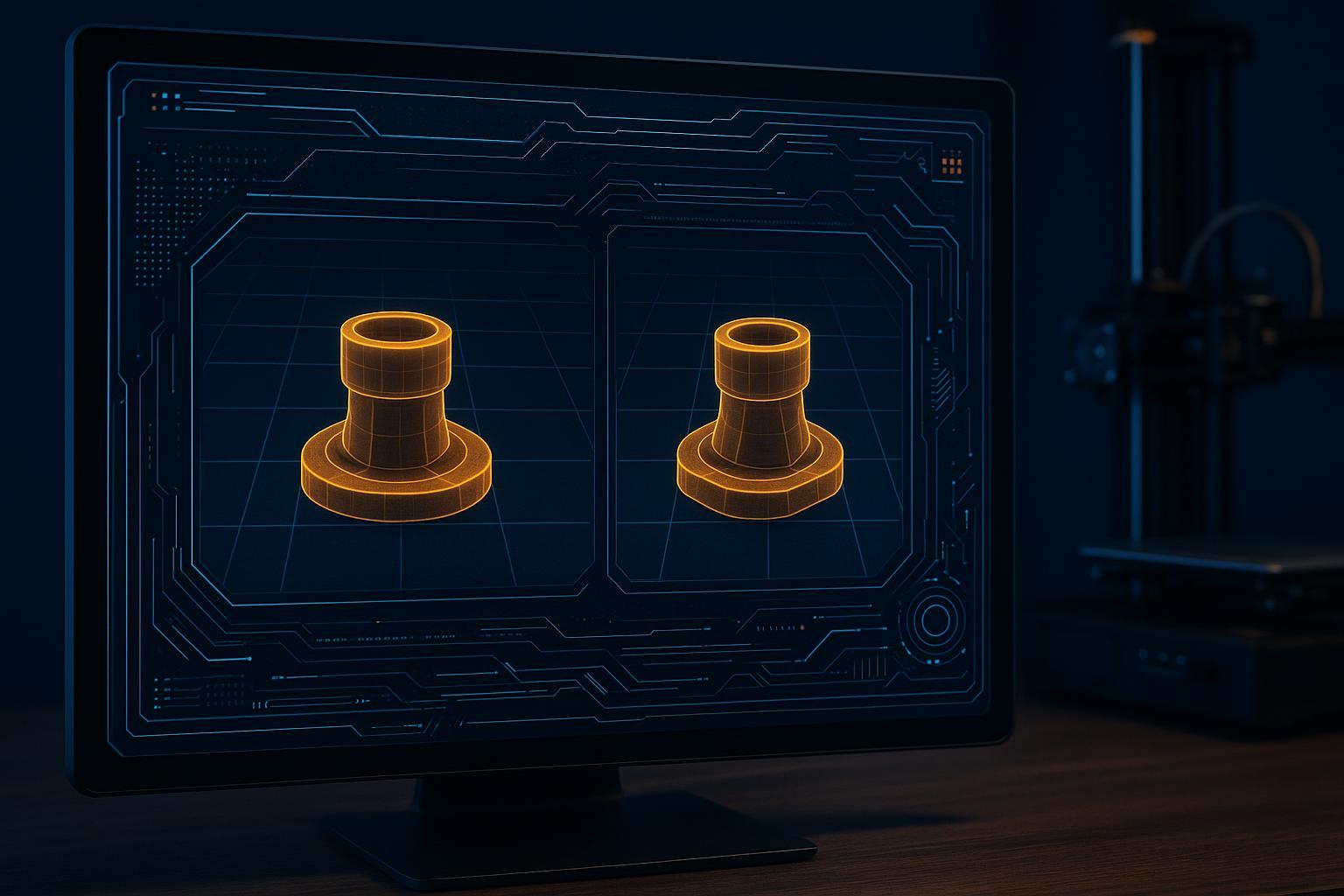
In Copy Mode the two toolheads print two identical models at once, so a part you need twice, like a pair of brackets, comes off the plate as a matched set. You slice one model, both heads run the same toolpath at a fixed offset, and the printer repeats the job side by side.
Follow your printer and slicer guidance on toolhead material and nozzle size. Duplication magnifies first-layer faults because two copies run at once, so bed level and nozzle height parity matter more here than on a single-part print.
Sovol lists 178 × 300 × 350 mm per part in Copy Mode (Sovol). Usable dimensions vary by mode, so check the current official page or your printer documentation before you commit a large part.
That makes Copy Mode a fit for repeatable parts, not one-offs; if you only ever need one, print one.
Mirror Mode: A Left- and Right-Hand Pair in One Job
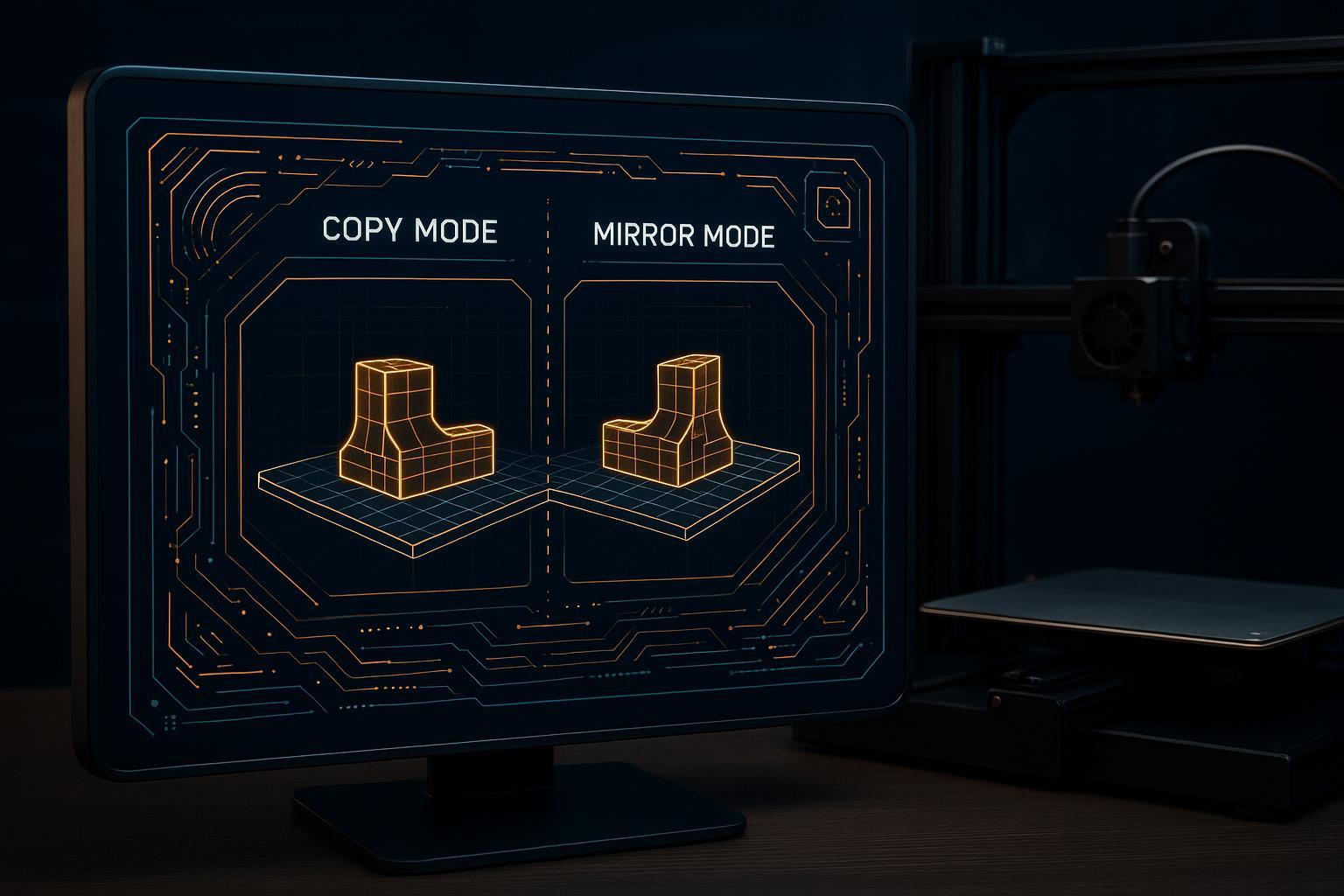
Mirror Mode produces a mirrored left-and-right pair in one job: the second toolhead prints the same geometry reflected across the bed centreline, so a left bracket and its right-hand counterpart come off the plate together. Because the mirrored path sweeps toward the opposite side of the bed, it needs more X clearance than Copy Mode, and the usable envelope shrinks accordingly.
That difference is visible in the published figures. Sovol lists 138 × 300 × 350 mm per part in Mirror Mode, against 178 mm of X per part in Copy Mode. Raise3D's own guidance notes the mirror boundary can be smaller than the duplication boundary, and slicing fails when a part crosses it. Sovol's IDEX workflow notes confirm the general trade-off: enabling these modes can cut usable bed area down, often roughly in half.
So what does this mean for your next print? Mirror Mode is the right choice when the part is handed, not when you simply need two of something. If both parts are identical, Copy Mode gives you the wider envelope. Usable dimensions vary by mode, so check the current official page or your printer documentation before you commit a large part to either mode.
Practical Examples: Brackets, Handles, Covers, and Symmetrical Parts
The clearest way to choose a mode is to picture the part you actually need. These four cases cover most of what people want when they set out to print two parts at once:
- A bracket that broke twice. Two identical mounting brackets, same orientation, same job. That is Copy Mode.
- A handle you need in both hands. A drawer pull or a carry handle has a left and a right version. That is Mirror Mode.
- A paired cover. Two halves of an enclosure lid that must match each other. Copy Mode keeps them identical.
- A symmetrical assembly. Wings, arms, or mirrored housings that only work as a left-and-right set. Mirror Mode prints both sides together.
One limit is worth stating plainly, because it comes up constantly: Copy and Mirror are transforms, not two independent jobs. Sovol is explicit that copy mode prints the same toolpath twice, so two unrelated models are not an option. If you need a bracket and a cover in one run, you place both on the bed and print them normally.
For your next print, design and position the model for the mode you picked. A part that isn't handed gains nothing from Mirror Mode, and a part too wide for the reduced envelope won't slice at all.
Pre-Print Checklist for Copy and Mirror Jobs
Confirm the usable envelope for your chosen mode before you slice. Copy Mode gives each part 178 mm of X on the M1D; Mirror Mode gives each part 138 mm, so a part that fits one mode may not fit the other.
Key Takeaway: One check that is easy to skip is confirming the usable envelope for the chosen mode before slicing, rather than after a failed slice.
Then work through the rest:
- Orient the model. Place the part so the duplicated or mirrored copy stays inside the printable area, and check which axis the copy offsets along.
- Check the toolhead setup for your machine. Confirm the material and nozzle configuration your printer and slicer require for the mode you're using. Where the manufacturer calls for matched toolheads, using the same material and nozzle size keeps the two parts consistent and helps avoid first-layer differences.
- Calibrate in order. Sovol's walkthrough leads with three calibration checks: consistent bed level and first layer, matched effective Z height across both nozzles, then nozzle-to-nozzle X/Y offsets.
- Mind plate flatness. Significant plate unevenness can affect first-layer consistency across both parts, so check your plate or run the mesh leveling your printer supports.
- Enable the mode. The mode is enabled either on the printer or through a mode-specific profile; exact labels and menu paths vary by slicer and version, so follow your own slicer and printer documentation.
- Select the profile first. Sovol's own first-print guide walks through profile and toolhead mapping before you slice; switching printer profiles later can reset filament and color assignments.
- Preview both toolpaths. Step through the slicer preview layer by layer and confirm both copies sit inside the envelope and neither toolhead crosses into the other's zone.
- That short check is usually enough to catch the setups that would otherwise fail at slice time or on the first layer — and it takes minutes, not hours.
Common Mistakes and Troubleshooting
A frequent cause of trouble is choosing a mode the part cannot use. Copy Mode and Mirror Mode both duplicate one model; neither can print two unrelated models side by side. If your parts differ in any dimension, split them into separate jobs.
|
Symptom |
Likely cause |
Fix |
|---|---|---|
|
Second copy shifted or offset |
Wrong mode for the part, or a model that is not truly symmetrical |
Confirm the part is identical or mirrored, then re-slice |
|
Mirrored part faces the wrong way |
Model orientation not set before slicing |
Rotate the model in your slicer, not on the plate |
|
Slicer refuses the job |
Exceeding the mirror boundary fails slicing |
Check the per-mode usable dimensions and shrink or reposition |
|
Carriage stalls or collides |
A part that is too wide makes the follower carriage run out of room |
Narrow the part or switch to single-toolhead printing |
|
Blobs and stringing on both parts |
Mismatched material or nozzle size on the two toolheads |
Use the same material and nozzle size on both |
|
First layer uneven between copies |
A Z mismatch between the two nozzles can throw off the first layer |
Run the printer's Z-offset calibration before the job |
For slicer-specific remedies, follow your slicer and printer documentation.
How Long Does Printing Two Parts at Once Actually Take?
There is no guaranteed time saving here, and it is worth saying that plainly. Heating, homing, calibration, acceleration limits and the reduced usable X width all stay in play, so two simultaneous parts don't guarantee twice the throughput. Actual savings depend on the model and your print settings — a small, simple part behaves very differently from a tall, dense one. As LayerCompass puts it, parts per hour is a more useful measure than a flat 2× claim, so judge a copy or mirror job by output across the whole run rather than the clock on a single print.
FAQ
Can Copy Mode print two different models?
No. Copy Mode prints the same toolpath twice, once with each toolhead, so both objects come off the plate identical. If you need two different parts in one job, that is a sequential or multi-material workflow, not Copy Mode. Check your slicer's mode menu to see which option your machine exposes.
Do both toolheads have to use the same filament?
For Copy Mode, yes: both toolheads should run the same material and nozzle size, because they are executing one shared toolpath and any mismatch shows up as a visible difference between the two parts. Mirror Mode pairs are also printed from the same material for the same reason. If you want two colors, that is a different feature.
What if my part is slightly too wide for the mode I picked?
It will fail to slice. The mirror boundary is smaller, so an over-wide part fails to slice rather than printing partially, and Copy Mode has its own narrower X limit. Rotate the part, split it, or fall back to a single-toolhead job.
Is Mirror Mode useful for a part that is not handed?
No. A part that is not handed gains nothing from Mirror Mode, since the mirrored copy would be a duplicate you could have printed in Copy Mode with more X room. Use Mirror only when left and right versions genuinely differ.
Do these modes work on any dual-extruder printer?
Not necessarily. Mode support and menu paths vary by printer and slicer, and some dual-extruder machines offer only duplication or only mirroring. Check your printer documentation before planning a job around either mode.
Conclusion: A Simple Rule of Thumb
The decision comes down to the geometry of the parts themselves. If you need two identical parts, use Copy Mode. If you need a handed left-and-right pair, use Mirror Mode. If the two parts are genuinely different from each other, print them normally and skip both modes.
That single rule covers most jobs, but the prep work is what makes it hold up. Confirm each part fits inside the mode's usable build area before you slice, keep the same material and nozzle size on both toolheads, and let the machine's calibration routines settle the two nozzles to the same height before the first layer goes down. Skipping those checks is where most copy and mirror jobs go wrong, not the mode choice itself.
If you are setting up your first paired print, the M1D first-print setup guide walks through the calibration sequence in order. For readers planning repeat batches, the throughput article covers how to think about output across a run.