If you’ve ever wished you could print two of the same part without buying a second printer, copy mode is the feature you’re looking for.
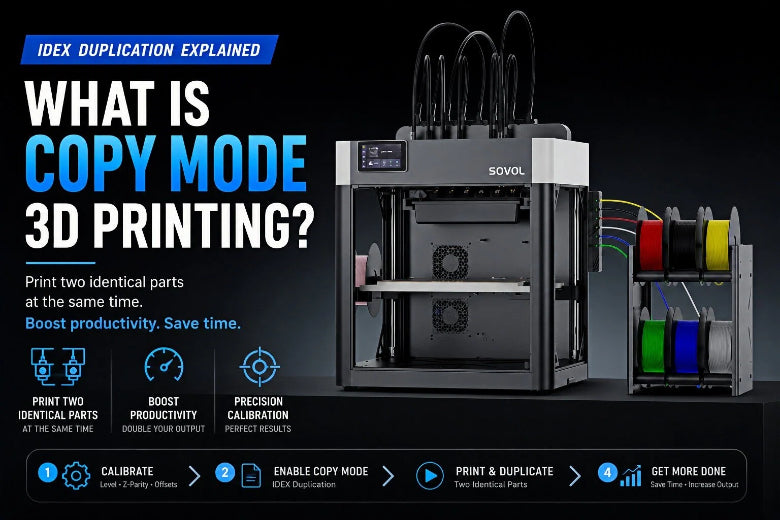
In FDM, copy mode (also called duplication mode) is a printing mode where a compatible printer makes two identical parts at the same time, side-by-side, by running two toolheads in sync. (You’ll also see it described as a duplicate mode 3D printer feature.)
Key Takeaway: In copy mode 3D printing, the printer isn’t doing “two-material” magic. It’s running the same toolpath twice to double throughput—when the part size and calibration allow it.
What “copy mode” means (and which printers can actually do it)

Copy mode usually refers to IDEX duplication mode.
- IDEX = Independent Dual EXtrusion: two separate toolheads can move independently in X (and park away), while sharing Y movement.
- In duplication/copy mode, both toolheads follow the same motion path, separated by a fixed offset, so you get two identical copies in one job.
This is why “dual extruder” can be a misleading label.
Some printers have two nozzles on one shared carriage (traditional dual extrusion). That setup is great for printing one part with two materials/colors, but it generally can’t do true parallel duplication because the nozzles can’t operate independently.
If you want a practical reference point, Sovol’s explanation of copy mode 3D printing focuses on exactly this “two independent toolheads, two identical parts” idea.
How copy/duplication mode works (a simple mental model)

Think of copy mode like this:
- Toolhead A prints your part on the left side of the bed.
- Toolhead B prints the same part on the right side.
- Both heads move together, staying a constant distance apart.
That’s it.
The “hard part” isn’t the idea—it’s the calibration.
When copy mode is worth using (and when it isn’t)
Copy mode is best when you’re printing small, repeatable parts and you care about throughput.
Good fits:
- Brackets, mounts, enclosures, spacers
- Small-batch functional parts for a project
- Iteration prints where you want two copies to test fit quickly
Bad fits:
- Models that are wide in X (you’ll run out of room because the bed is effectively split)
- Prints that are already adhesion-sensitive (two failures for the price of one)
- Jobs where you’re still tuning first layer / flow / offsets
If you’re deciding between architectures, Sovol’s breakdown of IDEX vs tool changer is a useful way to frame it: duplication/mirror tricks are a core IDEX advantage when you mostly need two tools.
The non-negotiables: what you must calibrate before you trust copy mode
Copy mode is unforgiving because it removes a lot of “single-nozzle forgiveness.” If one head is slightly off, one of your copies will show it immediately.
1) Bed leveling and first-layer consistency
If your first layer isn’t consistent in normal mode, copy mode will amplify the problem.
A straightforward place to start (especially if you’re using an SV04) is Sovol’s guide on how to level the bed on the Sovol SV04 IDEX 3D printer.
2) Match both nozzles’ effective Z height (Z parity)
Your two nozzles must be the same height relative to the bed.
Symptoms when they’re not:
- One copy looks “perfect,” the other looks under-squished (poor adhesion) or over-squished (elephant skin / scraping)
- One nozzle drags through fresh lines laid by the other nozzle
3) Calibrate nozzle-to-nozzle X/Y offsets
Copy mode assumes the printer knows exactly where Toolhead B is relative to Toolhead A.
If offsets are wrong, you’ll see:
- One copy shifted
- Edges that don’t match
- Features that look slightly “translated” even when the motion looks synchronized
Sovol’s walkthrough of IDEX duplication mode (copy mode) and how to use it highlights these calibration checks as the foundation.
4) Control ooze and stringing like you mean it
Even with IDEX parking, a hot idle nozzle can drool.
Practical levers:
- Standby temperatures (if your firmware/profile supports it)
- Conservative travel settings
- Wipe/prime routines appropriate to your slicer and printer
Mirror mode vs copy mode (and vs dual-material printing)
These terms get mixed up a lot:
- Copy mode / duplication mode: two identical parts, same orientation.
- Mirror mode: two parts that are mirrored left-to-right (useful for left/right brackets).
- Dual-material printing (one part): one object, but you swap between two tools to combine colors/materials/support.
If you want a vendor-neutral definition, Raise3D’s Brief Introduction of Duplication Mode and Mirror Mode lays out the difference in plain terms.
A practical “first successful copy mode” workflow
Use this as your first repeatable test.
- Pick a small part (avoid wide X footprints).
- Use the same material and nozzle size on both toolheads.
- Run your normal bed leveling routine.
- Verify Z parity (paper test / Z-align process depending on your machine).
- Calibrate X/Y offsets.
- Slice as a single model first, then enable duplication/copy mode using your printer’s expected workflow.
- Watch the first 3–5 layers closely.
Pro Tip: Your goal on the first run isn’t speed. It’s making both copies look indistinguishable on the first layer.
FAQ: Copy mode 3D printing
Does copy mode cut print time in half?
Often it can nearly double your output per hour, but it doesn’t magically make one part print faster. You’re trading build area and calibration effort for throughput.
Can I print two different parts in copy mode?
No. Copy mode prints the same toolpath twice. To print two different parts, you’d typically just place two models on the bed and print normally (single toolhead), or use other multi-tool workflows if your printer supports them.
Do I need an IDEX printer for copy mode?
In most cases, yes. True duplication depends on independent toolheads so the printer can maintain a fixed offset and keep both nozzles from interfering.
What’s the #1 reason copy mode fails?
First-layer inconsistency between the two nozzles (bed leveling, Z parity, offsets). Copy mode is a calibration stress test.