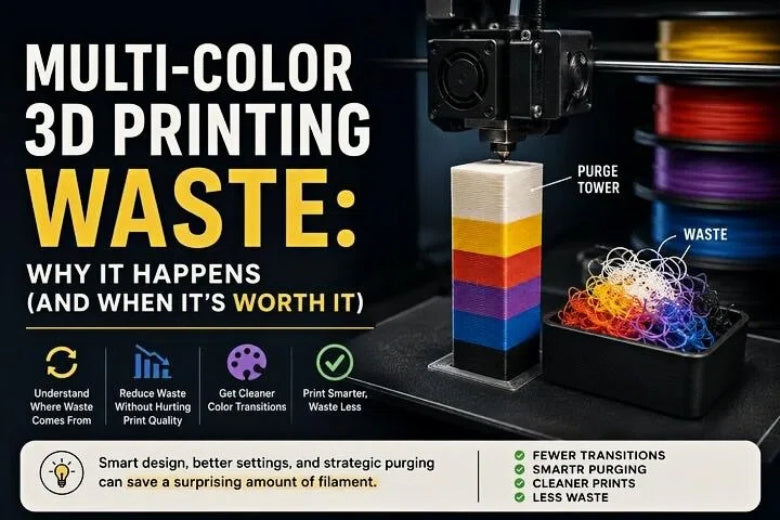
In most consumer multi-color setups, the waste is not a bug. It’s the cost of getting clean color (or material) transitions through a single shared nozzle.
This post breaks down where the waste actually comes from, why some models explode the purge pile, and how to reduce it without tanking print quality.
Key takeaways
- Multi-color waste mainly comes from flushing/purging: pushing the old melted filament out of a shared nozzle so the next color prints clean.
- Your total waste is driven by two multipliers: how many changes you have and how much you flush per change.
- Dark → light color swaps and some material pairs usually need more flushing volume to avoid visible contamination.
- You can often reduce waste safely—but only if you test. Under-purging shows up as tinting, dirty edges, and blobs.
- The biggest wins come from reducing color changes (design/slice strategy), then tuning flushing volume, then redirecting purge into infill/supports.
Why multi-color 3D printing waste happens in the first place

Here’s the simplest mental model:
- Your hotend is like a small “melt reservoir.”
- When you switch filament, you don’t instantly replace what’s already melted inside that reservoir.
- Until you push enough new filament through, the nozzle is outputting a blend of old + new.
That blended section is exactly what you don’t want showing up on your part’s surface.
So slicers force a flush/purge during each filament change: extrude material until what comes out is clean enough to print the next color.
Bambu Lab explains this directly in their documentation on reducing waste during filament change (Bambu Lab Wiki): a small amount of old filament remains in the extruder/nozzle path, so the printer must flush it out after the new filament is fed.
The short version: multi-color 3D printing waste scales with transitions. If you force a lot of filament changes (especially high-contrast ones), you force a lot of flushing.
Key Takeaway: In a single-nozzle system, “waste” is mostly just the cost of clearing the shared melt path.
Where the waste actually comes from (tower, purge, wipe)
A lot of confusion comes from mixing up three different jobs that happen around a filament change.
1) Flushing / purging (the big one)
Flushing volume (or purge volume) is the amount of filament extruded to clear old color/material out of the hotend until the output is acceptable.
Depending on your setup, that filament is:
- dumped outside the model (sometimes called “purge”/discard),
- printed into a sacrificial structure,
- or redirected into non-visible areas (more on that later).
2) Prime tower / purge tower / wipe tower (the stabilizer)
A prime tower (often called a purge tower or wipe tower) is a sacrificial printed block next to your model.
It serves two practical purposes:
- provides a controlled place to deposit transition material, and
- helps stabilize extrusion so you don’t start the next color on your actual model with under-extrusion or a blob.
3) Wiping (the nozzle-tip cleanup)
Even after the melt path is mostly cleared, the nozzle tip can carry a tiny smear or blob. A wipe move is meant to physically clean the nozzle surface so you don’t drag a booger into your next perimeter.
Wiping is usually a small fraction of the waste compared to flushing, but it’s a big contributor to “why did it ruin the surface right after a color change?” failures.
Why some models generate a ridiculous amount of waste
If you want a useful rule-of-thumb, it’s this:
Total waste ≈ (number of filament changes) × (flush volume per change) + wiping/priming overhead
So when waste feels insane, one (or both) of these are happening:
1) Your model forces tons of color changes
Classic offenders:
- multi-color logos with lots of tiny islands,
- text on curved surfaces,
- “confetti” patterns where colors alternate every few lines,
- models where multiple colors appear on the same layer across many separated regions.
Even with only 3–4 filaments loaded, a design like this can create hundreds or thousands of filament changes.
2) Your transitions are “hard” transitions
Some swaps require more flushing volume to look clean:
- Dark → light: Black to white is the worst-case because small pigment leftovers are obvious.
- Certain material pairs: Support materials (and some polymer combos) often need conservative flushing to avoid contamination that changes how supports release or how surfaces bond.
- High-contrast cosmetic surfaces: If a color change happens near a visible face, your tolerance for tinting is basically zero.
3) You’re paying for stability, not just color
Sometimes the waste isn’t just about “color purity.” It’s also about making sure the next color starts printing with consistent flow.
That’s why many slicers default to conservative flushing volumes and keep towers enabled until you’ve proven your settings are stable.
The quality tradeoff: what under-purging looks like
Everyone tries to cut flushing volume. The problem is that under-purging often fails quietly.
Watch for these tells:
- Tinting/ghosting: your “white” looks slightly gray or cream right after a change.
- Dirty edges: color boundaries look fuzzy, not crisp.
- Surface pimples/blobs: especially right after a swap.
- Random streaks: a tiny bit of old filament gets dragged across a top surface.
If your model has thin walls, translucent filament, or large light-colored faces, you’ll see under-purge problems immediately.
⚠️ Warning: If you reduce flushing too aggressively, you won’t just get uglier colors—you can also increase failures (and waste even more filament on restarts).
How to reduce multi-color waste (the right order)
The fastest way to waste time is to start by shrinking your purge tower.
Do these in order instead.
1) Reduce color changes before you touch flushing settings
This is the highest-leverage move.
Try:
- Simplify color regions: fewer tiny islands, fewer alternating stripes.
- Change where the color split happens: put transitions on hidden faces or inside features.
- Use inlays/faceplates: print an accent piece separately and assemble.
- Batch the plate: if you need multiple copies, print them together so the same change sequence produces more finished parts.
2) Tune flushing volume conservatively with a test print
Do not tune flushing volume on your 18-hour model.
Make a small two-color test with:
- a sharp boundary,
- a light color that shows contamination,
- and a few repeated swaps.
Then reduce flushing in small steps (think: mild multipliers, not drastic cuts) until you see the first hint of contamination—then step back.
3) Redirect purge into infill/supports (when your model can hide it)
This is where you can make the purge pile look dramatically smaller—because you’re using the transition material inside structures you don’t see.
Options:
- Purge into infill: Use flushing material as infill, then hide it under enough outer walls.
- Polymaker describes this approach in Reduce Purge Waste, with the key caution: thin shells and translucent materials can show the color underneath.
- Purge into supports: Great when you already need supports and they’ll be removed.
- Purge into a “flush object”: Put a sacrificial functional part on the plate (a spacer, a paint test piece, a jig) and let it absorb the transitions.
4) Only then: shrink the prime/purge tower
Once your flushing volumes are calibrated and your purge placement strategy is working, you can experiment with a smaller tower.
Architectures that change the waste equation
If multi-color is a core part of your workflow, it’s worth understanding the hardware trade.

Single nozzle + filament switching
- Pros: simpler hardware; cheaper; works on a wide range of printers.
- Cons: waste is inherent because every change shares one melt path.
Dual-nozzle / IDEX / toolchanger
- Pros: dramatically less cross-contamination in a shared nozzle, so you can reduce flushing waste.
- Cons: more calibration and mechanical complexity (idle nozzle oozing, alignment, extra failure modes).
There’s no free lunch—these systems often trade “wasted filament” for “more things to tune.”
FAQ
Why is the purge tower sometimes bigger than the print?
Because the tower is paying the cost of every transition. If your model has lots of small colored regions per layer, you may be forcing repeated swaps. Waste scales with change count and flush volume.
Can I turn off the purge tower entirely?
Sometimes—but only if your slicer has other ways to keep transitions clean (flushing elsewhere, wiping, stable flow). Many people can disable it for certain models, but if you start seeing blobs or contamination right after swaps, a tower may be doing real work.
Does purging into infill weaken parts?
It can. You’re mixing colors/materials inside the structure. If you’re printing functional parts, treat “purge into infill” as a quality experiment: test a sample and validate strength and surface appearance.
Why is black-to-white so much worse than white-to-black?
Because leftover dark pigment is visible in light filament sooner. Some slicers even apply different flushing volumes based on the direction of the transition (dark → light needs more).
Next steps
If you want the shortest path to a lower purge pile:
- Redesign or re-slice to reduce the number of changes.
- Calibrate flushing volume with a small test print.
- Use purge into infill/support/object where your model can hide it.
If you’re running an open-source, mod-friendly setup (SOVOL included), the exact knobs and names vary by slicer—but the physics is the same: you’re managing a shared melt path.
For a tactics-first checklist, see SOVOL’s guide: Reduce Filament Waste Multi Color 3D Printing: 9 Practical Moves.