







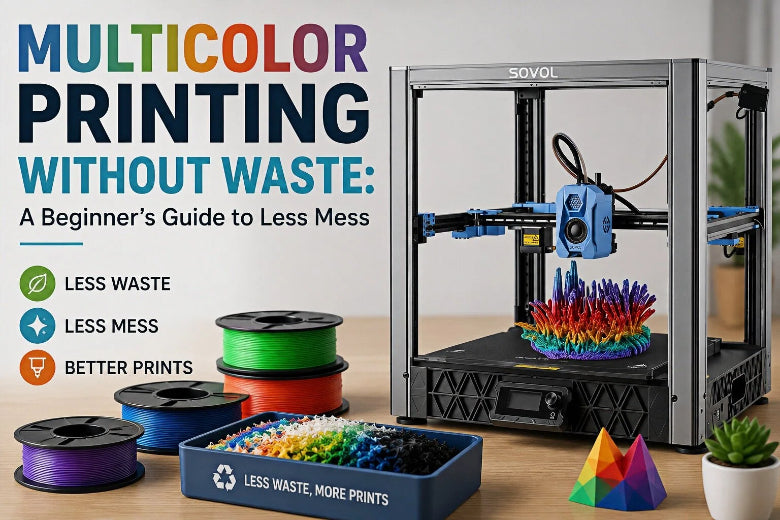
You’re not. With most single-nozzle setups (manual swaps or a filament switching unit), some purge is normal.
This guide is for multicolor 3D printing for beginners: how to get a “good enough” first result with less waste and less mess, without turning your slicer into a full-time job.
Key Takeaway: For beginners, “multicolor printing without waste” means no unnecessary waste: fewer color changes, fewer failed prints, and purge that’s kept under control.
Multicolor printing without waste: what it really means
There are two different goals people mix together:
- Reduce purge waste (use less filament during swaps).
- Reduce the mess (keep purge predictable, contained, and not stuck to your model).
As a beginner, “reduce the mess” is often the bigger win—because the most expensive waste is a failed print.
If you want a quick overview of multicolor methods (manual swaps, switching units, multi-extruder approaches), start with SOVOL’s explainer on what multi-color 3D printing is and how it works.
The 10-minute starter plan (so your first print doesn’t implode)
Before you touch purge settings, set yourself up for an easy first success.
1) Pick a “friendly” first multicolor model
Choose a model that:
- uses 2 colors, not 4
- has large color regions (not tiny islands)
- doesn’t rely on tricky supports
Beginner-friendly examples: a name tag, keychain, logo badge, or a simple two-color top layer.
2) Pick colors that don’t punish you
Some transitions are harder than others:
- dark → light (black to white) is the most likely to look “dirty”
- similar shades are easier
If your goal is “good enough with less purge,” start with two colors that are closer in shade.
3) Decide what surface needs to look perfect
If only one face needs to look perfect (like the front of a badge), you can accept that the inside might show a bit of mixing—most people will never see it.
Purge towers, prime towers, wipe towers: why they exist
When a single nozzle switches colors, it has to:
- purge the old color out of the melt zone, and
- re-prime flow so the first lines of the new color aren’t under-extruded.
A purge/prime/wipe tower is a small “sacrifice structure” printed next to your model that absorbs that transition. Prusa explains the wipe tower’s job as keeping transitions clean and stabilizing filament flow after a color change in Prusa’s wipe tower explanation.
Beginner rule: don’t delete the tower yet
You’ll see advice like “turn off the tower to save filament.” Sometimes it works. But it’s also a common way to get:
- color streaks where a new color starts
- weak lines right after swaps
- blobs from inconsistent flow
Pro Tip: A slightly-too-large tower is usually cheaper than reprinting the whole model.
The 3 safest ways to reduce purge waste (without wrecking quality)
These reduce waste without needing perfect calibration.
1) Print more than one copy
If your model is small, print 4–10 copies in one job. The printer still swaps colors, but that “swap cost” gets shared across more parts.
Bambu Lab explicitly recommends placing multiple identical models to take advantage of the waste created by filament changes in their Bambu Studio guide to reducing waste during filament changes.
2) Reduce the number of swaps (design beats settings)
Before you tweak purge volume, ask:
- Can you make the colored detail raised on the top layer?
- Can you make text thicker so it prints as one region?
- Can you reposition a logo to avoid lots of tiny islands?
A lot of “waste-free” multicolor is really swap-free design.
3) Make one conservative adjustment at a time
Most slicers let you reduce flush/purge volume via a global multiplier or per-transition settings.
Beginner workflow:
- Print a small test model.
- Reduce purge slightly.
- Print again and inspect the first lines after each color change.
If your light color looks tinted, you went too far—undo one step and stop.
If you want a deeper playbook once you’ve got a few wins, SOVOL’s advanced guide on how to reduce filament waste in multi-color printing is a good next read.
“Flush into infill” and “flush into supports”: use it only when it’s hidden
Some slicers can redirect purge material into the model (infill/supports/object) so less filament goes into the tower.
That can work well, but the limitation is obvious: if the model can’t hide the transition plastic, you’ll see it.
A safe beginner rule of thumb:
- Use flush-into options when your model has thick walls and you’re printing opaque colors.
- Avoid flush-into options on thin parts, very light colors, or translucent filament.
(If you’re curious how these options work in practice, the Bambu guide linked earlier is a clear reference.)
Keep the mess under control (so multicolor stays fun)
A few simple habits prevent most “multicolor chaos”:
- Keep a small purge bin/tray near the printer.
- Use tweezers for stringy bits (don’t grab near moving parts).
- For manual swaps: heat properly, feed until color is clean, then wipe any hanging strand before resuming.
Don’t let wet filament turn ‘waste’ into ‘failed print’
Moist filament tends to pop, ooze, and string—problems that can make multicolor prints fail more often.
If you’re hearing crackles or seeing bubbles, start with SOVOL’s guide to fix filament popping (moisture) during 3D printing.
Key takeaways
- “Multicolor printing without waste” is realistic when you aim for no unnecessary waste, not zero purge.
- Keep the purge/prime tower at first; it protects quality and reduces failed prints.
- The safest waste reducer is printing multiple copies so purge is shared.
- Use “flush into infill/supports” only when the model can truly hide internal color mixing.
- Dry filament matters—moisture can turn a small purge pile into a full reprint.
FAQ
Is it possible to do multicolor printing with zero waste?
On most single-nozzle setups, not truly. Some approaches reduce visible purge dramatically, but beginners usually do better by reducing swaps and keeping purge contained.
Why is dark-to-light so hard?
Because a tiny amount of dark pigment is visible in a light filament. The same contamination often disappears when you go light-to-dark.
When should I start tuning purge volumes?
After you’ve had 2–3 successful multicolor prints with the default settings. Tune slowly, and only on small test models first.
Next steps
If you want to go deeper, read SOVOL’s advanced guide to reducing waste in multicolor printing (linked above), and keep the methods explainer handy when you’re choosing your next project.











