You can queue parts overnight, sure. But it still feels wasteful to watch a machine spend hours repeating the exact same toolpath, one copy at a time.
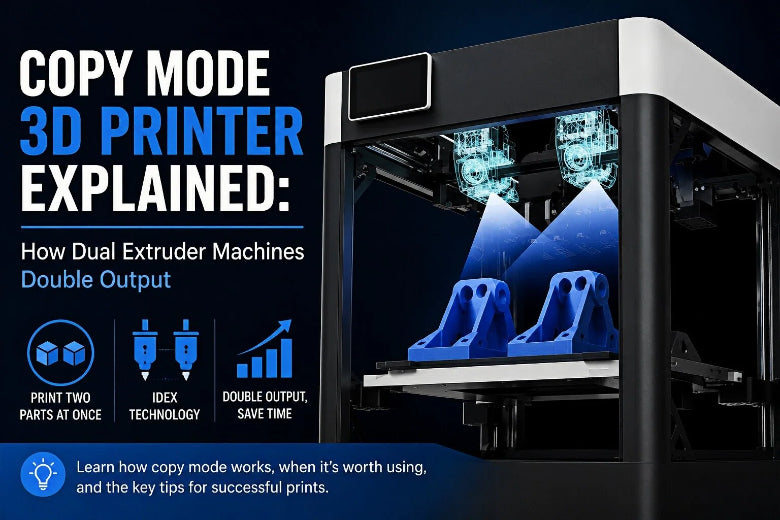
That’s the problem copy mode (also called duplication mode) is built to solve.
Key Takeaways: Copy mode lets an IDEX 3D printer print two identical parts at once by synchronizing both independent toolheads. It can nearly double throughput for small, repeatable parts—but only when the model fits the “two-up” build envelope and your offsets/first layer are dialed.
Copy mode 3D printer: what it means in plain English
Copy mode is a print mode where a compatible machine produces two identical parts at the same time, side-by-side, using both printheads simultaneously.

The key detail is “compatible.” In practice, copy mode is most associated with IDEX machines—short for Independent Dual Extrusion.
Sovol defines IDEX as a setup where two toolheads can move independently, letting the inactive head park away from the print; a key benefit is enabling duplication mode and mirror mode on compatible machines (printing two identical or mirrored parts at once) in its 2026 explainer, IDEX vs Tool Changer 3D Printer: Which Is Better?
If you’re searching terms like “what is copy mode in 3D printing” or “print two parts at once,” this is usually what people mean: parallel output from two independent carriages.
Copy mode vs mirror mode (quick distinction)
Copy mode is “two of the same.” Mirror mode is “left and right.”
BCN3D’s Stratos documentation defines duplication mode as “printing two parts at the exact same time with both print heads,” and mirror mode as printing with both heads at the same time, but the second part is mirrored (BCN3D Stratos: IDEX mode, updated 2026).
Why copy mode matters (especially for functional parts)
Copy mode isn’t about flashy multi-color prints. It’s about time per part.
For advanced FDM users, that matters in very practical situations:
- You’re iterating a design and want two samples to test fit or strength at the same time.
- You’re printing “pairs” (two brackets, two mounts, two clips) and always need duplicates.
- You’re making small-batch functional parts where setup time is already paid—so throughput is the real limiter.
A lot of makers describe the payoff as “two printers in one frame”—but it’s more accurate to say you’re buying parallel throughput, with extra calibration responsibility.
The hardware behind it: dual extruder vs IDEX (and why the distinction matters)
“Dual extruder 3D printer” is an umbrella term. It can mean:
- Two nozzles on one shared carriage (traditional dual extrusion)
- Two independent carriages on the same gantry (IDEX)
Copy mode generally requires #2.
MatterHackers explains IDEX as two hotends separated from each other with their own X carriages (two X motors), while they still share the same Y motion (MatterHackers IDEX FAQ). That independence is what makes parallel printing possible.
Why a “regular” dual extruder can’t do true copy mode
If both nozzles are bolted to the same carriage, they can’t print in two different X positions at the same time. They can swap materials (multi-material, multi-color), but they can’t produce two identical parts in parallel.
So when someone says “copy mode,” the best follow-up question is:
- Do you have an IDEX 3D printer?
If yes, copy mode is likely on the table.
The real constraints: when copy mode does not double your output
Copy mode feels like a cheat code—until it doesn’t fit, or it fails for boring reasons.
Here are the constraints to understand before you bet a long print on it.
1) Your build plate effectively gets narrower
In duplication (copy) mode and mirror mode, many IDEX implementations reduce the usable width because the bed is effectively split laterally.
Practical consequence: copy mode is best for small-to-medium parts that can live comfortably on one half of the bed.
2) In many setups, both sides must run “the same job”
A common misconception: “I’ll print two copies, but I’ll use different nozzles or different materials on each side.”
Sometimes you can. Often you can’t.
BCN3D is explicit that duplication/mirror modes share printing parameters, so you generally need the same hotend size and material loaded on both sides (BCN3D Stratos: IDEX mode).
Even on printers that allow more flexibility, the safest mental model is:
- Copy mode = synchronized process.
If you want different materials/colors on one part, that’s usually dual-extrusion mode, not copy mode.
3) You can’t cheat calibration: offsets and first layer matter twice as much
Copy mode doesn’t make your printer “more calibrated.” It makes calibration mistakes show up faster.
Raise3D recommends calibrating nozzle offsets before using these modes and calls out bed flatness checks as a prerequisite (Raise3D Academy: duplication vs mirror mode, updated 2026).
Even if your printer has great auto-leveling in normal prints, copy mode can expose:
- mismatched nozzle heights (one side squishes, the other barely sticks)
- bed flatness issues (one half prints perfect, the other half peels)
- inconsistent extrusion or cooling differences between heads
⚠️ Warning: If you aren’t confident both nozzles lay down a clean first layer on their respective halves of the bed, copy mode is the wrong time to “see what happens.” Run a short two-up first-layer test and inspect both sides.
Copy mode vs other ways to print two parts (decision table)
Before you commit, it helps to compare copy mode with the two other common “I need duplicates” strategies.
|
Approach |
What it does |
When it’s great |
Where it bites you |
|---|---|---|---|
|
Copy mode (duplication mode) |
Two identical parts printed in parallel |
Small batches of identical functional parts; you want time-per-part to drop |
Reduced usable width; offsets + first layer must be solid; clearance matters |
|
Print two instances normally (one nozzle) |
One tool prints part A then part B in the same job |
When you have bed area but not IDEX |
Time-per-part doesn’t improve; total print time roughly doubles |
|
Sequential printing |
Print one part fully, then the next |
When you want cleaner travel moves and can fit parts sequentially |
Risk of gantry collisions depending on machine; not supported everywhere |
|
Dual extrusion (multi-material/color) |
One part, two materials/colors |
Soluble supports, multi-material workflows |
More tuning + purge/wipe; not a throughput hack |
If your goal is truly “double output,” copy mode is the only one designed to do it.
A simple mental model for how copy mode works
In copy mode, one printhead is the “leader” and the other is the “follower.”
- The leader prints the part.
- The follower repeats the same moves, offset to the side.
- Both extrude at the same time.
That’s why the constraints are what they are:
- If the offset is wrong → parts won’t be where you think they are.
- If the bed isn’t consistent across both halves → one copy fails first.
- If the part is wide in X → the follower runs out of room.
Copy mode setup: what you actually need to check
Different ecosystems handle copy mode differently—some expose it in the slicer UI, others in printer firmware/UI.
Rather than telling you “click this exact button,” here’s the pre-flight checklist that works across most IDEX stacks.
Copy mode pre-flight checklist
Confirm your printer is IDEX
- “Dual extruder” isn’t enough; you need independent carriages.
Calibrate nozzle offsets (X/Y) and verify Z parity
- If your printer has an offset wizard, run it.
- Print a two-up first-layer test and confirm both sides look identical.
Sanity-check the two-up build envelope
- Assume you have less usable width.
- Place the part so the duplicated copy stays inside the printable area.
Match the process on both heads
- Same nozzle size and same material is the safe default.
- If you try “mixed” setups, treat it as an experiment and start small.
Control oozing and stringing
- Even with IDEX parking, a hot idle nozzle can drool.
- Use standby temperature (if supported), wipe routines, and conservative travel settings.
Watch the first 3–5 layers
- If one copy is under-squished or over-squished, stop early and fix it. Don’t hope it recovers.
What to print in copy mode (and what to avoid)
Copy mode rewards parts that are:
- relatively small in X width
- repeatable functional items
- “boring geometry” that doesn’t need constant babysitting
Good examples:
- brackets and mounts
- small enclosures
- clips, spacers, knobs
- calibration tools you want duplicates of
Avoid (at least until you’re confident):
- very wide parts that nearly span your full bed
- tall, skinny prints that are sensitive to vibration/adhesion differences
- parts that already push your first-layer reliability
If you’re a SOVOL-style tinkerer (open-source mindset, iterating functional parts), copy mode is a compelling reason to look at IDEX-class machines—not because it makes prints “better,” but because it can make your workflow faster when the part fits the envelope.
FAQ
Is copy mode the same as dual extrusion?
No. Copy mode prints two identical parts at once. Dual extrusion usually prints one part using two materials or colors.
BCN3D separates “Dual mode” (two materials/colors on one model) from “Duplication mode” (two identical parts at the exact same time) in its IDEX mode documentation.
Do I need an IDEX 3D printer for copy mode?
In most cases, yes. True copy/duplication mode depends on independent carriages, not just two nozzles.
Does copy mode always cut print time in half?
It can for the right parts. But it won’t help if:
- your part doesn’t fit the two-up envelope
- you have first-layer issues on one side of the bed
- you need different materials/nozzles (which often pushes you into dual-extrusion workflows instead)
What’s the biggest reason copy mode fails?
Usually it’s not the slicer—it’s calibration fundamentals:
- nozzle offsets not dialed
- one nozzle slightly higher/lower
- bed flatness/leveling differences across the two halves
Raise3D explicitly calls out offset calibration and bed flatness checks as prerequisites for duplication/mirror printing.
Next steps (if you want to go deeper)
- To understand where IDEX sits compared to other multi-tool architectures, start with Sovol’s explainer (no purchase pressure): IDEX vs tool changer.
- If you’re exploring multi-color/multi-material printing overall, this mechanism-level breakdown is useful: How Does Multi Color 3D Printing Work? (FDM Explained)
- If you’re in shopping mode and want an architecture-first shortlist (not prices), this may help: Best Multi-Material 3D Printers in 2026
If you want, tell me what printer/slicer stack you’re using (Marlin/Klipper, Cura/Orca/ideaMaker), and I can turn the checklist above into a mode-specific quick-start you can follow without guesswork.