



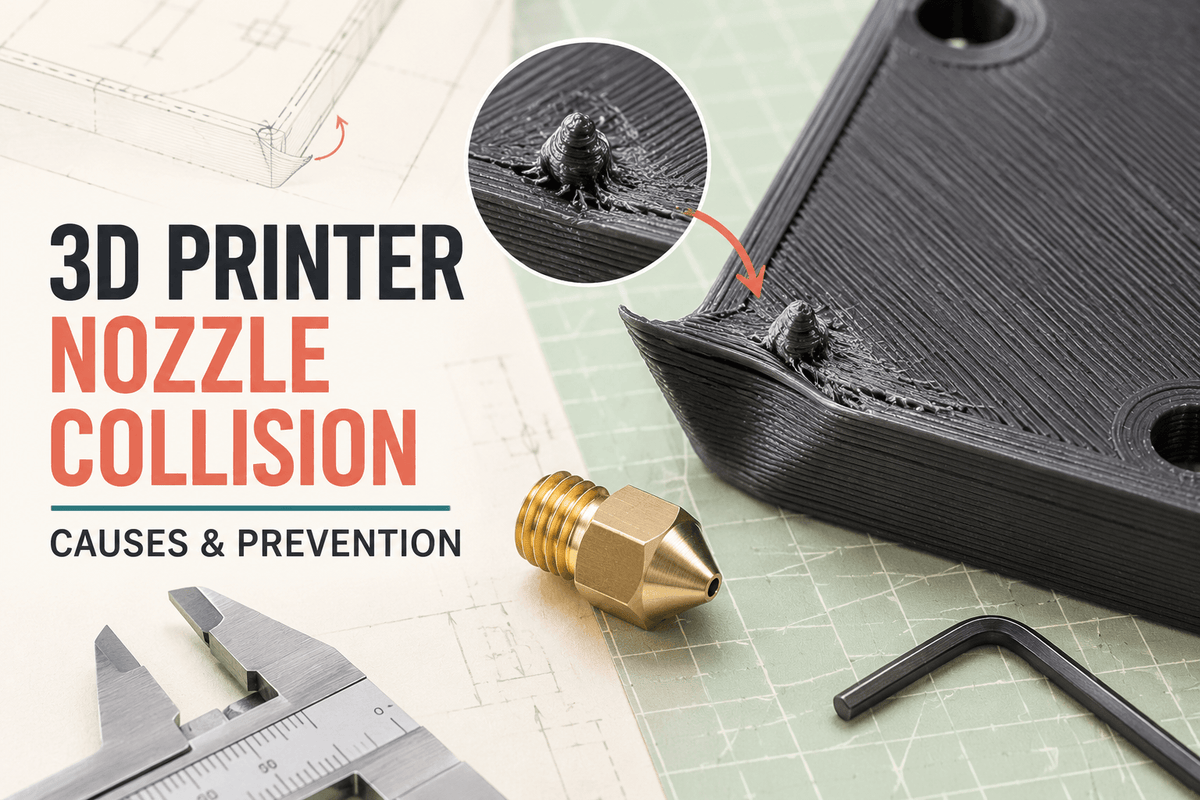
Not every contact is a disaster. A light graze may leave a mark and nothing else, while a hard crash can stall an axis, shift every layer above it, and loosen the hardware that caused the problem in the first place. This guide helps beginners and intermediate FDM users tell those cases apart, trace the cause from evidence on the failed print, and set up the machine and slicer so it happens less often. There's no universal clearance number — the right answer depends on your printer, model geometry, material, cooling, and slicer settings.
Why Is My 3D Printer Nozzle Hitting the Print?
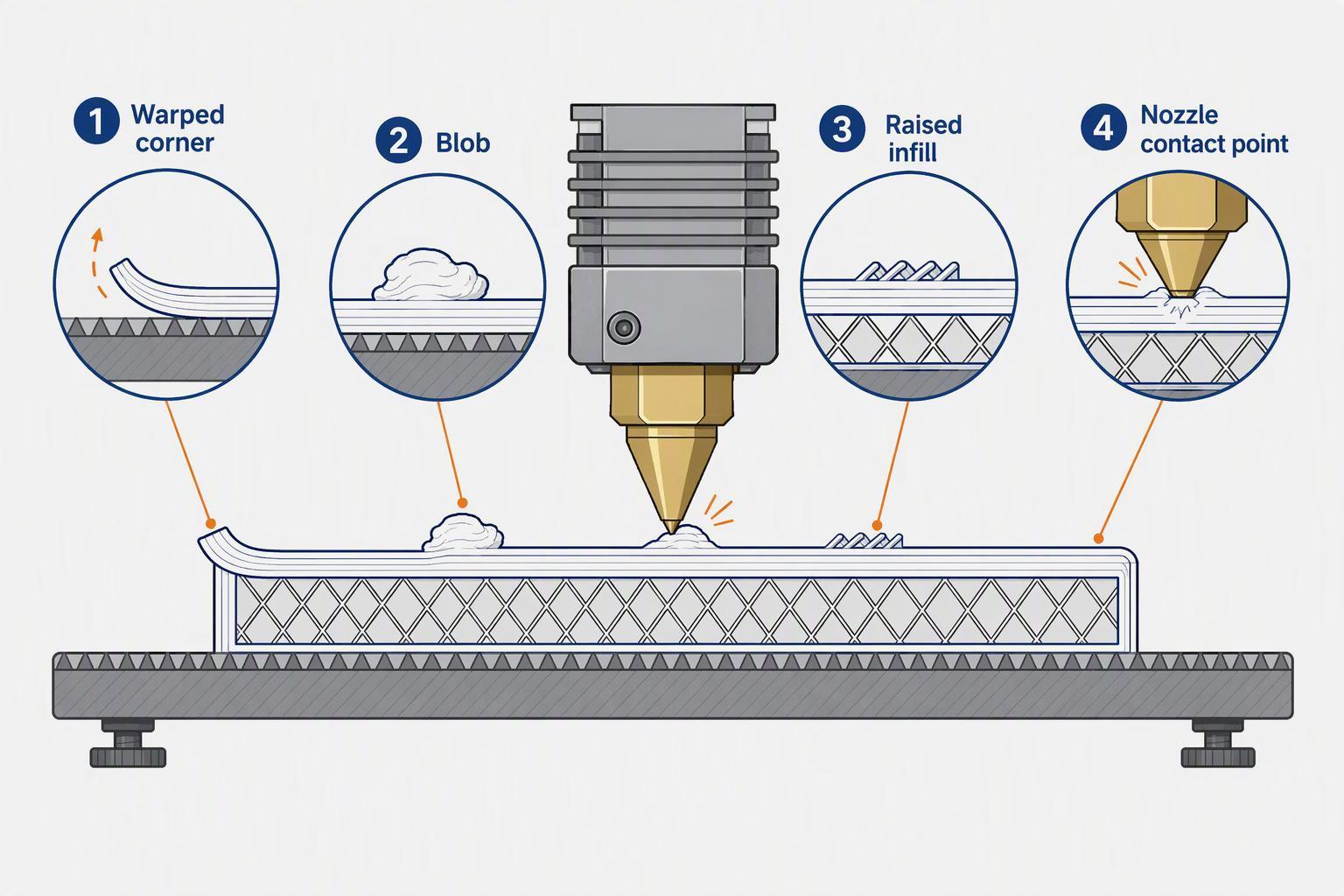
If the nozzle is hitting the print, these are the usual suspects:
- Warped corners and weak bed adhesion — an edge lifts as it cools and rises into the nozzle's path on later layers.
- Curling overhangs and bridges — unsupported plastic cools and curls upward instead of staying flat.
- Blobs from inconsistent extrusion — a lump of plastic sits above the intended surface.
- Over-extrusion — each layer ends up slightly thicker than planned, so the nozzle drags through it.
- Incorrect Z-offset or gantry alignment — the nozzle starts too close to the plate, or the gantry is out of square.
- Loose belts, screws, rails, or build plate — something moves that shouldn't, and the toolpath no longer matches reality.
- Tall models that flex or wobble — the part itself moves under a light nozzle touch.
- Travel paths crossing printed areas — the nozzle drags across finished plastic on its way to the next feature.
That list narrows the search; it doesn't diagnose your print. The sections below tie each cause to something you can actually see on a failed part.
Light Contact vs. Serious Crash: What You're Actually Seeing
Before you change a setting, decide which of these three things you're looking at.
Light nozzle contact. The nozzle touches raised plastic but keeps going. You'll find a scuff or a rough patch, and the layers above it are still aligned. This is mostly a surface-quality problem, and the fix usually lives in adhesion, cooling, or extrusion consistency.
A serious nozzle crash. The nozzle catches on something solid enough to stall an axis. The printer keeps executing commands from a position it never reached, so everything after the impact is wrong. This is the case that justifies stopping the print and checking mechanics.
Scraping during travel. The nozzle skims across already-printed plastic as it moves between features. It leaves scars on top surfaces, but it isn't the same event as a crash. Simplify3D's guide to scars on top surfaces treats this as a dragging problem and recommends verifying extrusion first, then looking at vertical lift.
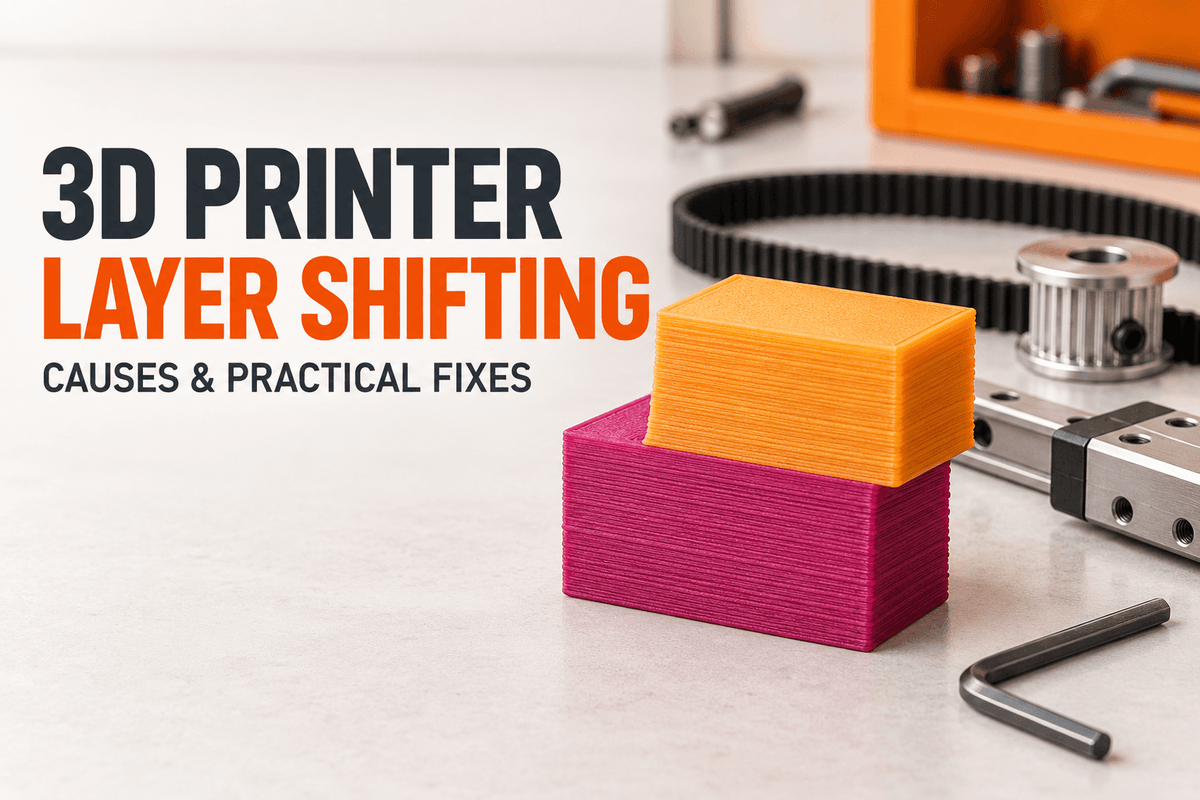
One detail is worth memorizing. A crash produces a sudden horizontal offset — one abrupt jump, not a gradual drift. According to Sovol's guide to 3D printer layer shifting causes and fixes, a single abrupt offset usually points to a discrete event such as a collision or a belt slip, while a staircase drift that builds over many layers points to a loose pulley or backlash.
Why the distinction matters: a graze may only need a print-quality adjustment, while a crash calls for stopping the job and inspecting belts, pulleys, and the gantry. Treating every mark as a crash wastes time; treating a crash as cosmetic lets a loose machine keep printing badly.
Common Causes of a 3D Printer Nozzle Crash
Most collisions trace back to one of a few families of causes. Match what you see on the failed print to the group below.
Warped Corners and Weak Bed Adhesion
When a corner lifts during cooling, the material above it is no longer where the slicer thinks it is. On the next pass, the nozzle arrives at the expected height and finds plastic in the way. You'll recognize it by a visibly lifted edge, a rough patch where the nozzle plowed through, or a part that rocks on the plate. Adhesion problems are usually a mix of plate cleanliness, first-layer height, temperature, and cooling rather than one culprit — our guide to fixing first-layer problems walks through the checks in order.
Curling Overhangs, Bridges, and Blobs
Overhangs and bridges are printed over air, and plastic that cools unevenly tends to curl upward instead of staying flat. Prusa's guide to common 3D printing errors notes that larger overhangs can warp mid-print and hit the nozzle. Blobs work the same way: inconsistent extrusion leaves a lump sitting above the layer, and the nozzle finds it. Both tend to appear higher up the print, which is why the collision seems to come out of nowhere after an hour of clean printing. If curling is your pattern, our guide to improving bridging without supports covers the cooling and flow levers.
Over-Extrusion, Infill, and Supports
Push out slightly too much plastic and every layer ends up a little thicker than intended, so the nozzle drags through the excess. Simplify3D recommends verifying that you aren't over-extruding before adjusting any other setting for surface dragging, and that's sound advice here too. Inside the part, infill or support areas may create contact points when extrusion is inconsistent, geometry overlaps, or the sliced toolpath produces raised features. Check the preview and the printed surface before changing settings.
Z-Offset, Gantry Alignment, and Loose Hardware
An incorrect Z-offset can make the first layer too compressed or poorly formed. In some cases, the resulting uneven surface may increase the chance of later nozzle contact. An out-of-square gantry or a frame that flexes during fast movement changes the nozzle's actual height relative to the part, and loose belts, screws, rails, or a shifting build plate break the link between commanded position and real position. Tall or heavy prints show flex most, so a machine that prints small parts fine can still collide on a tall one. A quick sanity check: nudge the printer — it shouldn't rock — and confirm it sits on a rigid, level surface.
Tall, Flexible Models and Travel Paths
Collisions often appear only on tall or large prints. A tall part has more time to warp and more leverage to flex when the nozzle touches it, so a light contact that's harmless on a 20 mm part can move a 200 mm one. Larger plates also mean longer travel moves, and a path that crosses an already-printed area can drag the nozzle through raised material. In the slicer preview, travel moves appear as vectors connecting extrusion endpoints; long paths crossing finished top surfaces are the ones to watch. Our guide to reading a slicer preview shows how to make those paths visible.
What a Nozzle Collision Can Damage
It helps to separate damage to the print from damage to the machine, because they call for different responses.
On the print, layer shifting is the most common consequence of a real crash — the axis stalls and every layer above the impact is offset. You'll also see poor surface quality around the contact point, and often the print fails outright.
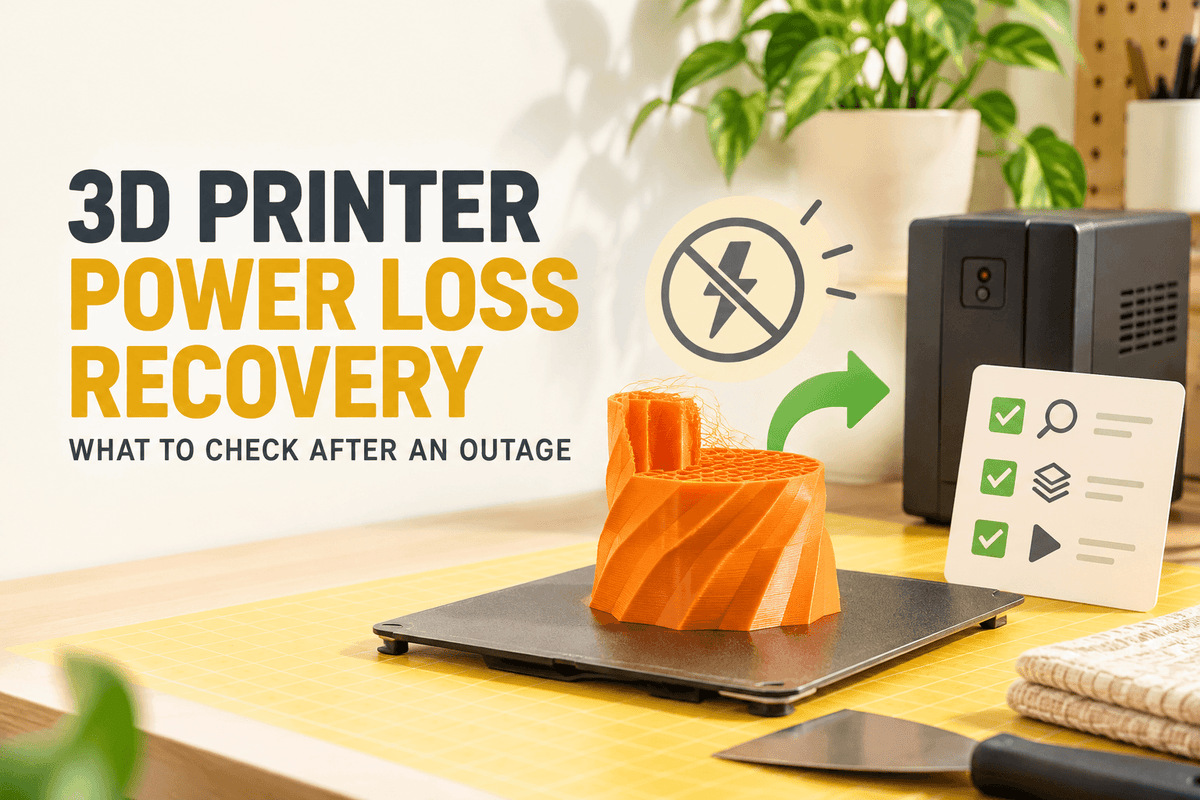
On the machine, the nozzle can bend, a low-hanging fan duct can crack, and the nozzle can scratch the build plate. Less obvious but more important: a collision can loosen belts, pulleys, or fasteners. The crash can create the very condition that caused it, so the next print may fail the same way even if the original trigger is gone. That's a reason to inspect the machine after a hard impact rather than just re-slicing and hitting print again.
Step-by-Step: Diagnosing and Recovering from a Nozzle Collision
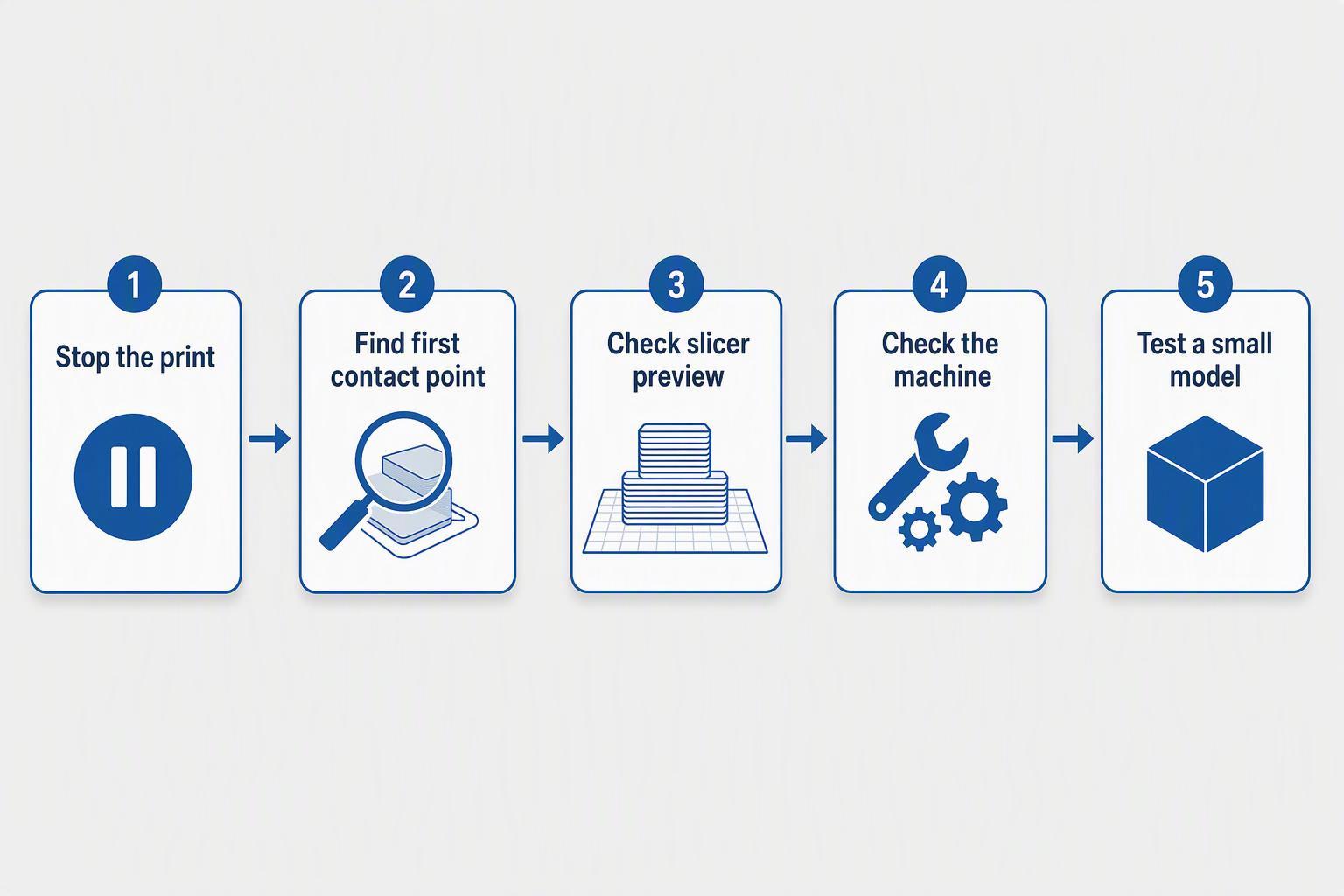
Work through these steps in order and stop at the first one that reveals a problem. The governing rule is simple: change one thing, then test.
Stop the Print Safely and Find the First Contact Point
Pause or cancel from the printer's interface rather than grabbing the carriage. Let the hotend cool before you touch anything, and if the nozzle is buried in plastic, raise Z first so you don't drag the part sideways on the way out. Once the print is off the plate, look for the earliest point of contact — the lifted corner, the blob, the rough patch where the nozzle plowed through. That point usually identifies the cause, and it's more reliable than guessing from the top of the failed print.
Check the Plate, the Preview, and the Hardware
Three inspections, in this order:
- The plate and first layer. Confirm the build plate is secure and seated correctly, then look at the bottom of the print. A first layer that's uneven, glossy in patches, or barely attached points to adhesion and Z-offset.
- The sliced preview. Scrub to the height where contact occurred and look at what the nozzle was doing there — a travel move crossing a finished surface, a curling overhang, a tall support feature.
- The hardware. Power off and move each axis by hand through its full travel. It should move smoothly without tight spots, scraping, or side-to-side play. Check belt tension along the longest span — no droop, but still some spring — and confirm pulleys and fasteners are snug.
Change One Variable and Reprint a Small Test
Pick the single most likely cause from your inspection and change only that, then validate with a small test model before committing to a long print. If you adjust cooling, tighten a belt, and re-slice with new travel settings in one afternoon, you'll never know which one mattered. A small test also costs minutes instead of hours.
How to Prevent Nozzle Collisions
Prevention is mostly about keeping raised material out of the nozzle's path and keeping the machine's actual position matched to its commanded position. Treat every setting below as a starting point to test on your own machine, not a value to copy from someone else's profile.
Adhesion, Cooling, and Extrusion Consistency
A clean plate, a well-tuned first layer, and a brim when the part needs one keep corners down. Better part cooling and a suitable print temperature keep overhangs and bridges flat instead of curling. Flow calibration keeps each layer at the thickness you asked for, so the nozzle isn't dragging through excess plastic. Check flow before you touch cooling or speed — if the printer is over-extruding, every other fix is fighting the wrong problem.
Travel Paths, Z-Hop, and Speed
In the slicer, look at travel moves that cross finished surfaces. Review travel-related options such as Combing or Avoid Crossing Perimeters, if your slicer provides them. These features work differently and may affect travel paths in different ways. Z-hop is the other tool here: it lifts the nozzle slightly during travel to avoid collisions with the printed object, and the OrcaSlicer documentation notes it's particularly useful for prints with tall, thin features or multiple objects on the plate. That describes what it does — and its limits. Z-hop doesn't fix a warped corner or a blob; it just gives the nozzle more room to pass over them, and it adds travel time. Start with a modest lift height and keep it only if it measurably helps.
Speed and acceleration matter for the same reason. Fast direction changes demand more force than the motors can always deliver, and a machine pushed past what its motion system handles is more likely to lose position on impact. If collisions cluster on fast prints, lower acceleration first, then speed, and reprint the same model to compare.
Tall Models, Mechanical Checks, and Maintenance
For tall or flexible parts, a wider base, a brim, or a reorientation that shortens the moment arm all make the part harder for the nozzle to move. Beyond that, routine mechanical checks catch problems before they become crashes. Feel belt tension, confirm pulleys and set screws are tight, check rails and wheels for debris or scoring, and make sure the plate is secure. Do this on a schedule rather than only after a failure, since a collision can loosen the hardware that caused it.
Troubleshooting Table: Matching Symptoms to Causes
Use this table to narrow the search, not to confirm a single cause. Several rows can describe the same failed print.
|
Symptom |
Possible cause |
What to check |
|---|---|---|
|
Nozzle hits the print at the same height |
Model geometry, a curling overhang, or a travel move at that layer |
Re-slice and reprint; scrub the preview around that Z height for overhangs and travel paths |
|
Nozzle hits only on large models |
Frame flex, a plate that shifts under fast movement, or long travel moves |
Nudge the printer to check it doesn't rock; check plate security and belt tension; review travel paths |
|
Scraping occurs during travel moves |
Travel crossing printed areas, over-extrusion, or insufficient clearance |
Verify flow; review Combing or Avoid Crossing Perimeters settings; inspect travel in the preview |
|
Collision happens after a corner lifts |
Weak bed adhesion, warping, or uneven cooling |
Check plate cleanliness, first-layer height, and cooling; look for a lifted edge on the part |
|
Collision occurs after a blob forms |
Inconsistent extrusion, a partial clog, or moisture in the filament |
Check flow consistency, nozzle condition, and filament storage |
|
Collision is followed by layer shifting |
The impact stalled an axis, or it loosened a belt or pulley |
Look for the contact point on the print; check belt tension and pulley set screws |
If two rows seem to fit, start with the one that matches the earliest visible damage on the print. The first contact point is usually closer to the root cause than the final failure.
Slicer or Hardware? How to Decide Where to Look
A useful way to split the search: slicer-side causes change what the nozzle is told to do, and hardware-side causes change where the nozzle actually ends up.
Look at the slicer first when the collision repeats at the same height, the contact point lines up with an overhang or travel move, or the problem appeared after you changed a profile. Travel paths, Z-hop, support and infill geometry, and flow settings all live here, and the preview shows what the nozzle was doing at the moment of contact. Our guide to optimizing 3D print quality settings covers that side in more depth.
Look at the hardware first when the collision is random, the print shows a sudden offset with no visible raised feature, the machine was recently moved or reassembled, or you can feel play by hand. Z-offset, gantry alignment, loose belts, screws, rails, and a shifting build plate are all hardware conditions, and no slicer setting will compensate for them.
In practice, the two overlap — which is exactly why changing one variable at a time is the only reliable way to find the cause.
FAQ
Can a nozzle collision cause layer shifting?
Yes. A collision can stall an axis, and the printer then continues from a position it never reached, so every layer above the impact is offset. The signature is a single abrupt jump rather than a gradual drift. If you see that pattern, check belts and pulleys — our layer shifting guide covers the full diagnosis.
Should I use Z-hop to prevent nozzle crashes?
It can help, but it isn't a cure. Z-hop won't stop a warped corner from rising into the nozzle's path during a print move, and it adds travel time. Test a modest lift height and keep it only if it measurably helps.
What should I inspect after a nozzle collision?
Start with the print and find the earliest contact point, since it usually identifies the cause. Then check the build plate for scratches, the nozzle and fan duct for damage, and the belts, screws, and rails for looseness.
Quick Checklist Before Your Next Print
A nozzle collision is usually a symptom — raised material, a travel path, or loose hardware — rather than a random event. Run this list before you start the next job:
- Find the first contact point on the failed print and note what was there.
- Check the plate is secure, clean, and level, with a properly formed first layer.
- Scrub the preview at the collision height for overhangs, tall supports, and travel paths.
- Confirm flow is calibrated before touching cooling, speed, or Z-hop.
- Feel belt tension and check pulleys, screws, and rails for play.
- Change one variable, then reprint a small test model to confirm.
For related fixes, browse our guides on layer shifting, first-layer problems, bridging, and slicer preview inspection.