




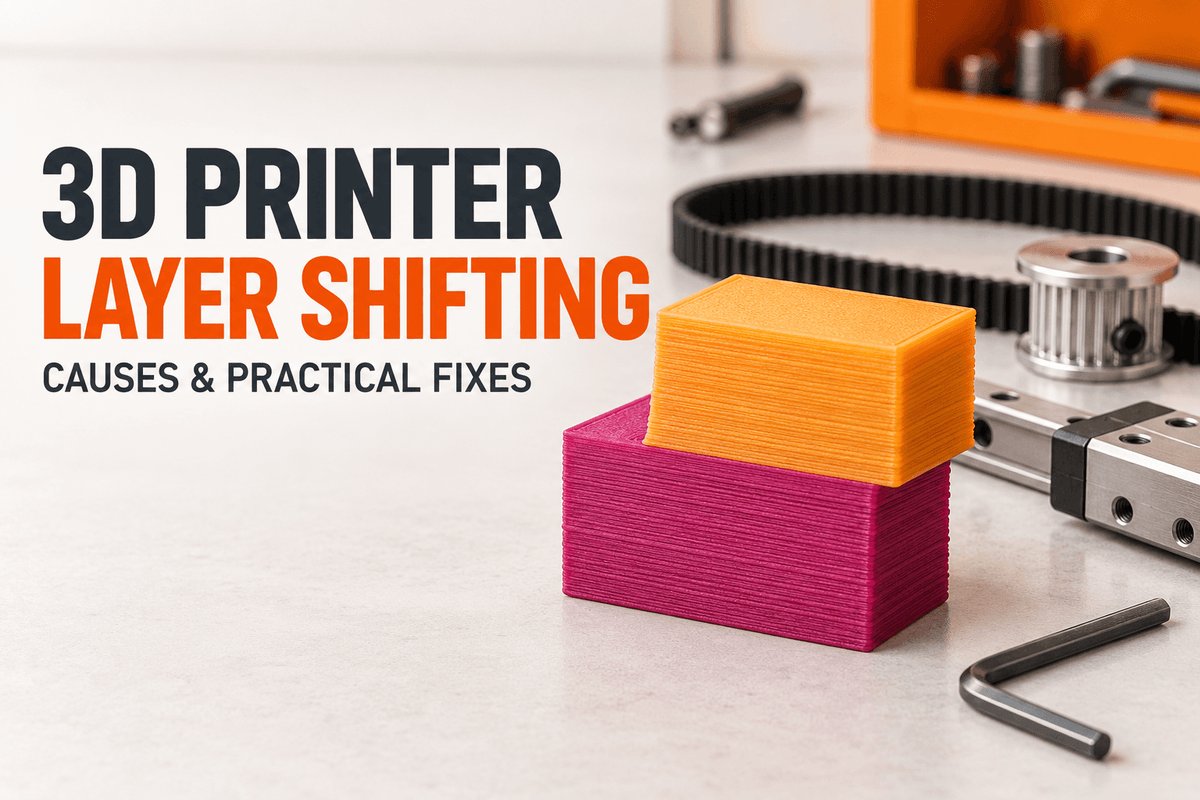
That's layer shifting, and it usually means the printer lost accurate movement on the X or Y axis. The likely culprits: loose belts, loose pulleys, excessive speed or acceleration, nozzle collisions, mechanical resistance, motor overheating, and frame alignment problems. The printer was told to move somewhere and didn't quite arrive.
This guide walks through diagnosis in a deliberate order — observation first, adjustment second — so you don't change five things at once and lose track of what helped. Validate each adjustment with a test print rather than assuming it worked.
Why Is My 3D Printer Shifting Layers? The Quick Answer
Here's the short version before the full workflow:
- Loose belts. A loose or poorly tensioned belt can slip under load, so the carriage falls behind the commanded position and every later layer inherits the error.
- Loose pulley set screws. The drive pulley spins on the motor shaft by a small, random amount, which is a classic cause of staircase-shaped shifts.
- Speed or acceleration beyond what the motion system handles. Stepper torque drops as speed rises, so fast direction changes can demand more force than the motor can deliver.
- Nozzle collisions. A curled edge, a blob, or a tall infill feature catches the nozzle, stalls the axis, and the printer keeps printing from the wrong position.
- Binding or debris in the motion path. Filament scraps, dust, hair, or a cable bundle can limit travel or add friction the motor has to fight.
- Stepper driver or motor overheating. A driver that thermally shuts down for even a fraction of a second loses steps, and the print continues from a shifted origin.
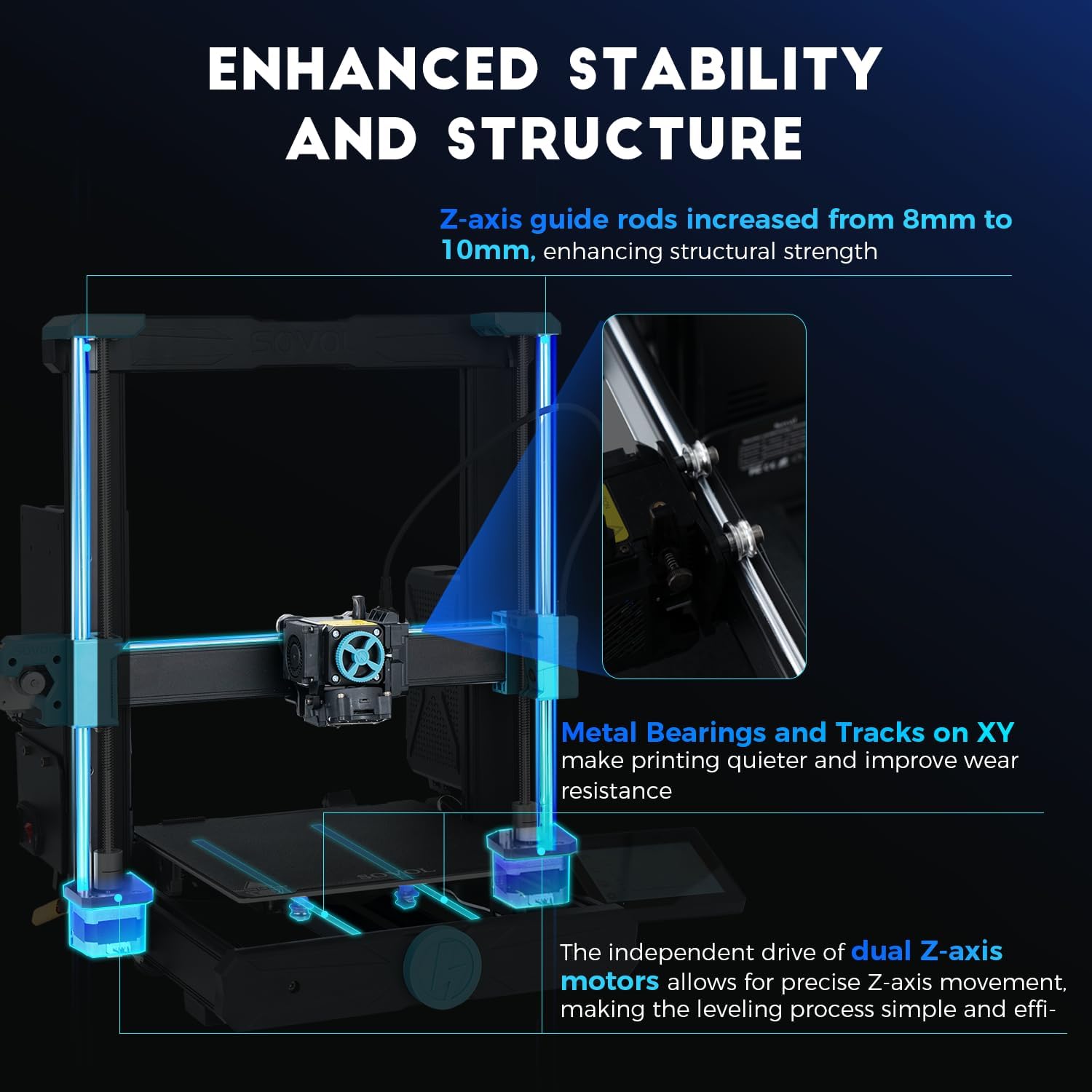
- A frame or gantry that isn't square or secure. Flex under fast movement shows up as misalignment, especially on tall or heavy parts.
These causes leave different signatures on the print, which is why the workflow below starts with observation rather than adjustment.
What Layer Shifting Looks Like — and What It Is Not
Before you touch a wrench, confirm what you're looking at. A few common defects get blamed on layer shifting, and their fixes don't transfer.
How to recognize a shifted layer
A true layer shift shows a horizontal step: every layer above it is offset in the same direction, one side has a clean vertical seam, and the opposite side has an overhang where the upper section hangs past the lower one. The top of the model no longer lines up with the base.
Note whether it's one abrupt jump or a gradual drift. A single sudden offset usually points to a discrete event — a collision, a belt slip, a driver hiccup. A staircase drift that builds over many layers points more often to a loose pulley, a slipping belt, or backlash in the motion system.
X-axis versus Y-axis shifts
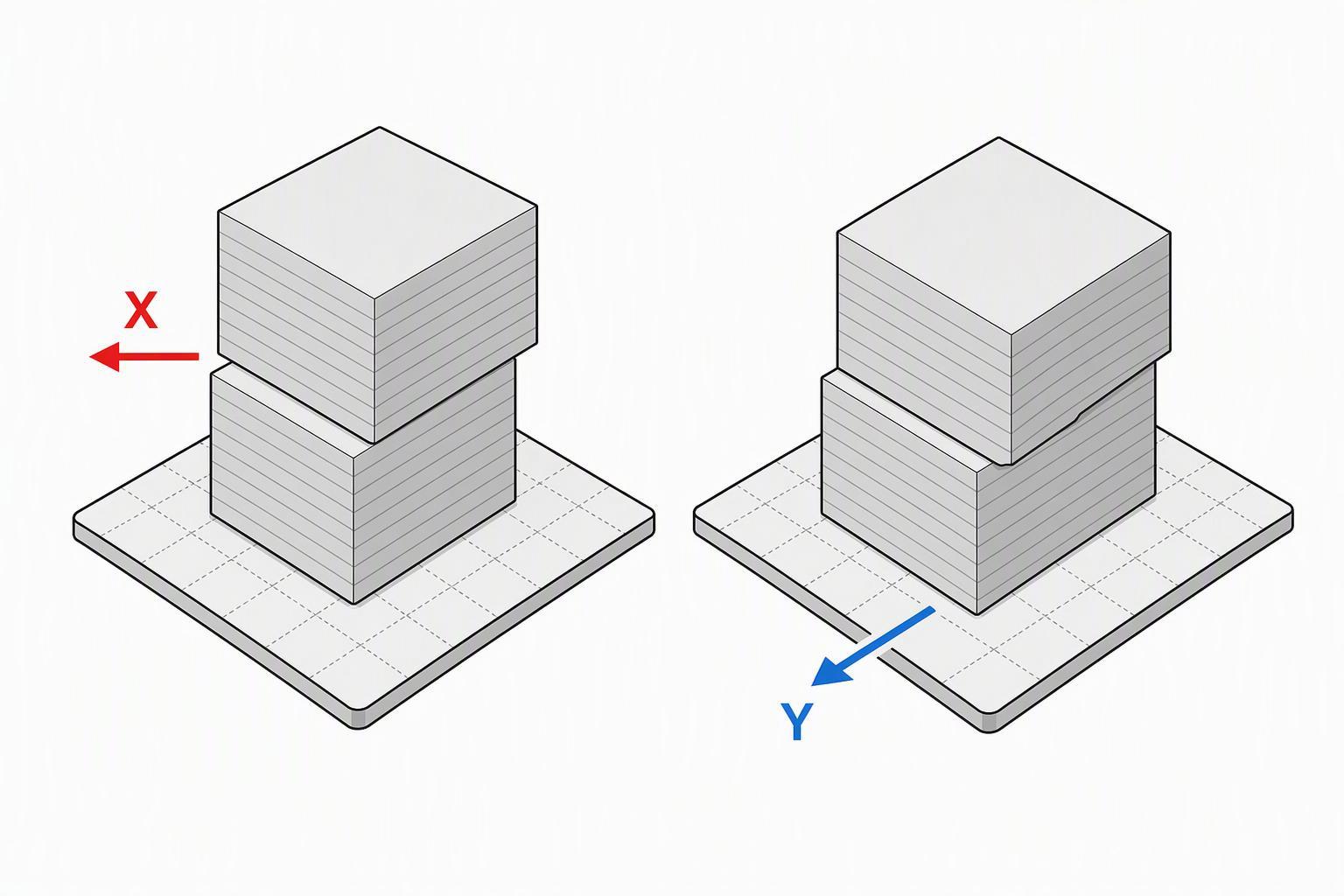
Orient yourself to the model on the plate and work out which direction the offset runs. A shift along X sends you to the X belt path, carriage, and motor; a shift along Y sends you to the Y system. That's the practical value of identifying the axis — it narrows where to look first.
On CoreXY machines, both motors participate in both X and Y movement, so inspect the full belt loop rather than assuming the motor nearest the shifted axis is the guilty one.
Layer shifting versus warping, ringing, and bed adhesion
Warping lifts corners off the plate, ringing shows up as ripples near corners, and poor adhesion is a first-layer failure — none of these displace all later layers as a block. Warping, though, can lead to layer shifting: a lifted corner becomes an obstacle the nozzle eventually hits, which is why the workflow below checks for curled edges.
Layer Shift Troubleshooting: A Step-by-Step Workflow
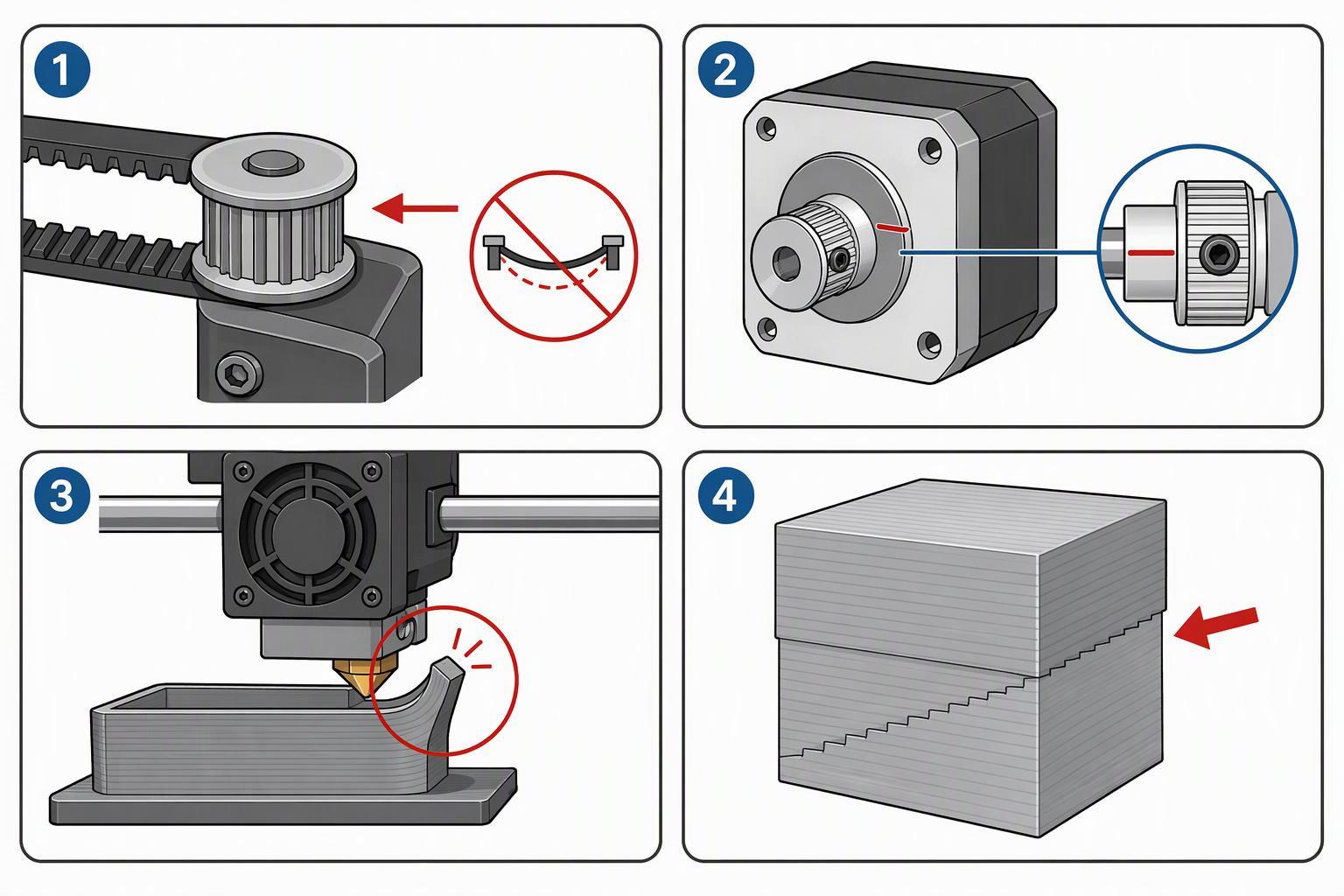
Work through these steps in order and stop at the first one that reveals a problem. The governing rule is simple: change one thing, then test. If you tighten a belt, adjust acceleration, and swap a pulley in the same afternoon, you'll never know which one mattered.
Step 1: Identify the Direction of the Shift
Use the model's orientation on the plate to decide whether the offset runs along X, along Y, or both. A single-axis shift narrows inspection to one motion system; a diagonal shift points toward a shared cause — a collision, a loose frame, or an interruption — rather than one loose belt.
Step 2: Check Whether the Shift Happens at the Same Height
This separates random from repeatable failures. If the shift lands at the same Z height on repeated prints, suspect the model, the toolpath, or the geometry at that layer: a curling overhang, a tall feature, a dragging travel move. Re-slice and reprint before replacing hardware.
If the shift lands at a different height each time, the cause is more likely mechanical or settings-related.
Step 3: Inspect Belts, Pulleys, Rails, Wheels, and Screws
Power the printer off and work by hand. Feel belt tension along the longest span — no droop, but still some spring. Check that pulleys are secure on the motor shafts and that both grub screws are tight, with one seated against the flat of the shaft. Look for debris, wear, or scoring on rails and wheels, and confirm fasteners are snug.
A useful confirmation test: with the printer powered off, move the carriage or build plate through its full travel by hand. It should move smoothly without tight spots, scraping, or noticeable side-to-side play. Then inspect the belt, pulley alignment, and set screws for looseness. Belts can also feel tighter when the bed has been hot for a while, so check under the conditions you actually print in.
Step 4: Check for Nozzle Collisions and Curled Edges
Inspect the failed print for a contact point — a lifted corner, a blob, a rough patch where the nozzle plowed through. A collision stalls the axis, and the printer carries on from a position it never reached. If the root cause is a corner that never stayed down, see our guide to fixing first-layer problems. If the curl develops higher up on overhangs, revisit cooling and bridging settings.
Step 5: Review Speed, Acceleration, and Jerk-Related Settings
High speed and acceleration can demand more torque than the motors supply at speed, and missed steps show up as an offset. Test conservatively: reduce acceleration first, since it governs force at every direction change, then lower travel and print speed if the shift persists. Reprint the same model to compare.
Some slicer options generate dense direction changes or full-speed travel moves that can overload the motion system. If a travel-related slicer option creates unusually complex movement paths, compare the result with the default profile as a diagnostic test.
Step 6: Check Motor Temperature and Mechanical Resistance
With the power off, move each axis by hand and feel for binding or sticky spots. With the power on, check whether stepper motors or drivers are running unusually hot. Overheating motors or drivers may contribute to missed steps, depending on the printer's design and protection behavior, and both too-low and too-high driver current can cause missed steps. Current adjustments belong to your printer's documented procedure — not guesswork with a screwdriver.
Step 7: Run a Small Test Print After Each Change
Print a small, fast model that exercises both axes with corners and direction changes. The pass criterion is simple: no offset between layers. Record what you changed so the fix can be repeated later.
Practical Fixes for 3D Printer Shifted Layers
Once you know which symptom you're chasing, these are the repairs most likely to resolve it.
Tighten belts without over-tensioning
A loose belt can slip, while a too-tight one binds bearings and loads the motors. Aim for no droop but some spring, use the printer's tensioner where one exists, and tighten evenly on both sides of a CoreXY system so alignment holds.
Secure loose pulleys and set screws
Draw a line across the stepper shaft and the end of the pulley, then check after a failed print whether they moved relative to each other. Follow the manufacturer's guidance on thread locking for every set screw on the affected axis.
Clear debris and cable snags
Filament scraps, dust, hair in wheels and rails, and zip ties that catch on the frame can all limit travel. A cable snag can restrict movement or interfere with the motion system — the result looks like a shift but starts outside the motion tuning.
Square the frame and tighten fasteners
An out-of-square frame or loose corner fasteners can flex during fast movement, and tall or heavy prints show it most. Nudge the printer — it shouldn't rock — and confirm squareness with diagonal measurements or the manufacturer's procedure. Also put the printer on a rigid, level surface away from other vibrating equipment, and check that a spring-mounted bed has no play under fast Y movement.
Pull speed and acceleration back within limits
Lower acceleration first, then travel and print speed if the shift persists, and reprint the same model to confirm. A speed that works for one geometry may fail on another.
Fix curled edges at the source
Better part cooling and a suitable print temperature keep overhangs and bridges flat, while a clean plate, correct first layer, and a brim or other adhesion aid keep corners down. A Z-hop on travel moves also reduces the chance of the nozzle dragging across printed areas. Our 3D print quality troubleshooting guide covers cooling and finish issues in more depth.
Layer Shift Symptom, Cause, and What to Check
|
Symptom |
Possible cause |
What to check |
|---|---|---|
|
Sudden large horizontal offset |
Nozzle collision, belt slip, or a driver hiccup |
Look for a contact point on the print; check belt tension and pulley set screws (Step 3) |
|
Repeated shift at a similar height |
Model geometry, a curling overhang, or a travel move at that layer |
Re-slice and reprint; inspect the preview around that Z height (Step 2) |
|
Shift immediately after a nozzle collision |
Curled edge, blob, or warped corner in the nozzle's path |
Inspect the print for the impact point; review first-layer adhesion and cooling (Step 4) |
|
Small progressive misalignment |
Loose pulley, slipping belt, or backlash |
Mark the shaft and pulley, check belt spring, feel for play by hand (Step 3) |
|
Shift only during fast prints |
Acceleration or speed beyond the motion system's capability |
Lower acceleration first, then speed; reprint the same model (Step 5) |
Preventing Layer Shifting on Tall, Large, and Fast Prints
Tall, large, and fast jobs concentrate every risk factor at once, so prevention pays off more here than anywhere else.
- Use a rigid, level surface that doesn't wobble or resonate, so small errors don't compound over a long print.
- Verify belts, pulleys, frame fasteners, and the plate before a long job.
- Match acceleration to the geometry. Tall, thin parts load the motion system differently than a squat cube.
- Check the first layer. A lifted corner becomes a collision later, and a long print gives it time to happen.
- Run a small test print first. If you're working at larger scale, our large-format 3D printing guide covers the extra considerations that come with bigger build volumes.
Why There Is No Universal Speed, Acceleration, or Belt Tension Number
You'll find plenty of specific numbers online — belt tension figures, acceleration values, motor temperatures. Treat them as reference points from someone else's machine, not standards.
Recommended speed and acceleration depend on the printer, its firmware, the motion system, the model geometry, and the material. A value that works on one machine isn't automatically safe on another, and copying settings across hardware often introduces problems rather than solving them.
Belt tension follows the same logic: no universal measurement, just the target of no droop with some spring. Your printer's documentation and your own test prints validate any change. For a broader look at dialing in print settings, see our guide to optimizing 3D print quality settings.
FAQ
Can layer shifting be caused by a loose belt?
Yes. A loose belt can slip under load, so the carriage falls behind the commanded position and every later layer inherits the offset. Check tension along the longest span, then inspect pulleys and set screws as described in Step 3.
Why does my printer shift layers only on tall prints?
Height compounds several factors: more time for a small error to accumulate, more leverage from frame flex, and taller features that are likelier to curl or catch the nozzle.
Can a nozzle crash cause layer shifting?
Yes. A collision can stall the axis and the printer loses position. Usual triggers are curled edges, blobs, warping, and travel moves that drag across the print.
Is layer shifting caused by the slicer or the printer?
Usually it's mechanical or motion-related, but slicer settings can create the conditions — excess speed or acceleration, collisions on travel paths, dense direction changes. Testing a simpler profile is a valid diagnostic step.
Should I replace the belt if tightening does not help?
Only if you see visible wear: fraying, missing teeth, glazing, or stretching that won't hold tension. A sound belt means the next checks are pulleys, set screws, and mechanical binding.
Conclusion: A Practical Layer Shift Checklist
Layer shifting is usually related to lost or inaccurate motion, so diagnosis should begin with careful observation rather than a parts order. Identify the direction, note whether the height repeats, and work through the mechanical checks before touching settings.
Run this checklist before and after a long print:
- Confirm the shift direction (X, Y, or both)
- Note whether the shift height repeats across prints
- Inspect belts for tension, wear, and spring
- Check pulley set screws and mark the shaft if you suspect slipping
- Clear debris, cable snags, and obstructions from the motion path
- Look for curled edges or blobs the nozzle could hit
- Revisit acceleration first, then speed
- Verify motor temperature and feel each axis for binding
- Test with a small print after each change, and record what you changed
If you want to go deeper on related print-quality issues, browse our 3D print quality troubleshooting guide and our nozzle size guide for how hardware choices interact with speed and detail.