


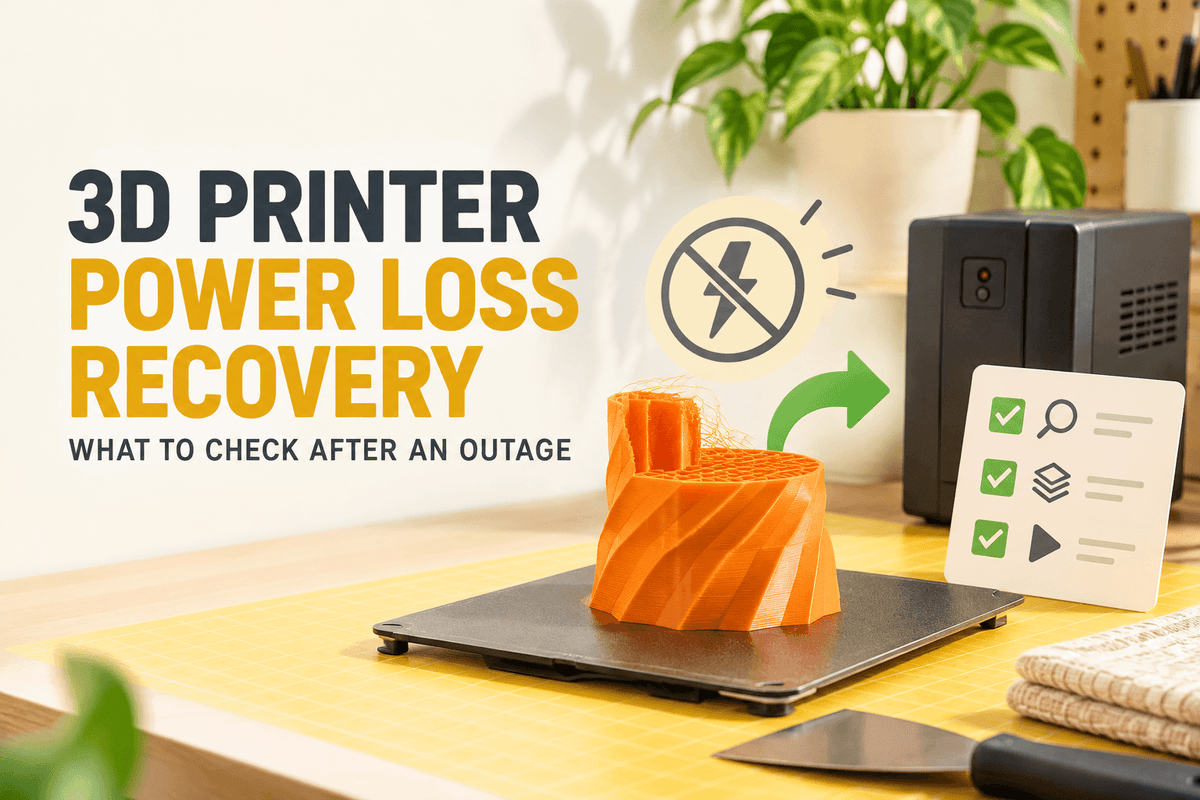
That matters most on jobs you can't easily restart: overnight prints, large-format parts, and functional pieces where hours of material and machine time are already on the plate. A resume that works is a salvage operation, not a rewind button.
This guide covers what recovery features try to save, what happens during an outage, a checklist before you press Resume, why recovery fails, how it differs from filament runout and pause features, and what a UPS can and cannot do.
Key takeaways
- Power loss recovery is printer- and firmware-specific
- Power loss recovery is printer- and firmware-specific; saved data and the resume prompt differ between machines.
- The biggest risks after an outage are a cooled plate, a detached or warped part, and a nozzle that collides on the way back.
- Inspect the print and plate before resuming, then follow your printer's own documentation.
- Recovery is a salvage feature, not a guarantee of a seamless part.
What Power Loss Recovery Generally Tries to Preserve

A recovery-capable printer holds onto enough information to pick up roughly where it stopped. In general terms, that means some combination of:
- Approximate print position. Where the toolhead was in X, Y, and Z, so the machine knows where to return.
- Current layer or toolpath state. How far into the G-code file the job had progressed, so the printer knows which moves come next.
- Active temperatures. The hotend and bed targets in use, so the machine can reheat to the same settings rather than guessing.
- The print file or recovery data. A stored copy of the job or a recovery record the printer can use to reconstruct the interrupted state.
The exact set saved varies by printer and firmware. There is no universal standard for what gets written to storage, how often, or how the printer uses it on restart. Some machines write a recovery file to internal memory or an SD card. Other systems may use different hardware or firmware methods to detect the outage and save recovery information. Treat any description of "how recovery works" as a general pattern and check your own printer's documentation.
What May Happen During a Power Outage
An outage doesn't follow one script. What happens depends on the machine, the length of the interruption, and what the firmware can do in the moment.
- The printer stops moving. Motion and extrusion halt, often leaving a small blob or ooze mark where the nozzle was sitting.
- Temperatures begin to fall. The hotend and heated bed lose power and cool toward room temperature.
- The plate and printed part cool. As the plate cools, the bond between part and surface can change. A part that was stuck fast may lift, warp, or detach, especially with materials that shrink as they cool.
- The printer may save recovery information. If supported, the firmware writes position, temperatures, and file progress to storage before power is fully gone.
- Some machines restart and show a resume prompt. On power-up, the printer checks for a valid recovery record and, if it finds one, offers to continue.
- Other machines can't preserve enough information. If recovery isn't supported or the state was lost, the printer boots to its normal menu and may not be able to continue the job normally.
A one-minute dropout and a multi-hour outage can produce very different results on the same printer. Short interruptions may barely cool the part; long ones give the plate time to cool completely and the model time to move.
After the Outage: A Practical Checklist

Before you touch anything, work through these steps in order. Menu names and resume behavior vary by printer and firmware, so treat your manufacturer's documentation as the authority.
- Confirm the power source is safe. Check the outage is actually over and the supply is stable before powering back on. Don't reach into the machine while it's energized.
- Inspect the model and plate without moving them. Moving the plate or gantry can destroy the position information the printer needs.
- Look for layer shifting, detachment, warping, or debris. Is the part still stuck down? Are the walls straight? Is there a blob or loose fragment where the nozzle will travel?
- Confirm the nozzle can return safely. Make sure the nozzle is clear of the part and nothing blocks the path back to the last position.
- Verify the filament path. Check the filament is loaded, not snapped or tangled, and the spool feeds freely.
- Let the printer reach its temperatures. Give the hotend and bed time to hit their targets so the first resumed layers bond properly.
- Follow the printer's own resume prompt or documentation rather than improvising a manual restart.
- Watch the first resumed layers closely. Stay with the machine for several layers. That's where a collision, layer shift, or extrusion gap shows up first.
Why Power Loss Recovery Sometimes Fails
Recovery fails for predictable reasons, and most come down to missing data or a disturbed print.
- The printer doesn't support recovery. Without the feature, an outage means starting over.
- Recovery data wasn't saved or read correctly. An incomplete write, a corrupted file, or unreadable storage leaves the printer with nothing to resume from.
- The outage lasted too long. The longer the machine sits, the more the plate and part cool, and the more likely the part detaches or warps. Some firmware also limits how long a paused state stays valid.
- The printer rebooted or lost the print state. A power event that resets the controller, or a manual restart during the outage, can wipe what the printer needed.
- The model shifted on the plate. Any movement of the part, plate, or gantry during the outage breaks the alignment between the saved position and the real one.
- The nozzle collided on the return path. The blob left at the stop point, or a warped edge, can catch the nozzle and cause a layer shift or knock the part loose.
- The filament ran out or the path blocked up. A job near the end of a spool, or one with a partial clog developing, may fail for reasons unrelated to the power event.
- The firmware workflow has limits. Some machines resume with a visible seam or texture change at the recovery layer. That's normal, not a fault, but the part won't be perfectly continuous.
Troubleshooting Table: Symptom, Cause, and What to Check Next
|
Symptom |
Possible cause |
What to check next |
|---|---|---|
|
No resume prompt after restart |
Recovery unsupported, or data not saved |
Confirm the feature is enabled; check the documentation |
|
Resume offered, print fails immediately |
Nozzle blocked by a blob or warped edge |
Inspect the stop point and clear debris before resuming |
|
Visible layer shift after resume |
Part, plate, or gantry moved during the outage |
Check the part is seated; a shifted job may need reprinting |
|
Part detached from the plate |
Plate cooled and adhesion changed |
Inspect the base; reprint with better adhesion if it lifted |
|
Nozzle collides on return |
Warped part or a blob in the travel path |
Clear the path and confirm Z clearance |
|
Gaps or weak extrusion after resume |
Hotend not at temperature, or a partial clog |
Confirm temperatures and check the filament path |
|
Printer reboots repeatedly |
Unstable power supply |
Check the outlet and supply; consider power protection |
Power Loss Recovery vs. Filament Runout, Tangle Detection, and Manual Pause
These features get lumped together because they all stop and restart a print, but they respond to different triggers.
Power loss recovery responds to an interruption in power. The printer saves the print state and, if it can, offers to continue when power returns. It depends on the machine detecting the outage and writing data before it shuts down.
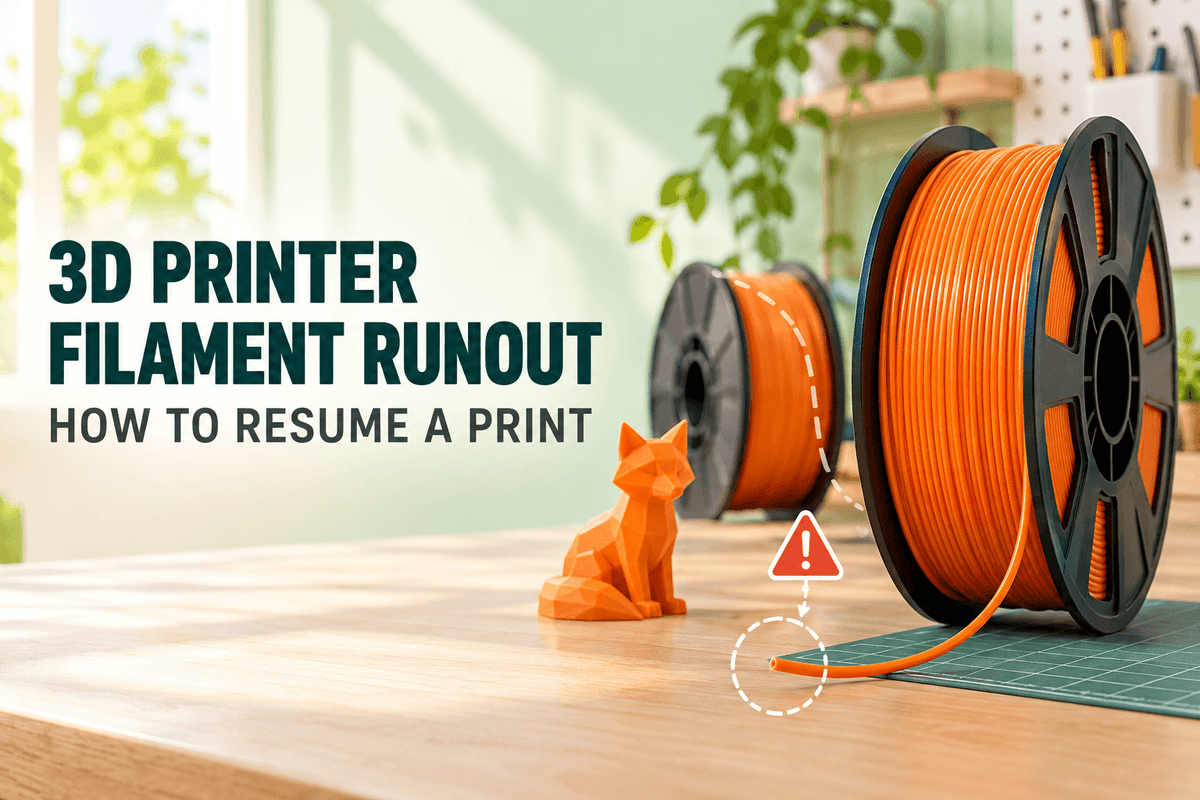
Filament runout detection responds to missing filament. A sensor notices the filament is gone and signals the firmware, which may pause the job and prompt you to load a new spool. It has nothing to do with the power supply. For the full workflow, see our guide to 3D printer filament runout and how to resume a print.
Filament tangle detection responds to feed resistance. When filament is present but crossed over itself or snagged, some printers notice the rising resistance and pause. A basic runout sensor can't see a tangle, because filament is still passing through it.
Manual pause and resume is user-triggered. You stop the job from the screen, do what you need to do, and continue. It relies entirely on the printer holding the paused state while you work.
A printer can have one of these features without the others. Runout detection doesn't imply power loss recovery, and power loss recovery doesn't imply the machine can detect a tangle. Check your own model's specifications rather than assuming.
UPS Devices and Power Protection: What They Can and Cannot Do
A UPS (uninterruptible power supply) sits between the wall outlet and the printer and can carry the load for a short time when mains power drops. Whether that helps your print depends on the printer, the UPS, and the length of the outage.
For a short interruption, a UPS may bridge the gap entirely, so the printer never loses power and the job continues without a resume. For a longer outage, it may give you enough time to shut the printer down in an orderly way rather than losing power mid-move. What it does not do is guarantee a successful recovery. If the UPS runs out before power returns, you're back to the same situation as an unprotected outage.
Sizing is not universal. Printers vary widely in power draw, and heated beds in particular can pull a lot of current. A UPS should be selected according to the printer's actual power requirements and the manufacturer's recommendations. Check the heated bed's rating, and follow the UPS maker's instructions for sizing and installation. Don't assume a given capacity is enough without checking the numbers, and follow the manufacturer's guidance on electrical safety rather than improvising your own setup.
One Example: Power Loss Recovery on the Sovol M1D
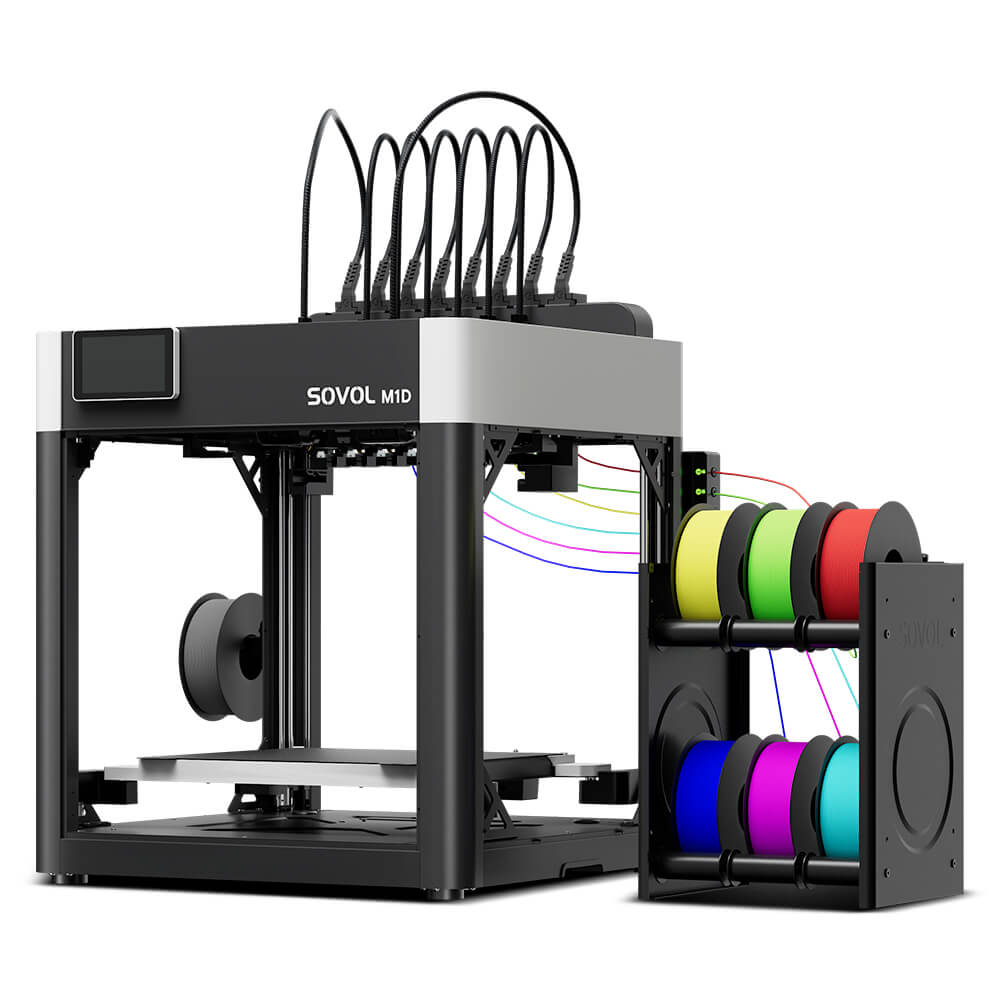
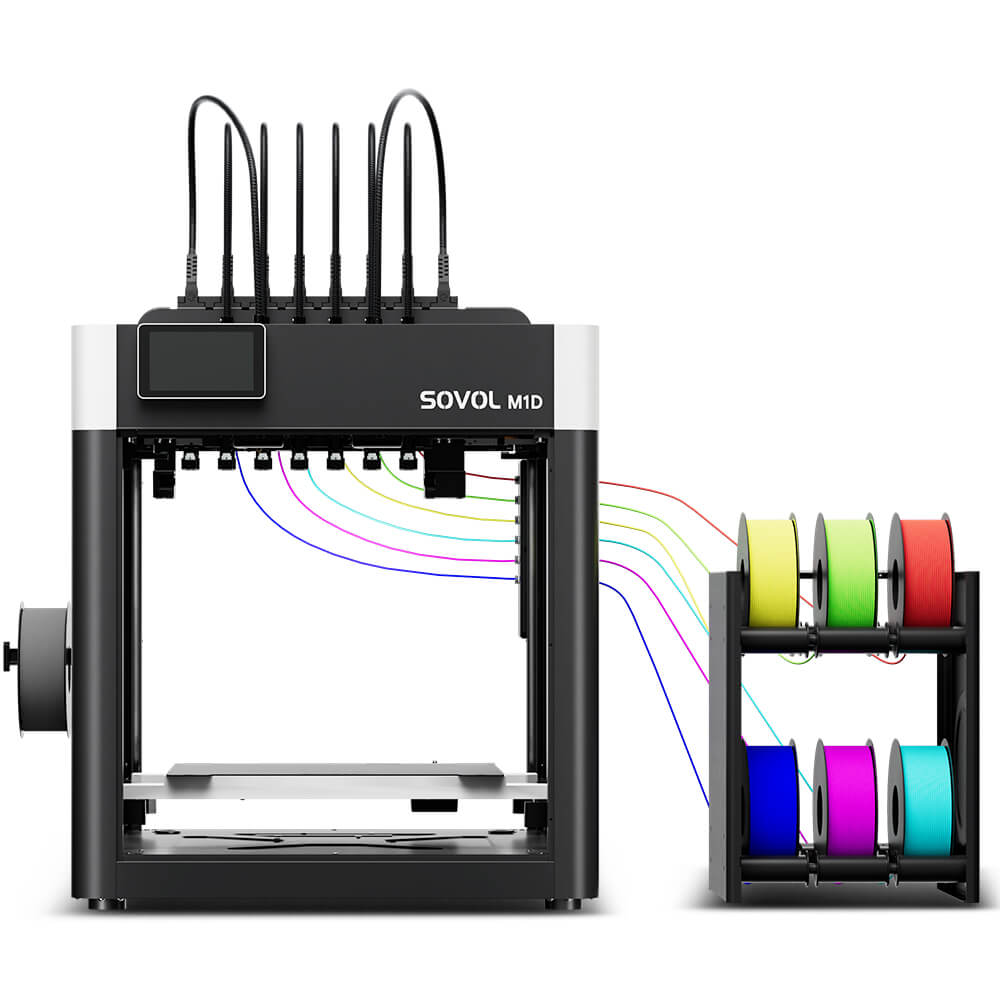
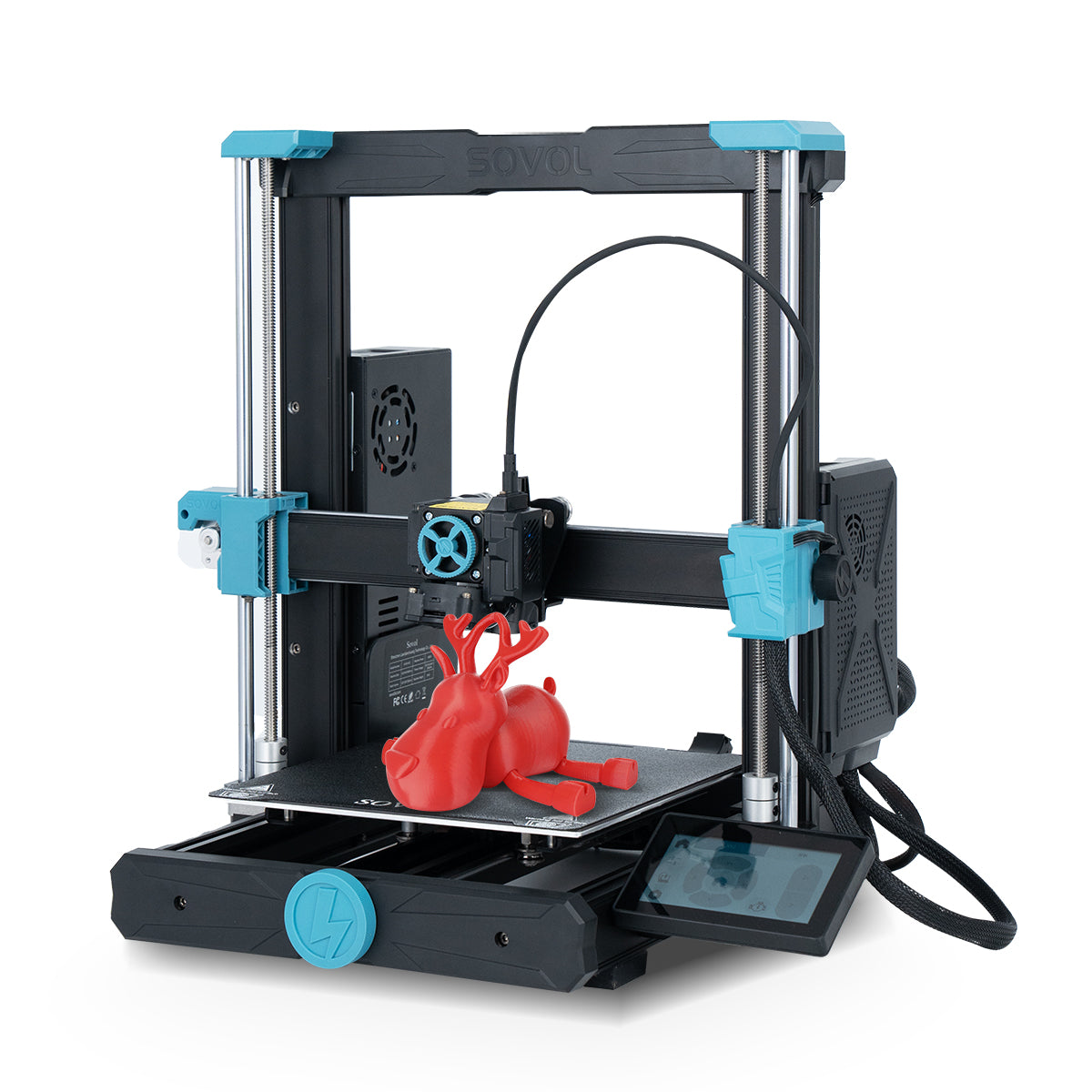
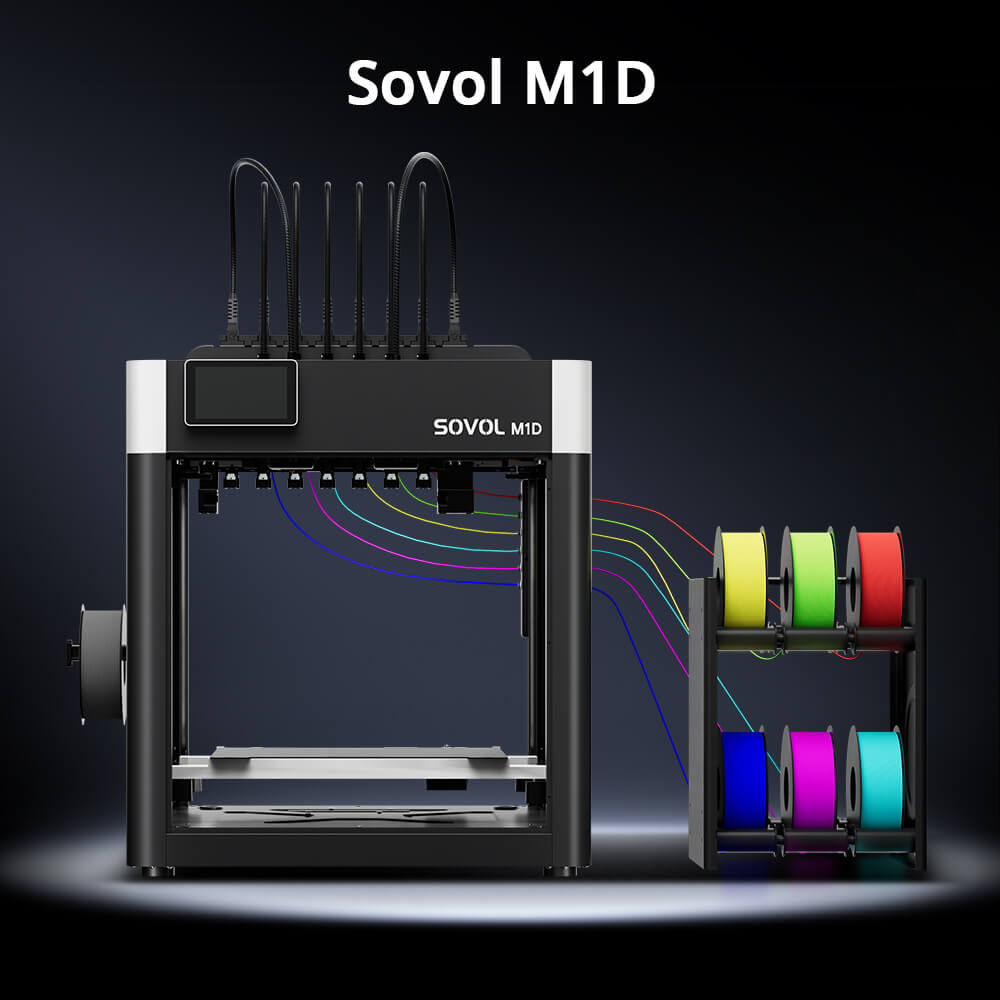
The Sovol M1D is one example of a printer whose product page lists Power Loss Recovery as a supported feature, alongside filament runout, tangle, and clog detection.
That listing means the feature is part of the machine's spec sheet. It doesn't mean every interrupted M1D print will resume perfectly. Results still depend on the saved print state, how well the model stayed adhered, how the firmware behaves on restart, and the condition of the print after the outage. A part that cooled and lifted, or a nozzle that returns into a blob, can still fail even on a machine with the feature.
If you're setting up an M1D, the M1D first print setup guide covers the plate, toolhead, and filament checks that make a resume more likely to succeed.
Before a Long Print: A Prevention Checklist
Most recovery outcomes are decided before the print starts. Run through this list before any long or unattended job.
- Confirm the plate is clean and the model is firmly attached. A good first layer is the best defense against a part that lifts when the plate cools.
- Check the filament path and remaining material. Make sure the spool has enough for the job and unwinds without snags.
- Verify recovery features are enabled. If your printer has power loss recovery or runout detection, check it's switched on in the menu or firmware.
- Use the file you actually sliced, and keep it accessible to the printer.
- Keep the printer on a stable surface. A machine that gets bumped or vibrates can shift the part or the gantry.
- Leave everything in place during an interruption until you've inspected it.
Our 3D printer maintenance tips cover the cleaning, belt, and lubrication checks that keep long prints running reliably.
FAQ
Can a 3D printer resume after a power outage?
Sometimes. If the printer supports power loss recovery and saved a valid state before shutting down, it may offer a resume option on restart. Machines without the feature may require a restart or a separate manual recovery method.
How long can a printer be turned off before recovery becomes unreliable?
There's no universal number. The practical limit is set by how long the plate and part take to cool, and by any pause or recovery limits in your firmware. Check your printer's documentation rather than assuming a fixed window.
Why did my printer restart without offering resume?
Usually because recovery isn't supported on that model, the data wasn't saved or was unreadable, or the state was lost during the reboot. Check the feature is enabled and consult your printer's documentation.
Can a UPS prevent a failed print?
It can help with short interruptions and may give you time for a safer shutdown on longer ones. It doesn't guarantee recovery. Check your printer's power requirements and follow the UPS maker's sizing instructions.
Conclusion
Power loss recovery can save a long print, but treat it as a salvage feature rather than a guarantee. Before you resume, inspect the part and plate, clear the nozzle path, and confirm the filament is ready. Then follow your printer's own instructions, because the menu names differ from machine to machine.
Keep your expectations realistic. A successful resume can sometimes leave a visible seam or texture change at the recovery layer, and a part that cooled and lifted won't be saved by any button. The best defense is still the prep work: a clean plate, a secure first layer, a checked filament path, and a stable machine.