




The stakes are highest on long jobs: overnight prints, functional parts, and multi-color models where hours of work sit on the plate. This guide separates a true runout from a tangle, a feed failure, and a false sensor trigger, then walks through the alert response, why resumes fail, and how to prevent the problem before a long job starts.
If your printer detects filament runout and preserves the paused print state, you can often replace the spool and resume the job. The exact result depends on the printer, firmware, sensor, and whether the model stayed securely in place during the pause.
What Happens When a 3D Printer Runs Out of Filament
On a printer with a filament runout sensor and detection enabled, the sensor notices the filament is gone and signals the firmware. In many setups the firmware pauses the job, parks the toolhead away from the part, and shows a message asking for new filament. Marlin, for example, runs a configured filament-change routine when sensors are enabled, and takes no action when runout detection is disabled (Marlin M412 documentation).
Without a sensor, or with detection switched off, nothing stops the motion. The extruder keeps turning, the nozzle keeps tracing the toolpath, and the printer may continue moving without depositing material. You end up with a gap, missing layers, or a part that looks finished until you pick it up.
Where the toolhead parks and whether it stays heated depends on firmware and settings. Resume support is also a separate feature from runout detection: power-loss recovery, which lets a printer continue after an outage, is its own capability, and a machine can have one without the other.
Runout, Tangle, Feed Failure, or False Trigger: Telling Them Apart

These four problems produce similar-looking failures but need different fixes, so identify the cause before you touch anything.
Filament runout. The supply is genuinely gone: the spool is empty, or the filament snapped somewhere between the spool and the extruder. The sensor sees no filament because there is none.
Filament tangle. Filament is still present but crossed over itself or snagged on the spool, so it resists being pulled. Some printers watch feed resistance and pause when it climbs too high, but a basic runout sensor usually cannot see a tangle, because filament is still passing through it.
Filament feeding failure. The path is blocked or binding even though filament is loaded: a partial clog, a kink, a restricted guide tube, or extruder tension that is too loose or too tight. The extruder may grind or skip, and extrusion thins out or stops.
Filament sensor false trigger. The sensor reports empty while filament is actually present. Common causes are a stuck lever, debris in the sensor, a misseated connector, or a magnet or switch that has come loose. If your printer flags an empty spool while filament is visibly sitting at the extruder, suspect the sensor rather than the spool.
A simple order saves time: check the spool first, then the filament path, then the sensor.
What to Do When a Filament Runout Alert Appears

The sequence below is general practice, not a universal procedure. Button names and prompts differ by machine.
- Confirm or pause the alert using the printer's own prompt. If the printer has already paused, read the message before dismissing it. If it is still running and you know the spool is empty, pause from the screen rather than letting it print air.
- Check whether the filament is actually empty, tangled, or present at the sensor. Look at the spool, then at the sensor. This step decides whether you are loading new filament or fixing a false trigger.
- Remove the remaining filament safely. Heat the nozzle to the printing temperature for the loaded material first, so the filament releases cleanly instead of snapping off inside the hotend. Follow your printer's unload procedure if it has one.
- Load the new spool according to the manufacturer's loading procedure for your machine.
- Purge enough material to confirm clean extrusion. Feed filament until it flows steadily and evenly. The right amount depends on the hotend, the material, and how much of the old filament remained, so judge by what comes out of the nozzle rather than a fixed number.
- Check the nozzle and the full filament path. Confirm the filament runs from spool to extruder without snags, and that the nozzle is not partially clogged.
- Resume only after confirming the toolhead and print position are safe. The nozzle should be clear of the part and able to travel back to where it stopped without colliding.
On some machines the toolhead parks automatically when the pause triggers. On others, you have to move it deliberately before you can work on the filament path.
How to Resume a Print After Changing Filament
Menu names, button labels, and command sequences differ across printers and firmware, so treat the printer's own documentation as the authority for the exact steps. What follows is what a correct resume requires, not a menu path.
A clean resume needs four conditions in place:
- The printer still holds the paused print state, so it knows where it stopped and can return there.
- The nozzle is back at the correct temperature for the material now loaded.
- The sensor reads filament present. If it still reports empty, the resume is usually blocked or the alert repeats.
- The toolhead is positioned so it can return to the last position without hitting the part.
How you trigger the resume varies. Some firmware shows a continue prompt after the filament change; Prusa's runout article, for example, describes pressing Continue on the LCD once new filament is in (Prusa Knowledge Base). Others expect a filament-change command or a manual resume. Same idea, different interface.
Why the Print Doesn't Resume Correctly
Most failed resumes trace back to one of four mistakes: the filament never fully reached the nozzle, the path is blocked, the hotend is not hot enough, or something moved while the printer was stopped.
Incomplete loading or a blocked path. The extruder turns but nothing comes out, extrusion starts late, or you hear grinding and see the filament shaved down. A partial clog, a kink, or a restricted guide tube stops material even though the spool is full.
Wrong temperature. If the hotend is too cool for the loaded material, extrusion is weak or absent at resume, and the first layers after the pause may not bond. Resuming a PLA job with a spool profiled for PETG invites the same problem.
A sensor that still reads empty. The resume is blocked, or the runout alert keeps returning. Either filament is not reaching the sensor, or the sensor itself is stuck or misseated.
A lost print state or a disturbed part. If the printer cannot return to the paused position, the job usually cannot continue. This often follows a power event or a reboot during the pause. A layer shift or a visible seam after the resume point means the part, the plate, or the toolhead moved while the printer was stopped, and resuming again will not undo it.
Troubleshooting Table
|
Problem |
Likely cause |
Practical checks or next steps |
|---|---|---|
|
Extruder turns but nothing extrudes after loading |
Filament not fully loaded |
Unload, confirm the filament reaches the nozzle, reload per the manufacturer's procedure |
|
Extruder grinds or skips |
Blocked path or partial clog |
Inspect the nozzle and guide tubes, check extruder tension, clear any kink |
|
Resume blocked, runout alert repeats |
Sensor still reads empty |
Confirm filament is at the sensor, clean the sensor, check its connector and seating |
|
Visible layer shift after resume |
Model or plate disturbed during pause |
Inspect the part and plate; if shifted, the job may need reprinting |
|
Color or material appears in the wrong place |
Wrong toolhead or material assignment |
Check the slicer mapping and the channel each spool is loaded into |
Quick Checklist
- Confirm the cause: runout, tangle, feed failure, or false trigger
- Replace or untangle the filament
- Check the filament path from spool to nozzle
- Purge and verify clean extrusion
- Confirm temperature and tool assignment
- Inspect the print position and toolhead clearance
- Resume only when the printer is ready
Preventing Runout and Tangle Failures Before a Long Print
Most runout failures are decided before the print starts. Run through these checks before any long or unattended job.
- Inspect the spool before a long print. Estimate whether the remaining filament covers the job, and look for nicks, kinks, or a spool that has been sitting exposed.
- Make sure the filament unwinds smoothly. A spool that snags feeds intermittently, which shows up as inconsistent extrusion long before it shows up as a runout.
- Avoid crossed loops. When you store or remount a spool, keep the end secured so it cannot slip under an adjacent loop. A crossed loop tightens into a tangle under tension, which is why tangles often appear hours into a print rather than at the start.
- Check the filament path and guide tubes. Look for sharp bends, tubes pulled tight, or filament rubbing on the spool holder edge. These add resistance that the extruder has to overcome.
- Keep moisture-sensitive materials properly stored. Wet filament can bubble, pop, and feed unevenly, which can look like a feed problem. Dry hygroscopic materials such as PVA or nylon before a long job and store them sealed.
- Confirm the runout sensor is installed and functioning where applicable. If your printer has one, verify detection is enabled in the firmware or menu, and test it before relying on it overnight.
- Keep enough replacement filament available for long jobs. A spare spool of the same material and color on hand can make a pause easier to resolve instead of scrapping the print.
Filament Runout During Multi-Color and Multi-Material Printing
Multi-color and multi-material jobs add a mapping layer that single-color printing does not have. Before you slice, verify that each material in the model is assigned to the intended toolhead, and confirm the assignment in the sliced preview rather than trusting the model view. A spool loaded into the wrong channel produces color swaps that no resume can fix.
When a runout happens on one channel, the printer may pause the whole job, not just that toolhead. After loading the replacement, confirm three things: the new spool is in the correct channel, the printer's material mapping still matches the slicer, and the toolhead that will resume is the one the toolpath expects. Resuming with the right filament in the wrong toolhead gives you a clean-looking print with the wrong material in it.
For related reading, see Sovol's M1D Material Compatibility Guide and how to choose compatible filaments for multi-material jobs.
Where Filament Monitoring Helps — and Where It Stops
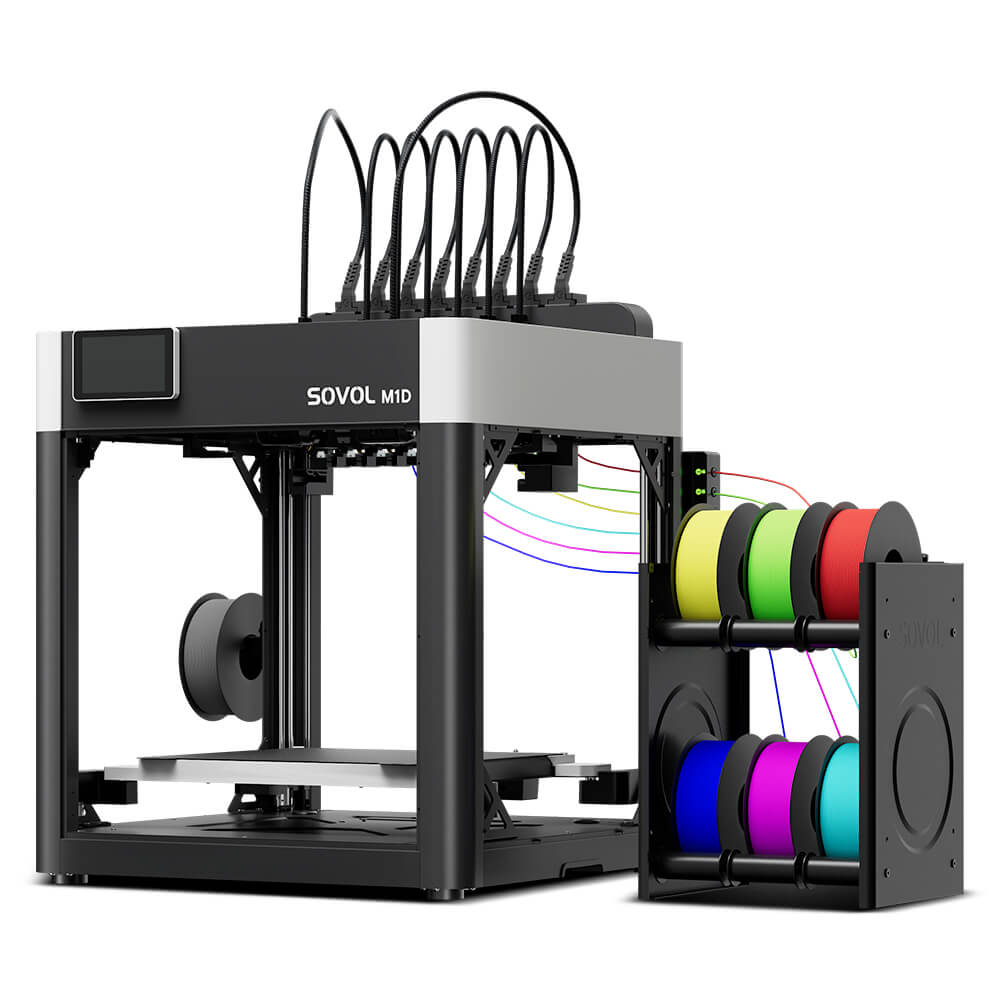
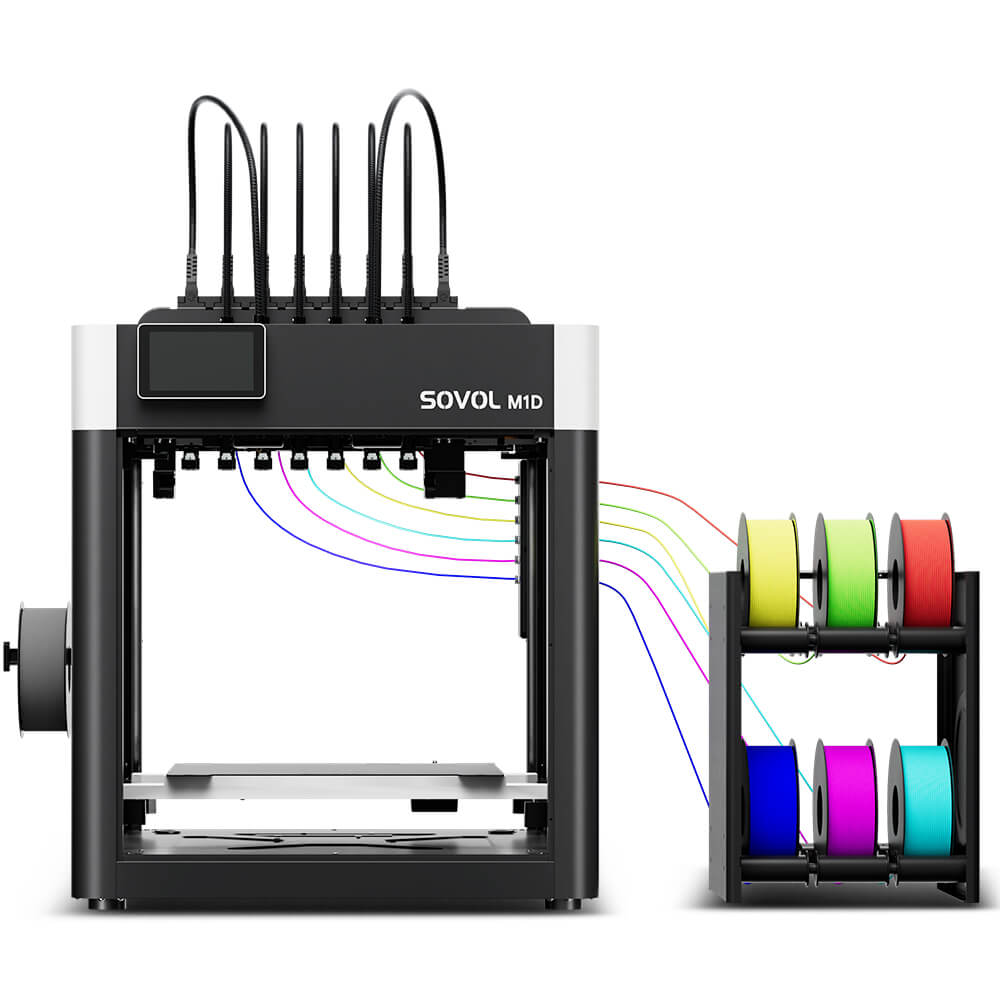
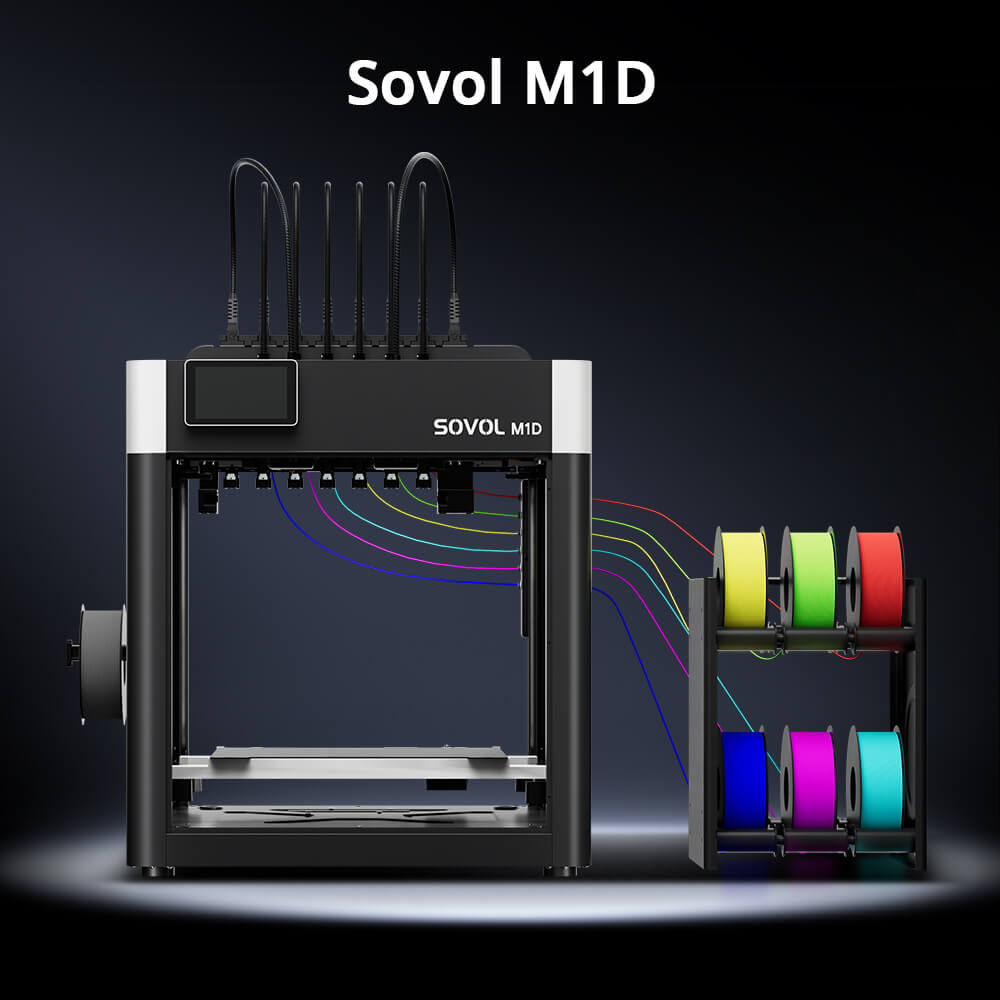
The Sovol M1D is one example of a printer that monitors filament conditions during a job. Its official product information lists filament runout detection, filament tangle detection, and clog detection, alongside automatic filament loading for its multi-channel toolhead system (Sovol M1D product page).
In practice, that means the printer can catch some problems early and pause before it spends hours printing air. It does not mean every interrupted print resumes perfectly. Whether a job continues cleanly still depends on the factors covered above: complete loading, a clear path, correct temperature, a sensor that reads filament present, a held print state, an undisturbed part, and matching material settings.
If you are setting up an M1D, the M1D first print setup guide covers filament routing and toolhead assignment, and the tool-changing printer maintenance guide covers the inspection routine that keeps the filament path reliable.
FAQ
Can a 3D printer resume after it runs out of filament?
Often, yes, if the printer has runout detection enabled and its firmware supports pausing and resuming. The printer holds the paused position, you load new filament, and you continue from the prompt. Machines without a sensor may require a manual pause or may not preserve the print state after the filament runs out.
Will a filament runout ruin the print?
Not necessarily, but it can. If the printer pauses promptly and you resume cleanly, the part may show only a faint seam. If the printer keeps moving without depositing material, or the part shifts during the pause, the job may need to be restarted, especially if the part or print position was disturbed.
Why does the printer still show filament runout after loading a new spool?
The filament may not have reached the sensor yet, the sensor may be stuck or dirty, or its connector may be loose. Confirm filament is physically at the sensor, then check the sensor itself before assuming the spool is the problem.
Can I change filament manually during a print?
Some printers and firmware support a mid-print filament change, often through a dedicated command or a pause-and-change routine. Doing it manually without that support risks leaving the hotend at the wrong temperature or losing the print position, so check your printer's documentation first.
How can I prevent filament tangles during overnight printing?
Secure the spool end whenever the spool is off the printer, avoid crossed loops when storing and mounting, and confirm the spool unwinds freely before starting.
Conclusion
Handling a filament runout is a workflow, not a single button press. Diagnose the cause first, because a tangle, a clog, and a false trigger each need a different fix. Load the new filament completely, purge until extrusion is clean, and confirm the temperature, tool assignment, and print position before you resume.
Prevention still beats recovery. Inspect the spool, check the filament path, store moisture-sensitive materials properly, and keep a spare spool ready before any long job.
For the exact resume procedure on your machine, check the printer's own documentation, and explore Sovol's 3D printer maintenance guide for the checks that keep long prints running.