





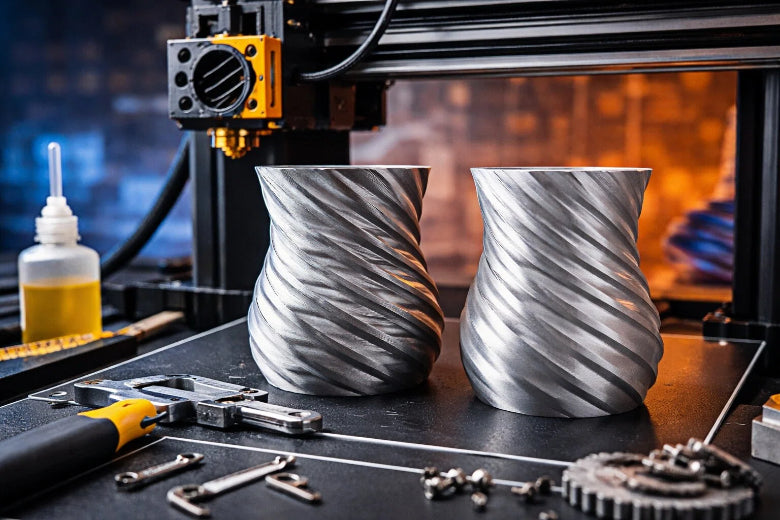
Z banding means you see regular horizontal lines or ridges on your 3D prints. These lines make surfaces look rough and can ruin fine details. You often find z banding happens when something goes wrong with your printer’s movement or settings.
You do not need special tools or advanced skills for a 3d printer z banding fix. Most solutions involve simple checks and adjustments you can do at home. Start with one step at a time to spot and solve the issue.
Key Takeaways
- Z banding makes lines you can see on 3D prints. These lines change how the print looks and its details. If you spot this problem early, you can save time later.
- Z banding often happens because of lead screw problems. Loose couplers and wrong slicer settings also cause it. Doing regular maintenance can stop these issues.
- Look at your printer's Z axis to see if it moves smoothly. Check your prints for lines that show Z banding. This helps you find where the problem comes from.
- Change the layer height to help fix Z banding. Make sure extrusion settings are correct. Try different settings to see what works best.
- Clean and oil the Z axis often. Do this every three months. This keeps your printer working well.
What Is Z Banding
Z Banding Explained
You may notice strange lines or ridges on the surface of your 3D prints. These lines often appear in a regular pattern from bottom to top. This problem is called z banding. It happens when your printer does not align each layer perfectly as it moves up the Z axis. You can think of it like streaks left by a brush when you paint a wall. The surface feels rough instead of smooth.
Here are some key points about z banding:
- You see horizontal lines or bands on your printed object.
- These lines come from layers that do not line up correctly during printing.
- The effect looks like brush streaks and makes the surface rough.
Print Quality Impact
Z banding can change how your finished print looks and feels. You may see shadows or bumps that should not be there. Fine details can disappear, and smooth curves may look jagged. If you want to paint or finish your print, these lines make it harder to get a clean result.
You might also notice that parts that should fit together do not match as well. This happens because the bands change the size of your print in small ways. For many projects, z banding means you need to spend more time sanding or fixing the surface. By understanding what causes these lines, you can take steps to improve your print quality and save time.
Main Causes Of Z Banding
Lead Screw Issues
If your lead screw is bent or dirty, you might see lines on your prints. A bent lead screw makes the Z axis move in a bumpy way. This can shift each layer and make bands you can see. If the screw is dirty or not oiled, it can get stuck. When this happens, the printer cannot move up and down smoothly. You should check if your lead screw is straight and keep it clean.
Here is a table that shows some common mechanical causes:
|
Mechanical Cause |
Description |
|---|---|
|
Out-of-plane fibre crimping |
Fibers get squished in the thickness direction. |
|
In-plane fibre distortion |
Fibers do not line up right in the laminate. |
|
Resin pockets formation |
Small pockets form around pins and can join together. |
|
Fibre rupture |
Fibers break and make the part weaker. |
|
Longitudinal splitting cracks |
Cracks start at resin pockets and spread out. |
|
Crimping and distortion |
Gets worse when pins turn and press together. |
|
Swelling of laminate |
Makes fibers take up less space and lose strength. |
Coupler And Bearing Problems
If couplers are loose or not lined up, the Z axis can wobble. This wobble makes layers uneven and adds more lines. The Z axis might move in a jerky way. Sometimes, you will see small delays when the printer changes direction. These problems happen when couplers are loose or bearings do not spin well.
- Loose couplers can make the Z axis wobble.
- The Z axis might move in a strange way.
- Backlash and delays can get worse.
Check that all couplers and bearings are tight and move easily.
Layer Height And Slicer Settings
Wrong layer height settings can make z banding worse. If the layer height is too high or too low, layers will not be smooth. Slicer settings like wall count and extrusion multiplier also matter. Too many walls or too much filament can make extra lines.
|
Evidence Description |
Impact on Z Banding |
|---|---|
|
Makes z banding happen less often |
|
|
Higher wall count leads to banding |
Layers take longer and banding gets worse |
|
Over-extrusion from high extrusion multiplier |
More lines show up with more walls |
Match your layer height to your nozzle size and do not use too much filament.
Extrusion And Temperature
If the printer does not push out filament evenly, you will see lines. The temperature also changes how the filament flows. If it is too hot or too cold, the filament may not stick or may make blobs. You can fix this by setting the right flow rate and temperature. Make sure your filament feeds smoothly by using a good spool holder.
Tip: Set your printer’s flow rate and temperature the right way. This helps you get even layers and smooth sides.
3D Printer Z Banding Fix Steps
Inspect For Visible Bands
Start your 3d printer z banding fix by looking closely at your prints. You want to spot any uneven or repeating lines on the sides of your models. These lines often show up as ridges or shadows that run around the object. Use a good light and check all sides. If you see these bands, you know you have a problem with your Z axis.
Follow these steps to diagnose the issue:
- Look for irregular and uneven ridges on your print’s surface.
- Watch the Z-axis as your printer moves up and down. Notice if the movement looks smooth or jerky.
- Check if the bands appear at regular intervals. This pattern often points to a mechanical issue.
Adjust Lead Screw And Coupler
A bent or misaligned lead screw can cause Z banding. You need to check the alignment and make sure the coupler connects the motor and lead screw correctly. Here is a step-by-step guide for this part of your 3d printer z banding fix:
- Measure from the base of your printer to the smooth rod on both sides. Both sides should match.
- Adjust the Z motors until the rods are parallel.
- Level the X-axis to the Y-axis base.
- Loosen the set screws on the flex coupling.
- Gently press the top of the lead screw to set the coupling.
- Make sure the lead screw does not touch the motor shaft. This helps absorb backlash.
- Tighten all screws and bolts around the Z motor and coupler, but do not overtighten. Leave them slightly loose to prevent binding.
- Remove the lead screw and roll it on a flat surface. If it wobbles, you need to replace it.
Clean And Lubricate Z Axis
Dust and old grease can make the Z axis stick. Cleaning and lubricating the lead screw is an important part of any 3d printer z banding fix. You should do this every three months or after long printing sessions.
Here is how you can clean and lubricate the Z axis:
- Wipe off old grease with a cloth and 91% isopropyl alcohol.
- Apply a few drops of PTFE-based lubricant at the top of the lead screw, about every six inches.
- Move the Z axis up and down several times to spread the grease evenly.
- Do not use too much grease. Too much can attract dust and cause more problems.
|
Maintenance Task |
How Often |
|---|---|
|
Clean lead screw |
Every 3 months |
|
Lubricate lead screw |
Every 3 months |
|
Check for dust buildup |
Every print cycle |
Optimize Layer Height
Layer height settings in your slicer can make a big difference. For a 3d printer z banding fix, try lowering your layer height. Many users find that changing from 0.2 mm to 0.1 mm makes the bands much less visible.
- Use a layer height that matches your nozzle size. This helps each layer line up better.
- Try the “magic number” for your printer. This is a layer height that fits perfectly with your Z axis step size.
- Balance layer height and print speed. Printing too fast with a low layer height can cause other problems.
Check Extrusion And Nozzle
Problems with extrusion or a clogged nozzle can also cause Z banding. You want to make sure your printer pushes out filament smoothly and evenly. This step is key for a complete 3d printer z banding fix.
- Clean or replace the nozzle if you see clogs or blobs.
- Use a nozzle cleaning kit to remove any stuck plastic.
- Check that you use high-quality filament. Cheap or old filament can cause uneven extrusion.
- Calibrate your extruder steps (e-steps) to make sure you get the right amount of filament.
- Run PID tuning to keep your hot end and bed temperatures stable.
|
Troubleshooting Step |
What to Do |
|---|---|
|
Clean nozzle |
Use a cleaning kit or replace it |
|
Check filament quality |
Use new, high-quality filament |
|
Calibrate extrusion |
Adjust e-steps in firmware |
|
Tune temperatures |
Run PID tuning in your printer |
By following these steps, you can solve most Z banding problems at home. Each 3d printer z banding fix starts with careful inspection and ends with regular maintenance. Take your time and check each area. This way, you will get smoother, better-looking prints every time.
You can fix most z banding if you know the main reasons. These include lead screw wobble, Z-axis not lined up, problems with the lead screw, frame not straight, and Z-stepper motor moving unevenly. Try these steps to help: First, tighten all screws and belts on the Z-axis. Next, change your layer height in the slicer.
Keep your printer working well by doing these jobs:
|
Maintenance Task |
Description |
|---|---|
|
Make sure it is tight so it does not shake. |
|
|
Tighten belts |
Belts should feel tight and not floppy. |
|
Inspect rods |
Look for rods that are bent or move oddly. |
|
Lubricate rods |
Put oil on guide and threaded rods. |
|
Test bed movement |
The bed should move smoothly without sticking. |
If you clean and check your printer often, you can stop problems before they start and your prints will look better.
FAQ
What is the difference between Z banding and layer lines?
Z banding creates thick, repeating horizontal lines. Layer lines are normal and appear as thin lines from each print layer. You can fix Z banding with maintenance. Layer lines are part of the printing process.
Can filament quality cause Z banding?
Yes. Low-quality or old filament can lead to uneven extrusion. You should use fresh, high-quality filament for the best results. Store filament in a dry place to prevent moisture problems.
How often should you clean the Z axis?
You should clean and lubricate the Z axis every three months. If you print often, check it more frequently. Regular cleaning keeps your printer running smoothly and prevents Z banding.
Do slicer settings affect Z banding?
Slicer settings can make Z banding worse or better. Use the right layer height for your nozzle. Adjust extrusion and wall settings for smoother prints. Test small changes to see what works best.
Can you fix Z banding without new parts?
Most Z banding fixes do not need new parts. You can adjust, clean, and calibrate your printer at home. Replace parts only if you find damage, like a bent lead screw.