







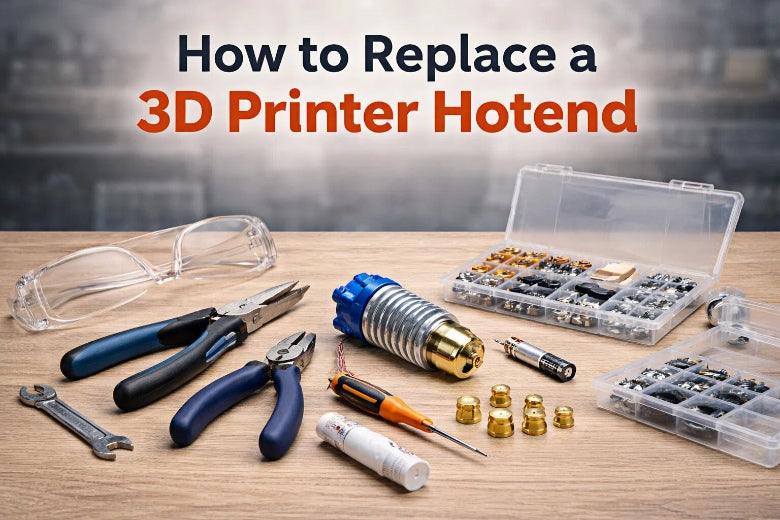
You might feel worried about how to replace hotend on your 3D printer, but you can do it even if you are new. If you see clogs, leaks, or bad print quality, a new hot end can help fix these problems. Here are some extrusion problems you might solve with this step:
- Clogged hotend stopping filament from moving
- Leaking nozzle making plastic drip out
- Old or broken nozzle making prints look worse
- Hot end getting too hot and melting filament too fast
Many beginners have questions about voltage, what to buy, and if they should clean or change a leaking hot end. Look at the table below for common questions:
|
Question |
Context |
|---|---|
|
How do you know if you need the 12V or 24V Revo Micro? |
Picking the right voltage for your new part |
|
What should I think about when changing the hot end? |
Choosing the best one for your printer |
|
Should I clean or change a leaking hot end? |
Deciding if you should fix it or get a new one |
Learning how to replace hotend helps you feel sure and keeps your 3D printer working well.
Key Takeaways
- Changing a hotend can fix problems like clogs and leaks. This makes your prints look better. It also helps your printer work well.
- Get all your tools and materials ready before you start. Making a checklist helps you remember what you need. This makes the replacement go well.
- Safety is very important. Turn off your printer and let it cool down first. Unplug the printer so you do not get shocked.
- Look at the new hotend to check for damage before you put it in. A quick look can stop problems later. It also helps your printer work better.
- Do calibration tests after you put in the new hotend. This makes sure your printer is set up right. Now you can get good prints.
Preparation for Hot End Replacement
Tools and Materials Checklist
Before you start, grab everything you need for this step. You want to avoid searching for tools halfway through the process. Here’s a handy checklist:
- Hex wrenches (usually 2mm and 2.5mm sizes)
- Small Phillips screwdriver
- Needle-nose pliers
- Replacement hot end (make sure it fits your printer)
- Heating block and cartridge
- Thermistor
- Heat break or PTFE tube
- Heat sink
- Hardened steel or ruby-tipped nozzle (if you use abrasive filaments)
- Safety gloves
- Cleaning brush or compressed air
You should check the heating block and heat break for cleanliness. Look at the thermistor and heating cartridge cables for damage. Clean the gaps between the heat sink fins. Quality parts help your hot end last longer.
Power Down and Cool Hot End
Safety comes first. Set the hot end temperature to 50°C or lower. Wait for it to cool down. Turn off your printer and unplug it. You don’t want to touch anything hot or risk electric shock. If you feel unsure, take your time and double-check the temperature.
Tip: Always unplug your printer before you replace hot end parts. This keeps you safe and protects your printer.
Unload Filament Safely
You need to unload the filament before you remove the hot end. Follow these steps:
- Set the nozzle temperature to the right unloading temperature (for PLA, try 215°C).
- Select ‘Unload’ on your printer screen.
- Wait for the nozzle to heat up and start the filament withdrawal.
- Gently pull the filament out once it’s free from the gears.
- Confirm the process is complete by pressing ‘OK’ on the screen.
If the nozzle stays at 142°C, you still have filament inside. Repeat the unloading step until the filament is gone.
Inspect New Hot End
Take a close look at your new hot end before you install it. Check for cracks, bent parts, or damaged wires. Make sure the nozzle fits and the heat break is clean. If you spot any problems, don’t use it. A quick inspection now saves you trouble later.
You’re ready to move on to the next step in how to replace hotend. Careful preparation makes 3D printer maintenance easier and safer.
How to Replace Hotend: Removal Steps
Heat and Eject Filament
You want to start by heating the hot end to the right temperature for safe filament removal. This helps prevent clogs and makes the filament easier to pull out. For most filaments, you should set the hot end between 280°C and 290°C. Wait until the printer reaches this temperature. Select the unload option on your printer screen. Gently pull the filament out once it loosens. If you feel resistance, let the hot end stay hot for a bit longer. This step keeps your printer clean and ready for the next part.
Remove Cooling Fan and Screws
Now, you need to remove the cooling fan and screws. Grab your H2.0 Allen key and follow these steps:
- Unscrew the screws on both sides of the printhead front cover.
- Take off the front cover air duct and the fan harness.
- Unscrew the screws on both sides of the printhead rear cover and remove it.
- Pull the extruder assembly outwards slightly.
- Unscrew the fan mounting bracket and cooling fan.
- Unplug the cooling fan connector and remove the wiring harness from the clip.
You might also need to remove two screws securing the hotend fan and pull the fan out from the toolhead. Keep all screws in a safe spot so you don’t lose them.
Disconnect Wiring and Sensors
Before you touch any wires, make sure your printer is unplugged. Safety matters here. You should always power off and unplug your printer before removing covers or checking wiring.
Never plug or unplug any device while the printer is powered. This can damage electronic parts and is a safety hazard.
Double-check that the capacitors in the power supply have discharged. Take your time and gently unplug the connectors for the hot end, thermistor, and heater cartridge. Don’t yank or twist the wires.
Take Out Old Hot End
You’re almost done with how to replace hotend. Carefully slide the old hot end out of the extruder assembly. Look at the hot end for signs of wear or damage. Here’s a quick table to help you spot trouble:
|
Description |
|
|---|---|
|
Temperature Inconsistencies |
Hot end temperature reads lower than setpoint, causing under-extrusion. |
|
You feel resistance when pushing filament, which may signal jams or clogs. |
|
|
Extruder Gear Grinding |
The gear grinds through filament, showing poor filament flow. |
If you see any of these problems, you made the right choice to replace hot end. This step helps you keep your 3D printer in good shape and avoid future issues.
Replace Hot End: Installation Steps
Position and Secure New Hot End
You have removed the old hot end. Now, you need to install the new one. Start by lowering the build plate so you have enough space to work. Make sure the filament is unloaded and the nozzle is cool. Place the new hot end into the extruder assembly. Align it so the nozzle points straight down and sits flush with the mounting bracket.
Here’s a step-by-step guide to help you position and secure the new hot end:
- Lower the build plate to create space.
- Unload any filament left in the extruder.
- Cool down the nozzle before handling.
- Remove the cooling fan if you haven’t already.
- Slide the new hot end into place.
- Inspect the hot end for proper fit and orientation.
- Secure the hot end with the mounting screws.
- Adjust the hot end so it sits level with the extruder.
- Position the bed underneath the nozzle for alignment.
- Move the extruder to the center of the bed.
- Double-check the hot end position before tightening.
Tip: If you use abrasive filaments, choose a hardened steel or ruby-tipped nozzle for your hot end. Many beginners find the E3D Revo Micro kit reliable and easy to install.
Reconnect Wiring and Sensors
You need to reconnect the wiring and sensors to make sure your hot end works correctly. Look at the connectors and make sure they are clean and undamaged. Push the four wires under the wire clip on the extruder housing. Plug in the four-wire connector first, then connect the fan wires.
- Make sure each connector clicks into place.
- Check that the fan wires do not need to be clipped.
- Secure the hot end into the tool head body with screws after positioning.
- For the thermistor, connect the outside leg to pins 6, 7, 16, or 17. Connect the inside leg to pins 4, 5, 14, or 15.
- The thermistor resistance should be greater than 90K ohms at room temperature.
Note: If you feel unsure about wiring, look at your printer’s manual or ask for help in online forums. Proper connections prevent errors and keep your hot end safe.
Tighten Screws and Align
You want to tighten the screws so the hot end stays secure. Use a torque wrench if you have one. For hot end nozzle combinations, use a torque of 1.5 Nm. For plain M3 bolts, use 1.9 Nm. Do not overtighten, or you might damage the threads.
Check the alignment before you finish this step:
- Perform a mesh bed level to probe the print surface.
- Use a feeler gauge to set the Live Z value. Make sure the nozzle sits at the correct distance from the print surface.
- Preheat the bed before starting a print. This helps with probe accuracy.
Here’s a quick table for alignment checks:
|
Alignment Check |
What to Do |
|---|---|
|
Mesh Bed Level |
Probe the print surface for even first layer |
|
Feeler Gauge |
Set Live Z value for correct nozzle height |
|
Preheat Bed |
Improve probe accuracy before printing |
You have finished the installation step. You now know how to replace hotend and secure it for reliable 3D printer maintenance. This step helps prevent leaks and keeps your prints looking sharp.
Test and Calibrate Hot End
Power On and Preheat
You’re almost ready to print again! After you finish installing your new hot end, you need to power on and preheat your printer. Follow these steps to get started:
- Turn on your printer and check that the display lights up.
- Set the nozzle temperature to a low setting, like 140°C for PLA. This softens any leftover blobs but stops oozing.
- Set the bed to the first layer temperature you plan to use.
- Wait for the nozzle to reach the warmup temperature.
- While the nozzle heats, raise it and use a brush to clean off any residue.
- Heat the bed to its final temperature and let the printer sit so the probe warms up.
- Wait for the probe temperature to stay steady.
- Home all axes to reset the printer’s position.
- Run mesh bed leveling to check the surface.
- Heat the nozzle to your final print temperature and let it stabilize.
- Print a prime line to clear out any leftover material.
Tip: Cleaning the nozzle before your first print helps prevent blobs and improves printing quality.
Check for Leaks and Extrusion
Now, you want to make sure your hot end is sealed and ready. Here’s what you should do:
- Remove any filament left in the melt path.
- Try a Cold Pull to clear out old residue.
- Heat the hot end to a temperature higher than your last material.
- Let it soak for two minutes.
- Put on gloves and hold the heater block steady.
- Tighten the nozzle with a wrench, but don’t overtighten.
- Let everything cool down.
Watch for any leaks around the nozzle or heater block. If you see plastic oozing out, tighten the nozzle again.
Adjust Z Offset and PID Tune
You need to adjust the Z offset so your first layer sticks well. Start with the value your printer’s manual suggests. While printing the first layer, make small changes in steps of 0.05 mm. Watch how the filament lays down. Lower the nozzle if the lines look too thin. Raise it if the lines look squished.
For PID tuning, preheat your printer and turn on the cooling fan. Open your printer’s control screen or console. Start the PID autotune routine and set your target temperature. When it finishes, write down the new PID values and save them. This keeps your hot end temperature steady and boosts printing performance.
Run Calibration Tests
You want to make sure your printer works well after you learn how to replace hotend. Try these calibration tests:
- Print a vertical surface test to check for ghosting or ringing.
- Use a horizontal finish test to spot surface lines or ridges.
- Print a dimensional accuracy test to see if parts fit together.
- Try an overhang test to check cooling.
- Run a bridging test to see how well your printer handles gaps.
- Print a negative space test to check small holes or slots.
- Use a Z wobble test to spot any vertical movement issues.
Temperature calibration also helps. Preheat the hot end to the filament’s recommended temperature. Use an IR thermometer to check the real temperature. If you see a big difference, adjust your printer’s settings. Run a test print to confirm everything works.
Note: Calibration tests help you spot problems early and keep your prints looking sharp.
You’ve finished the last step in how to replace hotend. Testing and calibration keep your 3D printer in top shape and make sure your next project starts off right.
Troubleshooting After Hot End Replacement
Hot End Not Heating
You turn on your printer, but the hot end stays cold. This can feel frustrating. First, check if the wires are plugged in all the way. Look at the connectors for the heater cartridge and thermistor. If you see a loose wire, push it in gently. Sometimes, a broken wire hides under the insulation. Try wiggling the wires to see if the temperature reading jumps. If nothing works, swap in your old hot end to test if the new one is the problem.
Tip: Always unplug your printer before you touch any wires.
Filament Jams or Poor Extrusion
You start a print, but the filament will not come out right. Maybe it stops, grinds, or comes out in blobs. First, heat the nozzle to the right temperature for your filament. Try pushing the filament by hand. If it will not move, remove it and check for a clog. You can use a small cleaning needle to clear the nozzle. Make sure the extruder gear is clean and tight. If you see dust or plastic bits, brush them away.
Wiring or Sensor Errors
Your printer might show an error like “thermal runaway” or “sensor open.” This means the printer cannot read the temperature. Check the thermistor wires. Make sure they are not pinched or broken. Plug the sensor into the right spot on the board. If you swapped the wires by mistake, switch them back. Sometimes, a bent pin in the connector causes trouble. Straighten it with tweezers.
Other Common Issues
Here are a few more problems you might see after 3D printer hotend replacement:
- The fan does not spin: Check the fan plug and make sure it is in the right socket.
- The nozzle leaks: Tighten the nozzle while the hot end is hot, but do not overtighten.
- The first layer will not stick: Adjust the bed level and Z offset.
If you still have trouble, look at your printer’s manual or ask for help online. Regular 3D printer maintenance helps you avoid these problems in the future.
You now know how to replace hotend step by step. Careful 3D printer hotend replacement keeps your machine running smoothly. Always double-check your wiring and run calibration tests for the best results. Regular 3D printer maintenance helps you avoid bigger problems later. If you see circuit breaker trips or electrical failures, try these steps:
- Use a grounding tester to check your wiring.
- Call a professional electrician to inspect your outlets.
Tip: Clean your nozzle often and check for loose screws. This simple habit extends your hot end’s life.
FAQ
How do you know when to replace the print head?
You notice clogs, leaks, or poor print quality. If your print head struggles with extrusion or shows temperature errors, you should consider 3D printer hotend replacement. Regular 3D printer maintenance helps you spot these issues early.
What tools do you need for print head removal?
You need hex wrenches, a screwdriver, pliers, and safety gloves. Always unplug your printer before touching the print head. A cleaning brush helps remove dust. Check your manual for the exact tool sizes.
Can you clean the print head instead of replacing it?
You can clean the print head if you see minor clogs or residue. Use a cold pull or cleaning needle. If cleaning does not fix the problem, you should learn how to replace hotend for better results.
Why does the print head leak after installation?
Leaks happen when the nozzle is not tight or the print head is misaligned. Heat the hot end and tighten the nozzle gently. If leaks continue, check for damaged parts. 3D printer hotend replacement may solve the issue.
How do you prevent print head problems in the future?
You keep your print head clean and check for loose screws. Run regular calibration tests. Follow a 3D printer maintenance routine. Replace worn parts before they cause trouble. This keeps your print head working smoothly.
|
Print Head Issue |
Quick Fix |
|---|---|
|
Clogs |
Clean or replace hotend |
|
Leaks |
Tighten nozzle, check fit |
|
Poor Quality |
Calibrate, check print head |











