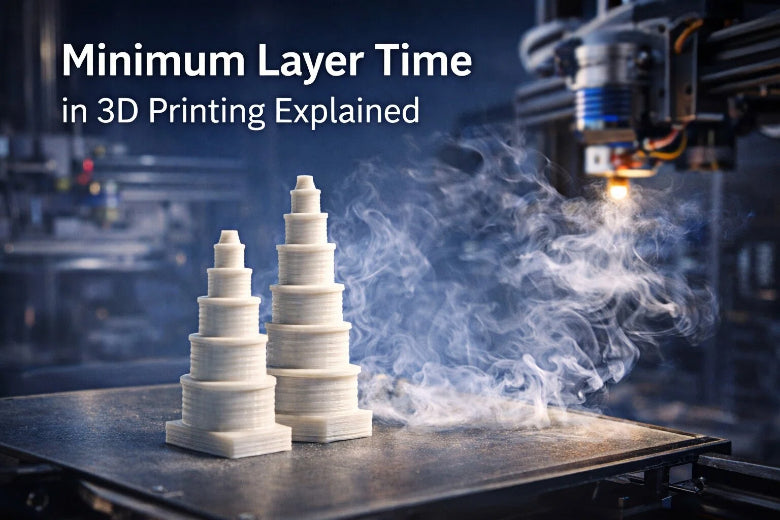
Minimum layer time 3D printing refers to the shortest amount of time each layer is allowed to cool before the printer starts the next one. Adjusting the minimum layer time 3D printing setting can improve both the appearance and strength of your prints. By setting the minimum layer time 3D printing option, you can prevent issues like warping or sagging. Many users overlook this slicer feature, but using minimum layer time 3D printing is important for achieving higher quality prints.
- Layer height in minimum layer time 3D printing affects how smooth and detailed your print turns out.
- Lower layer heights in minimum layer time 3D printing provide more detail but increase print time.
- Resolution in microns for minimum layer time 3D printing impacts the accuracy of your print both horizontally and vertically.
Key Takeaways
- Minimum layer time is important. It lets each layer cool before the next one starts. This helps stop warping and sagging.
- Change minimum layer time for different materials. Use shorter times for PLA. Use longer times for ABS. This makes prints stronger.
- Thinner layers show more detail. They need more time to cool. Find a good balance between layer height and print speed for the best results.
- Watch your prints for problems like curling. If you see defects, make layer times longer or change cooling settings to get better quality.
- Always look at slicer settings before you print. Small changes can make details clearer and help stop print failures.
Minimum layer time 3d printing basics
What is minimum layer time?
You need to understand minimum layer time 3d printing before you can improve your results. Minimum layer time 3d printing means the shortest amount of time each layer must cool before the printer starts the next one. This setting helps your print keep its shape and prevents problems like sagging or warping. When you use minimum layer time 3d printing, you give each layer enough time to harden. This makes your print stronger and smoother.
Tip: If you print small or thin parts, minimum layer time 3d printing becomes even more important. The layers finish quickly, so the printer must slow down to let the plastic cool.
How is it measured?
You measure minimum layer time 3d printing in seconds. Slicer software checks how long it takes to print each layer. If the time is too short, the slicer slows down the print speed or turns on the cooling fan. This gives the layer more time to cool. Different slicers handle this in their own way.
Here is a table showing how popular slicers manage minimum layer time 3d printing:
|
Slicer Software |
Layer Time Condition |
Fan Speed Behavior |
Print Speed Behavior |
|---|---|---|---|
|
Slic3r |
Below x seconds |
Minimum speed |
- |
|
|
Between x and y seconds |
Between min and max speed |
- |
|
|
Below y seconds |
Maximum speed |
Reduced |
|
Cura |
Always on at min. speed |
- |
Reduced if below y |
You can also look at these common slicer actions:
- The fan turns on if the layer prints too fast.
- The fan speed changes between minimum and maximum settings.
- The printer slows down if the layer time is too short.
Role in the printing process
Minimum layer time 3d printing plays a big role in how your print turns out. If the printer finishes a layer too quickly, the plastic stays soft. The next layer can push down or deform the one below. By using minimum layer time 3d printing, you make sure each layer cools enough before the next one starts. This helps your print keep its shape and detail.
You should know the recommended minimum layer time for different materials:
- ABS: At least 15 seconds per layer.
- PLA and PETG: You can use lower layer times.
Layer thickness also affects minimum layer time 3d printing. Thicker layers print faster and need less cooling. Thin layers take longer and need more time to cool. Here is a table showing how layer thickness changes print speed and quality:
|
Layer Thickness |
Description |
Print Time Impact |
|---|---|---|
|
100 μm |
Good for large parts and quick prototypes |
Faster print speed, visible layer lines |
|
50 μm |
Balanced quality and speed |
Layer lines not noticeable, good for minis |
|
20–30 μm |
Best for detailed miniatures |
Print time increases 1.5 to 3 times |
Note: Minimum layer time 3d printing helps you get better results, especially with small features or tall, thin prints. If you set the time too low, your print may warp or lose detail. If you set it too high, your print may take much longer.
Why minimum layer time matters
Cooling and layer adhesion
You need to control cooling during 3D printing to get strong and smooth results. When you print a layer, the hot filament must cool before you add the next layer. If you do not allow enough time for cooling, you may see curling at the edges or corners. Curling happens because the hot plastic bends or lifts as it cools too quickly or unevenly. You can also see curling when the fan speed is too high or the chamber temperature is too low.
Layer adhesion depends on proper cooling. If you rush and do not increase layer times, the new layer presses into a soft surface. This can cause curling and weak bonding between layers. You want each layer to cool enough so the next layer sticks well. Good cooling helps prevent curling and gives you a strong print.
Tip: If you notice curling on your prints, try to increase layer times or adjust your cooling fan settings.
Common print defects
You may see several defects if you do not set the right minimum layer time. Curling is one of the most common problems. It makes the edges of your print lift or bend. You can also see warping, sagging, or deformation. These issues happen when the filament does not cool and harden before the next layer starts.
Here is a table showing common print defects and their causes:
|
Print Defect |
Cause |
|---|---|
|
Curling |
Insufficient cooling, high fan speed, low chamber temperature |
|
Insufficient extrusion |
Inadequate melting of filament, high viscosity, poor fluidity, small bonding area |
|
Excessive cooling |
High fan speed, low chamber temperature |
Curling can ruin the look and strength of your print. If you print too fast, you may see curling on small features or thin walls. You can fix curling by slowing down the print or increasing layer times. If you see curling often, check your slicer settings and make sure you set a proper minimum layer time.
Impact on small features and tall prints
Small features and tall thin prints need special care. When you print tiny details, the layers finish very quickly. If you do not increase layer times, you may see curling and poor surface quality. Thinner layers help you get better detail and stronger adhesion, but they also mean more layers and longer print times. You may notice curling more often on tall prints because the top layers cool faster and can lift or bend.
Printing with thinner layers creates more surface area between each layer. This improves bonding and makes your print stronger. You can use single extrusions to fill gaps in one pass, which helps with surface finish and printing time. If you use thicker layers, you may finish faster, but you risk curling and visible layer lines.
Note: If you see curling on small features or tall prints, try to increase layer times in your slicer. This gives each layer enough time to cool and reduces curling.
You can avoid curling by adjusting your minimum layer time, print speed, and cooling fan. If you print at high speed, curling becomes more likely. Always check your settings and increase layer times when you see curling or poor detail.
-
Curling affects small features, tall thin prints, and high-speed jobs.
-
You can reduce curling by increasing layer times and slowing down the print.
-
Good cooling and proper layer time help you get strong, detailed, and smooth prints.
Adjusting minimum layer time
Finding the setting in slicer software
Most slicer software has a minimum layer time setting. This setting lets you control how long each layer cools before printing the next one. In Cura, you can find "Minimum Layer Print Time" in the Cooling settings. This feature makes the nozzle move away from the print. It helps stop delicate parts from melting. PrusaSlicer and Simplify3D have similar options. Look for cooling or speed settings in your slicer’s print setup menu.
- Cura: "Minimum Layer Print Time" is under Cooling settings.
- PrusaSlicer: Go to Cooling and change minimum print speed and layer time.
- Simplify3D: Use the Cooling tab to set minimum layer time and fan speed.
Tip: If you print small or thin parts, use a higher minimum layer time. This helps each layer cool and keeps its shape.
Tuning for different materials
You need to change minimum layer time for each material. PLA cools fast, so you can use a short layer time. ABS and PETG stay soft longer and need more cooling. Set your layer time to match how your material cools.
- PLA: Use a short layer time, about 5–10 seconds.
- ABS: Use a longer layer time, at least 15 seconds.
- PETG: Use a medium layer time, around 10–15 seconds.
Layer height and print speed also change your results. Thicker layers print faster but look rougher. Thinner layers give more detail but take longer to print. Most people pick a layer height between 0.1–0.2 mm for good speed and quality. If you want to make a quick model, use thicker layers. For final prints, use thinner layers for better detail.
|
Exposure Time |
Total Print Time Impact |
Print Quality Impact |
|
|---|---|---|---|
|
Thinner Layers |
Shorter |
Print time goes up |
More detail, smoother layers |
|
Thicker Layers |
Longer |
Print time goes down |
Less detail, rougher layers |
Factors to consider
Think about a few things when you change minimum layer time. Print speed, cooling fan speed, and room temperature all matter. If you print too fast, layers may not cool enough. This can cause warping or sagging. Slow down the print or turn up the fan to help layers harden before the next one.
Drafts and airflow in your room can change how fast layers cool. Even a small drop in room temperature can hurt the first layers of big prints. If your room is cold, try a higher bed temperature for better sticking.
Note: Always check your slicer settings if you see curling or bad detail. Change minimum layer time to fix these problems. Try to balance print speed, layer height, and cooling for the best results.
You get better prints by managing layer time, fan speed, and temperature together. This helps you avoid problems and makes your prints strong and smooth.
Troubleshooting and best practices
Problems from incorrect settings
Incorrect minimum layer time settings can cause several print issues. You may notice these problems during or after your print:
- Melted points on the print. The filament may look droopy or soft, especially on small features. This often happens when layers do not have enough time to cool.
- Separated layers. Your print may feel weak or break apart easily. This can occur if the printer moves too fast and layers do not bond well.
- Stringing or blobbing. Thin strands or blobs of plastic may appear between parts of your print.
- Poor detail. Fine features may look fuzzy or lose their shape.
Tip: If you see any of these problems, check your minimum layer time setting first.
Solutions and adjustments
You can fix most issues by adjusting your slicer settings. Follow these steps to improve print quality, especially if you use PrusaSlicer:
- Open PrusaSlicer.
- Go to the Filament Settings tab.
- Choose your filament profile.
- Click on Cooling in the left panel.
- Find the "Cooling Thresholds" section. Set the value for Slow down if layer print time is below to increase the minimum layer time. Adjust Min print speed to control how slow the printer can go.
You can also try these adjustments:
- Increase minimum layer time for small or detailed prints.
- Lower print speed if you see melted points or poor detail.
- Use a higher fan speed to help layers cool faster.
Best practices for reliable prints
You can get better results by following these best practices:
- Use a thicker layer height, like 0.3mm or 0.4mm, for large models that do not need fine details. This reduces print time and helps layers cool.
- Adjust infill density and patterns. Diagonal infill can make prints stronger without adding much time.
- Always check your print as it starts. Watch for melted spots or weak layers.
- Balance print speed, cooling, and layer time for each material and model.
Note: Small changes in your slicer settings can make a big difference in print quality. Test different values to find what works best for your printer and filament.
You help make prints better by changing minimum layer time. If you try different settings, you get more details and fewer mistakes. Good habits give you:
- Clear details and smooth surfaces
- Less failed prints from too much or too little exposure
- Sharp shapes and complex designs
Wrong exposure times can make layers weak or models look strange. Always check your settings and fix problems to get good prints.
FAQ
What happens if you set minimum layer time too low?
You may see melted spots or sagging on your print. The layers do not cool enough before the next one starts. This can make your model weak or lose detail.
How do you find the best minimum layer time for your filament?
Check your filament’s datasheet for cooling advice. Start with the slicer’s default value. Print a small test model. Adjust the time until you see smooth layers and sharp details.
Can you use the same minimum layer time for all materials?
No. Each material cools at a different rate. PLA needs less time than ABS or PETG. You should change the setting for each filament type to get the best results.
Does print speed affect minimum layer time?
Yes. Faster print speeds mean less time for each layer to cool. You should slow down the print or increase minimum layer time when you see defects on small features.
What slicer setting helps with small, detailed prints?
Use the “Minimum Layer Print Time” or “Cooling Threshold” setting. This makes your printer slow down for tiny layers. You get better detail and fewer melted spots.