




You can stop filament stringing in 3D printing by changing some settings and caring for your machine. Filament stringing is when thin, unwanted strands show up between parts of your print. This happens when melted filament leaks out as the nozzle moves over gaps. Try these helpful methods:
|
Method |
Description |
|---|---|
|
Enable and Tune Retraction |
Pulls filament back to help stop leaks while moving. |
|
Lower Nozzle Temperature |
Makes filament less runny and helps stop oozing. |
|
Dry Your Filament |
Wet filament causes stringing, so keep it dry. |
|
Increase Travel Speed |
Moving faster gives less time for drips to form. |
|
Check for Nozzle Damage |
Clean or change the nozzle to help stop leaks. |
Are you ready for step-by-step tips? Let’s begin!
Key Takeaways
Turn on and adjust retraction settings to pull filament back before moving. This helps stop leaks and stringing. Lower the nozzle temperature by 5–10°C. This keeps the filament from getting too runny and oozing out. Store filament in airtight containers with silica gel. This keeps it dry and stops moisture from causing stringing. Make the travel speed faster. This gives less time for filament to ooze out when not printing. Clean or change the nozzle often. This stops clogs and helps the filament flow smoothly.
What Is Filament Stringing?
Definition and Signs
Filament stringing happens when your 3D printer leaves thin strands of plastic between parts. These strings look like tiny spider webs across gaps. They can make your model look messy or feel rough.
You can find filament stringing by checking for these signs:
- Thin threads connect different parts of your print
- Sticky or fuzzy spots where the nozzle moved over open areas
- You need to clean up extra plastic after printing
If you see these problems, you probably have filament stringing. It can make your prints look less neat and might change how pieces fit together.
Tip: Use your finger or a soft brush to gently check for leftover strings on your print.
Why 3D Print Stringing Happens
Stringing starts when melted filament leaks out of the nozzle as it moves. The printer should stop pushing out plastic during these moves, but sometimes it does not.
Here are the main reasons stringing happens:
- Wrong retraction settings: The printer does not pull the filament back enough before moving.
- Too high nozzle temperature: The filament melts too much and drips.
- Print speed: Slow travel speed gives more time for filament to ooze.
- Filament moisture: Wet filament boils and pops, making extra strings.
- Nozzle cleanliness: Dirt or old plastic blocks the nozzle and causes leaks.
You can fix most stringing by changing your printer settings or caring for your filament and nozzle. Next, you will learn how to solve each problem step by step.
Causes of Filament Stringing
High Nozzle Temperature
When your printer’s hotend gets too hot, you might see more filament stringing. The melted plastic becomes very runny and starts to ooze out of the nozzle, even when the printer is just moving between parts. This happens a lot with PLA and PETG. If you set your print temperature too high, you give the filament more chances to drip and form strings.
- The hotend temperature is crucial; too much heat makes filament ooze and create strands during travel moves.
- PLA can get overly runny at high temperatures, which leads to stringing.
- PETG also struggles with excessive heat, making unwanted strands appear.
Try lowering your temperature by 5–10°C if you notice lots of strings.
Retraction Settings
Retraction settings tell your printer how much filament to pull back before moving across open spaces. If you do not set these right, the nozzle keeps leaking plastic, and you get 3d print stringing. Every filament type needs different retraction values. Here’s a quick guide:
|
Filament Type |
Retraction Distance |
Retraction Speed |
Additional Tips |
|---|---|---|---|
|
PLA |
1–2 mm |
25–50 mm/s |
Use low stringing brands |
|
ABS |
Increase settings |
N/A |
Use high-quality ABS+ |
|
PETG |
Optimized settings |
Lower nozzle temp |
Use Prusament PETG |
If you see lots of wispy threads, try increasing retraction distance or speed.
Filament Moisture
Wet filament causes big problems. When moisture gets inside, it turns to steam during printing. This steam pushes out extra plastic and makes your print look fuzzy.
- Wet filament leads to steam, which causes inconsistent extrusion.
- You will see severe stringing and oozing.
- Prints made with wet filament often have rough surfaces and wrong sizes.
Store your filament in a dry box or sealed bag to keep it dry.
Print Speed
Print speed changes how much time the nozzle spends moving. If you print too fast, the filament may not retract in time, and you get more strings. If you print too slow, the nozzle can ooze more.
- Print speed affects stringing a lot.
- Higher speeds can increase stringing because retraction and cooling do not keep up.
- Lower speeds usually give better quality and less stringing.
- Many users find 190–200 mm/s works well, but some go as low as 150 mm/s.
Stringing means thin wisps of filament appear during non-print moves. Oozing happens when filament leaks out during travel. Both get worse at higher speeds.
Material Differences
Not all filaments act the same. PLA, ABS, and PETG each need different settings. Some brands make special low-stringing filaments. Always check the label and try small test prints to find the best setup for your material.
How to Fix Stringing in 3D Prints
Filament stringing can make your prints look messy, but you can fix stringing with a few simple changes. Let’s walk through the most effective ways to get clean, smooth results from your 3d printing projects.
Enable and Tune Retraction
Retraction settings tell your printer to pull the filament back before moving across open spaces. This helps stop melted plastic from leaking out and making strings. If you want to reduce stringing, you need to enable retraction in your slicer settings and adjust it for your filament.
How to tune retraction:
- Open your slicer settings and find the retraction options.
- Start with a retraction distance of about 1–2 mm for direct drive extruders. For Bowden setups, try 4–6 mm.
- Set the retraction speed between 25–50 mm/s.
- Print a small test model with lots of gaps, like a retraction tower.
- If you still see strings, increase the retraction distance by 0.5 mm and test again.
- If you hear clicking or see jams, lower the speed a bit.
Tip: Use the same diameter as your filament (usually 1.75 mm) as a starting point for retraction distance, then fine-tune from there.
Troubleshooting Example:
You print a model with two towers and see thin threads between them. You increase the retraction distance in your slicer settings by 0.5 mm, and the next print has fewer strings. If you go too high, you might get jams, so always test in small steps.
Lower Nozzle Temperature
If your nozzle gets too hot, the filament becomes runny and oozes out, causing stringing. Lowering the temperature can help the filament stay firm and only come out when you want it to.
Steps to adjust temperature:
- Lower the nozzle temperature by 5–10 °C from your usual setting.
- For PLA, try printing at 190–210 °C.
- For PETG, start at 245 °C and lower in 5 °C steps. Many users find 230 °C works well for less stringing, but you might lose some layer strength.
- For ABS, use the lower end of the recommended range.
- Set your cooling fan to about 50% after the first few layers. This helps the filament solidify quickly and reduces stringing.
Note: If you go too low, your layers may not stick well. Always check the print for weak spots after lowering the temperature.
Troubleshooting Example:
You print with PETG at 250 °C and see lots of strings. You lower the temperature to 235 °C and set the fan to 50%. The next print has fewer strings and better bridges, but the layers still hold together.
Increase Travel Speed
Travel speed is how fast the nozzle moves when it is not printing. If you move the nozzle faster, there is less time for the filament to ooze out and make strings.
How to set travel speed:
- In your slicer settings, look for “Travel Speed.”
- Set it between 190–200 mm/s for most filaments. Some printers work well at 150 mm/s.
- Do not set it too high, or your printer may shake or skip steps.
Try a few prints at different speeds to see what works best for your printer.
Troubleshooting Example:
You notice strings between parts on a slow-moving print. You raise the travel speed from 120 mm/s to 200 mm/s. The next print has fewer strings, and the nozzle moves quickly between gaps.
Clean or Replace Nozzle
A dirty or damaged nozzle can cause leaks and extra strings. Old filament or dust can block the nozzle, making it hard for the printer to stop the flow of plastic.
Best practices for nozzle care:
|
Best Practice |
Description |
|---|---|
|
Maintain a cleaning routine |
Clean your nozzle often to prevent buildup and clogs. |
|
Use quality filaments |
Good filament reduces the risk of jams and uneven flow. |
|
Adjust printing settings |
Make sure your temperature and retraction match your material. |
|
Clean when switching filaments |
Always clean the nozzle when you change filament types. |
|
Use effective cleaning methods |
Try an acupuncture needle or soak the nozzle in acetone for tough clogs. |
A loose nozzle or a damaged hotend can also cause leaks. Check these parts if you keep seeing stringing.
Troubleshooting Example:
You switch from PLA to PETG and notice more stringing. You remove the nozzle and soak it in acetone, then use a needle to clear any clogs. After cleaning, your prints look much cleaner.
Use a Heat Gun for Stringy Prints
Sometimes, even after you fix your settings, you might see a few leftover strings. You can use a heat gun to clean up your finished print.
How to use a heat gun:
- Set the heat gun to a low temperature.
- Hold the print with tweezers or gloves.
- Wave the heat gun quickly over the stringy areas. The strings will melt away.
- Do not hold the heat gun in one spot, or you might warp the print.
This trick works best for small, thin strings. It will not fix big blobs or rough surfaces.
Troubleshooting Example:
You finish a print and see a few thin strings between the arms of a model. You use a heat gun for a few seconds, and the strings disappear, leaving a smooth finish.
By following these steps, you can fix stringing and get cleaner results from your 3d printing projects. Always test changes one at a time, and keep notes on what works best for your printer and filament.
Eliminate Stringing with Dry Filament
How Moisture Causes Stringing
Wet filament is a big cause of stringing. When filament gets wet, steam forms inside during printing. This steam pushes melted plastic out of the nozzle. Thin strands and fuzzy spots appear on your print. You may see more oozing and rough areas if the filament is damp.
Here is what happens when filament gets wet:
- Steam builds up inside the filament while printing.
- Stringing and oozing get worse, making prints messy.
- Mechanical strength drops, with PLA blends losing up to 36%.
- Dry filament gives better print quality and stronger models.
To stop stringing, you must keep your filament dry.
Filament Drying Solutions
There are many ways to dry filament and stop stringing. Some people use a regular oven at a low temperature. For PLA, set the oven to about 40 °C. For ABS, you may need up to 80 °C. Always watch the temperature so you do not melt the filament.
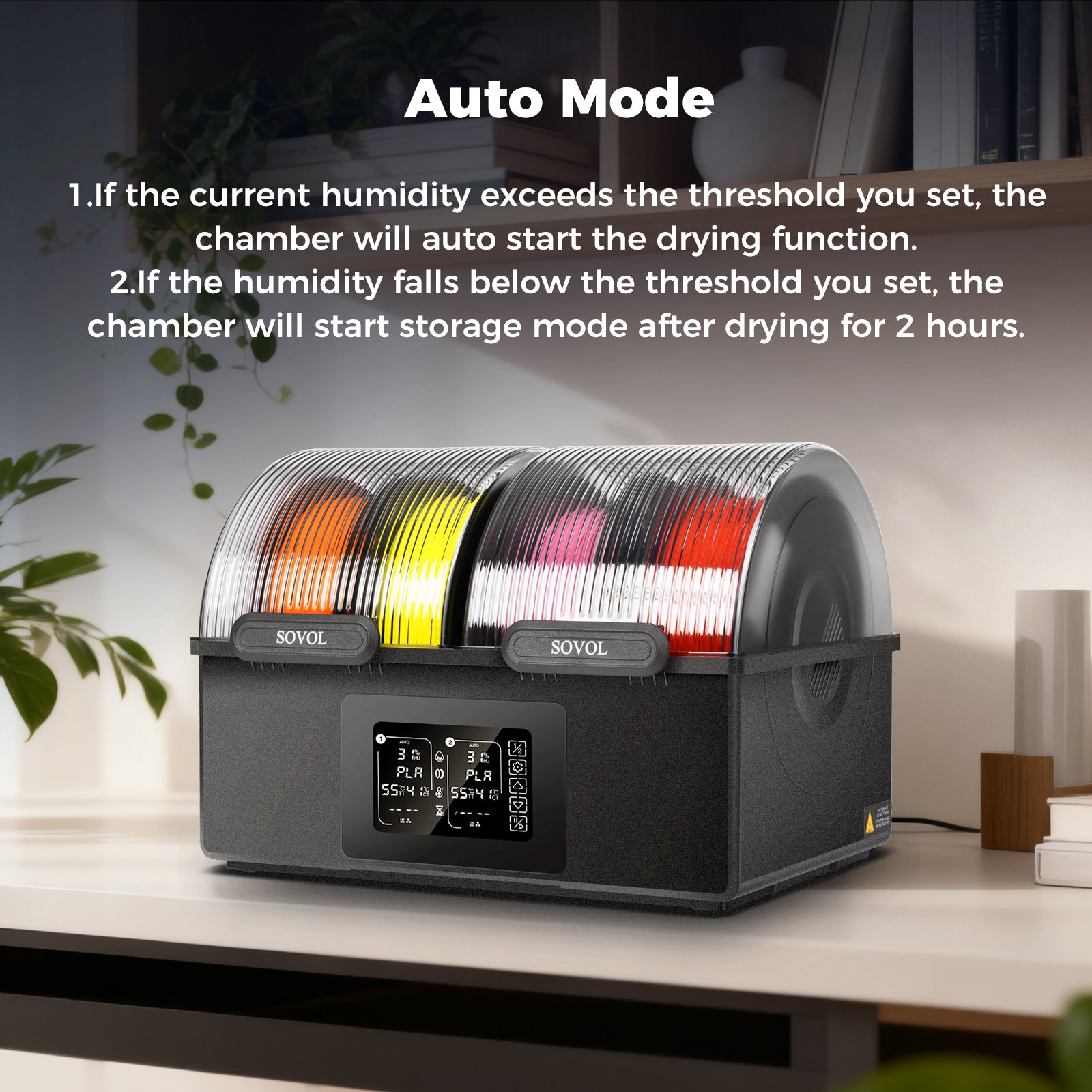
Filament dryers are safer and more accurate. Devices like the Sovol SH03 let you set the exact temperature. They keep humidity low. Other dryers include PrintDry Pro, CREALITY Space Pi Filament Dryer Plus, and Comgrow Dryer Box. Each dryer has different features, like adjustable temperature and spool size.
|
Method |
Effectiveness |
Temperature Control |
Risk of Overheating |
Practicality |
|---|---|---|---|---|
|
Oven |
Good |
Needs monitoring |
Higher |
Easy, affordable |
|
Filament Dryer |
Excellent |
Precise |
Low |
Reliable, convenient |
|
Freeze Dryer |
Best |
Precise |
Very low |
Expensive, uncommon |
When picking a dryer, check the temperature range and humidity control. Think about how many spools you want to dry.
Filament Storage Best Practices
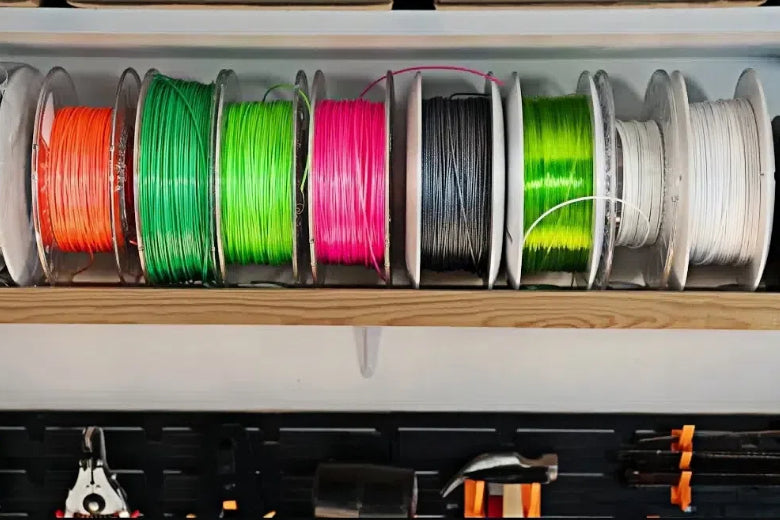
You can stop stringing by storing filament the right way. Use airtight containers to keep moisture out. Add silica gel packets for extra protection. This is important for nylon and TPU. For PLA, a sealed bag works if you keep it cool and dry. Always avoid sunlight and keep the temperature steady.
- Store filament in airtight containers.
- Use silica gel for types that need extra care.
- Dry wet filament with heat, not just by waiting.
- Keep all filament away from sunlight and heat.
Short-term fixes like slicer settings help quickly. Drying and storing filament give long-lasting results. Here is a quick comparison:
|
Type of Solution |
Description |
|---|---|
|
Short-term Fixes |
Change slicer settings for fast help with stringing. |
|
Long-term Solutions |
Dry and store filament to stop moisture and stringing. |
If you want clean prints every time, focus on drying and storing filament. You will see fewer strings and stronger models.
Reduce Stringing: Prevention and Maintenance
Balancing Temperature and Retraction
You can reduce stringing by finding the right balance between nozzle temperature and retraction settings. If you print with PLA, try to keep your temperature between 190–220°C. Most people get the best results near 200°C. For PETG, start around 235°C, and for TPU, use 210–230°C. Lower temperatures help stop the filament from getting too runny.
Retraction settings matter just as much. Always enable retraction in your slicer settings. Start with a retraction distance of 3 mm for 1.75 mm filament. If you still see strings, increase the distance by 0.5 to 1 mm at a time. This step-by-step approach helps you find what works best for your 3d printing projects.
Tip: Make small changes and test with a simple model. You’ll see what works before printing something big.
Regular Nozzle Maintenance
A clean nozzle keeps your printer running smoothly and helps reduce stringing. You should check your nozzle every day for bits of plastic or dust. Use a brass wire brush to scrub away any stuck plastic while the nozzle is warm (50–100°C). For tough clogs, remove the nozzle and soak it in acetone or ethanol.
Here’s a simple maintenance schedule:
|
Frequency |
Task |
|---|---|
|
Daily |
Inspect nozzle and print bed for debris |
|
Weekly |
Clean print bed and check belt tension |
|
Bi-weekly |
Clean nozzle and lubricate moving parts |
|
Quarterly |
Disassemble and deep clean the hot end |
Keep your workspace clean and store filament in airtight containers to prevent moisture.
Quick Troubleshooting Checklist
If you want to reduce stringing fast, use this checklist:
- Adjust retraction settings for better filament control.
- Lower print temperature to stop excess melting.
- Increase travel speed to limit oozing.
- Store filament in a dry place.
- Clean the nozzle often.
- Fine-tune slicer settings for your material.
Don’t forget to keep a hygrometer in your storage area. It helps you track humidity and keep filament dry.
By following these steps, you’ll keep your printer in top shape and enjoy cleaner, string-free prints.
You can stop filament stringing by changing a few things. Adjust retraction settings to help. Lower the nozzle temperature so filament does not drip. Keep your filament dry for better prints. Here are some tips for good 3d printing:
- Moisture is important because PLA takes in water. This makes extrusion worse and causes more strings.
- Put filament in airtight containers with silica gel.
- Dry filament and check humidity often to stop problems.
Test different slicer settings to see what works. Small changes can make prints look smoother and stronger.
FAQ
Why does my 3D printer still string after changing retraction settings?
Sometimes, stringing happens because the filament is wet or the nozzle is dirty. You might need to dry your filament or clean the nozzle. Try lowering the print temperature, too.
Can I fix stringing after printing?
Yes! You can use a heat gun or a sharp blade to remove thin strings. Just wave the heat gun quickly over the print. Be careful not to melt or warp your model.
What is the best way to store filament?
Keep filament in airtight containers with silica gel packs. Store them in a cool, dry place. This helps prevent moisture and keeps your prints clean.
Does print speed affect stringing?
Print speed changes how much time the nozzle spends moving. If you print slowly, you might see more strings. Try increasing travel speed to reduce stringing.
How often should I clean my nozzle?
Check your nozzle every week. Clean it if you see any buildup or clogs. Regular cleaning helps prevent stringing and keeps your printer working well.