





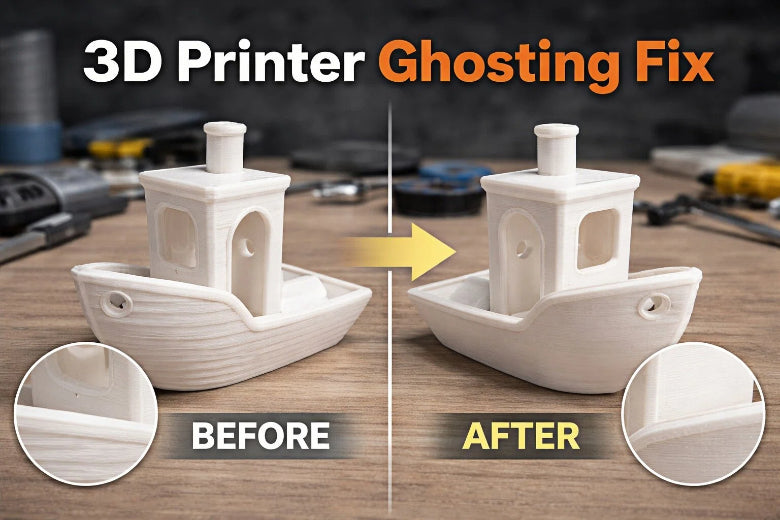
Here’s how to fix ghosting and ringing in your 3D prints right now. Ghosting appears as faint ripples or echoes on the surface of your models. You often see it when your printer moves too fast, has loose belts, or sits on an unstable frame. Vibrations from heavy print heads or stepper motors can also cause these unwanted lines. Most 3d printer ghosting fix steps are simple. You can follow clear actions to get smooth, accurate results every time.
Key Takeaways
- You can find ghosting by looking for light lines or blurry spots on your prints. Shine a flashlight to see small problems that are hard to notice.
- Slow down your print speed and change acceleration settings to stop shaking. Moving slower helps your prints look better.
- Check and tighten belts and screws often to keep your printer steady. If parts are loose, your printer can shake and make ghosting.
- Put your printer on a strong, flat table to stop outside shaking. A solid table makes your prints look nicer.
- Use pads that soak up shaking to make your prints clearer. Try different pads to see which ones work best for your printer.
What Is Ghosting In 3D Printing
Ghosting is also called ringing. It is a common problem on 3d prints. You can see ghosting as light ripples or echoes on the outside of your models. Experts say ghosting happens when the printer shakes during fast direction changes. These shakes make the print head move too much. This leaves marks near corners or edges. Ghosting makes your finished parts look worse. It can also make small details look blurry.
How To Spot Ghosting
You can find ghosting by looking for special signs on your prints. Here are the best ways to tell:
- Small blurs or wavy lines that mix with the design
- Parts of text or pictures that do not line up right
- Light shadows or double images around the main design
- Some spots look darker or lighter than others
- Shine a bright light to see ghosting you might miss
Tip: Use a flashlight and point it at your print. This helps you see ghosting lines that are hard to spot in normal light.
Common Ghosting Symptoms
You might see many signs if ghosting shows up on your 3d prints. These are:
- Lines or patterns that repeat on the outside of a print
- Most easy to see on sharp corners or edges
- The print does not look as good, mostly on detailed models
Ghosting is a very common problem in 3D printing. If you see these signs, you can try ways to fix ghosting and get better prints.
Main Causes Of Ghosting
High Speed And Acceleration
Ghosting can happen if your printer moves too fast. Fast speed and acceleration make the printer shake more. These shakes can change how your print looks. You might see wavy lines on the surface. When the printhead stops and starts quickly, it needs extra force. This makes the shaking worse. If you want less ghosting, try slowing down the speed and acceleration. This easy step can help your prints look better and reduce ringing.
Loose Belts And Frame Parts
Ghosting can also come from loose belts or frame parts. If you do not check your printer often, you may see repeating lines or echoes. Here are signs that loose belts or frame parts cause problems:
- Patterns show up when belts or screws are not tight.
- Both main and extra resonance peaks happen with bad belt tension.
- Parts that are not lined up make ghosting worse.
You should check and tighten belts and screws often. This keeps your printer steady and stops unwanted lines.
External Vibrations
Vibrations from outside can cause ghosting too. If your printer sits on a shaky table or near big machines, it can shake. These shakes make the printhead leave echoes. You might see ripples on the surface, especially if the frame is not strong. Putting your printer on a solid table helps keep it steady and lowers ghosting.
Poor Maintenance
Taking care of your printer helps stop ghosting. You can do these maintenance steps:
|
Maintenance Practice |
Description |
|---|---|
|
Care for belts, pulleys, bearings |
Look for damage, tighten, and oil parts if needed. |
|
Solid base for printing |
Use a flat table and keep the print bed in good shape. |
|
Check and tighten belts |
Look at X and Y axis belts and adjust tension gently. |
Good care keeps your printer steady and makes your prints clear.
Diagnosing And Testing For Ghosting
Visual Print Inspection
You can start by looking closely at your finished prints. Check for faint, repeated lines that follow the shape of your model. These lines often appear near sharp corners or along straight edges. Use a bright light or flashlight to help spot these patterns.
- Look for wavy lines or echoes that repeat after each corner.
- Check if details look blurry or if there are shadows around text.
- Watch the print as it finishes. In situ monitoring lets you see if any vibrations or shaking happen during the process.
Tip: Move your head around the print and change the angle of the light. This helps you see surface defects that are hard to spot from above.
Mechanical Checks
You should also check your printer’s hardware. Loose belts, screws, or frame parts can cause unwanted movement. This movement leads to vibrations that show up as ghosting on your prints.
- Gently wiggle the print head and bed to see if anything feels loose.
- Check belt tension by pressing on the belts. They should feel firm, not floppy.
- Tighten any screws or bolts that move easily.
If you find any loose parts, fix them before your next print. This step helps reduce vibrations and improves print quality.
VFA Calibration Prints
VFA (Vertical Fine Artifacts) calibration prints help you test for ghosting. These models have sharp corners and straight lines that make it easy to see unwanted patterns. You can print a VFA model and compare the results.
|
User Experience |
Key Points |
|---|---|
|
User 1 |
VFA prints reveal artifacts but do not give a full answer. |
|
User 2 |
Ringing can stay even after changes, so use VFA prints as part of a bigger test. |
|
User 3 |
Lowering print speed helps, showing that mechanical issues matter. |
|
User 4 |
Printer stability affects ghosting, so VFA prints alone are not enough. |
|
User 5 |
Changing perimeter speed can help, but you need a full approach. |
You should use VFA calibration prints with other checks. This gives you a better idea of what causes the problem and how to fix it.
3d Printer Ghosting Fix Steps
You can use these steps to fix ghosting and ringing. Each step helps your prints look better and smoother. These actions focus on the main reasons for ghosting and uneven extrusion.
Lower Print Speed
Start by making your printer move slower. Fast moves often cause ghosting and ringing. Slower speeds help your printer stay steady and shake less.
- Change your slicer settings for your material.
- Try printing slower. Lower the speed by about 20-30%.
- If needed, change the resolution. Sometimes a lower DPI helps stop ghosting.
Tip: Print a small test at different speeds. Look at the results and pick the best speed for your setup.
When you print slower, you will see fewer lines and echoes. This step makes your prints look better and helps stop ghosting.
Adjust Acceleration Settings
You can fix ghosting by changing acceleration and jerk settings. These settings control how fast your printer changes direction. Quick moves can cause ghosting and ringing.
|
Setting Type |
Recommended Value |
Impact on Ghosting |
|---|---|---|
|
Initial Acceleration |
500 mm/s² |
Less fast head moves, less ghosting |
|
Max X & Y Acceleration |
Halve if needed |
Even less ghosting if first step fails |
|
Jerk Settings |
Lower |
Smoother moves, less ghosting |
Change these in your slicer or printer menu. Lower numbers make the printhead move softer. This helps stop shaking and ghosting. Print a test after each change to see if it works.
Tighten Belts And Screws
Loose belts and screws can cause ghosting and ringing. You should check these parts often to keep your printer working well.
- Check all screws, especially near belts and pulleys.
- Use the right force so you do not break anything.
- Use a small torque wrench for the best results.
- Look at belts for slack or damage.
- Tighten belts gently. Do not make them too tight.
- Try to get about 250 tension for X-axis and 275 for Y-axis.
- Use the right torque for each material.
Note: Check and fix belts and screws often. This keeps your printer steady and helps your prints look better.
After you tighten these parts, you will see fewer lines and echoes. This step helps stop ghosting and keeps your printer working well.
Stabilize Printer Base
Make your printer base strong to stop ghosting and ringing. A solid frame and base stop shaking.
- Print slower to help stop movement.
- Change rubber feet to a 'Rock Bottom' style base.
- Attach your table or bench to a wall or floor.
- Use a spool holder that does not shake the printer.
- Take away any cushion layer in the 'Rock Bottom' setup for a firmer base.
Tip: Put your printer on a heavy, flat table. Do not use wobbly tables or surfaces that move.
A strong base helps stop ghosting and makes your prints smoother. You will get better prints and see fewer lines.
Use Damping Pads
Damping pads soak up shakes and help stop ghosting. You can pick from different types to make your printer more stable.
|
Damping Pad Type |
Effectiveness Description |
|---|---|
|
Great at stopping shakes in tests |
|
|
DIY damper feet |
You can make them fit your printer |
|
Softer dampers |
Better at stopping shakes and noise |
|
Rubber pads |
Cut bouncing by 64% |
|
Soft foam sponge |
Soaks up to 77% of energy |
Put these pads under your printer or on the frame. Softer dampers and foam sponges work for most printers. Rubber pads also help stop shakes and noise.
Tip: Try different pads to see which one works best for your printer and room.
Damping pads help stop ghosting and ringing. You will see less shaking and better prints.
Clean And Maintain Printer
Cleaning your printer often keeps it working well and helps stop ghosting. How often you clean depends on how much you use your printer.
- If you print a lot: Check every week or two.
- If you print sometimes: Check every month.
- For deep checks: Look every three months.
- Z-axis lead screw: Clean every month if used a lot, or every three months.
- X/Y axis guideways: Check every month or two.
- Lubricate: Every 200–300 hours or every month if used often.
Tip: Set a reminder to clean your printer. Wipe dust and dirt from the frame, belts, and moving parts.
Regular cleaning stops uneven extrusion and ghosting. Clean parts move better and help you get good prints.
If you follow these 3d printer ghosting fix steps, you can stop ringing, get better prints, and have smooth surfaces. Each step fixes a main cause of ghosting and helps keep your printer steady and working well.
Advanced Ways To Fix Ringing
Input Shaping And Firmware
Input shaping can help fix ringing in your 3d printer. This is a firmware feature that stops vibrations from fast moves. When you use input shaping, your printer makes surfaces look smoother. Details on your prints become sharper. This advanced fix works by solving mechanical problems that cause ghosting and ringing. You can update your printer’s firmware to get input shaping. Many new printers have this feature. For better print quality, try a layer height of 0.1 mm. Use a speed of 70 mm/s for smooth prints.
Upgrade Frame Components
Upgrading frame parts makes your printer more stable. This helps fix ringing in 3d printer ringing. A strong frame keeps your printer from shaking while printing. You can use steel-core belts or motors that vibrate less. These upgrades make your printer stronger. If your frame is weak or light, vibrations move through the machine. This causes ghosting on your prints. Find good parts to make your printer rigid. Upgrading helps reduce ghosting and makes prints look better.
- Steel-core belts last longer and keep tension steady.
- Low-vibration motors make movements smoother.
- Heavy frames stop vibrations from spreading.
Add Vibration Dampers
Vibration dampers help fix ringing in 3d printer ringing. Dampers soak up vibrations and keep them away from your prints. You can use copper heat blocks to make your toolhead heavier. This lowers the resonance frequency and helps control vibrations. Targeted damping works better than just adding more weight. Put dampers on the frame or under the printer. Vibration isolation cuts down ghosting and makes prints look cleaner.
- Copper heat blocks help manage resonance.
- Dampers on the frame isolate vibrations.
- Targeted damping improves print quality.
Note: Try different dampers to find which ones work best for your printer and setup.
If you use these advanced ways, you can fix ringing and ghosting. Your prints will look smoother and your printer will work better.
Prevent Ghosting Long-Term
Regular Maintenance Checklist
You can prevent ghosting and ringing by following a regular maintenance routine. When you check your printer often, you keep it in top shape. This helps you avoid problems before they start. Use this checklist to make sure your printer stays reliable:
- Inspect belts for wear or slack every two weeks.
- Tighten all screws and bolts on the frame each month.
- Clean dust and debris from rails, fans, and moving parts.
- Lubricate guide rods and lead screws every 200 hours of printing.
- Check for loose wires or connectors.
- Test the bed level before each print.
Tip: Print out this checklist and hang it near your printer. Mark each task when you finish it. This habit helps you remember every step.
Regular maintenance keeps your printer running smoothly. You will see better print quality and fewer issues with ringing. When you care for your printer, you prevent ghosting and enjoy more successful prints.
Stable Printer Placement
You can prevent ghosting by placing your printer on a stable surface. A solid table or bench reduces vibrations during printing. When your printer sits on a firm base, the frame stays steady. This stability stops the extruder from shifting and causing ringing. You also help each layer bond well, which improves print quality.
If you use a wobbly table, vibrations can travel through the frame. These movements create ghosting and make details look blurry. Choose a heavy, flat surface for your printer. Make sure the frame does not rock or slide. You can add rubber feet or damping pads for extra stability.
When you focus on stability and regular maintenance, you prevent ghosting and ringing over time. Your printer will stay reliable, and your models will look their best.
Rigid Vs Unstable Printers
Impact On Ghosting
There is a big difference between rigid and unstable printers. A rigid frame keeps the printer steady. This means there are fewer shakes and wobbles. You will see less ghosting and ringing on your prints. An unstable frame lets vibrations move through the printer. This makes ghosting and ringing show up more. If the print bed is loose, you might see even more problems.
- A rigid frame cuts down on shaking and wobbling, so you get less ghosting.
- A weak or wobbly frame makes the printer shake more, so ghosting is easier to see.
- If the frame is not strong or the bed is not tight, ghosting can happen.
You can look at this table to see how a strong frame helps stop ghosting:
|
Evidence |
Description |
|---|---|
|
Mechanical Resonance |
A weak frame makes shaking worse, so you get ghosting and shapes that are not right. |
|
Mitigation Strategies |
Making the frame stronger and using special feet can help stop shaking and make prints better. |
|
Active Vibration Control |
Using sensors to change how the printer moves can make shapes more accurate and surfaces smoother. |
Choosing Or Modifying For Stability
You can make your printer more stable and stop ghosting by doing a few things. Try these steps for better prints:
- Check and tighten the belts.
- Make sure the frame and bed are tight.
- Slow down the print speed.
- Change acceleration and jerk settings.
- Use damping pads or put your printer on a solid table.
- Test your printer with a special model.
You can also make the frame stronger. Add thick aluminum parts or extra brackets to stop movement. Linear rails help the printer move smoothly. Stepper motor dampers soak up shakes and make prints look better.
If you keep your frame strong and your printer steady, you will have fewer vibration problems and your prints will look better.
You can stop ghosting and ringing by making your printer move slower. Lower the print speed and make acceleration smaller. Check if any parts are loose or shaky. Try using input shaping in the firmware to help with shakes. Put damping pads under your printer to soak up vibrations. Clean and check your printer often to keep it working well. These easy changes help you avoid problems with your prints. They also make your prints look better. Use your checklist to find shakes early and keep ringing away from your models.
FAQ
What causes ghosting in 3D prints?
You see ghosting when your printer shakes during fast moves. Loose parts and high speed make the problem worse. Vibrations from the environment or the printer itself also lead to these unwanted lines.
How can I improve print quality and reduce vibrations?
You can place your printer on a solid table. Tighten all belts and screws. Use damping pads under the printer. These steps help reduce vibrations and improve the quality of your prints.
Do damping pads really help with ghosting?
Damping pads absorb vibrations from the printer and the surface it sits on. You notice fewer lines and echoes on your prints. Try different pads to find what works best for your setup.
How often should I check for loose parts?
You should check belts, screws, and frame parts every two weeks. Regular checks help you catch problems early. This keeps your printer steady and prevents ghosting.
Can changing print speed fix ghosting?
Lowering print speed helps your printer move smoothly. You see fewer unwanted lines and echoes. Print a test at different speeds to find the best setting for your machine.