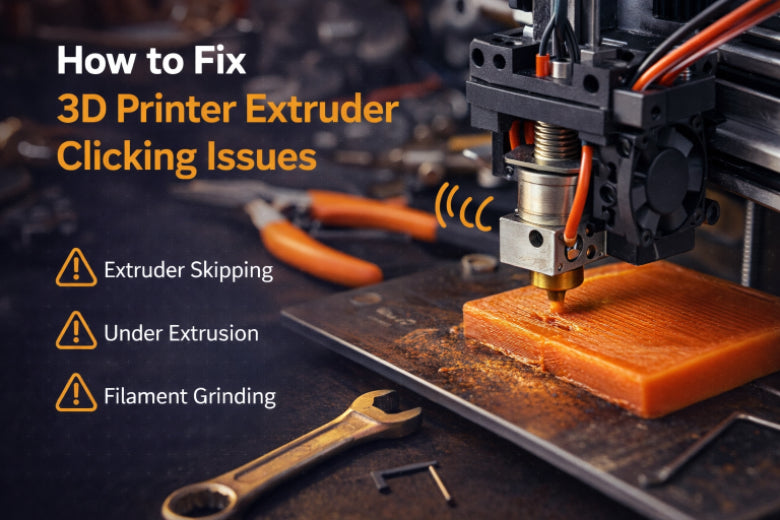
Hearing a sudden 3D printer extruder clicking sound can make you feel worried about your print. If you ignore this noise, your printer might keep moving but stop putting down filament. This wastes material and makes your prints incomplete. Acting fast helps you avoid these problems. Many people have fixed the 3D printer extruder clicking by changing the temperature or speed. You can often resolve this issue with easy steps.
Key Takeaways
- Move fast if you hear clicking from your 3D printer. This noise usually means the extruder cannot push filament well. It can waste material and ruin your prints.
- Always check the hotend temperature before you print. For PLA, keep it between 190°C and 220°C. This helps the filament melt right and stops clicking.
- Look at the filament path often. Watch for tangles, jams, or bad filament. These problems can make the extruder click and mess up your print.
- Set the extruder tension the right way. If it is too tight or too loose, the filament can slip or get crushed. This will make clicking sounds.
- Take care of your printer often. Clean the nozzle, check the PTFE tube, and make sure all parts line up. This helps stop clicking problems.
3D Printer Extruder Clicking Causes
Common Symptoms
You might hear a sharp clicking sound from your printer’s extruder. This usually means the extruder motor is having trouble pushing filament through the hotend. Sometimes, you will see gaps or missing layers in your print. The filament might stop moving, or you could find small pieces of ground-up filament near the extruder gears. Your printer may pause or jerk when it tries to feed filament. These signs show that something is blocking or stopping the filament path.
Tip: If you hear clicking, stop your print and look for problems. Check for filament dust, uneven extrusion, or a stuck filament feed.
Why Clicking Happens
You hear 3D printer extruder clicking when the motor cannot push filament easily. Many things can cause this problem. The most common reasons are temperature problems, blockages, filament feed issues, and mechanical faults. Any of these can make the extruder skip or grind.
- Temperature Issues: If the hotend is not hot enough, the filament does not melt well. The extruder motor works harder and clicks as it tries to push. Sometimes, high temperatures also cause trouble, but low temperature is the main problem.
- Nozzle Blockages: A clogged nozzle stops filament from coming out. The motor tries to push but cannot, so it clicks.
- Filament Feed Problems: Tangled, brittle, or bad filament can jam the feed path. If the filament cannot move, the extruder clicks.
- Mechanical Issues: Loose gears, worn parts, or wrong idler wheel tension can make the extruder lose grip. Misalignment or heat creep can also cause jams and clicking.
Here is a quick list of common causes:
- Low temperature
- Low nozzle position
- Nozzle blockage
- High tension
- Idler wheel too tight
- Bad extruder motor
- Clogged nozzle
- Filament feed trouble
- Mechanical issues like loose gears or worn parts
You can also see common mechanical issues in this table:
|
Mechanical Issue |
Description |
|---|---|
|
Heat creep |
Heat moves up the filament path and causes jams. |
|
Improper enclosure |
Bad airflow makes the printer too hot, especially with PLA. |
|
Filament quality |
Bad filament causes uneven extrusion and clicking. |
|
Idler tension |
Wrong idler tension gives poor grip and clicking. |
|
Alignment |
Parts that do not line up cause jams and clicking sounds. |
Quick Diagnosis Steps
You can find the cause of 3D printer extruder clicking by following a few steps. First, listen for strange noises and look for signs of trouble. Check the filament path and hotend temperature. Look at the extruder gears and idler tension. Make sure the nozzle is not blocked and the filament moves smoothly.
Here is a simple checklist to help you find the problem:
- Listen for clicking or grinding sounds.
- Check the hotend temperature. Make sure it fits the filament type.
- Look at the nozzle for clogs or buildup.
- Check the filament. Is it tangled, brittle, or ground up?
- Look at the extruder gears and idler wheel for wear or misalignment.
- Test the idler wheel tension. It should hold the filament but not crush it.
- Make sure the PTFE tube is clean and fits well.
- Watch the print bed level. A nozzle too close to the bed can block filament flow.
Note: You should check extruder tension, look at gears and motors, keep the Bowden tube clean, and watch print speed and bed leveling often. Clean the tube every few months and change worn couplers. Store filament in a dry place to stop moisture problems.
If you follow these steps, you can find the source of 3D printer extruder clicking and fix it before your print fails.
Temperature Issues
Low Hotend Temperature
You often hear 3D printer extruder clicking when the hotend temperature is too low. The filament does not melt fast enough, so the extruder motor struggles to push it through the nozzle. This leads to clicking sounds and poor layer bonding. You can check your printer’s temperature settings before starting a print. For PLA filament, you should use a temperature between 190°C and 220°C. If you use a special PLA, such as silk or filled types, you may need to set the temperature higher, up to 240°C. The table below shows the best temperature ranges for PLA:
|
Temperature Range |
Implications |
|---|---|
|
190°C - 220°C |
Optimal for standard PLA filaments |
|
230°C - 240°C |
Suitable for specialized PLA filaments |
|
Too Low |
Causes clogging, poor adhesion, clicking |
Tip: If you see gaps or hear clicking, check your hotend temperature first. A small increase can solve the problem.
Print Speed and Melting
Print speed affects how well the filament melts. If you print too fast, the hotend cannot melt the filament in time. The extruder may click because it cannot push unmelted filament through the nozzle. You can slow down the print speed to give the filament more time to melt and flow. This helps prevent under-extrusion and clicking.
- Lowering print speed helps the filament melt and flow better.
- High print speed can cause the extruder to click and skip steps, especially if the temperature is not high enough.
Adjusting Temperature Settings
You can fix 3D printer extruder clicking by adjusting your temperature settings for each filament type. Always check the recommended range before printing. For PLA, set the hotend between 200°C and 230°C. For TPU, use a range from 220°C to 240°C. The table below shows the best settings:
|
Filament Type |
Recommended Temperature Range |
|---|---|
|
PLA |
200°C - 230°C |
|
TPU |
220°C - 240°C |
You should start at the lower end of the range and increase the temperature if you hear clicking or see poor extrusion. Make small changes and test until the clicking stops. This helps you get smooth prints and avoid wasted filament.
Nozzle Blockages
Identifying Clogs
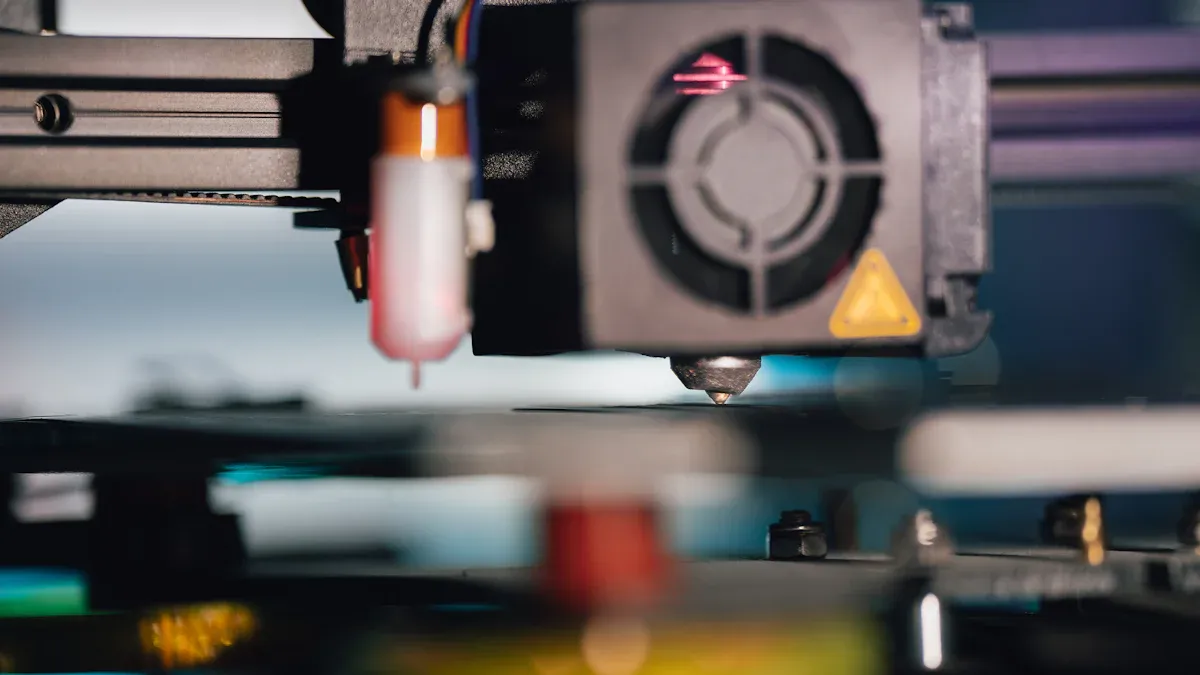
You can spot a clogged nozzle by watching your printer during a print. If you hear 3D printer extruder clicking and see little or no filament coming out, you likely have a blockage. Sometimes, the extruder motor skips or grinds, and you may notice uneven layers or gaps in your print. You might also see filament building up around the nozzle tip. If you try to push filament through by hand and it does not move, this confirms a clog.
Tip: Always check for a clog if you hear clicking and see under-extrusion or missing layers.
Cleaning the Nozzle
You can clear most nozzle blockages with a few simple steps. Follow this process to get your printer working again:
- Set your hotend temperature to 250°C. This melts any stuck filament inside the nozzle.
- Move the heatbed to a lower position. This gives you space to work safely.
- Insert a thin cleaning pin or needle through the nozzle tip. Skip this step if you use a 0.2mm nozzle, as it is too small.
- Check if the filament flows smoothly from the nozzle. If it does, you have cleared the clog.
I just did a cold pull this morning after a print finished last night while I was asleep. The teeth marks were almost exactly 66mm long. Try the 250°C method if you have a stubborn clog.
Preventing Blockages
You can reduce the chance of nozzle blockages by following a few good habits:
- Use high-quality filament to avoid impurities that cause clogs.
- Store filament in airtight containers to keep out moisture.
- Clean the nozzle and extruder parts regularly to remove buildup.
- Calibrate your printer settings to match the filament you use.
- Avoid changing filament too often to reduce contamination.
These steps help keep your 3D printer extruder clicking to a minimum and ensure smooth, reliable prints.
Filament and Feed Path
Filament Quality Problems
Filament quality plays a big role in 3D printer extruder clicking. You may notice that poor-quality filament causes more jams and clicking noises. Good filament feeds smoothly and keeps your prints consistent. Bad filament can have uneven thickness, absorb moisture, or break easily. These problems make it hard for the extruder to push the filament through the hotend.
- Inconsistent diameter leads to uneven flow and clogs.
- Moisture in filament causes bubbles and blockages.
- Brittle filament snaps or grinds, stopping the print.
- High-quality filament keeps the flow steady and reduces clicking.
Tip: Always store filament in a dry box or sealed bag. This keeps moisture out and helps prevent jams.
Tangled or Jammed Filament
A tangled spool or jammed filament path can stop your print and cause the extruder to click. You might hear constant ticking from the extruder when the filament cannot move. Sometimes, the filament gets pressed flat before the hotend, making it too wide for the PTFE tube. High print speeds can make this worse by putting extra pressure on the stepper motor.
Common feed path issues include:
- Tangled filament on the spool.
- Filament jammed before reaching the hotend.
- Deformed filament from heat near the extruder gears.
You should check the spool for knots and make sure the filament unwinds smoothly. If you see the filament flattening or jamming, slow down the print speed and inspect the feed path.
PTFE Tube Checks
The PTFE tube guides the filament from the extruder to the hotend. Problems with this tube often cause 3D printer extruder clicking. You should inspect the tube for kinks, bends, or signs of wear. Remove and clean the tube every few months to keep it clear. Make sure the tube fits tightly in the couplers to avoid gaps that can block the filament.
- Look for worn or loose PTFE couplers and replace them if needed.
- Store filament properly to avoid moisture that can clog the tube.
- Keep the cooling fan working to stop heat from softening the filament inside the tube.
Note: Regular PTFE tube checks help prevent jams and keep your printer running smoothly.
Extruder Tension and Gears
Spring Tension Adjustment
You control the pressure on your filament with the extruder’s spring tension. If you set the tension too low, the filament slips and causes under-extrusion or clicking. If you set it too high, the filament gets crushed, leading to jams and more clicking. You want to see faint gear marks on the filament after printing. Deep grooves or barely visible marks mean you need to adjust the tension.
|
What You See on Filament |
What Happens During Print |
|
|---|---|---|
|
Too Low |
Barely visible marks |
Filament slips, under-extrusion, clicking |
|
Too High |
Deep grooves, crushed |
Stripped filament, clicking, jams |
|
Just Right |
Faint gear marks |
Smooth filament flow, no clicking |
Tip: Start with the screws barely pushing on the springs. Make small adjustments until you see faint marks and smooth extrusion.
Gear Slipping or Wear
Your extruder gears grip and move the filament. If the gears slip or wear out, you hear clicking and see uneven layers. You might notice the filament jerking when the noise happens. Loose grub screws or improper gear pressure can cause slippage. Over time, clicking gets worse and extrusion may stop completely.
- Gear slippage leads to layer shifting and extrusion problems.
- Improper gear pressure causes inconsistent filament flow.
- Loose grub screws can stop extrusion and increase clicking.
Check your gears for wear and make sure all screws are tight. Adjust the pressure so the filament moves smoothly without slipping.
Idler Wheel Setup
The idler wheel presses the filament against the drive gear. You need the right tension for smooth feeding. If the idler is too tight, the filament gets crushed. If it is too loose, the filament slips and clicking starts.
- Adjust the idler screw until filament extrudes without deformities.
- Look for small gear tooth marks on the filament’s surface.
- Clean the extruder gear and shaft to prevent plastic buildup.
- Try a dual-drive extruder for even filament feeding.
Note: Remove the filament and set the screws so they barely push on the springs. This gives a good starting tension and helps prevent 3D printer extruder clicking.
Bed Leveling Issues
Z-Offset Problems
Z-offset controls the distance between your nozzle and the print bed. If you set the Z-offset too low, the nozzle sits too close to the bed. This can squeeze the filament too much during the first layer. You may hear 3D printer extruder clicking as the motor struggles to push filament through the tight space. Under-extrusion often follows, and you might see gaps or missing lines in your print. Sometimes, the extrusion force sensor detects low flow and triggers an error. You should check your Z-offset if you notice clicking at the start of a print.
- A low Z-offset increases pressure on the filament.
- The extruder may click or skip if the nozzle is too close.
- Under-extrusion and poor adhesion can result from incorrect Z-offset.
Tip: Start with a small gap between the nozzle and bed. Adjust in tiny steps until the filament sticks but does not get squished.
First Layer Height
The first layer sets the foundation for your print. If the first layer height is too low, the nozzle presses hard against the bed. This can block the filament path and cause the extruder to click. You may also see the nozzle drag through the print or leave uneven lines. If the first layer is too high, the filament may not stick, leading to failed prints.
Common first layer issues:
- Nozzle too close: Excessive extrusion, clicking, and jams.
- Nozzle too far: Poor adhesion and gaps.
You should use your printer’s calibration tools to set the first layer height. Watch the first layer closely and listen for clicking sounds.
Impact on Extrusion
Bed leveling problems can affect extrusion throughout the print. When the bed is not level, the nozzle may hit the print or move unevenly. This misalignment can cause the extruder to click, especially after several layers. You might see layer shifts, blobs, or missing sections.
|
Bed Leveling Issue |
Effect on Extrusion |
Signs to Watch For |
|---|---|---|
|
Nozzle too close |
High pressure, clicking, jams |
Clicking, gaps, rough lines |
|
Nozzle too far |
Poor adhesion, under-extrusion |
Loose lines, failed prints |
|
Uneven bed |
Inconsistent extrusion, clicking |
Layer shifts, blobs |
If you hear clicking during the first layer, pause the print and check your bed leveling. A well-leveled bed helps prevent 3D printer extruder clicking and gives you smooth, reliable prints.
Slicer and Software Settings
Retraction and Speed
Slicer settings are important for 3D printer extruder clicking. Retraction makes the printer pull filament back when it moves. If you set retraction distance or speed too high, the extruder can start clicking. This happens a lot when printing the brim or first layer. You might hear clicking if the filament pulls back too far or too fast. This can cause jams or small clogs. Always check your slicer preview to see if retractions look right.
- Wrong retraction settings can make clicking at the start.
- Too much retraction can partly clog the nozzle.
- Slicer previews help you find bad retractions.
Tip: Try a retraction distance between 2 and 6 mm and a speed from 20 to 40 mm/s. Change these slowly if you hear clicking.
Flow Rate Adjustments
Flow rate is how much filament the printer pushes out. If you set the flow rate too high, the extruder can click. If you set it too low, you get gaps and weak prints. You can fix clicking by lowering print speed and raising nozzle temperature. Clean the extruder gears and check the tension for smooth feeding. Make sure the filament moves easily through the Bowden tube or direct drive.
- Lower print speed and raise nozzle temperature to help flow.
- Keep extruder gears clean and tension just right.
- Use dry, good filament for best results.
- Regular checks stop clicking and jams.
|
System Type |
Flow Rate Range |
Notes |
|---|---|---|
|
Bowden |
90–100% |
Lower flow for less friction |
|
Direct Drive |
95–105% |
Adjust for filament type |
Firmware and Profile Updates
Firmware and slicer profiles change how your printer works. Old firmware or wrong profiles can cause 3D printer extruder clicking. Always use the newest firmware for your printer. Update slicer profiles to match your filament and printer. Check your settings after updates because defaults can change.
- Update firmware and slicer profiles often.
- Match profiles to your filament and printer.
- Check settings after every update.
Keeping your software updated helps stop surprise clicking and keeps your prints working well.
Troubleshooting 3D Printer Extruder Clicking
When you hear 3D printer extruder clicking, you need to act quickly. This sound means something is stopping the filament from moving smoothly. You can fix most problems with a careful, step-by-step approach. Use this guide to find and solve the issue before your print fails.
Step-by-Step Checklist
You can follow this checklist to diagnose and fix extruder clicking. Start at the top and move down the list until you find the cause.
-
Check Extruder Tension and Gear Alignment
Look at the extruder’s tension screw. Make sure it is not too tight or too loose. The gear should grip the filament without crushing it. You want to see faint marks on the filament, not deep grooves or no marks at all. -
Inspect the Gears and Motor
Check the extruder gears for dirt, plastic buildup, or wear. Tighten all set screws. Make sure the motor does not feel hot or make strange noises. If you see the filament jerking or skipping, the gear may be slipping. -
Clean and Check the Bowden Tube
Remove the Bowden tube and look for blockages or kinks. Clean the tube with a piece of filament or a soft brush. Make sure the tube fits tightly in the couplers and has no gaps. -
Check for Nozzle Blockages
Heat the hotend to the correct temperature for your filament. Try to push filament through by hand. If it does not move, the nozzle may be clogged. Use a cleaning needle or perform a cold pull to clear the blockage. -
Inspect the Filament Path
Look for tangles or knots on the spool. Make sure the filament feeds smoothly into the extruder. Check for brittle or flattened filament near the gears. -
Review Print Settings
Open your slicer and check the temperature, speed, and retraction settings. Make sure the hotend temperature matches the filament type. Lower the print speed if you see clicking at high speeds. -
Check Bed Leveling and Z-Offset
Make sure the nozzle is not too close to the bed. Adjust the Z-offset so the first layer sticks but does not get squished. Watch the first layer and listen for clicking. -
Inspect Wiring and Screws
Look at all wiring for loose connections. Tighten any loose screws on the extruder and motor mounts. Worn or loose parts can cause vibration and clicking.
Tip: Work through this checklist one step at a time. Most users find the problem within the first few steps.
What to Check First
If you are new to 3D printing, start with these simple checks. They solve most 3D printer extruder clicking problems:
-
Extruder Tension:
Adjust the tension screw so the filament moves smoothly. Too much or too little pressure causes clicking. -
Gear and Motor Inspection:
Make sure the gears are clean and the motor runs quietly. Tighten all screws and check for worn teeth. -
Bowden Tube Maintenance:
Remove the tube and check for blockages or kinks. Clean the tube every few months. Make sure it fits tightly. -
Cooling Fan Function:
Check that the cooling fan works. A broken fan can cause heat creep and jams. -
Filament Quality:
Use dry, high-quality filament. Store it in a sealed bag or dry box to prevent moisture.
Note: Beginners often fix extruder clicking by adjusting tension, cleaning the Bowden tube, and checking the gears.
When to Seek Help
Sometimes, you cannot fix 3D printer extruder clicking with basic troubleshooting. You should seek help if:
- You have tried all the steps above and the clicking continues.
- The extruder motor stays hot or makes loud noises.
- The filament still will not move, even after cleaning and adjusting.
- You see repeated under-extrusion or failed prints.
If you cannot solve the problem, contact a professional or your printer’s support team. Persistent clicking may mean a deeper hardware issue.
By following this troubleshooting guide, you can solve most extruder clicking problems and get back to smooth, reliable printing.
Comparing Common Issues
Clogged Nozzle vs Under-Extrusion
You might hear 3D printer extruder clicking if the nozzle is clogged or if under-extrusion happens. Both problems hurt your print, but they show different signs. A clogged nozzle makes the extruder work hard. You hear clicking as the motor pushes filament through a blocked path. Your print may have gaps, rough spots, or missing layers. Sometimes, filament builds up near the nozzle tip.
Under-extrusion also causes clicking, but for other reasons. Low nozzle temperature or filament feed trouble often cause under-extrusion. The filament does not melt or move well, so the extruder clicks. You see thin lines, weak layers, and uneven prints. The clicking sounds alike, but the main problem is not always a clog.
If you see bad print quality and hear clicking, check the nozzle for clogs first. If the nozzle is clear, look at your temperature and filament feed settings.
Heat Creep vs Filament Grinding
Heat creep and filament grinding both make 3D printer extruder clicking, but they happen in different ways. Heat creep means heat moves up the filament path. The filament gets soft before reaching the hotend, causing jams and clicking. You may notice the extruder motor gets hot and the filament bends near the gears.
Filament grinding happens when the extruder gear chews up the filament. You see deep grooves or dust around the extruder. The filament cannot move, so the motor clicks. Grinding often comes from too much tension or a blocked nozzle.
|
Issue |
What You See |
What You Hear |
Common Cause |
|---|---|---|---|
|
Heat Creep |
Soft, bent filament |
Repeated clicking |
Poor cooling, high temp |
|
Filament Grinding |
Filament dust, grooves |
Loud clicking |
High tension, blockages |
Filament vs Hardware Faults
You need to know if clicking comes from filament problems or hardware faults. Bad filament can cause jams, uneven flow, and clicking. You might see brittle or tangled filament, or notice moisture in the spool. Hardware faults include worn gears, loose screws, or broken motors. These problems make the extruder lose grip or skip steps.
- Filament problems: Look for knots, moisture, or uneven thickness.
- Hardware faults: Check for loose parts, worn gears, or hot motors.
Always check both the filament and hardware when you hear 3D printer extruder clicking. Fixing the right problem helps you get smooth, good prints.
Quick Fixes vs Root Cause Solutions
Temporary Fixes
You can use quick fixes to stop 3D printer extruder clicking while printing. These fixes help you finish your print, but they do not fix the main problem. You might turn up the hotend temperature by 5–10°C if you hear clicking. You can slow down the print speed or pause the print to clean the nozzle tip. Sometimes, you push the filament through by hand to clear a small jam. You may also turn the extruder tension screw for smoother feeding.
Common quick fixes include:
- Raise hotend temperature by a few degrees.
- Lower print speed so the filament melts better.
- Pause and clean the nozzle tip.
- Turn the extruder tension screw a little.
- Push filament through by hand.
Tip: Use quick fixes only to save your print. Always find the main cause after the print is done.
Permanent Solutions
Permanent solutions stop 3D printer extruder clicking for good. You need to find and fix the real problem. Clean the nozzle with a cold pull or a needle. Change old gears or springs. Check and adjust bed leveling and Z-offset. Clean or swap out the PTFE tube. Use good, dry filament. Update slicer settings for the right temperature, speed, and retraction. Test each change with a small print.
|
Permanent Solution |
What It Fixes |
|---|---|
|
Nozzle cleaning |
Gets rid of clogs |
|
Gear and spring replacement |
Stops slipping and grinding |
|
PTFE tube maintenance |
Prevents jams and heat creep |
|
Slicer setting updates |
Stops software clicking |
|
Filament quality check |
Reduces jams and grinding |
Note: Permanent solutions take longer, but they stop future problems and save filament.
When to Replace Parts
You should replace parts if cleaning and fixing do not stop 3D printer extruder clicking. Old gears, broken PTFE tubes, or worn motors can cause jams again and again. If you see deep marks on the filament or hear loud clicking after every fix, change the bad part. Always look for wear on gears, springs, and couplers. Use new, good filament if you see dust or if it breaks easily.
Signs you need to replace parts:
- Deep marks or stripped filament.
- Clicking keeps happening after cleaning.
- Loose or broken gears and springs.
- PTFE tube has bends or burns.
- Motor gets too hot or skips steps.
Common Mistakes to Avoid
Many people make mistakes when fixing extruder clicking. You might forget to clean your printer or use wet filament. Some people turn the tension screw too tight or skip cleaning the nozzle. Others do not level the bed or use old slicer profiles.
Mistakes and tips:
- Ignoring maintenance: Clean gears and tubes often.
- Using wet filament: Keep filament in a dry box.
- Over-tightening tension: Adjust until you see light marks.
- Skipping nozzle cleaning: Use a needle or cold pull often.
- Neglecting bed leveling: Check Z-offset before every print.
- Not updating slicer profiles: Match settings to your filament and printer.
Tip: Avoid these mistakes to keep your 3D printer extruder clicking low and get smooth, good prints.
Prevention Tips
Maintenance Routine
You can stop 3D printer extruder clicking before it starts by taking care of your printer. Regular checks help your printer work well and avoid sudden issues.
- Tighten belts, screws, pulleys, bed knobs, and spool holders. This keeps your printer working right.
- Clean the extruder gears and nozzle with a soft brush or needle. Take off any dust or plastic stuck there.
- Look at the PTFE tube for damage or blockages. Change it if you see burns or bends.
- Put a little machine oil on rods and lead screws to keep them moving smoothly.
- Check wires and connectors for loose or broken spots.
Tip: Set a reminder to check your printer every month. Small checks can stop big problems.
Filament Storage
Filament quality changes how your printer works. Bad storage lets moisture in and can cause 3D printer extruder clicking.
- Keep filament in a dry box or sealed bag with silica gel packs.
- Store spools away from sunlight and wet air.
- Only use dry, good filament for your prints.
- Write the date you opened each spool.
|
Storage Method |
Protection Level |
Best For |
|---|---|---|
|
Dry box |
High |
Long-term storage |
|
Sealed bag |
Medium |
Daily use |
|
Open air |
Low |
Short prints only |
Wet filament can swell and jam the extruder. Always check for brittle or bubbly filament before you print.
Upgrades for Reliability
You can make your printer better with a few easy upgrades. These changes help stop 3D printer extruder clicking and make prints look nicer.
- Get an all-metal hotend for better temperature control.
- Add a filament sensor to find jams or when filament runs out.
- Use a dual-drive extruder for a stronger grip on filament.
- Put in better cooling fans to stop heat creep.
- Change old springs to stronger ones for steady bed leveling.
These upgrades help you print with fewer stops and keep your extruder working well.
You can solve most 3D printer extruder clicking problems with simple steps. Quick troubleshooting helps you save time and filament. Regular checks and cleaning keep your printer working well. Try to follow a checklist before each print. This habit helps you spot small issues early.
Keep your printer in good shape, and you will enjoy smoother prints and fewer surprises.
- Act fast when you hear clicking.
- Check your printer often.
- Use a checklist for every print.
FAQ
What causes 3D printer extruder clicking?
You hear extruder clicking when the motor cannot push filament smoothly. Common causes include low hotend temperature, nozzle clogs, bad filament, wrong tension, or poor slicer settings. Check each area to find the problem.
How do I stop my extruder from clicking during the first layer?
Check your bed leveling and Z-offset. If the nozzle sits too close to the bed, the filament cannot flow. Adjust the gap until the filament sticks without getting squished. Watch the first layer and listen for clicking.
Can bad filament make my extruder click?
Yes. Wet, brittle, or uneven filament can jam the feed path. Store filament in a dry box or sealed bag. Use high-quality filament for smooth feeding and fewer jams.
Should I adjust retraction settings to fix extruder clicking?
You should check retraction distance and speed in your slicer. High retraction can cause jams and clicking. Start with 2–6 mm distance and 20–40 mm/s speed. Change settings slowly and test until clicking stops.
When should I replace extruder parts?
Replace parts if you see deep grooves on filament, clicking after cleaning, or worn gears and springs. Old PTFE tubes or hot motors also need replacement. New parts help prevent future 3D printer extruder clicking.