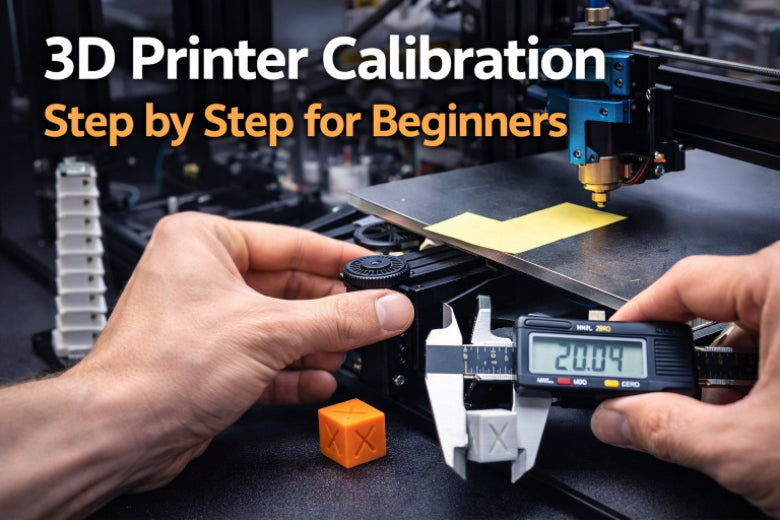
When you perform 3D printer calibration, your prints improve significantly. A helpful guide prevents prints from failing and ensures that details remain clear. Refer to the table below to see how 3D printer calibration enhances your prints:
|
Aspect |
Effect of Proper Calibration |
|---|---|
|
Print Quality |
Clear details and smooth surfaces |
|
Print Success |
|
|
Dimensional Accuracy |
Correct shapes and strong models |
This guide simplifies the process of 3D printer calibration. You can follow each step and watch your prints improve.
Key Takeaways
- Calibrating your 3D printer helps prints look better and fail less. Checking your printer often makes sure prints look nice and stay in place.
- Always begin with a strong setup. Make sure the printer is put together right. Level the bed. Set the Z-axis height. This helps the first layer stick well.
- Use easy tools like a temperature tower and calibration cube. These tools help you find problems early. They help you get good prints and save time.
3D Printer Calibration Basics
Initial Setup and Inspection
Before you start 3d printer calibration, you need to check your printer’s assembly and parts. Look at the frame and make sure it feels sturdy. Wiggle the bed and see if it moves smoothly. Clean the print bed and check each corner and the center for levelness. If the bed isn’t flat, prints may not stick or could warp. Many beginners forget to set the Z-axis height, which helps the first layer stick. If the nozzle is too close, the filament won’t come out right. If it’s too far, the print won’t stick. Always measure the movement of the extruder and axes. If you notice odd noises or jerky movements, stop and fix them before you continue.
Tip: Print a small test cube to check if your printer moves correctly and the bed is level.
Firmware and Software Check
You should always check your firmware and software before you calibrate a 3d printer. Firmware controls how your printer moves and heats up. If you update the firmware, recalibrate your printer to keep settings accurate. Make sure you know what each firmware setting does. Keep notes of any changes so you can fix problems later. If you switch filament or change the nozzle, run a quick calibration. Regular checks every few months help keep your prints looking great.
Tools Needed
You don’t need fancy tools to start 3d printer calibration. Here’s a table of basic tools and what they do:
|
Tool/Software |
Purpose |
|---|---|
|
Temperature Tower |
Finds the best temperature for your filament. |
|
Calibration Cube |
Checks if your printer makes accurate shapes. |
|
Benchy |
Tests your printer’s ability to handle tricky shapes and details. |
If you use these tools, you can spot problems early and fix them before they ruin your print.
Bed Leveling and Z-Offset
Manual vs. Auto Bed Leveling
You have two main ways to level the print bed: manual and automatic. Manual leveling means you adjust the bed by hand, usually with screws at each corner. You use a piece of paper to check the gap between the nozzle and the bed. This method depends on your judgment, so you might need to check and adjust several times. Automatic leveling uses sensors like the BL Touch or BIQU MicroProbe. These sensors measure the bed’s surface with high accuracy, even on uneven beds. Auto leveling saves time and gives reliable results, but sometimes sensors miss big bumps. Many users still do a quick manual check after auto leveling, especially if they print often.
Tip: Regular manual checks help catch problems that sensors might miss.
Setting Z-Axis Height
You need to set z-axis height before you start printing. This step controls how close the nozzle gets to the bed. Most printers let you adjust this in the settings menu. Some models, like Prusa, offer adaptive layer heights for better accuracy. Smaller layer heights give you more detail, while larger ones print faster. Try using layer heights like 0.16 mm or 0.20 mm for best results. If you set the height too low, the nozzle scrapes the bed. If it’s too high, the filament won’t stick.
First Layer Check
The first layer is the foundation of your print. You want proper adhesion and first-layer height for a strong start. If the first layer sticks well, your print stays stable and looks smooth. Watch for signs like warping or shifting—these mean the first layer didn’t stick. If you see gaps or rough spots, adjust the bed or z-axis height. A good first layer makes the rest of your print line up perfectly.
Note: If your first layer peels up or looks uneven, stop and re-level the bed before printing again.
Calibrate Your 3D Printer Extruder
Calibrating your extruder is very important. It helps you get the best print quality. If your printer uses too much or too little filament, your prints can look bad or break. When you calibrate your 3d printer, you make sure the extruder gives the right amount of filament for each layer. This step works for Bowden and direct drive setups. You might see small changes in how you measure and fix things. Let’s go through the steps together.
Marking and Measuring Filament
Before you calibrate your extruder, check how much filament your printer uses. This helps you find problems like under-extrusion or over-extrusion. Here’s what you do:
-
Load the Filament
Put the filament into the extruder. Make sure it goes in smoothly. Check for tangles or snags. -
Mark the Filament
Use a ruler and a fine-tip marker. Measure 110mm from where the filament enters the extruder. Make a clear mark there. This mark helps you see how much filament moves during the test. -
Prepare the Printer
Heat up your hotend to the normal temperature for your filament. This stops jams and helps the filament flow like it does when printing. -
Extrude Filament
Use the control panel or send a command likeG1 E100 F100. This makes the printer pull 100mm of filament through the extruder and out the nozzle. -
Measure Again
After extruding, measure from the entry point to your mark. If your printer is calibrated, you should see exactly 10mm left between the entry and the mark.
Tip: If you see more than 10mm, your printer is under-extruding. If you see less, it’s over-extruding. Both can mess up your prints.
Tools and Settings Needed
- Ruler or digital caliper for measuring
- Fine-tip marker
- Access to your printer’s control panel or software like Pronterface or OctoPrint
- Heated hotend set to your filament’s normal temperature
Common Mistakes
- Not heating the hotend before extruding (this can cause jams)
- Measuring from the wrong spot (always measure from where the filament enters the extruder)
- Using flexible filament for calibration (use standard PLA or another non-flexible filament for best results)
Why This Step Matters
If you skip this step, you might not know why your prints look weak or have gaps. Measuring correctly is the first step to calibrate extruder performance and get good results.
Adjusting E-Steps
Now you know how much filament your printer extrudes. It’s time to adjust the E-steps. E-steps tell your printer how many motor steps push out one millimeter of filament. If this number is wrong, your prints will have problems even if you level the bed or set the temperature right.
How to Adjust E-Steps
-
Find Your Current E-Steps Setting
Look at your printer’s display or send the commandM503to see the current E-steps value. Write down this number. -
Calculate the New E-Steps
Use this formula: New E-steps = (Current E-steps × 100) ÷ Actual Filament Extruded- For example, if your printer is set to 100 E-steps and only extrudes 95mm, your new E-steps would be (100 × 100) ÷ 95 = 105.26.
-
Update the E-Steps Value
Enter the new value using your printer’s menu or send a command likeM92 E[new value]. Save the setting withM500so it stays after you turn off the printer. -
Repeat the Test
Mark and measure the filament again. Extrude another 100mm and check your measurement. You may need to adjust the E-steps a few times to get it right.
Bowden vs. Direct Extruder Calibration
- Bowden extruder calibration: The filament goes through a long tube before reaching the hotend. This can cause more friction and small delays. You might need to repeat the test a few times for accuracy.
- Direct extruder calibration: The filament goes straight from the extruder to the hotend. This setup is usually more accurate and easier to calibrate.
Common Mistakes
- Forgetting to save the new E-steps value (your printer will go back to the old setting after a restart)
- Using the wrong formula or not measuring carefully
- Not repeating the test to make sure it’s accurate
Why E-Steps Calibration Is Critical
When you calibrate your extruder, you fix one of the main causes of print problems. Under-extrusion makes layers weak and gapped. Over-extrusion causes blobs and rough surfaces. Accurate E-steps calibration means your printer uses the right amount of plastic every time.
Note: Each filament type and brand can act differently. You may need to recalibrate if you change materials often.
Verifying Extrusion
After you adjust your E-steps, check if your printer now extrudes the right amount of filament. This step shows if your calibration worked and helps you find any last problems.
How to Verify Extrusion
-
Do a Test Print
Print a simple calibration cube or a small model. Look for under-extrusion (gaps, weak spots) or over-extrusion (blobs, rough edges). -
Check the Filament Again
Repeat the marking and measuring process. Extrude 100mm and see if the measurement is now exactly 10mm. -
Fine-Tune if Needed
If you still see problems, adjust your E-steps in smaller steps. Even a small change can help a lot. -
Save Your Settings
When you’re happy with the results, save your final E-steps value in your printer’s firmware. This keeps your calibration for future prints.
Signs of Successful Calibration
- Prints have smooth, even layers with no gaps or blobs
- Calibration cubes measure the correct size
- No more stringing or weak spots in your prints
Troubleshooting Common Extrusion Problems
Here are some problems you might see and how to fix them:
|
Problem |
What It Looks Like |
How to Fix It |
|---|---|---|
|
Under-extrusion |
Gaps, weak layers, missing lines |
Clean nozzle, check filament path, recalibrate |
|
Over-extrusion |
Blobs, rough surfaces, thick walls |
Lower E-steps, check flow rate |
|
Layers not bonding |
Prints break apart easily |
Raise extrusion temperature |
|
Blobs from overheating |
Lumpy or melted spots |
Improve cooling, use a fan |
Tip: If your printer still has trouble after calibration, check for mechanical problems like loose belts, misaligned pulleys, or stepper motor issues. These can also affect extrusion.
Why Accurate Extrusion Matters
When you calibrate, you make sure every print is strong and looks good. Accurate extrusion affects dimensional accuracy, so your parts fit together and match your designs. It also saves filament and time by stopping failed prints.
Real-World Example
Imagine you want to print a phone holder. If your extruder isn’t calibrated, the holder might be too loose or too tight. After you calibrate your extruder, your prints will match the size you designed, and everything will fit perfectly.
Remember: Calibrate your extruder often, especially if you change filament brands or see print quality problems. This easy step can save you lots of time and help you get great prints every time.
Flow Rate and Temperature Calibration
Getting your flow rate and temperature calibration right makes a huge difference in your prints. You want your printer to use just the right amount of filament and keep the hotend and bed at steady temperatures. Let’s break down each step.
Flow Rate Adjustment
You can adjust the flow rate to control how much filament your printer pushes out. If the flow rate is off, you might see blobs, gaps, or weak prints. Here’s a simple way to dial it in:
- Measure your filament’s diameter with a digital caliper.
- Print a single-walled test cube.
- Let it cool, then measure the wall thickness.
- Compare your measurement to the expected value. If it’s off, use the formula to calculate a new flow rate.
- Enter the new flow rate in your slicer and reprint the test until you get it right.
Tip: Recalibrate when you start a new roll of filament or change the nozzle.
If you skip this, you might see:
- Over-extrusion (blobs, thick layers)
- Under-extrusion (gaps, missing layers)
- Rough surfaces
- Weak prints
Printing a Temperature Tower
Temperature calibration helps you find the best temperature for your filament. Print a temperature tower to test different temperatures in one go. This lets you see which temperature gives you smooth layers, strong parts, and less stringing. You save time and filament, and you can spot problems like warping or blobs.
PID Tuning for Hotend and Bed
PID tuning keeps your hotend and bed at steady temperatures. The printer uses an algorithm to avoid big swings in heat. Stable temperatures mean better layer bonding and stronger prints. You can run PID tuning from your printer’s menu or with a command. If you see temperature swings, run PID tuning again.
Note: Good 3d printer calibration includes regular temperature calibration for best results.
Retraction and Speed Settings
Retraction Test Prints
Retraction test prints help you find the best settings to stop stringing and oozing. You print a simple model with lots of gaps and towers. This lets you see how your printer handles pulling back the filament. If you see thin strings between the towers, you need to adjust your settings. These tests show you the right balance for distance and speed. You can print a retraction test from sites like Thingiverse or use your slicer’s built-in models.
Tip: Always use the same filament you plan to print with. Different materials need different retraction settings.
Retraction Settings
You control how much and how fast your printer pulls back the filament. The right settings depend on your printer type. Here’s a quick guide:
|
Setting |
Direct Drive |
Bowden |
|---|---|---|
|
Retraction Distance |
1–2 mm |
4–6 mm |
|
Retraction Speed |
25–45 mm/s |
|
|
Minimum Travel Distance |
1–2 mm |
1–2 mm |
If you set the distance too low, you get stringing. If it’s too high, you risk jams. Too slow, and you see oozing. Too fast, and the filament grinds.
Speed and Acceleration Tuning
Speed and acceleration settings change how fast your printer moves and starts or stops. If you go too fast, you get ringing or ghosting on your prints. Start with these values:
|
Setting |
Recommended Range |
Effect on Print Quality |
|---|---|---|
|
Acceleration |
1000–3000 mm/s² |
Lower for smooth prints, higher for speed |
|
Jerk |
10–20 mm/s |
Higher for faster moves, lower for detail |
If you see wavy lines or shaky corners, lower these numbers. Good tuning means clean edges and no extra lines.
Note: Always test changes with a small print before starting a big project.
Test Prints and Evaluation
Choosing Calibration Models
Choosing the right calibration models helps you find problems quickly. Pick models that test different parts of your printer. Use this table to help you decide:
|
Calibration Model |
Purpose |
|---|---|
|
3DBenchy |
Checks small details, overhangs, and sharp corners. |
|
XYZ Calibration Cube |
Tests if shapes are correct, walls are thick, and bridges work. |
|
Temperature Tower |
Helps you pick the best temperature for your filament. |
|
Bed Leveling Calibration |
Makes the first layer stick and improves print quality. |
|
All In One |
Tests many printer settings in one print. |
Start with a calibration cube or 3DBenchy. These models help you see if your 3D printer calibration is working.
Analyzing Print Results
After you print, look at your test models closely. Follow these steps to check your prints:
- See if your cube is the right size.
- Look for gaps, blobs, or rough spots on the surface.
- Check corners and overhangs for drooping or thin strings.
Do a quick check every day, basic calibration every week, and a full recalibration every month. If you spot problems, use a ruler or caliper to measure for better accuracy.
Tip: Write down your results and changes in a notebook. This helps you notice patterns and fix problems faster.
Making Adjustments
If you find problems, change your settings one step at a time. Fix the biggest issues first, like bed leveling or extrusion. Ask other users online for advice and tips. If you use new filament or see new problems, check your calibration again. Always update your test prints and settings as you learn more.
- Good prints have smooth surfaces, correct sizes, and strong layers.
- If you still have trouble, check for loose parts or try another calibration model.
Note: Checking your prints often and making small changes keeps your printer working well. 🛠️
Slicer Settings Fine-Tuning
Retraction and Flow in Slicer
You can control retraction and flow settings right in your slicer software. Retraction pulls the filament back to stop stringing between parts. Flow controls how much filament your printer pushes out. If you set retraction too low, you get thin strings or blobs. If it’s too high, the filament can jam. Most slicers let you adjust these with sliders or number boxes. Try starting with 1–2 mm retraction for direct drive and 4–6 mm for Bowden setups. Set flow rate to 100% and tweak it if you see gaps or blobs.
Tip: Always test new settings with a small print first. If you see stringing, increase retraction distance or speed.
Layer Height and Walls
Layer height and wall thickness change how your print looks and feels. Lower layer heights (like 0.16–0.2mm) make smoother surfaces and stronger parts. Thicker walls help your print last longer and resist breaking. For most prints, use a layer height of 0.16–0.2mm with a 0.4mm nozzle. Start with two or three wall lines for strength. If you want a fast print, use thicker layers, but expect rougher surfaces.
- Thinner layers give better detail and strength.
- Thicker walls make your print tougher.
Note: For the first layer, try a thicker height (0.20–0.32mm) to help it stick better.
Saving Profiles
You can save your slicer settings as profiles. This lets you reuse good settings for future prints. Name your profiles by filament type or nozzle size. If you change something and it works well, save it! This saves time and helps you avoid mistakes.
- Save profiles for PLA, ABS, or PETG.
- Make a backup before updating your slicer.
If you ever see problems, reload a saved profile to fix them fast. 🗂️
Troubleshooting Calibration Issues
Bed Adhesion Problems
You might notice your prints peeling up or sliding around. This means you have bed adhesion problems. Try these steps to fix it:
- Wash the print surface with dish soap and hot water. Oils from your hands can stop prints from sticking.
- Preheat the bed. Use 40°C to 70°C for PLA or 100°C to 120°C for ABS. Warm beds help the filament bond.
- Check the nozzle height. If the nozzle sits too high, the filament won’t stick. If it’s too low, the first layer looks squished.
- Level the bed. Uneven beds cause prints to fail.
- Apply glue or tape. These help the first layers grip the bed.
- Slow down the first layer speed. Slower speeds give the filament more time to stick.
Tip: Good bed adhesion is the first sign your 3d printer calibration is working.
Extrusion and Layer Issues
You may see gaps, blobs, or rough spots. These show under or over-extrusion. Here’s what you can do:
- Calibrate your E-steps and flow rate. This makes sure your printer uses the right amount of filament.
- Clean the nozzle. Clogs cause weak layers.
- Use the right temperature. Too cold or too hot can mess up layers.
- Check filament diameter. Consistent filament gives better results.
If you skip calibration, you risk weak prints and wasted filament. The consequences of not calibrating include failed prints and poor quality.
Temperature Fluctuations
Temperature swings can ruin your print. You might see uneven layers or poor bonding. Run PID tuning to keep the hotend and bed steady. Make sure your printer’s fans work well. If you see big temperature changes, check the wiring and sensors.
Note: Stable temperatures help every layer bond and make your prints strong.
Calibration Checklist for Beginners
Step-by-Step Order
You want your 3d printer calibration to work well. Follow these steps for the best results:
- Look at your printer and check how it is put together.
- Update your firmware and slicer software.
- Make sure the bed is level and set the Z-offset.
- Calibrate the extruder by marking, measuring, and changing E-steps.
- Change the flow rate and do temperature calibration.
- Adjust retraction and speed settings.
- Print test models and look at the results.
- Change slicer settings and save your profiles.
Tip: Write down each step and your settings. This helps you remember changes and find problems faster.
Regular Maintenance
Taking care of your printer helps you fix fewer problems. Here’s what you should do:
- Clean the bed and nozzle so dirt does not build up.
- Tighten belts and wheels to keep prints correct.
- Check moving parts for damage or wear.
- Lubricate rods and bearings to make them move easily.
- Look at wires and connections to make sure they are safe.
Doing these things helps you avoid recalibrating often. You find problems early, keep prints looking good, and protect your printer from expensive repairs.
When to Recalibrate
You do not need to recalibrate every day. Here are signs you should:
- You use a new filament type or brand.
- You change the nozzle or hotend.
- Prints start failing or look bad.
- You see layers shifting or prints not sticking.
- After big repairs or upgrades.
|
Long-term Benefit |
Description |
|---|---|
|
Regular calibration keeps your print quality the same over time. |
|
|
Reduced Maintenance Costs |
Preventing equipment problems saves you money on repairs. |
|
Extended Printer Lifespan |
Good calibration means parts last longer and your printer works for more years. |
|
Improved User Experience and Satisfaction |
Users are happier because their printers work better and have fewer problems. |
🛠️ A good routine lets you print more and fix less.
You have learned that 3D printer calibration makes prints better and stops problems. Write your settings and changes in a notebook. Check your printer often and be patient to get better quickly. Anyone can learn calibration if they keep trying. If you keep practicing, your prints will look great! 🚀
FAQ
How often should you calibrate your 3D printer?
You should calibrate when you change filament, swap nozzles, or notice print issues. Regular checks every few months keep your printer working well.
What if your first layer won’t stick?
Check bed leveling and Z-offset. Clean the bed and slow down the first layer speed. Use glue or tape for extra grip. See the bed leveling section for details.
Why do you need to adjust E-steps?
E-steps control how much filament your printer uses. If you skip E-steps calibration, you get gaps or blobs. Accurate E-steps mean strong, smooth prints.