







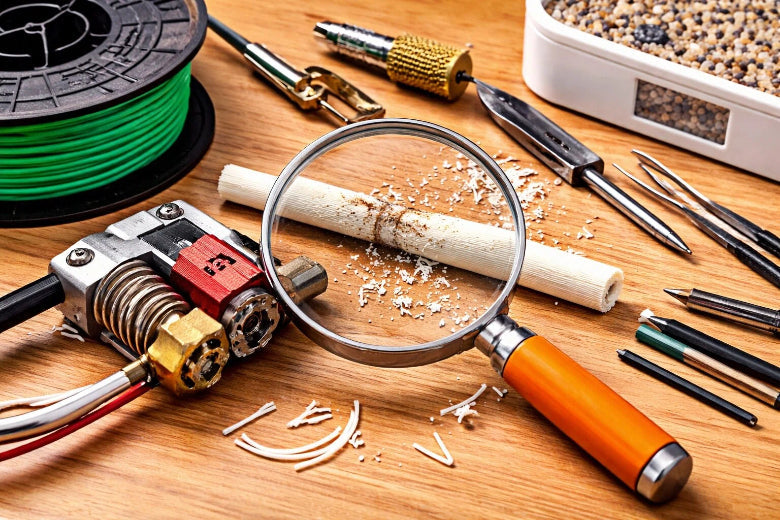
You may notice your 3D printer stops feeding filament smoothly. This is called a filament grinding problem. The extruder chews up the filament, causing dust or flat spots. This can lead to filament slipping and failed prints. 3D printer extrusion issues like this can waste time and material. You can fix many of these problems quickly with the right steps.
Key Takeaways
- Look for signs of filament grinding, like clicking noises or rough layers. Finding problems early can help your print.
- Change extruder tension with care. If tension is too high, it crushes filament. If tension is too low, filament slips.
- Clean the nozzle and extruder gear often. This stops clogs and keeps filament moving smoothly.
- Use good filament for better prints. Good filament lowers grinding and makes prints look nicer.
- Check print settings like heat and speed. Right settings stop filament grinding and underextrusion.
Filament Grinding Problem in 3D Printers
Symptoms of Filament Grinding
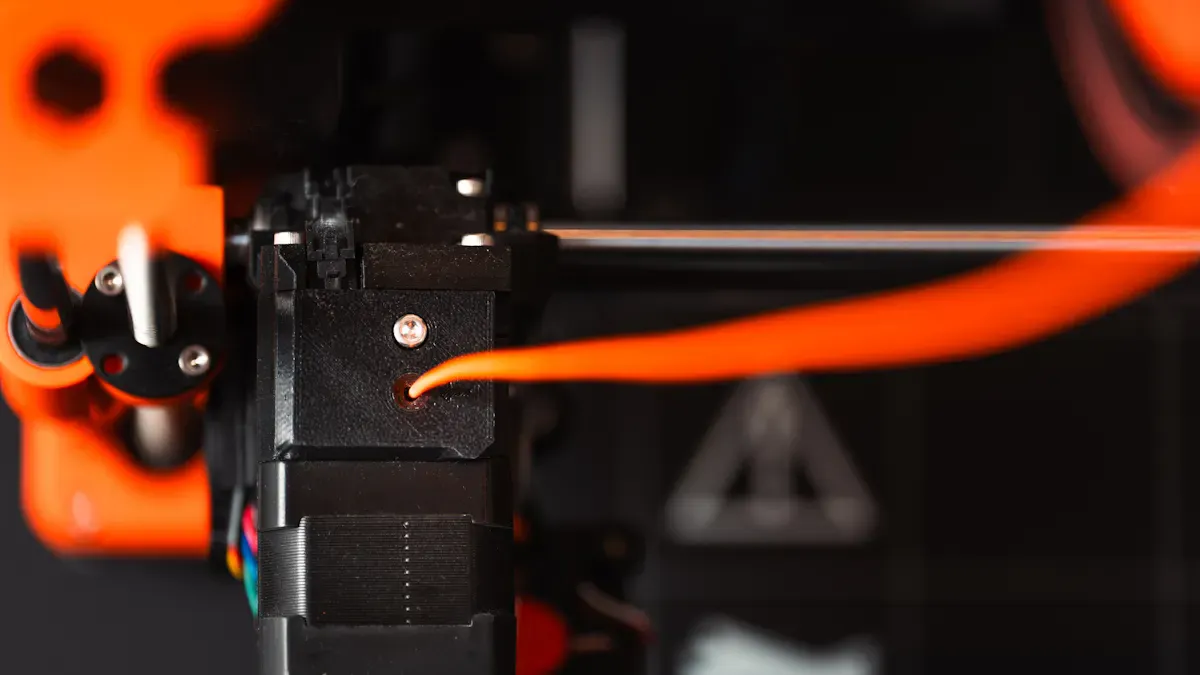
You can spot a filament grinding problem by watching and listening to your 3D printer. When filament grinding happens, you may notice several clear signs. Look for these symptoms:
- You hear a clicking or knocking sound from the extruder.
- The printer lays down thin or uneven layers.
- You see gaps or missing sections in your print.
- The filament looks chewed, shaved, or flattened.
- Fine plastic dust collects near the extruder gear.
These signs show that the extruder gears cannot push the filament smoothly. Sometimes, the extruder makes a clicking noise because the filament is not moving as it should. If you see plastic dust or a flat spot on the filament, the gear has likely ground away part of the material.
Tip: Pause your print and check the filament near the extruder if you notice any of these symptoms. Catching the problem early can save your print.
How Filament Grinding Affects Prints
Filament grinding can cause many issues with your 3D prints. When the extruder grinds the filament, it loses grip and cannot feed the material into the hotend. This leads to underextrusion, where not enough filament comes out. Your print may have weak spots, missing layers, or even fail completely.
You may also see rough surfaces or holes in your finished object. Sometimes, the printer stops extruding altogether. If the filament grinding problem continues, the extruder gear can get clogged with plastic dust, making it even harder to print. You need to clean the gear and fix the cause to get good results.
A smooth filament path and a clean extruder help prevent these problems. Always check your 3D printer for signs of filament grinding before starting a new print.
Main Causes of Filament Grinding
Incorrect Extruder Tension
You need the right extruder tension for your 3D printer to work well. If the tension is too high, the extruder gear grips the filament too tightly. This can chew or strip the filament, making a concave shape that is hard to push through. If the tension is too low, the filament slips and does not move forward. Both problems can cause a filament grinding problem and lead to underextrusion.
- Too much tension crushes the filament.
- Too little tension causes filament slipping.
- A chewed filament is hard for the extruder to feed.
Hotend Clog or Nozzle Blockage
A hotend clog or nozzle blockage stops the filament from moving smoothly. When the hotend is blocked, the extruder gear grinds the filament instead of pushing it through. You may see plastic dust or flat spots on the filament. Retraction settings can also make this worse, as the extruder disc grinds the filament during retraction. If you do not clean the hotend, the clog can get worse and block the PTFE tube.
Tip: If you notice grinding, stop the print and clean the hotend to remove any blockage.
Printing Temperature Too Low
If you set the printing temperature too low, the filament does not melt enough. It stays soft but does not flow like a liquid. This makes it hard for the extruder to push the filament through the hotend. The extra resistance causes the extruder to slip and grind the filament. Low temperatures can also cause a clog in the hotend, making the filament grinding problem worse.
Print Speed Too High
When you print too fast, the extruder cannot keep up with the speed. The filament does not have enough time to melt in the hotend. This leads to grinding noises and failed prints. You may see gaps or missing layers because the extruder cannot push the filament quickly enough.
Poor Filament Quality
Low-quality filament often causes 3D printer extrusion issues. It can lead to skipped layers and clogged nozzles. The extruder gears cannot push poor filament smoothly, which results in filament grinding. Always use good filament to avoid these problems.
Filament Path Issues
Problems in the filament path can cause grinding. Common issues include:
- Filament that is too thick or deformed
- Tangled, knotted, or twisted filament on the spool
- Too much friction in the Bowden tube
- The nozzle too close to the bed or previous layer
- Partial or full clog in the hotend
You should check the filament path if you see any signs of a filament grinding problem.
Dirty or Worn Extruder Gear
A dirty or worn extruder gear cannot grip the filament well. This leads to underextrusion and poor print quality. Signs of gear wear include metal slivers, flat spots on the gear teeth, or black dust. You should clean the extruder gear often to keep your 3D printer working well.
How to Fix Filament Grinding
If you see a filament grinding problem, act fast. This can save your print and stop more damage. Follow these steps to fix filament grinding and help your 3D printer work well again.
Stop Print and Remove Filament
- Pause or stop your print if you hear clicking or see dust.
- Take the filament out of the extruder. If it is stuck, heat the hotend to the normal temperature and gently pull it out.
- Look at the filament for flat or chewed spots. This helps you know if filament grinding happened.
Tip: Always take out the filament before you clean or adjust the extruder.
Clean the Nozzle to Fix Hotend Clog
A clogged hotend can cause filament grinding. There are a few ways to clean the hotend and nozzle:
- Cold Pull Method: Heat the hotend, push filament through, cool it, then pull the filament out. This removes dirt and burnt bits.
- Needle or Cleaning Kit: Heat the nozzle a bit higher than normal. Push a thin needle into the nozzle tip to break the clog. Feed cleaning filament through to clear out small pieces. Do this until the nozzle is clear.
- Soaking in Solvent: Take off the nozzle and soak it in a solvent like acetone (for ABS) or another safe solvent. Use a brush or air to clean off the dirt. Dry and put the nozzle back on.
- Nozzle Replacement: If cleaning does not work, put in a new nozzle.
Note: Let the hotend cool down before you touch it so you do not get burned.
Adjust Printing Temperature
If filament grinding keeps happening, check your printing temperature. Filament that does not melt well is hard to push and causes underextrusion.
- Raise the extruder temperature by 5-10°C to help the filament flow.
- Always use the right temperature for your filament. For example:
|
Filament Type |
Notes |
|
|---|---|---|
|
PLA |
190 - 210 |
Lower for detail, higher for strength |
|
ABS |
220 - 250 |
Needs higher temperature for smooth flow |
|
PETG |
220 - 250 |
Adjust based on brand and print speed |
Lower Print Speed
Printing too fast can make filament grinding worse. The extruder cannot keep up, and the filament does not melt in time.
- Lower your print speed by half or by 10mm/s steps.
- Most filaments print well at 30-60 mm/s and have less grinding.
|
Speed Range |
Description |
|---|---|
|
30-60 mm/s |
Best for detailed prints and small nozzles |
|
60-100 mm/s |
Good balance between speed and quality |
|
100-150 mm/s |
Use only if minor quality loss is acceptable |
Set Correct Extruder Tension
The right extruder tension helps stop filament grinding. Too much tension crushes the filament. Too little tension makes it slip.
- Start with the lowest tension setting.
- Slowly turn up the tension and test extrusion.
- Check the filament after. If you see deep marks, lower the tension. If there are no marks, turn it up a little.
- Use less tension for flexible filament and more for hard filament.
- Make sure the filament path is clear and the gears are clean before you change tension.
Clean Extruder Gear
A dirty or old extruder gear can cause filament grinding. You need to clean the gear to keep it working well.
- Open the extruder.
- Use a small brush or air to clean the gear.
- Take out any filament bits with pliers or tweezers.
- If needed, use a hobby knife to clean the gear teeth.
- Put the extruder back together and check if it moves smoothly.
Tip: Clean the extruder gear often to stop dust and filament slipping.
Check Filament Path and Tubes
A smooth filament path helps stop grinding. Check for these problems:
- Tangled or knotted filament on the spool.
- Filament that is too thick or bent.
- Friction in the Bowden tube or PTFE tube.
- The nozzle too close to the bed or last layer.
Make sure the filament moves easily from the spool to the hotend. Change broken tubes or clear any blockages.
Use Recommended Print Profiles
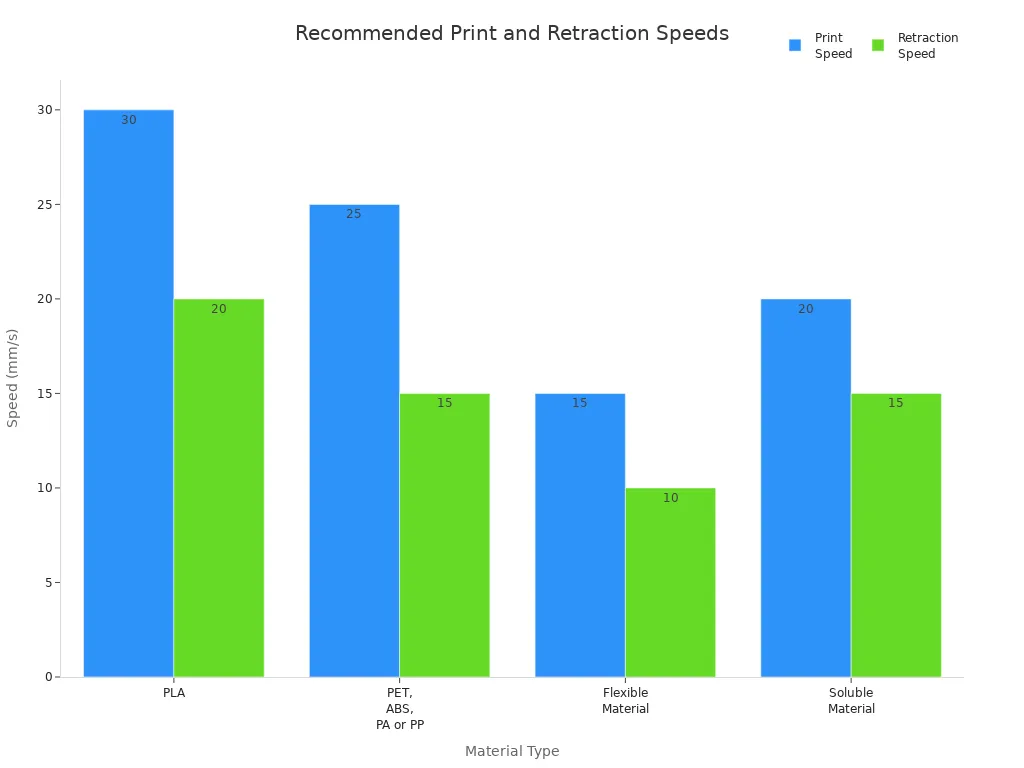
Using the right print profile can help fix filament grinding. Print profiles set the best speed, temperature, and retraction for each material.
|
Material Type |
Recommended Retraction Speed |
|
|---|---|---|
|
PLA |
30 mm/s |
20 mm/s |
|
PET, ABS, PA, PP |
25 mm/s |
15 mm/s |
|
Flexible Material |
15 mm/s |
10 mm/s |
|
Soluble Material |
20 mm/s |
15 mm/s |
Reduce Retraction Settings
Retraction settings control how much filament the extruder pulls back. High retraction distance or speed can cause filament grinding.
- Keep retraction distance between 4-7mm.
- Lower retraction speed to 15-20mm/s for most filaments.
- Lower retraction speed and distance if you see blobs or grinding.
|
Factor |
Description |
|---|---|
|
Retraction Distance |
Longer distances can stop stringing but may cause grinding |
|
Retraction Speed |
Faster speeds stop oozing but can hurt the filament |
|
Max Retraction Count |
Fewer retractions help stop filament grinding and make prints better |
If you follow these steps, you can fix filament grinding and stop underextrusion in your 3D printer. If problems do not go away, try better hardware or use higher-quality filament for better prints.
Preventing Filament Grinding in 3D Printers
Regular Cleaning and Maintenance
Most filament grinding problems can be stopped with regular care. Check the nozzle for clogs and clean it with a needle or cleaning filament. Make sure the filament path is clear so the filament moves easily. Adjust the flow rate in your slicer to fit the filament type. Tighten any loose belts so the printer moves evenly. Clean the rails and add oil so parts slide better. Align the print head and bed to stop problems. Tighten all screws on the frame and bed. Level the bed so the first layer is flat. Look at the motors to see if they are too hot or worn out.
Tip: Keeping your printer clean helps it work better and stops filament slipping or extrusion problems.
Use High-Quality Filament
Pick high-quality filament for your prints. Good filament has the same thickness and a smooth surface. This helps the filament move through the extruder without getting stuck. High-quality filament lowers the chance of grinding and gives better prints. You will have fewer jams and more prints that finish well.
Inspect Hardware and Filament Path
Check your printer’s hardware and the filament path often. Look at belts and gears to make sure they are tight. Clean the nozzle to stop clogs. Add oil to moving parts so they work smoothly. Check slicer settings before every print. Look at the heating parts to keep the temperature steady. Check the filament path for bends or places where it rubs. Make sure the spool holder lets the filament unwind without trouble.
Maintain Proper Print Settings
Set your print settings carefully to stop filament grinding. Adjust the tension on the drive wheels so the extruder holds the filament just right. Make sure the pressure is not too high or too low. Watch for bent or squished filament, as this can cause problems in the hotend or PTFE tube.
Quick Prevention Checklist
- Check the nozzle for damage or color changes.
- Cut the end of the filament at a 45-degree angle.
- Set the right temperature for your filament.
- Purge the nozzle after each print session.
- Wipe the outside of the nozzle every week.
- Do a cold pull if you need to clean the nozzle.
- Look at the drive mechanism for dust or plastic bits.
- Keep filament in sealed bags with desiccant.
- Do not mix different materials in one print session.
If you follow these steps, your 3D printer will work well and you can avoid filament grinding problems.
You can fix most filament grinding problems with easy steps. Look at your retraction settings and check the extruder temperature. After every print, look at the filament for damage. Clean the gears and add oil to them. Make sure the extruder path does not have any blockages. Doing regular care stops filament from slipping. This also helps your 3D printer work well. Most extrusion problems are simple to fix if you pay attention. Take care of your printer and you will get better prints and less trouble. 🚀
FAQ
What causes a filament grinding problem in my 3D printer?
Filament grinding happens for a few reasons. The extruder tension might be wrong. The nozzle could be clogged. Sometimes, the print speed is too fast. Poor filament quality can cause problems too. A dirty extruder gear makes filament slip and causes extrusion issues.
How can I quickly fix filament slipping during a print?
First, pause your print. Take out the filament. Clean the nozzle and the extruder gear. Look at the filament path to see if anything blocks it. Change the extruder tension if needed. Start your print again after you fix these things.
Does low-quality filament increase 3D printer extrusion issues?
Yes, low-quality filament causes more problems. It can feed unevenly and clog the nozzle. Filament grinding happens more often with bad filament. High-quality filament works better. It has the same diameter and a smooth surface.
Why does my extruder make clicking noises?
Clicking noises mean the extruder cannot push the filament well. There might be a clogged nozzle or wrong tension. Filament grinding can also cause clicking. Look for dust near the extruder. Check the filament for flat spots.
How often should I clean my extruder gear and nozzle?
Clean your extruder gear and nozzle every few prints. Regular cleaning stops filament grinding. It helps your 3D printer work better. Use a brush or cleaning filament for best results.











