







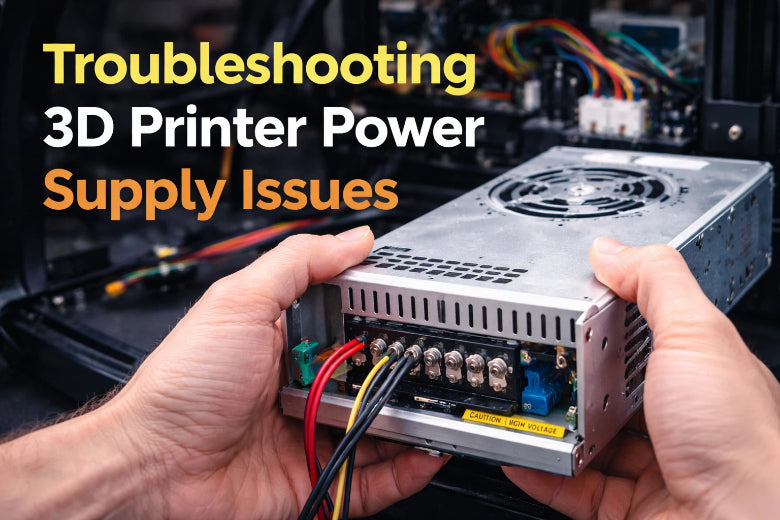
If your 3D printer won’t turn on, don’t panic. Start with a few simple checks to keep things safe and easy. Unplug your printer. Then, follow these steps:
- Make sure all wire connections are tight.
- Turn the power switch on.
- Try a different outlet with another device.
- Look over the cables for damage.
- Check the fuse.
- Test voltage with a multimeter.
Stay patient and work through each step. You can tackle 3d printer power supply issues safely and confidently.
Key Takeaways
- Begin by checking the power source and cord. Make sure everything is plugged in. Check if the outlet works.
- Watch for signs of power supply problems, like clicking sounds, smoke, or sudden stops. These signs can help you find problems early.
- Safety comes first. Unplug your printer before you look at wires. Wear safety gear to avoid electric shock.
- Use a multimeter to check the voltage. Make sure your power supply fits your printer’s needs. This step helps stop damage.
- Clean and check cables often. This can stop power supply problems later and helps your printer work well.
Identify 3D Printer Power Supply Issues
Common Symptoms
You might notice a few warning signs when your printer’s power supply starts acting up. Here’s a quick table to help you spot the tip-offs:
|
Symptom |
Description |
|---|---|
|
Clicking Noises |
You hear ticking or clicking from the power supply before it fails. |
|
Smoke |
Smoke comes out of the power supply during use. |
|
Complete Failure |
The printer won’t turn on at all. |
|
Thermistor Issues |
The printer shows errors or odd readings from the temperature sensor. |
|
Power flows the wrong way, causing strange problems, especially on some models. |
You may also see users talk about backpowering, especially with Creality printers. Some people put tape on the 5V pin to stop this problem.
Voltage Instability Signs
Voltage problems can cause your printer to act weird. Look for these signs:
- The printer’s screen flickers or goes dark.
- Motors stutter or stop moving.
- The hotend or bed does not heat up as expected.
A digital multimeter helps you check voltage and spot these issues. If you see numbers jumping around, your power supply might be unstable.
Shutdowns and Restarts
Does your printer shut off or restart by itself? This often points to 3d printer power supply issues. You might see:
- Sudden blackouts during a print.
- The printer restarts without warning.
- The display resets or freezes.
These problems usually mean the power supply can’t keep up or has an internal fault.
Physical Damage Indicators
Don’t forget to check for visible damage. Here’s what to look for:
- Burn marks or melted spots on the power supply.
- Loose or broken wires.
- Swollen or leaking parts inside the power supply.
Tip: Always unplug your printer before you look for damage.
If you spot any of these signs, you’re likely dealing with 3d printer power supply issues. Next, you’ll want to use some simple tools to confirm the problem. A digital multimeter, terminal software like Pronterface, and checking the power board or mainboard can help you find the exact cause.
Safety Precautions for Troubleshooting
Before you start fixing your 3D printer’s power supply, you need to stay safe. Electricity can be dangerous, even when the printer looks off. Let’s walk through the key steps to protect yourself.
Power Off and Unplug
Always turn off your 3D printer and unplug it from the wall before you do anything. This step keeps you safe from electric shock. Some parts, like capacitors, can hold a charge even after you unplug the printer. Wait a few minutes before you open the case or touch any wires.
Tip: Double-check that the power switch is off and the cord is out of the outlet.
Protective Equipment
Wear the right gear when you work with electrical parts. Rubber-soled shoes help prevent shocks. Safety glasses protect your eyes from sparks or flying bits if something breaks. If you have insulated gloves, use them for extra safety.
- Use a grounded power cable for your printer.
- Keep your workspace dry and clean.
Safe Handling Tips
Handle all wires and parts with care. Don’t yank on cables or force connectors. Look for signs of damage, like melted spots or loose wires. Replace anything that looks worn out. Make sure all wiring is secure to prevent shorts or fires.
- Check voltage settings match your local power supply.
- Watch for overheating. If you smell something burning or feel too much heat, stop right away.
When to Seek Help
Sometimes, you need an expert. If you see smoke, sparks, or can’t find the problem, call a qualified technician. Don’t try to fix major electrical faults by yourself. Regular checks by a pro can keep your printer safe and running well.
Remember: Your safety comes first. If you ever feel unsure, ask for help.
Basic Checks to Troubleshoot 3D Printer
When your 3D printer won’t power up, you don’t need to jump straight into advanced repairs. Start with these basic checks. Many users solve their power issues with these simple steps. You can save time and avoid frustration by following this order.
Inspect Power Source and Cord
First, look at the basics. Is your printer plugged in? Is the outlet working? These questions sound simple, but they solve a lot of problems.
- Many users begin troubleshooting by checking the power source and cord.
- People often confirm the wall outlet and power cord work before moving on.
- These basic checks are the most common first steps for power issues.
Unplug the printer and check the cord for cuts, kinks, or burn marks. If you see damage, replace the cord before you do anything else. Try plugging another device, like a lamp or phone charger, into the same outlet. If that device doesn’t work, the outlet may be the problem.
Tip: Always unplug your printer before you inspect the cord or outlet.
Check Printer Fuse
A blown fuse can stop your printer from turning on. The fuse protects your printer from electrical surges and overheating. You’ll usually find it near the power switch or inside the power supply.
Here’s a quick look at the most common reasons fuses blow in 3D printers:
|
Cause of Blown Fuse |
Description |
|---|---|
|
Overheating |
Thermal fuses often blow due to overheating, especially when not resettable. |
|
Improper Wiring |
Loose wires at connectors can lead to failures; good wire management is essential. |
|
Outdated Firmware |
Old firmware may lack safety checks for heater response, increasing the risk of overheating. |
|
Improperly Rated Components |
Components like Mosfets and power supplies may not handle the current drawn by the heated bed. |
|
Missing Redundant Safety Devices |
Low-cost 3D printers often lack thermal fuses that prevent catastrophic failures. |
To check the fuse:
- Unplug your printer.
- Find the fuse holder (check your manual if you’re not sure).
- Remove the fuse and look for a broken wire or black marks inside.
- If you have a spare fuse, swap it in and try again.
If the new fuse blows right away, stop and look for wiring problems or overheating parts. Don’t keep replacing fuses without finding the cause.
Examine Cables and Connections
Loose or broken cables can cause power problems. You might see the printer turn on and off, or not start at all. Take a close look at all the wires running from the power supply to the mainboard and other parts.
- Faulty cables and connections often lead to power supply problems.
- Common issues include loose wiring connections and broken power cables.
- Inspecting and reconnecting cables can fix many connectivity issues.
Gently tug each connector to make sure it’s secure. If you find a loose or wobbly plug, push it in firmly. Look for frayed wires or melted insulation. Replace any damaged cables right away.
Note: Never force a connector. If it doesn’t fit, double-check the orientation.
Test with Alternate Outlet
Sometimes, the problem isn’t your printer—it’s the outlet. Testing with a different outlet can help you rule out a bad power source. Here’s a safe way to check:
- Plug the power cord into your printer’s power strip, but leave the power strip unplugged.
- Attach the black probe of your multimeter to the ground terminal of the power strip plug.
- Attach the red probe to the grounding hole on your printer.
- Check the resistance reading. It should be close to zero. If it’s high, you may have a grounding problem.
If everything checks out, plug the printer into a different outlet and try turning it on. If it works, your old outlet may be faulty.
Safety Reminder: Always test outlets and cords with the printer unplugged to avoid electric shock.
By following these basic steps, you can troubleshoot 3d printer power issues quickly and safely. Many problems have simple fixes, so don’t skip these checks before moving on to more advanced troubleshooting.
Check Power Supply Voltage and Output
When your 3D printer still won’t power up after basic checks, it’s time to look closer at the power supply’s voltage and output. This step helps you find out if your power supply is working right or if it’s causing the problem.
Verify Indicator Lights
Start by looking at the indicator lights on your power supply. Most 3D printer power supplies have a small LED light. If the light is on, your power supply is getting power. If it’s off or flickers, you might have a problem with the power source or the supply itself.
Tip: A blinking or dim light can mean unstable voltage or a loose connection.
Measure Output Voltage
You need to check the actual voltage coming from your power supply. Use a tool like a multimeter for this job. Multimeters are affordable and easy to use. You can also use voltmeters, ammeters, or even oscilloscopes for more advanced checks.
- Multimeters: Great for measuring voltage and current.
- Voltmeters: Simple and direct for voltage checks.
- Oscilloscopes: Show voltage changes over time.
- Ammeters: Measure current, useful with voltmeters.
Set your multimeter to DC voltage. Touch the probes to the output terminals. Compare the reading to what your printer needs.
Match Voltage Rating
Your printer needs the right voltage to work safely. Most 3D printers use either 12V or 24V power supplies. Check your printer’s manual or the label on the power supply.
|
Voltage Output |
Description |
|---|---|
|
12 V |
Common for many printers, good for lower power parts. |
|
24 V |
Used for higher power, better for fast printing and heated beds. |
Make sure the voltage matches your printer’s requirements. Using the wrong voltage can damage your printer or cause it not to start.
Detect Loose Wires
Loose wires can cause big problems. They might make your printer shut off, overheat, or even start a fire. Always check for loose or damaged wires when you inspect the power supply.
- Loose connections can cause unstable power and overheating.
- Damaged wires may lead to electrical shorts and fire risks.
- Regular checks help keep your printer safe.
Safety Alert: If you find a loose or burnt wire, unplug your printer right away and fix the problem before turning it back on.
By checking these things, you can spot most 3D printer power supply issues before they get worse.
Advanced Troubleshooting Steps
Disconnect and Test PSU
You may need to disconnect your power supply unit (PSU) to test it safely. Start by turning off your printer and unplugging it from the wall. Wait a few minutes to let any leftover electricity drain away.
Before you touch anything, ground yourself. Touch the metal frame of your printer or the power supply. This step helps remove static electricity from your body. If you have a grounding strap, wear it on your wrist. This tool keeps you safe from static shocks that can damage your printer’s electronics.
Here’s a quick checklist for safe PSU testing:
- Make sure your printer is unplugged.
- Touch the metal frame to discharge static.
- Wear a grounding strap if you have one.
- Check that the printer is properly grounded.
Now, disconnect the PSU wires from the mainboard. Use a multimeter to test the voltage at the PSU output terminals. If you see no voltage or the numbers jump around, your PSU may have failed.
Safety Tip: Never open the PSU case unless you know what you’re doing. High voltage parts inside can hurt you.
Investigate Repeated Fuse Blows
If your printer keeps blowing fuses, you have a deeper problem. Start by checking for loose wires or burnt spots near the fuse holder. Look for melted insulation or a burnt smell. These signs often point to a short circuit.
You can also test the fuse with a multimeter. If the fuse blows again after you replace it, stop and check for wiring problems or faulty components. Don’t keep replacing fuses without finding the cause.
Inspect for Overheating
Overheating can cause your power supply to shut down or fail. Feel the PSU case after running your printer for a while. If it feels very hot, you may have a cooling problem. Check for dust buildup on the vents or fan. Clean out any dust with a soft brush or canned air.
If the fan isn’t spinning, replace it before using the printer again. Overheating can damage your PSU and other parts.
Assess for Internal Faults
Sometimes, the problem hides inside the PSU. If you hear buzzing, see smoke, or smell something burning, unplug your printer right away. These signs mean you may have an internal fault.
You can check for swollen or leaking parts through the PSU’s vent holes. If you see damage, don’t try to fix it yourself. It’s safer to replace the PSU or ask a professional for help.
Remember: Safety comes first. If you feel unsure, get help from an expert.
Inspect Motherboard and Wiring
Check for Loose or Burnt Wires
Loose or burnt wires can stop your 3D printer from working. You should look for wires that wiggle or feel loose when you touch them. Burnt wires often look black or melted. If you see any, unplug your printer right away. Use a flashlight to check spots near the power supply and motherboard. Sometimes, you might smell something strange, like burnt plastic. That’s a sign you need to fix the wiring before you try to power up again.
Tip: Always unplug your printer before you touch any wires. Safety comes first!
Examine Board Damage
Take a close look at your printer’s motherboard. You might see dark spots, broken pieces, or even tiny cracks. Damaged boards can cause power problems or make your printer act weird. If you spot anything that looks burnt or broken, don’t try to fix it with tape or glue. You may need a new board or help from a technician.
- Look for bulging parts or leaking fluid.
- Check for missing screws or loose connectors.
- Watch for signs of overheating, like discoloration.
Test Wire Continuity
Wire continuity means electricity can flow through the wire without stopping. You can use a multimeter to test this. Set it to the continuity mode. Touch one probe to each end of the wire. If you hear a beep, the wire is good. If not, the wire might be broken inside, even if it looks fine.
- Test each wire from the power supply to the motherboard.
- Replace any wire that fails the test.
Address Wiring Faults
Fixing wiring faults keeps your printer safe and running well. Here are some best practices:
|
Best Practice |
Description |
|---|---|
|
Wire Selection |
Pick the right wire size. Thicker wires handle more power and stay cooler. |
|
Insulation |
Use silicone insulation. It resists heat and stays flexible. |
|
Connections |
Make sure all connections are tight. Soldering works well, but connectors help with repairs. |
|
Polarity |
Double-check the wiring diagram. Some parts need wires connected the right way. |
If you follow these steps, you lower the risk of shorts, overheating, or sudden shutdowns. Good wiring helps your 3D printer work smoothly and safely. 🛠️
Repair or Replace Power Supply
Evaluate Repair Options
When your 3D printer power supply fails, you face a choice: repair or replace. Start by checking if the problem is simple, like a loose wire or a blown fuse. You can fix these with basic tools. If you see burnt parts, melted connectors, or strange noises, the damage may be too severe for a quick fix.
Think about these factors before you decide:
- Wattage: Make sure the power supply matches your printer’s needs.
- Size: The new or repaired unit must fit your printer’s space.
- Connectors: Check that all plugs and wires match your printer.
- Price: Sometimes, repairs cost more than a new unit.
- Brand reputation: Reliable brands last longer and work better.
If you feel confident with electronics, you can try simple repairs. If not, replacing the power supply is often safer.
Compare Costs
Repairing a power supply might seem cheaper, but hidden costs can add up. Replacement units often come with warranties and better safety features. Here’s a quick way to compare:
- List the price of replacement parts and tools.
- Add the time you’ll spend on repairs.
- Compare with the cost of a new power supply.
If the repair costs more than half the price of a new unit, replacement is usually the smarter choice.
Find Replacement Parts
You can find replacement power supplies and parts from trusted sources. Look for sellers who offer quality products and clear specs. Here’s a table with popular options:
|
Product Name |
Price Range |
Key Features |
|---|---|---|
|
Tronxy 24V 21A 500W |
$44.00 - $90.99 |
Efficient cooling, overload protection, fits many printers |
|
Tronxy 24V 25A 600W |
$44.00 - $90.99 |
Durable, easy to install, user-friendly connectors |
Stores like MatterHackers carry a wide range of 3D printer parts, including power supplies, cables, and mainboards. You can also find nozzles, motors, and heater blocks there.
Professional Help
If you feel unsure about fixing electrical parts, ask a professional for help. Electric shocks and fire risks are real. A technician can test your power supply, install a new one, and make sure everything works safely. You stay safe, and your printer gets back to work faster.
⚡ Tip: When in doubt, let an expert handle 3D printer power supply issues. Your safety matters most!
Quick Troubleshooting Checklist
A quick checklist can save you time and help you fix your 3D printer power supply issues fast. You do not need to guess or jump around. Just follow these steps and keep track of what you find.
Step-by-Step Diagnosis
Here’s a simple list to guide you through the process:
- Check if the printer is plugged in and the outlet works.
- Listen for any strange noises, like clicking or buzzing, from the power supply.
- Look for lights on the power supply or printer display.
- Inspect all wires and connections for damage or looseness.
- Test the fuse and replace it if needed.
- Use a multimeter to measure the voltage at the power supply output.
- Try a different outlet if the printer still does not turn on.
- If you hear noise, decide if it comes from the power supply or just the fan.
- Contact the manufacturer if you find a faulty part or need a replacement.
- Decide if you need to replace the whole power supply or just a noisy fan.
Tip: Always unplug your printer before you touch any wires or open the case.
Document Findings
Keep a simple record of what you check and what you find. This helps you remember what you have tried and makes it easier to get help if you need it.
- Write down each step you take.
- Note any strange sounds, smells, or lights.
- Take photos of damaged parts or error messages.
- Record voltage readings from your multimeter.
A table like this can help:
|
Step Checked |
Result/Notes |
|---|---|
|
Power cord |
No damage, plugged in |
|
Fuse |
Blown, replaced |
|
Voltage reading |
24V, steady |
Move from Simple to Complex
Start with the easiest checks first. You can often fix the problem without tools. If the simple steps do not work, move on to more advanced checks.
- Begin with the power cord and outlet.
- Check for noise or lights.
- Inspect wires and fuses.
- Use a multimeter for voltage.
- Only open the power supply if you know how to do it safely.
Remember: Simple steps solve most problems. Take your time and work in order.
Prevent Future 3D Printer Power Supply Issues
Keeping your 3D printer running smoothly starts with a few simple habits. You can avoid most power problems by taking care of your machine and its environment. Let’s look at some easy ways to prevent trouble before it starts.
Regular Maintenance
Check your printer’s power supply and cables every month. Look for loose wires, dust, or signs of wear. Tighten any connections that feel wobbly. Replace damaged cords right away. Clean the vents and fans with a soft brush or canned air. This helps your power supply stay cool and last longer.
- Make a checklist for your monthly inspection.
- Write down anything you fix or notice.
- Set a reminder on your phone so you don’t forget.
Tip: A little cleaning goes a long way. Dust can block airflow and cause overheating.
Use Surge Protectors
Plug your 3D printer into a surge protector. This device shields your printer from sudden spikes in electricity. Surge protectors help prevent damage and keep your printer working longer. Electrical safety studies show that surge protection is important for sensitive machines like 3D printers. It can stop voltage surges from shortening the life of your power supply.
- Choose a surge protector with enough outlets for your printer and tools.
- Replace surge protectors if they get damaged or old.
Keep Area Clean
A clean workspace helps your printer stay safe. Dust, pet hair, and scraps can get inside your power supply and cause problems. Sweep or vacuum around your printer often. Keep drinks and food away from your work area. Store tools and spare parts in boxes or drawers.
|
Cleaning Task |
How Often |
|---|---|
|
Wipe surfaces |
Weekly |
|
Clean vents/fans |
Monthly |
|
Vacuum floor |
Weekly |
Monitor for Early Signs
Watch for warning signs like flickering lights, strange noises, or burning smells. These can mean your power supply needs attention. If you catch problems early, you can fix them before they get worse. Write down anything unusual in a notebook. This helps you spot patterns and talk to a technician if needed.
Stay alert. Quick action can save your printer from bigger problems.
Taking these steps will help you avoid most 3d printer power supply issues. Regular checks, clean power, and a tidy space make a big difference. Your printer will thank you with smooth, reliable prints.
Summary and Final Tips
Recap Steps
You have learned how to spot power supply problems, check cables, test voltage, and inspect your 3D printer’s mainboard. You started with simple checks, like looking at the power cord and fuse. You moved on to using a multimeter and checking for loose wires. You also learned how to clean your printer and keep the area safe. Each step helps you find and fix issues before they get worse.
Safety Reminders
Stay safe every time you work with your 3D printer. Always unplug the printer before you touch wires or open the case. Wear rubber-soled shoes and safety glasses. Never force connectors or ignore burning smells. If you see smoke or sparks, stop and ask for help. Electricity can be dangerous, so take your time and double-check everything.
⚠️ Tip: If your printer shares a circuit with high-wattage LED lights, you might see flickering or voltage drops. Try using a UPS to keep your printer’s power stable.
Reference Checklist
Here’s a quick checklist to help you troubleshoot:
- Check if the printer is plugged in.
- Inspect the power cord for damage.
- Test the outlet with another device.
- Look for blown fuses.
- Use a multimeter to check voltage.
- Examine wires and connectors.
- Watch for flickering lights or strange noises.
- Clean vents and fans.
- Write down what you find.
|
Step |
Done? |
|---|---|
|
Power cord checked |
[ ] |
|
Fuse tested |
[ ] |
|
Voltage measured |
[ ] |
|
Wires inspected |
[ ] |
DIY Encouragement
You can fix many 3D printer power supply issues yourself. Start with small steps and work your way up. Don’t rush. If you feel stuck, ask for help or talk to other makers online. Regular checks and a clean workspace keep your printer running smoothly. You’ve got this! 🛠️
You’ve learned how to spot, test, and fix 3d printer power supply issues. Start with simple checks and work step by step. Don’t skip the basics—many problems have easy fixes. Always put safety first. If you feel unsure or the problem won’t go away, call a pro. Keep up with regular cleaning and inspections to help your printer run smoothly for years.
FAQ
What should I do if my 3D printer suddenly shuts off during a print?
First, check if the power cord is loose or the outlet has a problem. Look for blown fuses or tripped breakers. If you smell burning or see smoke, unplug your printer right away.
Can I use any power supply with my 3D printer?
No, you need a power supply that matches your printer’s voltage and wattage. Using the wrong one can damage your printer or cause safety issues. Always check your printer’s manual before buying a new power supply.
How often should I check my 3D printer’s power supply?
You should inspect your power supply and cables once a month. Look for dust, loose wires, or signs of wear. Regular checks help you catch problems early and keep your printer running safely.
Is it safe to repair a power supply myself?
If you have experience with electronics, you can fix simple issues like loose wires or blown fuses. For anything more serious, like burnt parts or strange noises, ask a professional for help. Safety comes first!











